


Every operating system knows it, every programmer uses it, and most people use it in Notepad. Yes, we’re talking about the TXT file.
Plain text is the oldest surviving file format still in everyday use, and by a wide margin the most durable. A .txt file written in 1985 opens perfectly today, while almost nothing else from that era does.
Let’s have a look why, and together with that, answer the question: what is TXT, what it can and can’t do, and how to get its contents into Excel without the data falling apart.
What is a plain text file?
A TXT file stores characters and nothing else. Unlike a Word document, where you can see fonts, margins, styles, history, etc., a .txt file doesn’t have anything of that sort.
A TXT file stores characters and nothing else. Unlike a Word document, where you can see fonts, margins, styles, comments, and a trail of revisions, a .txt file has nothing of that sort. There is no hidden formatting layer, there is only the text.
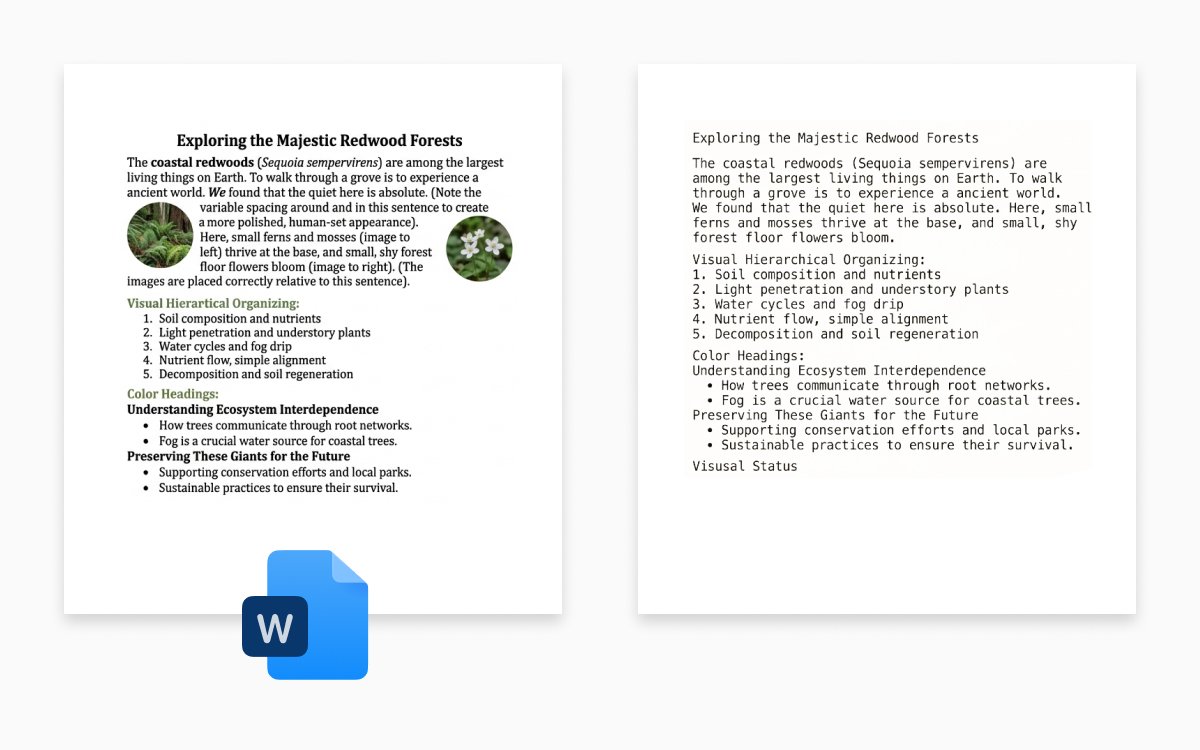
That’s why it can’t hold bold or italics, custom fonts or colors, images, tables, charts, page breaks, headers, comments, or version history. Those belong to richer formats. What a TXT file can hold is letters, numbers, punctuation, spaces, and line breaks.
Why people still choose TXT
Plain text looks primitive next to a Word document or a spreadsheet. That is also why it survived:
- It outlives everything else. WordPerfect files, Lotus spreadsheets, early Word documents, and other file formats now need special software or a conversion step just to open. But a TXT file doesn’t, so it’s easy to check notes, records, writings, or other information even ten years from now.
- Everything can read it. Every operating system, phone, programming language, or command-line tool can display text, which means, can open a .txt file.
- It stays small. A full-length novel as plain text is under a megabyte, but the same book as a formatted document, with fonts and layout packed in, can be several times that. That is why logs, config files, source code, and system records are almost always plain text.
TXT vs RTF vs DOCX vs CSV
These four file formats get confused constantly, mostly because all of them are, at some level, text.
|
TXT |
RTF |
DOCX |
CSV |
|
|
Holds formatting |
No |
Yes, basic |
Yes, full |
No |
|
Images and tables |
No |
Images yes |
Yes |
No |
|
Opens in any text editor |
Yes |
Yes, as markup |
No |
Yes |
|
Designed for |
Anything |
Documents |
Documents |
Data |
|
Typical size |
Tiny |
Small |
Larger |
Tiny |
Each one is doing a different job. TXT is raw text and nothing else. RTF sits in the middle: useful when a Word file is too heavy and plain text is too bare. DOCX is a full document, with fonts, styles, images, and tables. CSV is still a text file, but arranged as rows and columns so a spreadsheet can read it.
When a TXT file looks wrong
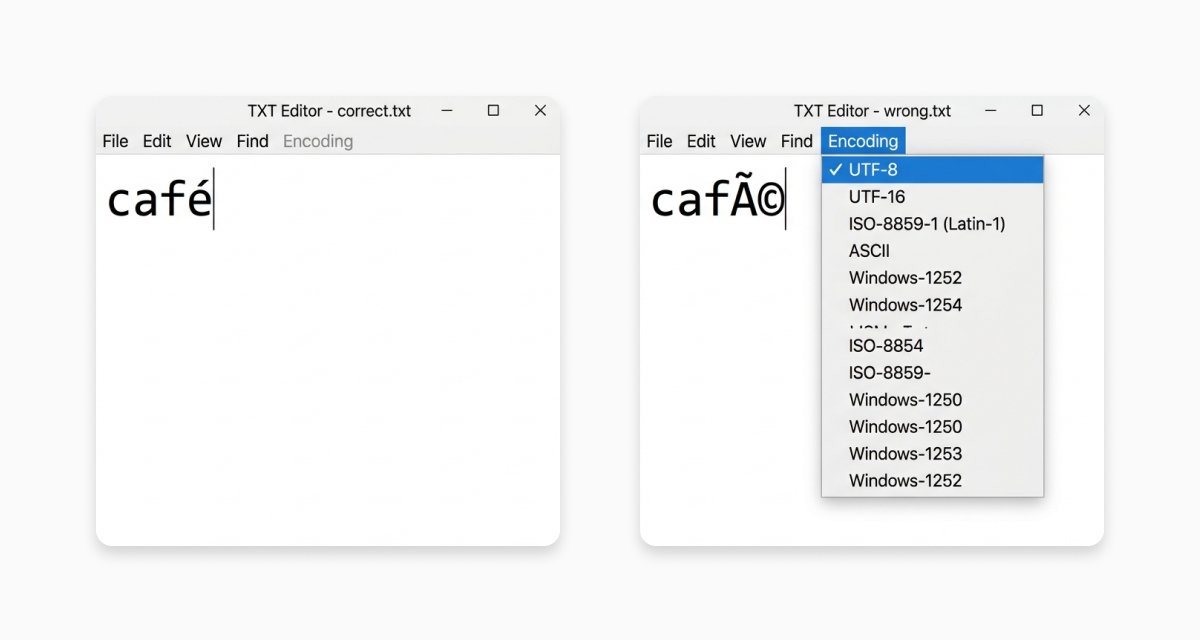
While the TXT format is just a file with text, you can find yourself in situations when the text looks broken. It can happen for two reasons, and both of them are kind of hidden.
The first is how the file stores letters. Older files sometimes use an outdated character map, which is why you get é instead of é, or random symbols instead of quotes. Today, UTF-8 is the normal choice and covers pretty much every language. If a file looks like alphabet soup, reopen it and tell your editor which encoding to use. You usually only have to do this once.
The second is how the file marks the end of a line. Windows does this one way; Mac and Linux do it another. Years ago, that produced one giant run-on line, or a stray ^M at the end of each row. Modern apps handle both without asking. You will mostly see it with old files or old tools.
How to create a TXT file
On Windows
Right-click on the desktop or in any folder, choose New, then Text Document. That gets you a blank text file, ready to rename.
Or open Notepad, type, and save. One thing to watch: Notepad appends .txt automatically, so if you type notes.txt in the filename box, you may end up with notes.txt.txt. Either leave the extension off or set the Save as type dropdown to All Files.
On a Mac
TextEdit defaults to rich text, which is the single most common reason Mac users end up with an RTF file when they wanted a TXT. Open TextEdit, then go to Format and choose Make Plain Text before saving. To change it permanently, open TextEdit’s settings and set the format for new documents to plain text.
On Linux
If you want to create a TXT file on Linux, you can use Terminal, along with different combinations:
- touch notes.txt - creates an empty file if it doesn’t exist
- echo "first line" > notes.txt - creates the file and puts one line in it (> replaces anything already there; >> adds to the end instead)
- nano notes.txt - opens a basic editor. Type your text, press Ctrl+O to save, Ctrl+X to quit
- cat > notes.txt - lets you type straight into the file. Press Ctrl+D when you are done
These same commands work in Terminal on a Mac.
On an iPhone or iPad
iOS has no built-in plain text editor. Notes stores rich text in Apple’s own system, and the Files app won’t create a document on its own.
Instead, you can make the file on a Mac or PC and move it across. Documents.io’s file transfer does this over your local Wi-Fi: open the transfer page in your desktop browser, scan the code with your phone, and send. And it works to Windows and Linux as well, which AirDrop doesn’t.
How to open a TXT file in Excel
Opening a text file in Excel and converting it to a spreadsheet are almost the same operation. The only difference is whether you stop at the import or save the result as .xlsx.
#1. The direct way.
Go to File, then Open, and set the file type dropdown to Text Files so your .txt shows up. Select it, and Excel starts the Import Text Wizard automatically. Three steps: choose Delimited if your data is separated by tabs or commas, or Fixed width if the columns line up by character position; pick the delimiter; then set the data type for each column.
#2. The modern way.
Go to the Data tab, then Get Data, From File, From Text/CSV. This uses Power Query, which shows you a preview before importing and remembers the import so you can refresh it when the source file changes. For anything you’ll do more than once, this is the better route.
#3. The legacy wizard.
If a guide tells you to use Data, Get External Data, From Text, and that option isn’t there, it’s been retired from the default ribbon. Microsoft notes that the Text Import Wizard is a legacy feature kept for backwards compatibility, and you can bring it back through File, Options, Data, then ticking From Text (Legacy) under the legacy import wizards.
#4 The lazy way.
If your text file is comma-separated, rename it from .txt to .csv and double-click it. Excel parses it without asking anything. This skips the wizard entirely, which is convenient and also the problem, as the next section explains.
Converting TXT without Excel
If you don’t have Excel, or the file arrived as an attachment while you’re on a phone, Documents.io’s TXT converter handles everything without installing anything.

You can easily convert TXT to XLS or TXT to PDF (or even the other way around) for free. Plus, uploads are deleted after four hours.
If the file has unusual separators, codes that look like numbers, junk rows before the data, it’s better to use Excel’s own wizard, because it’s the only one that lets you tell it what’s what.
FAQ
Is a text file the same as a plain text file?
In everyday use, yes. “Text file” describes any human-readable file, including HTML and CSV, while “plain text” means specifically unformatted content.
What is a rich text file?
An RTF file, which stores basic formatting like bold, italic, fonts, and images in a format most word processors can read.
Can I open a TXT file on my phone?
Yes. Both iPhone and Android will display a text file’s contents when you tap it. Editing and creating them is where iOS falls short, since it has no built-in plain text editor.
How big can a TXT file be?
There’s no limit in the format itself. Practical limits come from your software: Notepad struggles above a few hundred megabytes, while editors built for large files handle multi-gigabyte logs without trouble.
Latest posts

Glossary
What is a DCM file, and how do you open one?
DCM files are commonly used to store medical images such as X-rays, CT scans, and MRIs. Discover what DCM files are, how they work, and which tools you can use to open and view them.

Glossary
What is a CR2 file, and should you keep it or convert it?
CR2 is a RAW image format used by Canon digital cameras to preserve detailed photo data. Discover how CR2 files work, how to open and edit them, and whether you should keep the original files or convert them to more accessible formats
Glossary
What is a FLAC file? The lossless audio format explained
FLAC is a lossless audio format that preserves original sound quality while reducing file size. Discover how FLAC files work, how they compare to MP3, and how to open, play, or convert them on different devices.