


If you’ve ever dropped the Michael Scott “NOOOO” reaction, the blinking white guy, or that eternally unbothered Kermit sipping tea into a group chat, you’ve already used a GIF for what it does best: sending a feeling faster than words.
Once the beating heart of Tumblr threads and Twitter timelines, the humble GIF is one of the oldest file formats still doing the rounds online. And yet, somehow, it endures. It loops endlessly, unbothered by algorithm changes or the rise of short-form video.
Why? Because GIFs are instant. They don’t wait for you to press play, don’t demand sound, and don’t need a fancy player to decode them. They just move — in the same rhythm as conversation, in the same beat as a reply. They fit neatly into our digital shorthand, sitting somewhere between a shrug and a full essay.
So, are GIFs still popular? Maybe not in the way they once were — they’ve been called “cringe,” even “cheugy,” by younger users migrating to TikTok reactions and Discord emotes. However, every time someone drops a perfect reaction loop in Slack or revives a forgotten meme on X, the GIF quietly reminds us why it’s still here. It’s simple, it’s shareable, and it says just enough - often better than we could ourselves.

What makes a GIF different from a video?
A GIF is essentially the fast-food version of a short clip. It prioritizes instant loading, looping, and easy sharing. Videos are built for fidelity and sound, while GIFs are built for immediacy. If you want to show a moment rather than tell a story, a GIF is usually the right pick.
This is also why many people convert existing footage instead of “creating” a GIF from scratch. You already have the moment on video. All you need is the right trim and export.
When a GIF is the better choice
The best time to use a GIF is when the point of the clip can be understood in a few seconds: a gesture, a punchline, a brief demonstration, a quick before-and-after, a looping animation in a product UI, or anything that doesn’t need narration. Because GIFs autoplay in most places, they remove a layer of friction that video still has.
If your clip relies on sound, lasts longer, or needs detail in gradients or shading, that’s when a short MP4 or WebP usually performs better. Video is built to preserve nuance. GIFs are built to communicate quickly.
How GIFs are actually made
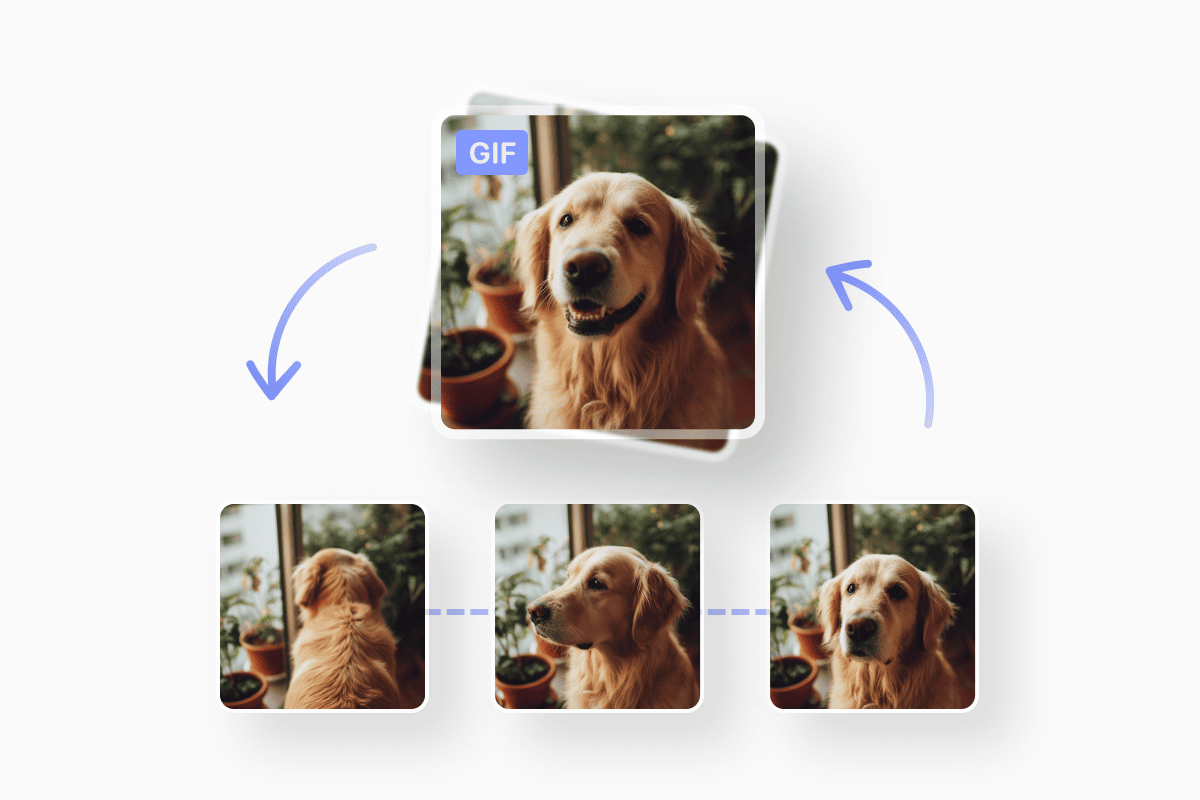
Every GIF starts as a frame sequence. A converter extracts frames from a video, reduces their color information, and stitches them together into a compact loop. The more frames, the larger the file. The longer the moment, the heavier the animation.
This is why trimming down the video first is key. A clean three-second loop usually looks sharper than a messy fifteen-second one, even when the source is identical. When you see “crunchy” or pixelated GIFs online, they weren’t bad because of the converter but because there was simply too much content to compress into such a small format.
How to make a GIF from a video?
The process is always the same, no matter which device you’re using. You choose the clip, trim what you don’t need, convert it, and save the final loop. What really changes between tools is speed and quality.
Some online converters automatically stamp a watermark, others reduce the resolution so aggressively that the clip loses definition, and many place quality behind a sign-up or upgrade wall. That’s the part people usually don’t realize until after they’ve already uploaded their file.
Why most people use an online tool instead of an app
Even on iPhone or Android, using a browser-based converter is often easier because you don’t have to install another app or hand over personal data. You open the tool, drop the clip, export, and you’re done.
Apps can give deeper control, but for most people the job is “I have a video, I need a GIF.” Nothing more. The lighter the workflow, the better the result feels.
Converting videos to GIFs with Documents.io
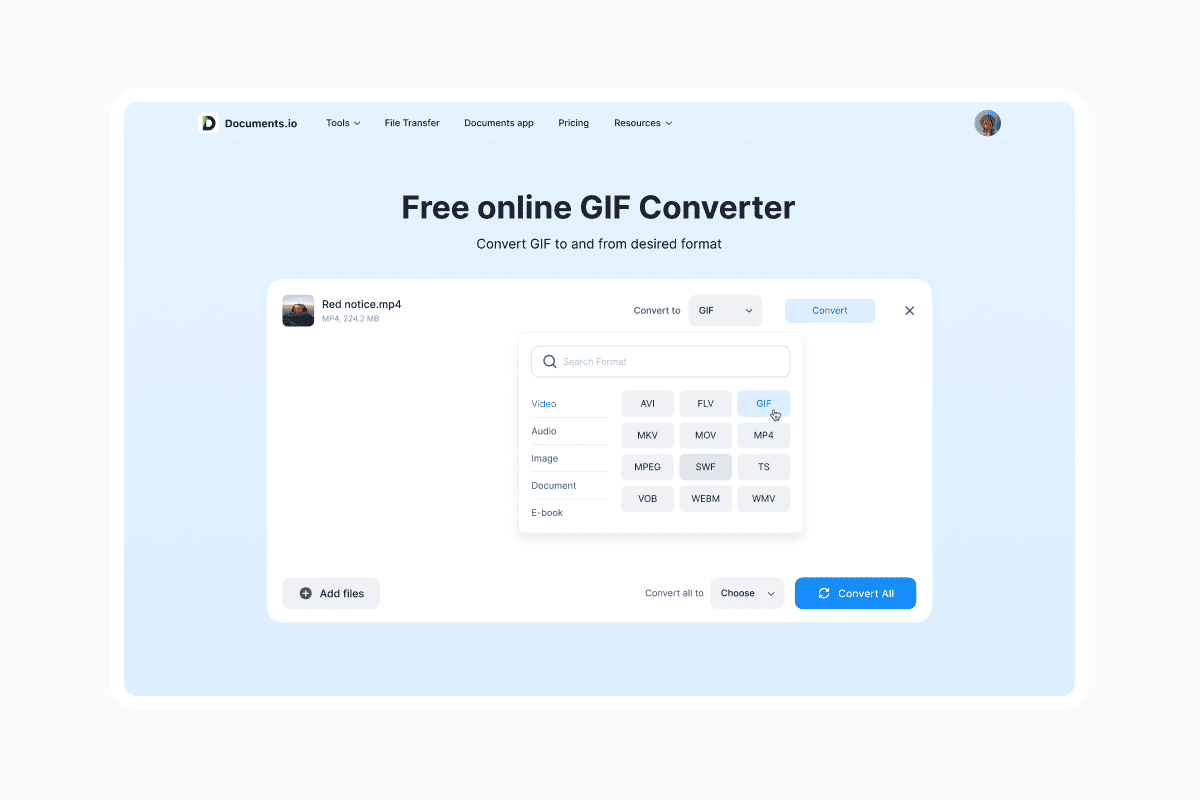
Documents.io makes the process straightforward: upload your video, sign up, and convert it to GIF format directly in your browser. The file is processed locally, so it isn’t stored on external servers — an important privacy advantage over many online converters.
While Documents.io doesn’t include a dedicated “GIF creator,” you can use the Video Converter to turn short video clips into GIFs. It works across all devices, keeps the process lightweight, and doesn’t add watermarks or hide quality settings behind extra paywalls.
How to convert a video to GIF using the web version
Open Documents.io in your browser, upload your video, select GIF as the output format, sign up to start the conversion, and download the final file. The workflow is simple: upload, convert, download.
What about YouTube clips?
If you want to make a GIF from a YouTube video, first grab the portion you need and then convert it the same way you would any other clip.
Some tools let you paste the URL directly, others ask you to save the snippet first. Either method works. The main rule is the same as before: shorten before exporting. A clean slice always compresses better.
If the source is copyrighted, the usual rule applies. In general personal or educational reuse is fine, but redistribution at scale is a different category. For casual messaging or reaction GIFs, trimming a brief moment for reuse is normal and widely accepted.
Making a GIF from an iPhone video
On iPhone or iPad, trimming is built into the Photos app so you can shorten the clip before conversion. If you’re working with a Live Photo, it’s even easier, because iOS is already capturing a looping moment in the background. Once trimmed, you can just run it through a converter like Documents.io to export the final GIF.
Since iPhones shoot photos in HEIC by default, you may notice color differences when exporting animation. That’s expected, because HEIC uses high-efficiency compression tuned for photos. GIFs compress differently.
How do I make a GIF from my camera roll?
Trim first in Photos, then convert. Live Photos also make great loops.
Small quality tips that make a big difference
Smooth GIFs usually come from thoughtful trimming rather than technical editing. Shorter loops preserve more sharpness. Cutting at a natural motion break helps the loop feel seamless. If the background is simple or flat, compression tends to hold up better.
This is similar to how static images behave: PNG preserves edges and flat color, while JPG handles gradients. Understanding that difference makes GIF exports feel much less mysterious.
When not to use a GIF
If the clip relies on sound, lasts longer than a few seconds, or you care about color fidelity then a lightweight MP4 is more appropriate. GIFs are intentionally simple. That simplicity is the reason they spread quickly, but also the reason they are not right for every moment.
The takeaway
GIFs are everywhere because they’re fast to consume and easy to share. You take a short slice of a video, convert it, and you have a loop that plays instantly on almost any platform. The key to a clean GIF is trimming the moment down before conversion and choosing a tool that won’t downgrade the clip or force sign-ins and watermarks.
Documents.io gives you a straightforward way to do that: convert and save your video as a GIF without losing clarity. You’ll just need to sign up before conversion — then you’re ready to share your loop anywhere.
FAQ
How do I turn a video into a GIF?
Trim the clip to a short moment, then convert it to GIF format with a tool like Documents.io.
How do I make a GIF from YouTube?
Extract the part you need, then convert it the same way as any video.
How do I make a GIF on my phone?
Trim first in Photos, then upload it to a converter like Documents.io.
How do I make a GIF from my camera roll?
Trim first in Photos, then convert. Live Photos also make great loops.
Latest posts

Knowledge Base
Video file formats explained: MP4, MKV, AVI and more
Learn the difference between video file formats (MP4, MKV, AVI, MOV, WebM) and codecs (H.264, H.265, AV1). Find out which format is best for social media, professional editing, and universal compatibility in 2026.

Knowledge Base
The beginner photographer’s guide to file conversion (RAW, JPEG, TIFF, PNG)
A beginner-friendly guide to converting RAW, JPEG, TIFF, and PNG photos. Learn quality tradeoffs, export settings, and smart archiving habits for web and print.
Knowledge Base
FLAC vs WAV: The real story behind “perfect” audio
FLAC and WAV both deliver lossless audio, but they’re built for very different workflows. Here’s what actually matters beyond the audiophile debates.