


If you’re hoping for a single, magical “best audio format,” I’ve got bad news: it doesn’t exist. The best format for sound quality isn’t the best for streaming, which isn’t the best for recording vocals, which isn’t the best for tiny file sizes. That’s why even the pros, from Sonos to Sage Audio to Adobe’s own guides, treat audio formats as a toolkit rather than a one-size-fits-all decision.
What you can get, though, is a clear rulebook. Once you understand how lossless vs lossy audio works, and what formats like MP3, FLAC, WAV or AAC are actually doing, it becomes obvious which one you should use for music listening, streaming, podcasts, or recording.
Lossless vs lossy vs uncompressed: the three big buckets
Most guides to audio files start here, and they’re right to. Sonos, Transloadit, Adobe and Mixcord all draw the same basic map.
Uncompressed formats (WAV, AIFF, PCM) store all the raw audio data. They sound as good as the original recording and are easy to edit. The trade-off is storage: files are huge. That’s why Adobe and production-oriented tools like Descript recommend WAV or AIFF when you’re tracking or editing, not when you’re sending a file to a friend.
Lossless formats (FLAC, ALAC, sometimes WMA Lossless) compress that data mathematically without throwing anything away. Think of them as ZIP files for sound. When you play them back, you get bit-for-bit identical audio to the WAV, but at around half the size. Sonos’ lossless audio explainer and several mastering engineers put FLAC and ALAC at the top of the quality list for everyday listening and archiving.
Lossy formats (MP3, AAC, Ogg Vorbis, Opus, WMA Lossy) throw away audio information your ears are unlikely to notice, in exchange for dramatically smaller file sizes. Streaming services lean hard on these audio compression formats; Spotify, for example, tops out at a few hundred kbps, while hi-res services that offer FLAC or ALAC are still the exception.
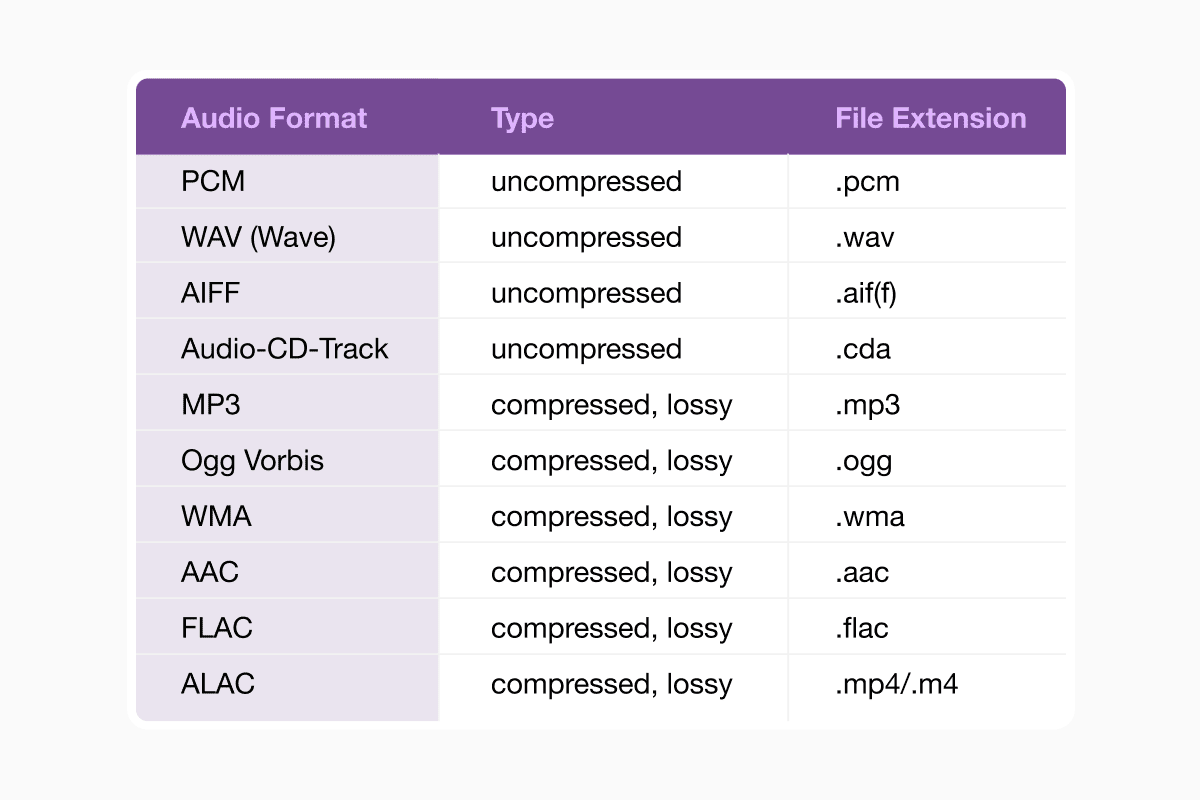
So when people ask “Which audio formats are lossless?” or “Which audio format has the smallest file size?”, the high-level answer is simple: FLAC, ALAC, WAV and AIFF are lossless; tiny files usually mean a lossy codec like low-bitrate MP3, AAC or Opus.
Quick comparison table: the usual suspects
Here’s the summary table you actually want. This doesn’t list every obscure format Sage Audio or Transloadit mention, but it covers the ones you’ll see in real workflows.
You’ll see small variations on this in Adobe’s, Sonos’s and Ditto’s guides, but the pattern is consistent: uncompressed for creation, lossless for archiving and hi-res audio, lossy for delivery.
|
Format |
Type |
Best for |
Pros |
Cons |
|
WAV |
Uncompressed |
Recording, editing, archiving masters |
Maximum quality, universally supported |
|
|
AIFF |
Uncompressed |
Mac-centric production |
Same quality as WAV, good in Apple ecosystems |
|
|
FLAC |
Lossless |
Hi-res music libraries, archiving |
Smaller than WAV, bit-perfect, great tagging |
Not supported on some older devices |
|
ALAC |
Lossless |
Apple Music, iOS/macOS libraries |
Apple-friendly FLAC equivalent |
Less common outside Apple world |
|
WMA Lossless |
Lossless |
Legacy Windows libraries |
Lossless, integrates with older Windows tools |
Poor cross-platform support |
|
MP3 |
Lossy |
Maximum compatibility, podcasts, downloads |
Plays on basically everything |
Less efficient than newer codecs |
|
AAC (M4A) |
Lossy |
Streaming, Apple devices, YouTube, social |
Better quality than MP3 at same bitrate |
Not as “universal” on ancient hardware |
|
Ogg Vorbis |
Lossy |
Some streaming platforms, gaming |
Good quality/size balance |
Limited device support |
|
Opus |
Lossy |
Voice, streaming, web apps |
Excellent efficiency at low bitrates |
Still niche in consumer players |
|
WAV/AIFF + FLAC/ALAC workflow |
Mixed |
Pro workflows |
Record/edit uncompressed,archive lossless, publish lossy |
Requires conversions and some planning |
What is the best audio format for sound quality?
For recording and editing: WAV, AIFF, FLAC or ALAC
If we’re talking pure audio quality and not caring about file size or compatibility, the best audio format is either uncompressed (WAV/AIFF) or a lossless format like FLAC or ALAC storing the same high-resolution audio. In blind tests, FLAC and WAV are indistinguishable because they literally contain the same information; FLAC just packs it more efficiently. Audacity engineers and forum regulars explicitly point out that saving to WAV or FLAC introduces no additional quality loss.
So: are WAV files better than FLAC? No, not in terms of sound. WAV might win for compatibility with older gear and some DAWs; FLAC wins on storage and tagging. For hi-res audio—24-bit, 96 kHz and beyond—the “best” choice is usually FLAC or ALAC for your library, rendered from a WAV or AIFF master.
Which audio format is best for music listening?
For music listening, the answer depends on how you listen.
If you’re streaming, you don’t really choose the format; the service does. Spotify and many others use Ogg Vorbis or AAC at variable bitrates, because these codecs offer better quality at a given size than MP3. Hi-res streaming tiers from Apple Music, Amazon Music or Tidal lean on FLAC or ALAC to deliver lossless streams.
If you keep a local music library, you have more control. Audiophile communities, that r/audiophile Reddit thread included, tend to settle on FLAC or ALAC for “forever” libraries and MP3 or AAC copies for portable players.
Practically, that gives you a simple rule:
Record and mix in WAV or AIFF. Export a lossless master in FLAC or ALAC for the archive. Create MP3 or AAC versions for phones, cars and sharing.
Ditto Music and distribution platforms reinforce this by requiring at least 16-bit, 44.1 kHz WAV or high-quality MP3 uploads; they then transcode into whatever the streaming services need.
Is FLAC better than MP3? For sound quality, yes: FLAC is lossless while MP3 is lossy. At sane bitrates (say 256–320 kbps), some listeners won’t hear the difference, but technically FLAC preserves everything while MP3 throws data away. Sage Audio’s tests and various engineer write-ups are clear about that distinction.
What is the best audio format for streaming, podcasts and recording vocals?
Streaming platforms want efficient lossy audio. They will almost always transcode whatever you send them, which is why many pro guides advise uploading WAV and letting the platform do the compression. Formats like AAC and Ogg Vorbis are built for streaming: they give better quality than MP3 at the same file size or smaller.
For podcasts, the consensus across Mixcord, Podbean, Podcastle and Audacity users is very consistent: record and edit in WAV, publish in MP3 (or sometimes AAC).
So if you’re asking, “What is the best format for recording vocals?” the answer is almost never “MP3.” For recording vocals, you want:
- WAV or AIFF
- 24-bit depth
- 44.1 or 48 kHz sample rate
That matches recommendations from Descript, Mixcord and even long-running Audacity threads aimed at podcasters and voice talent.
Once you’ve edited and mastered, you can then export an MP3 or AAC in the 128–192 kbps range for talk-heavy podcasts, or 192–320 kbps if music is a big part of the show. Blubrry and other hosting providers still call MP3 “the most commonly used” podcast format for maximum compatibility.
High-resolution audio and when it’s worth it
High-resolution audio (hi-res) usually means lossless files beyond CD quality—higher bit depth, higher sample rate and often stored as FLAC, ALAC, WAV or AIFF. Sonos and other hi-fi guides argue that hi-res makes the most sense when both your playback gear and your content are up to the task: good headphones or speakers, clean masters, and a quiet listening environment.
If your primary listening happens through Bluetooth earbuds on the bus, hi-res files are mostly a waste of storage. If you’ve invested in a serious setup, though, hi-res FLAC or ALAC is the sweet spot for music listening.
Converting between formats without wrecking your audio
Every serious guide, including Transloadit’s, Descript’s and various Adobe tutorials, includes the same warning: converting between lossy formats repeatedly is a bad idea.
Every time you re-encode a compressed file, you shave off a little more detail, like photocopying a photocopy.
A safe workflow looks like this: start and stay lossless (or uncompressed) for anything you plan to edit.
Keep a FLAC, ALAC, WAV or AIFF version as your “master.”
When you need smaller files—for streaming, downloads or email—export from that master to a lossy format like MP3, AAC or Opus once, at the right bitrate.
If you later need a different bitrate or format, go back to the lossless master and convert again, rather than transcoding from an MP3 to another MP3.
If you don’t want to install a full DAW just to convert files, this is where Documents.io fits in neatly.
The web version runs in any modern browser: you upload your master file (say, a WAV or FLAC), pick the output format you need—MP3 for a podcast upload, AAC for a streaming-friendly copy—and let it handle the conversion server-side.
Because it supports both conversion and compression for audio, you can also rein in file sizes for things like email attachments or platform limits without manually juggling encoder settings yourself.
Online converters and APIs such as Transloadit, browser-based tools like documents.io, desktop apps like Adobe Media Encoder, and DAWs like Audition or Reaper all follow that same principle under the hood: start from the best source, compress once, and keep the master safe for next time.
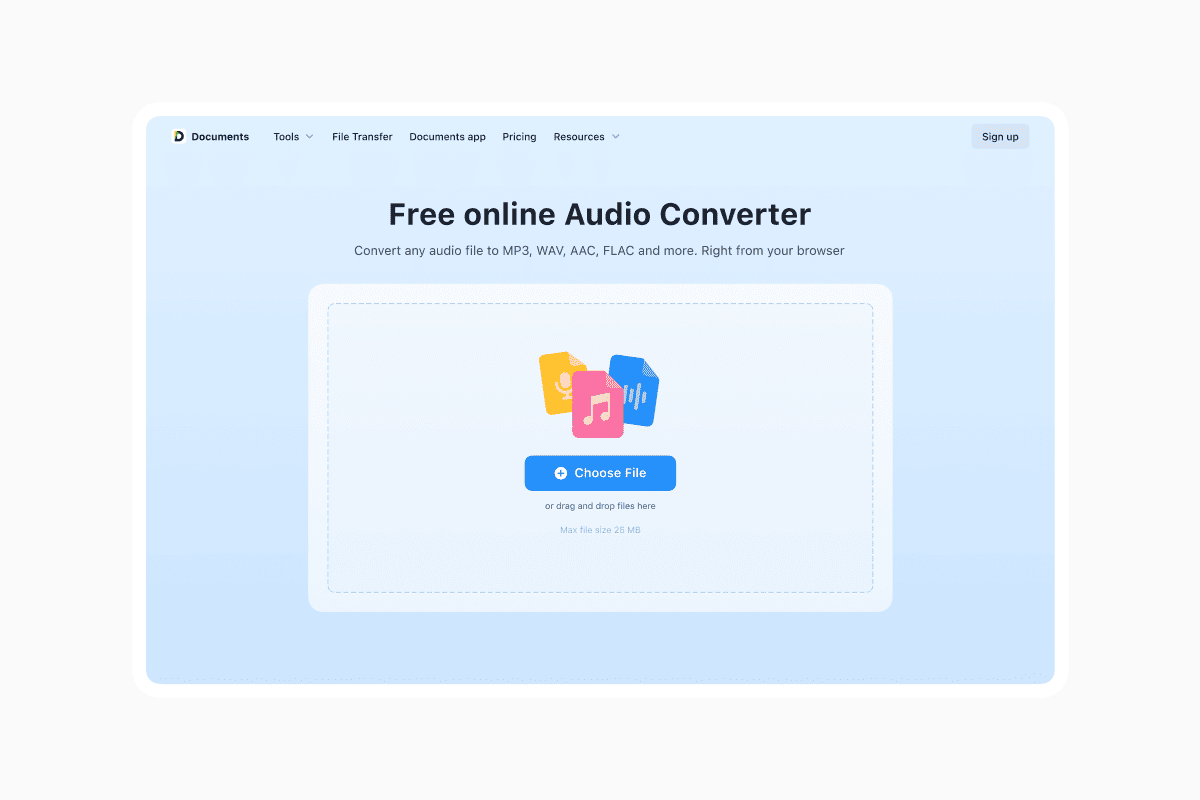
However, general guidance remains the same no matter which types of files you are converting: start from the best source, compress once, and keep the master safe for next time.
So… what’s the “best audio format”?
If you want a one-line cheat sheet you can actually use:
For recording and editing: WAV or AIFF.
For archiving and hi-res listening: FLAC or ALAC.
For streaming and downloads: AAC or high-bitrate MP3, with Ogg/Opus where supported.
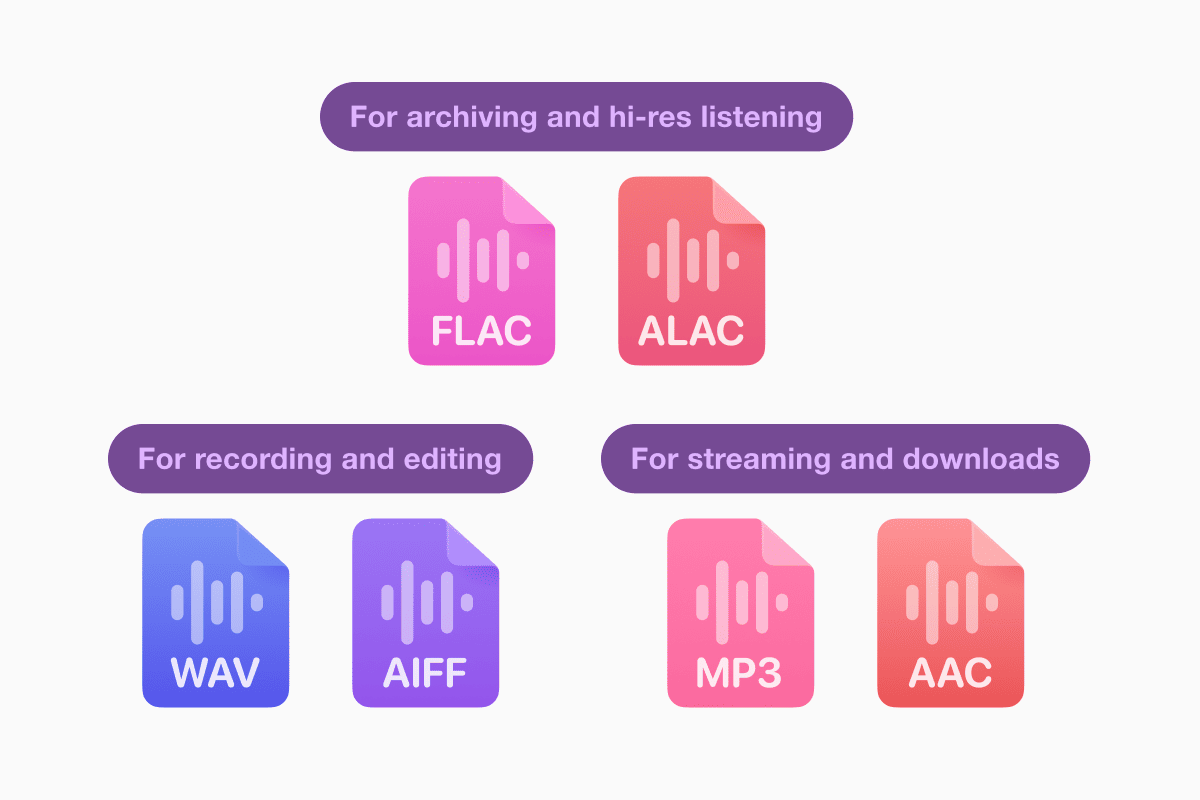
That’s the same conclusion you’ll see echoed—sometimes with a lot more drama—in audiophile subreddits, Sonos’s format guide, Sage Audio’s top-10 rundown and conversion-focused posts from Transloadit and Descript.
Pick the one that matches what you’re actually doing today—and keep a lossless master so you don’t regret it tomorrow.
Latest posts

Knowledge Base
Video file formats explained: MP4, MKV, AVI and more
Learn the difference between video file formats (MP4, MKV, AVI, MOV, WebM) and codecs (H.264, H.265, AV1). Find out which format is best for social media, professional editing, and universal compatibility in 2026.

Knowledge Base
The beginner photographer’s guide to file conversion (RAW, JPEG, TIFF, PNG)
A beginner-friendly guide to converting RAW, JPEG, TIFF, and PNG photos. Learn quality tradeoffs, export settings, and smart archiving habits for web and print.
Knowledge Base
How to make a GIF: simple steps to create and share loops online
Making a GIF is simple: trim a short moment from a video, convert it, and save the loop. Whether you’re using a browser-based converter like Documents.io or an app, the key is to keep it short, clean, and seamless for easy sharing anywhere.