


You’ve shot your footage, tweaked the color, lined up the soundtrack. Then your editor throws you one last decision: export as MP4 or MOV. At that point, “mp4 vs mov” doesn’t feel like a glossary entry, it feels like a tiny pop quiz that might break your upload or trash your quality.
On the surface, the two look almost identical. They’re both video container formats based on the same MPEG-4 family, both can hold video, audio, subtitles, and metadata, and both are used everywhere from TikTok to cinema dailies. But when you look at compression, compatibility, and how they behave in real editing software, some clear patterns show up.
This is your mp4 mov comparison in plain language, with a side of nerdy detail.
Containers, codecs, and why the file extension doesn’t tell the whole story
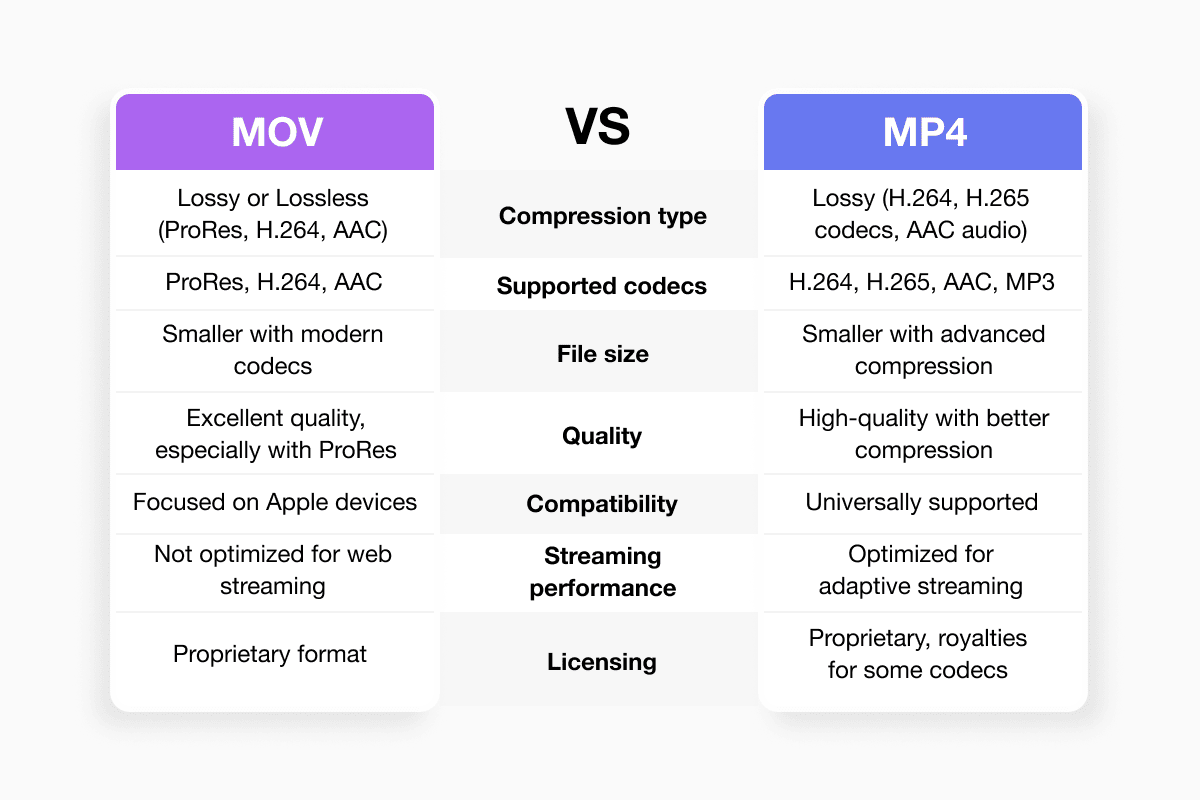
First, the boring but crucial bit: MP4 and MOV are containers, not codecs. Think of them as different styles of luggage. Inside either one you can pack H.264 or H.265/HEVC, or more editing-friendly codecs like Apple ProRes. The “quality difference mp4 mov” you see in the wild usually comes from what’s inside the suitcase, not the suitcase itself.
Historically, MOV was Apple’s QuickTime container, built for the Mac ecosystem long before streaming video was a thing. MP4 came later as an international standardised container designed to be broadly compatible and efficient for delivery.
So when people argue “Which is better: MP4 or MOV?”, what they’re really comparing is how those containers tend to be used: MOV as Apple’s flexible, high-end wrapper; MP4 as the web-friendly workhorse.
Quality and file size: why MOV often looks “richer”
If you’ve heard that “MOV has better quality than MP4”, there’s a reason that myth refuses to die.
In many real-world workflows, MOV gets used for less compressed, higher-bitrate footage, often with ProRes or high-quality H.264/HEVC. Platforms like Movavi, Epidemic Sound, and Gumlet all point out that MOV files typically run at higher bitrates and end up with larger file sizes and richer detail, while MP4 equivalents are tuned for smaller files at the expense of some information.
By contrast, MP4 is usually the “lean” version. The same source material is frequently encoded more aggressively when it’s destined to become an MP4 for YouTube, Instagram, or a content delivery network. These files are easier to upload, stream, and share, but some nuance is squeezed out along the way. Cloudflare and Cloudinary both frame MP4 as the default choice when you care about bandwidth and global playback more than frame-by-frame perfection.
So, does MOV inherently have better quality than MP4? No. If you encode the same video, with the same codec, at the same bitrate into both containers, the picture will look essentially identical. The quality difference mp4 mov people notice is almost always a side effect of encoding choices: MOVs are allowed to be “fat and happy”; MP4s are usually put on a diet.
Compatibility: MP4 as the universal language, MOV as Apple accent
Where MP4 vs MOV stops being subtle is compatibility.
MP4 is the format the internet agreed on. Web players, smart TVs, Android phones, game consoles, and most social platforms all treat MP4 as a first-class citizen. Cloudflare’s own documentation straight-up describes MP4 as the widely supported standard for online video. If you want one file that “just works” almost everywhere, MP4 is the safe pick.
MOV, meanwhile, is very much “apple mov vs mp4.” It’s native to QuickTime, bakes neatly into macOS and iOS frameworks, and plays beautifully in Apple tools like Photos, iMovie, and Final Cut Pro. But that Apple accent can be noticeable on other platforms; older Windows machines and some third-party players may need extra codecs or updates to deal with certain MOV variants, especially HEVC or ProRes.
User forums, from Reddit to editing communities, reflect this split: Mac-based creators are comfortable staying in MOV, while anyone dealing with cross-platform clients, corporate laptops, or random browsers tends to default to MP4 for sanity.
If your main question is “Which is better, MP4 or MOV, for sharing and playback?”, the answer is almost always MP4.
Editing performance: picking the best format for editing
The best format for editing is where MOV quietly shines.
Because MOV was designed as a flexible QuickTime container, it happily carries high-bitrate, intraframe codecs like ProRes that are buttery smooth on a timeline. Editors such as Final Cut Pro and Premiere Pro on macOS are deeply tuned for this world. Many pro workflows capture, ingest, and master in MOV because it grades better, scrubs more cleanly, and keeps more color information intact.
MP4 can certainly be edited, and most creators do exactly that, especially when they’re working with mirrorless cameras, action cams, or phones. But MP4 is usually encoded as highly compressed, “long-GOP” H.264 or HEVC, which is mathematically efficient and streaming-friendly but CPU-intensive to decode on every frame. Editors on forums routinely report that dense MP4 footage stutters more on older hardware, while equivalent ProRes MOV files play back more smoothly even though they’re larger.
In other words: if you’re cutting on a Mac, staying inside the Apple universe, and planning serious color work, MOV is often the better editing experience. If your workflow is more casual, more cross-platform, or mostly aimed at the web, editing MP4 directly is perfectly fine and usually more convenient.
iPhones, HEVC, and why Apple keeps giving you .MOV files
That leaves the everyday annoyance: why do iPhones use MOV files at all when the rest of the world keeps shouting “MP4 or bust”?
Modern iPhones typically record HEVC (H.265) or H.264 video inside a MOV container, tightly integrated with Apple’s QuickTime stack. MOV gives Apple a flexible wrapper for high-efficiency codecs, high frame rates, HDR video, Live Photos, and all the extra metadata iOS likes to attach. The format is optimized for Apple’s own apps first; global compatibility is a close second.
In Settings, you can flip the camera to “Most Compatible” to encourage more traditional H.264 and MP4 output, but you’re really just nudging iOS to change its codec and container defaults for broader support. Under the hood, this is classic apple mov vs mp4 trade-off thinking: MOV + HEVC for efficiency and features in the Apple universe, MP4 + older codecs when you need to play nice with everything else.
Converting between MP4 and MOV without wrecking your footage
A big anxiety in any mp4 mov comparison is the question: “Can I convert MOV to MP4 without losing quality?” The answer is yes, but only if you’re careful about what you’re changing.
If your MOV already contains H.264 or HEVC, a good converter can often re-mux the file, which means it keeps the video and audio streams exactly as they are and simply wraps them in an MP4 container. In that case, there’s effectively no quality loss, because the video is never re-encoded. This is exactly the kind of job a tool like Documents.io is useful for: you upload your MOV, choose MP4 as the output, and let it handle the container swap, rather than forcing you to dive into codec settings by hand. For anyone who doesn’t want to think about GOP structures and bitrates, that kind of “sensible defaults” interface is a lifesaver.
If, however, your MOV holds a high-quality editing codec like ProRes and you convert it to an MP4 using H.264 or HEVC, you are definitely compressing it more. The result will be smaller and more compatible, but you’ve thrown away some information. A service like Documents.io can still help here, because it automates the boring part: picking reasonable export presets for web, social, or archiving, and handling the heavy lifting in the cloud instead of hammering your laptop’s CPU. Just don’t confuse that convenience with magic—no converter, cloud-based or otherwise, can bypass the basic trade-off between quality and file size.
Converting in the opposite direction (MP4 to MOV) doesn’t magically restore detail either; switching containers can make a file easier to edit or play inside certain apps, but it can’t recreate quality that was never there. What a tool like Documents.io can do is make that process less error-prone: you choose MOV as the target, it keeps the original codec where possible, and only re-encodes when it absolutely has to.
So yes, you can move between these video container formats without losing quality, as long as you’re only changing the container and not downgrading the codec or bitrate—and using a dedicated converter like Documents.io makes it much easier to do that correctly without needing to be a compression engineer.
The short answer: when to use MP4 and when to use MOV
Strip away the legacy branding, codec jargon, and platform marketing, and the practical advice is surprisingly simple.
Choose MP4 when you care about reach: publishing to YouTube, Instagram, TikTok, or your own site, sending videos to clients on random devices, or archiving content where compatibility and file size matter more than microscopic quality gains. That’s exactly how most streaming and optimization guides position MP4 today.
Choose MOV when you care about the edit: working in Final Cut or iMovie on a Mac, grading in ProRes, or building a pipeline where your footage lives mostly inside Apple tools until the final export. In that world, the extra file size is a small price for smoother playback and more robust color information.
In the end, neither extension is “better” in isolation. MP4 is the universal delivery truck; MOV is the studio-grade flight case. Pick the one that fits where your video is going next, and remember that the real magic is in the codec and bitrate—not just the three letters at the end of the filename.
Latest posts

Knowledge Base
Video file formats explained: MP4, MKV, AVI and more
Learn the difference between video file formats (MP4, MKV, AVI, MOV, WebM) and codecs (H.264, H.265, AV1). Find out which format is best for social media, professional editing, and universal compatibility in 2026.

Knowledge Base
The beginner photographer’s guide to file conversion (RAW, JPEG, TIFF, PNG)
A beginner-friendly guide to converting RAW, JPEG, TIFF, and PNG photos. Learn quality tradeoffs, export settings, and smart archiving habits for web and print.

Knowledge Base
How to make a GIF: simple steps to create and share loops online
Making a GIF is simple: trim a short moment from a video, convert it, and save the loop. Whether you’re using a browser-based converter like Documents.io or an app, the key is to keep it short, clean, and seamless for easy sharing anywhere.