


Have you ever transferred photos from your iPhone and found dozens of files named something like IMG_1234.heic? If so, you’ve met the format quietly powering modern iPhone photography.
A HEIC file is the standard image file format used by iPhones and iPads based on the modern HEIF (High Efficiency Image Format) standard. Compared with older JPEG files, HEIC can store higher-quality photos in smaller file sizes, often with support for extra data like depth maps, Live Photos, bursts, and 10-bit colors.
It’s a smarter, more efficient evolution of the “photo file” and increasingly the default for mobile photography.
Why iPhones use HEIC instead of JPEG
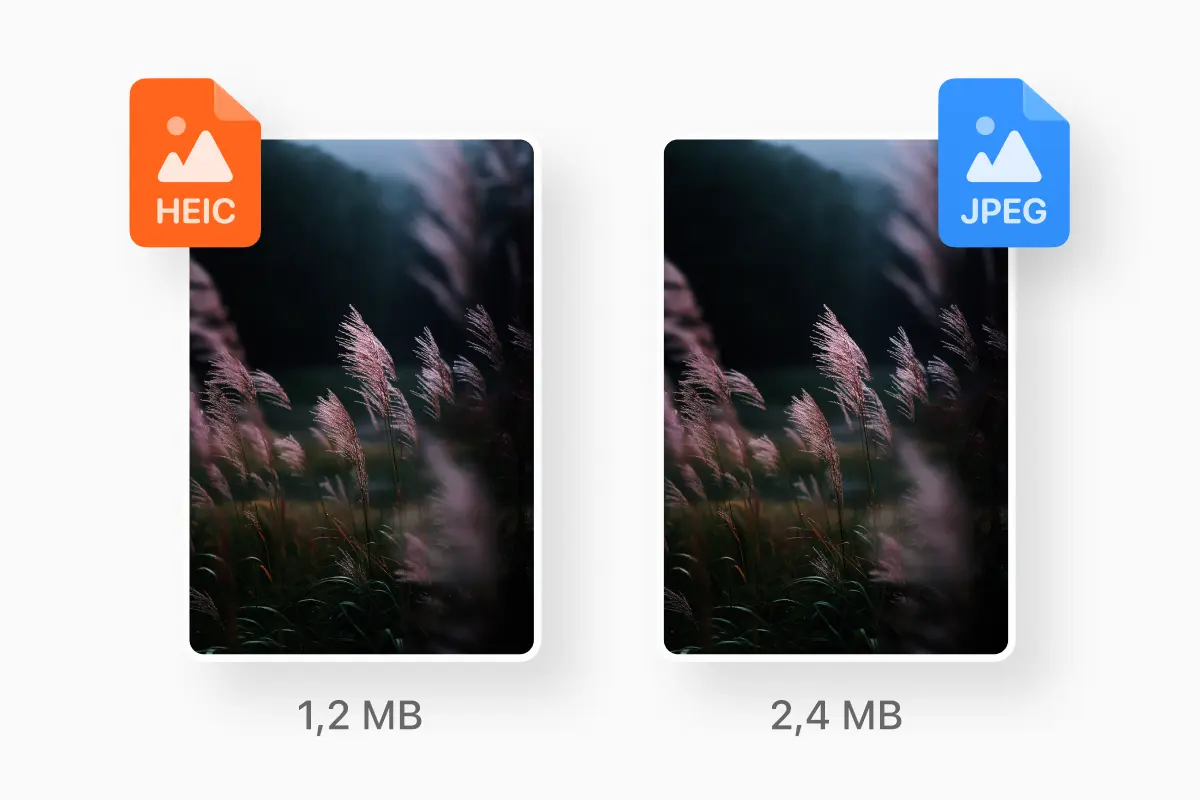
As smartphone cameras grew more advanced, images became larger and richer — higher dynamic range, bigger resolution, more detail. The older JPEG format simply wasn’t efficient enough anymore: photos ate up storage quickly, and image quality degraded when compressed heavily.
HEIC solves those problems. A HEIC photo usually takes up much less space than a comparable JPEG — sometimes as little as half — while preserving more detail. It supports richer colors and wide dynamic range, and can store advanced data like Live Photos or multiple images in one file. In short: better photos, more storage, less trade-off.
HEIC vs JPEG (And when JPEG still makes sense)
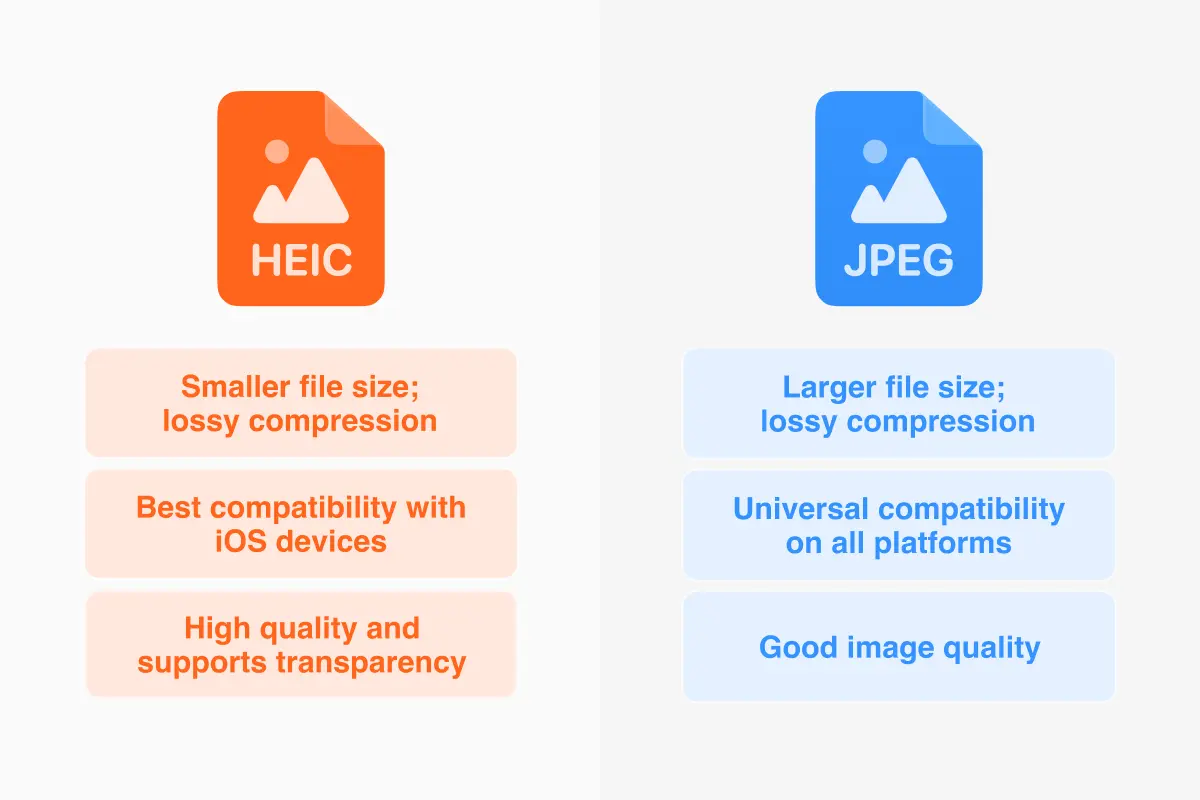
Although HEIC is technically superior in many ways, JPEG remains ubiquitous and for good reason. HEIC often gives you smaller files and better quality, especially evident in photos with subtle gradients, complex shadows, or HDR. It also supports richer metadata (depth, bursts, color, Live Photos), which JPEG cannot.
Finally, JPEG, however, remains universally compatible. All existing software, websites, and tools expect JPEG.
So if you need maximum compatibility, for old apps, websites, or sharing with many people, JPEG is still a safe bet. If you care about photo quality and storage efficiency, HEIC is likely the better original format.
How to open HEIC files on different devices
On Apple gear (iPhone, iPad, Mac), HEIC works almost invisibly: your operating system recognizes and displays HEIC images natively, whether in the gallery, photos app, or file viewer.
If you move a HEIC file to Windows or Android, you may need extra support:
On Windows 10/11, installing the free “HEIF Image Extensions” enables native viewing and metadata support.
On Android, most modern versions already support HEIC — Google Photos and many third-party galleries handle it.
If your software doesn’t support HEIC, converting the file to JPEG or PNG is often the easiest way to restore compatibility.
When converting, keep in mind: converting HEIC → JPEG can slightly reduce image quality (because JPEG is lossy), while converting HEIC → PNG preserves more detail (though file size tends to rise).
How to convert HEIC to JPG or PNG
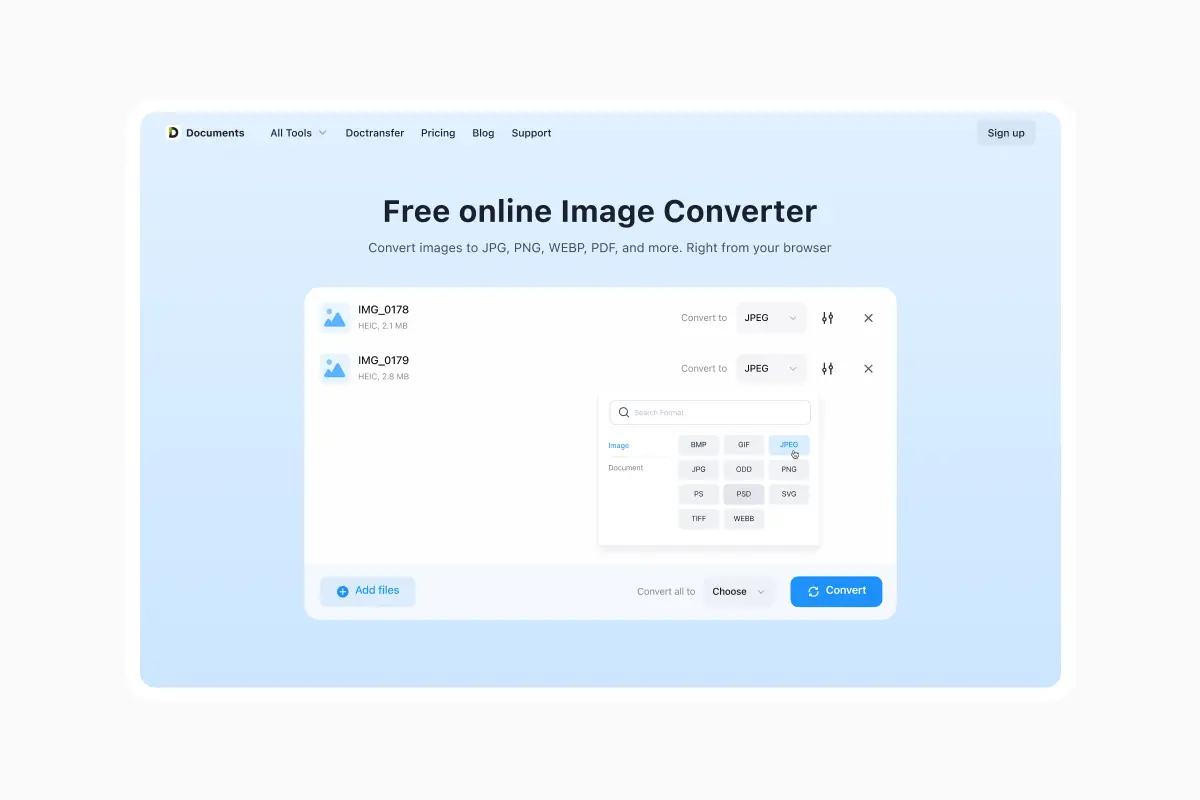
Conversion is straightforward and fast:
On a Mac: open the HEIC in Preview → choose Export → select JPEG or PNG.
On Windows: open in the Photos app (after enabling HEIF support) → “Save as” JPEG.
Online: drop the HEIC into an online HEIC-to-JPG or HEIC-to-PNG converter (like the tools on our site).
Use PNG when you need lossless quality (e.g. for editing or archiving), or JPEG when you prioritize compatibility and smaller files.
Managing HEIC files (and More) on iPhone — Why Documents by Readdle makes it easy
Here’s where things get practical. HEIC — like ZIP, PDF, RAR, DOCX, or video — is just one of many file types you might deal with on iPhone. That’s why an app like Documents by Readdle becomes crucial.
Documents.io isn’t just for PDFs or music — it’s a full-fledged file manager built to handle nearly anything you throw at it: images (like HEIC, JPEG, PNG), eBooks, archives, documents, video, audio, and more.
The app offers multiple ways to get files into your library:
- Use the Share → Save to Documents extension when opening a file in any other app.
- Download directly via its built-in browser, grabbing images, ZIP archives, docs, videos, etc.
- Transfer files from your computer over Wi-Fi — a great way to bring large photo sets or mixed media collections to your iPhone without cloud or USB hassle.
Once inside Documents, you can organize, rename, move, unzip, view, and convert your files. For HEIC photos, that means easy access, backup, conversion, and sharing — all from a single, intuitive hub. Readdle
So whether you’re managing a photo collection, organizing scans, or archiving memories — Documents turns your iPhone into a mini-computer for all file types.
Why HEIC (and Universal File Support) Matters for Everyday Users
HEIC is more than just a “new photo format.” It reflects how our devices and habits have evolved: more photos, higher resolution, richer media, and growing need for efficient storage.
But modern workflows often involve many file types — images, PDFs, archives, documents, videos — and managing them separately is messy. With smarter formats like HEIC and flexible tools like Documents by Readdle, you get:
- Better photo quality with less storage bloat
- A single place to open, convert, archive, and manage all file types
- More control and convenience on mobile
In 2026, that seamless flexibility makes the difference between a cluttered gallery and a clean, organized digital life.
Latest posts
Glossary
What is a DOCX file, and how do you open one without Word?
Got a DOCX file but no Microsoft Word? Learn what this popular document format is and the easiest ways to open and edit it
Glossary
What is an HTML file, and what should you do with one?
Found an HTML file and not sure what to do with it? Learn what HTML files are and the easiest ways to open, view, and edit them.

Glossary
What is an EPUB file, and how do you open one on your iPhone?
Got an EPUB file on your iPhone? Learn what this popular ebook format is and the easiest ways to open and read EPUB files.