


You’ve just downloaded a video and noticed the file ends in .ts. What is that, and how do you play it? While not as instantly recognizable as MP4 or AVI, TS files are among the most popular video containers worldwide, used everywhere from live TV broadcasts to online streaming.
Let’s have a look at what a TS file really is, what you’ll find inside one, how to open it, and how to convert it if you’d rather use a different format.
What is a TS file?
TS stands for Transport Stream, a video file format built using the MPEG-2 Transport Stream container. At its core, this format was specifically designed to send digital audio and video, ensuring the data moves smoothly across unreliable channels like satellite TV, cable, or regular broadcast signals.
TS file error correction
The Transport System file was built to handle things going wrong. When digital video travels over a satellite or broadcast signal, some data might get lost or damaged. TS breaks everything into small, labelled packets – so if something goes missing, the player can spot it and skip over the problem rather than stopping entirely.
This is why, when you have a bad satellite signal, your TV usually keeps playing with a few glitches rather than freezing. Even on your hard drive, TS files carry all this error correction; they just don’t need it as much since disk storage is way more reliable.
One thing to keep in mind: you might see .ts files in software projects, too. In that case, .ts means TypeScript, which is a programming language file, not a video.
What’s inside a TS file?
A TS file is basically a container for video, like a ZIP archive. When you open up a .ts file, you usually find:
- Video (MPEG-2, H.264, or H.265)
- Audio tracks (often AC3, AAC, or MPEG Audio – sometimes more than one language)
- Subtitles and captions streams
- Metadata, which tells players what’s in each stream and how to play it
- Error correction info, so damaged packets don’t break everything
Everything inside is divided into 188-byte packets, each with its own header that shows the details. This fixed structure is a major factor in why Transport Stream works so well. No matter what happens, your device always knows where each packet begins, so it can get back on track fast after any glitch.
TS files are also built for multiplexing – essentially, putting several programs into one stream. So, if a cable company wants to broadcast a bunch of TV channels in a single stream, each channel just gets its own packet identifiers (PIDs), and the receiver sorts it all out.
TS file uses: broadcasting, DVDs, and streaming
You might have ended up with a TS file for any number of reasons – recorded a TV show, ripped a Blu-ray, or watched a live stream. Here is where this file format shows up the most.
Broadcast TV
Think about broadcast TV – almost every digital signal you get, whether it’s from satellite, cable, or just an antenna, uses Transport Stream. The .ts files you might record with a TV tuner card or DVR, are direct captures of that broadcast signal, unchanged.
Blu-ray discs
Blu-ray discs store video using a Transport Stream’s variation called M2TS. When you rip a Blu-ray using software like MakeMKV, the output is often a .ts or .m2ts file containing the raw disc stream. DVDs use a different format (MPEG-2 Program Stream, stored as .VOB files), but both ultimately follow the same MPEG-2 standard.
IPTV and online streaming
Protocols like HLS (used by YouTube, Twitch, and most big streaming sites) send out lots of little .ts files over the web every second. So while you’re watching a live stream, your device is actually stitching together TS streaming format segments on the fly, most of which you never see yourself.
How to open a TS file
On Windows
Windows Media Player won’t open .ts files out of the box. However, there are a few solid players who handle them well:
- VLC Media Player. This free, open-source player easily opens .ts files – all you need is to drag your .ts file into VLC.
- MPC-HC (Media Player Classic Home Cinema). This is a lightweight and solid player, especially useful with codec packs.
- PotPlayer. It can handle HD .ts files smoothly.
- KMPlayer. This easy player with a clean interface can cover various formats, including .ts.
On macOS
macOS does not include native support for .ts video files – QuickTime Player doesn’t open them. How to open a .ts file on Mac? Here is what to do:
- VLC Media Player. This is your go-to solution when you need a universal, cross-platform file opener. VLC supports all the codecs used in .ts containers.
- IINA. A modern, macOS-native media player built on top of MPV. It supports .ts files natively and feels better on a Mac than VLC.
- Infuse. A polished media player that supports TS files and is especially popular among users who also stream from a NAS or media server.
- MPV. A lightweight, command-line-friendly player that handles .ts files with ease. Less beginner-friendly but extremely capable and resource-efficient.
On a smart TV
Smart TVs have different workarounds than MacOS or Windows. Use the following methods:
- USB Drive. Transfer your .ts file to a USB drive formatted FAT32 or exFAT, plug it into your TV, and open the media browser.
- Media Streaming Device. NVIDIA Shield TV and Apple TV equipped with the Infuse application can support TS files. Additionally, you may consider the Amazon Fire TV Stick paired with the VLC player or using the Kodi software on Fire Stick, Shield, or Raspberry Pi.
- Network streaming/DLNA. In case you store your TS file on your personal computer and connect to the same Wi-Fi network, you can stream your file to your Smart TV through DLNA servers such as Plex, Jellyfin, or Serviio.
If you ever have trouble getting a .ts file to play on Windows, macOS, or your TV, convert your TS file to MP4 – it plays anywhere.
TS vs MP4
Both TS and MP4 hold video and audio, but they have different strengths.
- Error resilience: The TS format is designed to tolerate corrupted packets, which is important in broadcasting and streaming. MP4 doesn’t have such a mechanism.
- Compatibility: MP4 files are compatible with all devices, applications, and web browsers, which isn’t the case for .ts files.
- File size: TS files are often larger than MP4 files since each chunk includes some extra error correction data.
- Seeking: MP4 files have fast seeking (thanks to an index). TS files don’t, so finding a specific moment usually takes longer.
So, choose TS if you need something tough and reliable for livestreams or broadcasts, and MP4 for general storage or sharing.
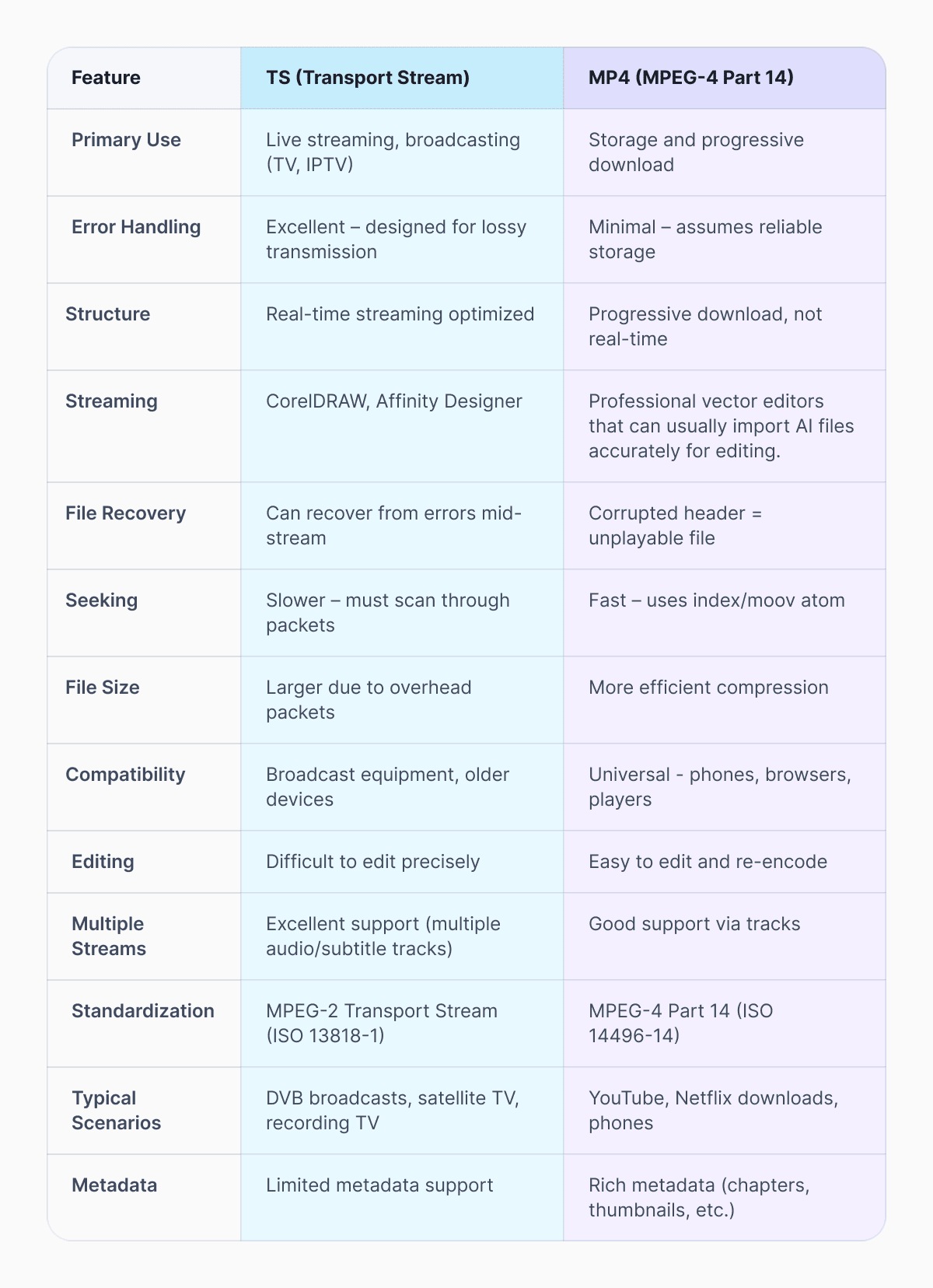
In summary: TS is built for reliability during transmission (broadcasting), while MP4 is optimized for efficient storage and playback. If you’re recording live TV or streaming, you get TS. If you’re downloading a video to watch later, you typically get MP4.
How to convert a TS file to MP4
You can convert TS to MP4 without losing quality in three different ways.
Option 1: Documents.io (fast and lossless)
Using the online file manager, Documents.io, is the simplest solution that doesn’t require you to download anything. All you have to do is upload your TS file to the website, and it will convert it into MP4 without much effort. New users have ten free conversions to start with.
Option 2: FFmpeg
For users who know how to use the terminal, try this:
ffmpeg -i input.ts -c copy output.mp4
The conversion will be done almost instantly, without changing your video quality.
Option 3: VLC (if it’s already installed)
VLC has a built-in converter. Go to Media > Convert/Save, choose your .ts file, pick MP4 as the output, and let it run. For basic conversions, it’s a perfect choice.
FAQ
Why are TS files so big?
TS files are larger because they contain additional data for transmission and error correction. When recording from a broadcast feed, the file is virtually uncompressed. You could convert it to MP4 format to make the file smaller.
Can I upload a TS file to YouTube?
Yes, YouTube accepts .ts files. However, uploading MP4 is faster and more predictable because it’s YouTube’s preferred format.
What’s the difference between .ts and .m2ts files?
Both are types of transport stream files, but .m2ts is a version used for Blu-rays – it just includes some extra Blu-ray-specific info. Most media players treat them the same.
Latest posts

Glossary
SVG file format explained: what it is, how it works, and when to use it
Learn what the SVG file format is, how it compares to PNG and JPG, how to open or edit SVG files, and how to convert SVG images to JPG or PNG using documents.io

Glossary
What is a TIFF file? A guide to this high-quality image format
Learn what a TIFF file is, when to use it for high-quality images and printing, how it compares to JPEG and PNG, and how to open and convert TIFF files.

Glossary
What is a JPEG file? Inside the world’s most popular photo format
JPEGs are everywhere, from social media uploads to camera rolls. Here’s what the format actually does, why it became the standard for photos, and where it still shines today.