


JPEGs are so ordinary that you probably stopped noticing them years ago. They’re the little .jpg files clogging your WhatsApp chats, the photos in your camera roll, the holiday pictures you swear you’ll sort “this weekend.” But despite being everywhere, JPEG is one of those formats most people use without really understanding.
Let’s fix that.
So… what actually is a JPEG file?
JPEG is a digital image format designed to do one thing really well: store photographs in a way that looks good but doesn’t eat your storage alive.
The name comes from the Joint Photographic Experts Group, the committee that created the standard back in the early ’90s. Under the hood, JPEG uses something called lossy compression. In plain English: every time you save an image as a JPEG, the file format throws away some visual information your eyes probably won’t miss, to make the file smaller.
That’s why JPEG is the default choice for photos:
- It supports millions of colours, which is perfect for real-world images like faces, sunsets, and cityscapes.
- It creates relatively small files, which is perfect for sharing and uploading.
- It’s universally supported. Your phone, your laptop, your smart TV, your grandma’s old PC – they all know what to do with a JPEG.
The trade-off is that JPEG is not a perfect archive format. It’s more like a really efficient suitcase: you can pack a lot in, but you don’t bring everything.
Wait, what’s a JPG file then?
You’ve seen both .jpg and .jpeg in the wild. This looks like the setup for a trick question, but it isn’t.
They’re the same thing.
Back when older versions of Windows only allowed three-letter file extensions, .jpeg was shortened to .jpg. macOS and Linux happily accepted .jpeg, but over time, .jpg became just as common everywhere. Underneath the label, the format remains the same.
If you rename holiday.jpeg to holiday.jpg, it will still open fine. The file doesn’t care. So if you’re googling “what is a JPG file?”, the answer is: it’s a JPEG by another name.
How do I open a JPG file?
Short answer: almost anything with a screen can open it.
On Windows, double-click a JPG and it’ll usually open in Photos. You can right-click → “Open with” if you’d rather use Paint, Photoshop, or something else.
On macOS, a double-click launches Preview by default, and from there you can zoom, crop, annotate, or export the file.
On phones, JPGs are the default food group. The Photos/Gallery app on iOS or Android will happily display them, edit them, and share them. Messaging apps, social media platforms, browsers – they all treat JPGs as first-class citizens.
And if all else fails, every modern web browser can display a JPG. Drag the file into a browser window and you’ll see it.
If you ever find a device or app that can’t open a JPEG in 2026, you’ve probably discovered a museum piece.
How to convert an image to JPG
You’ll often run into other formats – PNG, HEIC, TIFF, RAW – that you might want to convert to JPG for compatibility or smaller file sizes. The exact steps depend on your device, but the pattern is always the same: open the image, then export or “Save As” JPG.
On Windows, you can open an image in Paint or Photos and use “Save as → JPEG picture”. On macOS, Preview’s “File → Export…” menu lets you pick JPEG from the format dropdown and even tweak the quality.
If you don’t want to install software, there are online converters such as Documents.io that let you upload an image and download a JPG version. You can try the JPG converter for free.
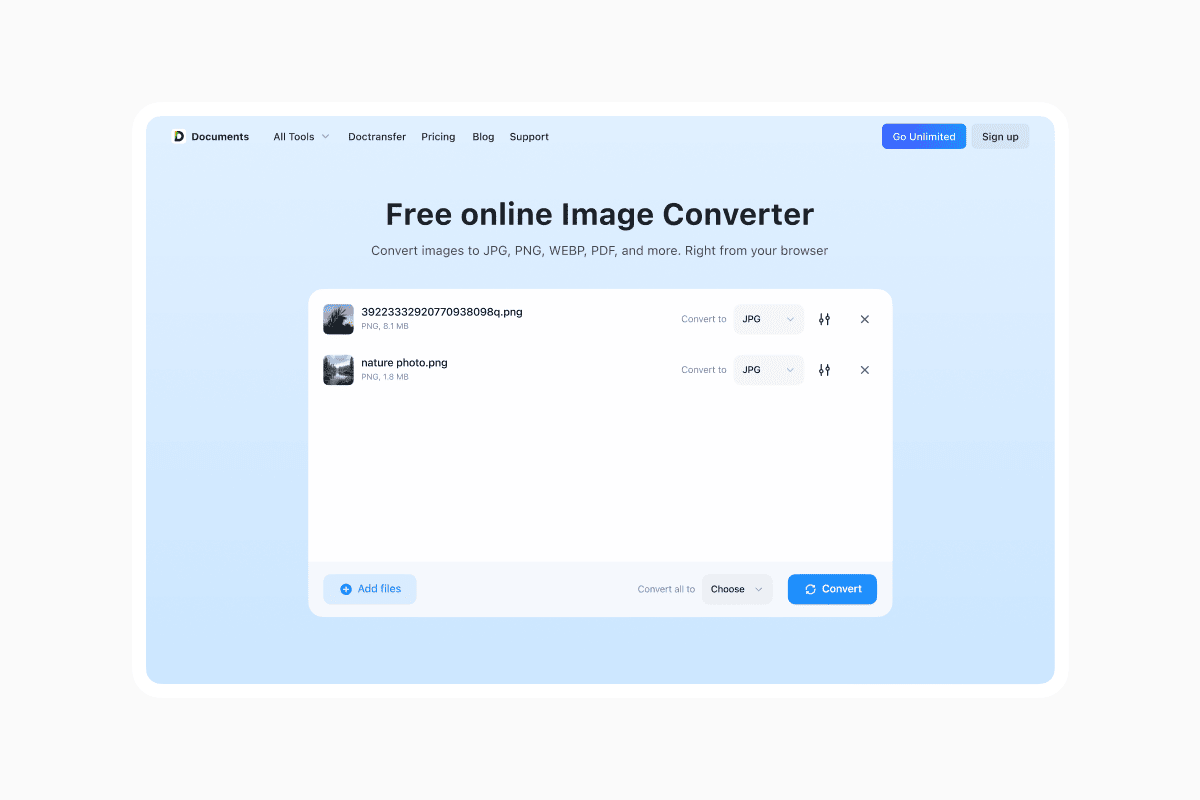
Bottom line: if you can open the file at all, there’s almost always a way to turn it into a JPG.
Getting JPEG compression right
Once you’ve converted an image to JPG, the next question is: how small can you make it without trashing the quality? That’s where JPEG compression comes in.
For web use, you want images that load quickly but still look clean. As a rough guide, full-width banners are usually happiest in the 150–400 KB range, in-article images somewhere around 80–250 KB, and small thumbnails well under 50 KB. If your files are much bigger, your pages will slow down; much smaller, and you start to see the classic JPEG scars – blocky patches, smeared edges, and fuzzy text.
You don’t have to guess blindly.
In most editors, a quality setting around 70–80% is a good starting point for web: big size savings, minimal visible damage. Always resize the image to the actual display dimensions first, then tweak the quality. If it looks rough at 100% zoom, nudge the quality back up and resave.
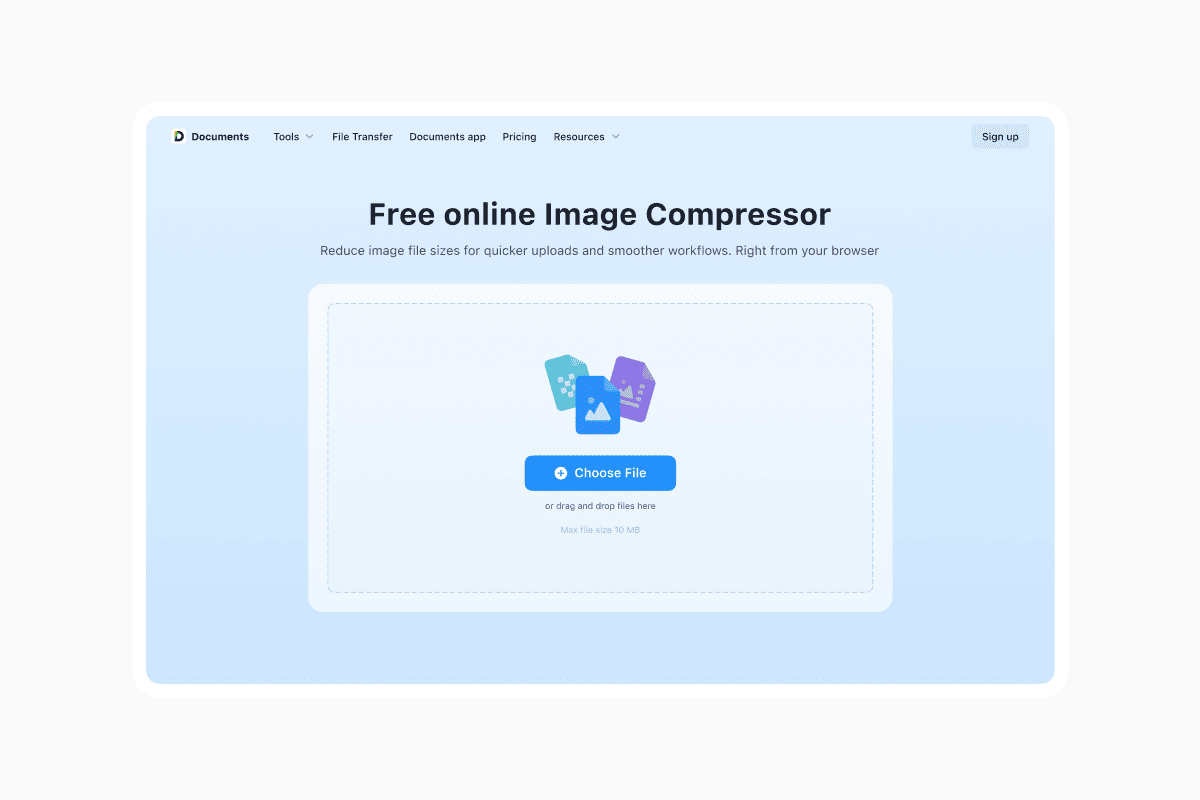
If you’d rather avoid software altogether, online tools like documents.io can do the heavy lifting. You upload your JPGs, let it compress them for web, and download smaller versions that still look sharp enough for normal viewing. It’s a quick way to go from “massive camera original” to “fast-loading web image” without having to think too hard about the math.
Other formats you’ll meet in the wild
JPEG isn’t alone. It lives in a crowded ecosystem of image formats, each with its own personality.
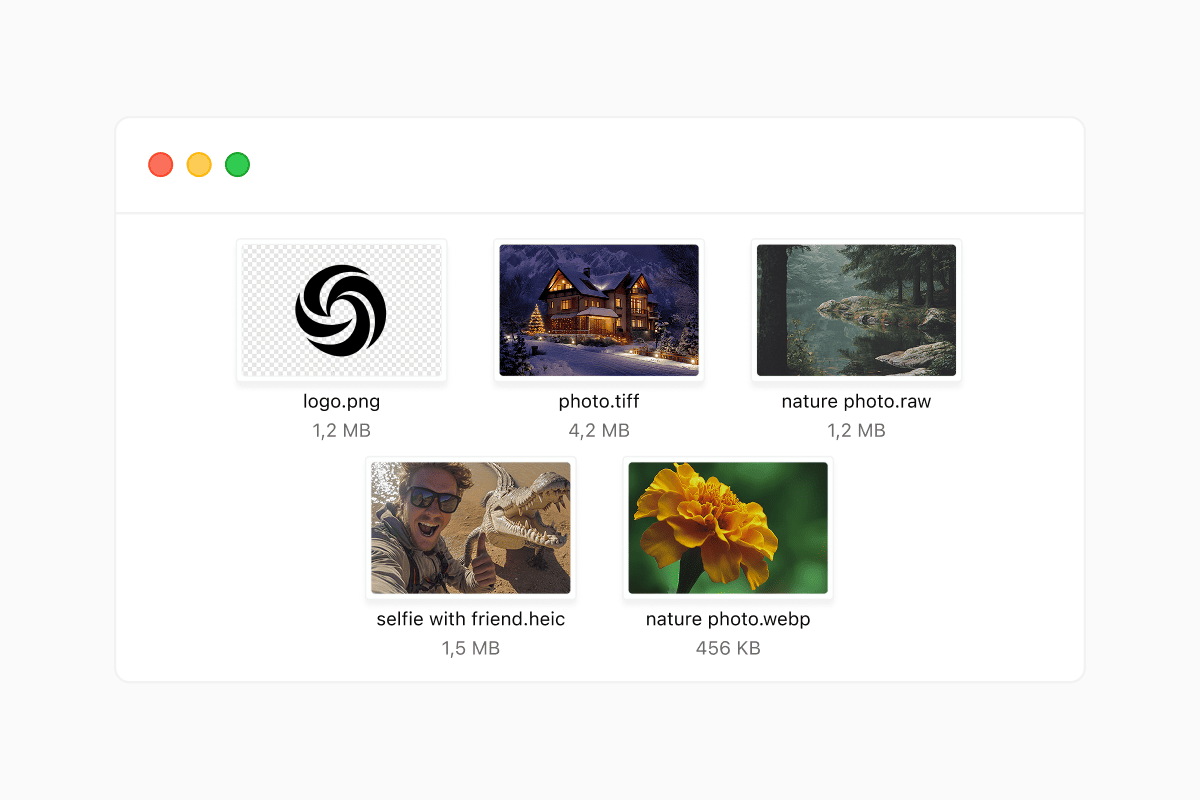
PNG is the go-to for logos, icons and graphics with sharp edges or text. It uses lossless compression and supports transparency, which is why your app icons and UI elements tend to be PNGs, not JPGs. If you need a transparent background, JPEG simply can’t do it.
TIFF is the heavyweight format used in professional photography and printing. It can store images with minimal compression and heaps of detail. Files are big, but if you’re sending work to a print shop or archiving important scans, TIFF is often the safer bet.
RAW formats (like .CR2, .NEF, .ARW) are what serious cameras use. They’re not really “picture files” in the everyday sense; they’re sensor dumps that give you maximum flexibility when editing. After you’ve finished tweaking exposure and colour, you typically export to – you guessed it – JPG to share the result.
HEIC/HEIF is the newer format Apple uses on iPhones. It’s more efficient than JPEG at similar quality levels, but not everything supports it yet, which is why iOS often silently converts photos to JPG when you share them.
Then there are WebP and AVIF, modern compressed formats built for the web. They’re more efficient than JPEG, but again: JPEG wins on compatibility.
This is why “convert to JPG” is such a common question. It’s the safe middle ground that almost everything understands.
When not to use JPEG
For all its strengths, JPEG isn’t the right tool for every job.
If you’re working with a logo, line art or UI element where edges must be perfectly sharp, JPEG compression can make things look fuzzy or dirty around the edges. PNG or SVG is usually better here.
If you need a transparent background, JPEG is a non-starter. It simply doesn’t support transparency. That slick logo that floats cleanly over any background? That’s a PNG or vector, not a JPEG.
If you’re going to edit the same image over and over, repeatedly saving it as JPEG will gradually damage the quality because each save throws away a bit more data. For heavy editing, it’s smarter to keep a “master” version in a lossless format like PNG, TIFF, or the original RAW file, and only export to JPEG when you’re ready to share.
Think of JPEG as your final, ready-to-go output file, not your working master.
So, should you stick with JPEG?
Most of the time: yes.
If you’re shooting everyday photos, posting on social media, sending a picture in an email, or adding an image to a blog post, JPEG hits the sweet spot between “looks good” and “small enough not to be annoying”.
If you’re:
- Designing a logo
- Preparing print materials
- Building an interface
- Or doing serious photo editing
…then it’s worth thinking about formats like PNG, SVG, TIFF, RAW and PDF as part of your workflow, and using JPEG as the lightweight, shareable end product.
Latest posts
Glossary
What is a DOCX file, and how do you open one without Word?
Got a DOCX file but no Microsoft Word? Learn what this popular document format is and the easiest ways to open and edit it
Glossary
What is an HTML file, and what should you do with one?
Found an HTML file and not sure what to do with it? Learn what HTML files are and the easiest ways to open, view, and edit them.
Glossary
What is an EPUB file, and how do you open one on your iPhone?
Got an EPUB file on your iPhone? Learn what this popular ebook format is and the easiest ways to open and read EPUB files.