


If you hang around cameras, scanners, or design software long enough, you eventually meet the chunky grandparent of image formats: TIFF. It’s the file that shows up in your downloads folder with a .tif or .tiff extension, weighs ten times more than anything else, and refuses to open instantly over a slow network.
So what is a TIFF file, really—and why do professionals still love it in a world full of JPEGs, PNGs and fancy new formats?
What is a TIFF file, and what is it used for?
TIFF stands for Tagged (or Tag) Image File Format. It’s a flexible raster image format designed to store a lot of pixel data plus a lot of metadata. Think of it as an overbuilt container for serious images: photographs, scans, line art, and technical imagery.
Unlike vector files, which describe shapes with math, a TIFF is pure pixels. That makes it perfect for high-resolution photos, scanned documents, and artwork that needs to look the same on screen, in print, and fifty years from now. Professional photographers, graphic artists and the publishing industry have leaned on TIFF for decades for exactly that reason.
In practice, TIFF files are the “master” in a lot of workflows.
A photographer might keep a 16-bit TIFF as the final edited version of an image and then generate JPEGs for web or social.
A magazine might store page elements as TIFF for layout and send those to a printer.
Libraries and archives routinely use TIFF to store high-resolution scans of documents and artworks because the format is well-documented and stable over time.
Why are TIFF files so large?
If TIFF is the heavyweight champion of file sizes, there’s a reason.
First, TIFF usually stores images at much higher resolutions than casual formats—think 300 or 600 DPI scans intended for print, not 72 DPI web graphics. Second, those images might use 16 bits per color channel instead of 8, effectively doubling the data per pixel. Third, when lossless or uncompressed modes are used, the format simply keeps more raw information instead of throwing it away.
On top of that, a single TIFF file can contain multiple pages or sub-images, and it can embed rich metadata and extra channels. From a storage perspective, you’re not comparing like for like when you stack a print-ready TIFF against a lightly compressed JPEG; you’re comparing something designed as a master archive against something designed as a disposable delivery copy.
That’s why TIFFs look absurdly big in a cloud drive, but archivists and printers shrug and keep using them anyway.
Is TIFF a lossless file format?
One of the big reasons TIFF refuses to die is how it handles compression.
TIFF supports multiple compression methods, including lossless options such as LZW and PackBits, as well as modes with no compression at all. When people talk about TIFF as a “high quality image format”, they usually mean these lossless, high-bit-depth variants where every pixel is preserved exactly.
The format can also act as a container for JPEG-compressed data, which is lossy, but that is more of a special case. As a rule of thumb: if you export a TIFF from Photoshop, Lightroom or your scanner using default “high quality” or archival settings, you are almost certainly getting a lossless image file that you can re-save repeatedly without “melting” detail the way JPEG does.
So the honest answer to “Is TIFF a lossless file format?” is: it can be, and in professional use it usually is.
TIFF vs JPEG: is TIFF actually better?
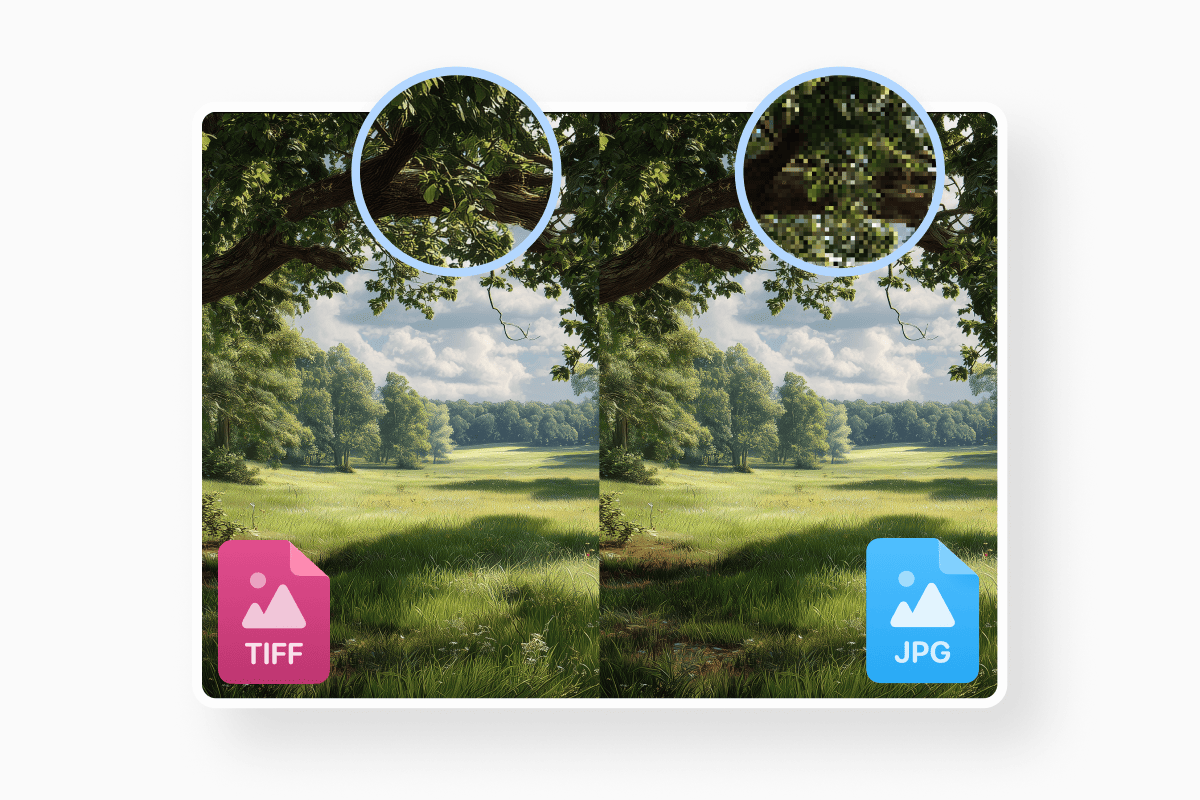
If you ask photographers “Is TIFF better than JPEG?”, you’ll start a small war. The reality is more nuanced.
TIFF is built for editing, printing and archiving. It supports high bit depths, complex color spaces like CMYK for print, and lossless compression. That combination makes it ideal when you plan to push an image hard in post-processing or send it to a high-end printer that expects pristine data.
JPEG is built for sharing. It aggressively compresses images using a lossy algorithm that throws away data your eye is less likely to notice. That’s why your holiday snaps load quickly in a browser and fit comfortably in cloud storage. But every time you re-save a JPEG, you lose a little more detail, and the format is limited to 8-bit color, which reduces flexibility for heavy edits.
So is TIFF “better”? For a printing house, museum archive, or retoucher wrestling with highlights and shadows in a RAW-like workflow, absolutely. For posting memes on X or sending a client a quick preview, TIFF is overkill and JPEG is fine. Many pros actually pair them: TIFF (or RAW) as the master, JPEG as the distribution format.
TIFF vs PNG: where does TIFF fit on modern screens?
PNG is the other obvious comparison. Both PNG and TIFF can be lossless, and both can handle transparency, which makes the “TIFF vs PNG” question look closer than TIFF vs JPEG at first glance. But the formats live in different neighborhoods.
PNG is tuned for web and UI. It shines with logos, icons, screenshots and graphics where you want crisp edges, transparency, and reasonable file sizes. Browsers love PNG; CDNs are optimized for it; performance budgets expect it.
TIFF is tuned for professional imaging. It can store multiple pages, layered or multi-channel images, very high resolutions, and print-friendly color spaces like CMYK. It’s the “bring this to the press” format or the “put this in the archive” format, not the “serve this on a landing page” format.
If you are working in a browser or app environment, use PNG (or newer options like WebP and AVIF). If your printer, DAM, or prepress provider specifically asks for a high quality image format, they usually mean TIFF.
How do you open a TIFF file on Windows or Mac?
The good news: you don’t need exotic software just to open a TIFF.
On Windows, the built-in Photos app can display TIFF files out of the box, and older versions of the OS use Windows Photo Viewer for the same job. On macOS, Preview opens TIFF files just like it opens JPEGs and PDFs; you can zoom, annotate, and export without installing anything else.
If you want to edit rather than just view, almost every serious image editor speaks TIFF fluently. Adobe Photoshop and Lightroom, Affinity Photo, and open-source tools such as GIMP all support the format, including high bit depths and advanced color management. Digital asset management systems and many scanning applications also treat TIFF as a first-class citizen.
So when you ask “Which software supports TIFF images?” the answer is basically: any tool built with professionals in mind, plus the default viewers on modern operating systems.
Can you convert TIFF to JPEG or PNG?
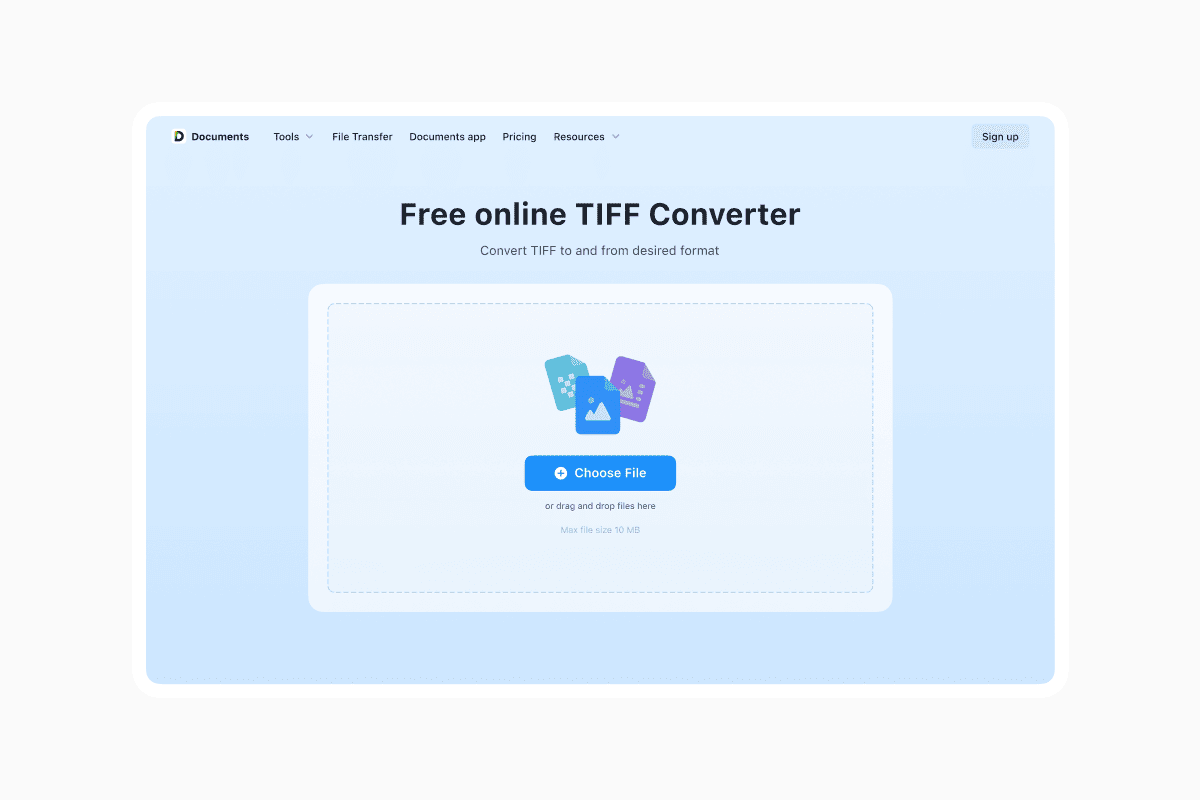
Yes. Converting TIFF to JPEG or PNG is straightforward and often part of a normal workflow.
On macOS, you can open a TIFF in Preview and export it as JPEG or PNG in a couple of clicks. On Windows, many image editors and free viewers offer “Save As” or “Export” options to switch formats. There are also countless online tools that will batch convert TIFF to JPG or PNG if you don’t want to install software.
If you convert TIFF to JPEG, you’ll typically get a dramatic reduction in file size, but you can’t go back: JPEG is lossy, so re-creating the original TIFF quality afterward is impossible. Converting TIFF to PNG retains lossless compression and often yields smaller files than the original TIFF, but you may lose multi-page structure or advanced metadata that PNG simply doesn’t support. The smart play is to keep the TIFF as a master and spin off JPEGs or PNGs as needed.
What are the advantages of using TIFF format?
Put all of that together and the advantages of TIFF are clear.
It gives you lossless or near-lossless storage, high bit-depth color, support for print-oriented color spaces like CMYK, and the ability to bundle multiple pages, layers, and metadata into a single file. It’s widely supported by professional applications, and its specification is mature and well understood, which is why cultural institutions and enterprise systems have trusted it for long-term storage for years.
The trade-offs are equally clear: huge file sizes, slower transfers, and no native browser support. TIFF is not the format you pick for web performance or mobile messaging.
The simplest way to decide is this: if you are printing, archiving, or doing heavy-duty editing and you care about squeezing every last bit of quality out of your images, a TIFF file is exactly what you want. If you are publishing to the open web or just trying to send someone a picture without blowing up their inbox, export a JPEG or PNG and let TIFF sit quietly in your project folder, doing what it does best—being the high-quality original you can always come back to.
Latest posts
Glossary
What is a DOCX file, and how do you open one without Word?
Got a DOCX file but no Microsoft Word? Learn what this popular document format is and the easiest ways to open and edit it
Glossary
What is an HTML file, and what should you do with one?
Found an HTML file and not sure what to do with it? Learn what HTML files are and the easiest ways to open, view, and edit them.

Glossary
What is an EPUB file, and how do you open one on your iPhone?
Got an EPUB file on your iPhone? Learn what this popular ebook format is and the easiest ways to open and read EPUB files.