

Lossless vs Lossy Formats: A practical guide to compression in 2026

Every file format is a tiny negotiation between reality and practicality. You want your photos, songs, and videos to look or sound like the original, but you also want them to upload fast, stream smoothly, and not devour your storage.
That’s where compression comes in, and it usually shows up wearing one of two badges: lossless or lossy.
The difference between lossless and lossy is exactly what it sounds like.
Lossless compression shrinks a file without throwing away any of the original information, so the data can be reconstructed perfectly later.
Lossy compression shrinks a file by discarding some information permanently, betting you won’t notice (or won’t care) what’s missing.
If you’re asking, “Which format keeps original quality?” the answer is lossless—at least in the strict, mathematical sense.
Lossless formats can be decoded back into an identical copy of the source. That doesn’t automatically mean they’re always the best choice, because the real world cares about bandwidth caps, phone storage, and whether your audience is viewing your work on a calibrated monitor or a cracked screen on the bus.
The tradeoff: file size vs quality
Lossy compression exists because it can cut file sizes dramatically, often far more than lossless can, especially for multimedia like images, audio, and video.
It does this using perceptual tricks and math: identify redundancy, model what humans are less likely to perceive, and remove or simplify it. Well-designed lossy compression can look “visually lossless” at sensible settings, until you push it too far and artifacts show up: blocky gradients in photos, smeared details in motion, watery cymbals in music.
Lossless compression, by contrast, focuses on efficiency without sacrifice. Think of it less like “lower quality” and more like “better packing.”
It can remove repetition and re-encode patterns so the same information takes fewer bits. The result is reversible, but the savings are usually modest compared with lossy. That’s great when integrity matters, less great when you’re trying to make a 40MB hero image behave on mobile.
Quick note: “formats” vs “containers” (why the filename can mislead you)
People often say “MP4 is a lossy format” or “M4A is lossless,” but that’s not quite how it works. A lot of what we casually call a “format” is actually a container—a wrapper that holds one or more media streams (audio, video, subtitles, metadata, cover art). The container is the box; the codec is what’s inside the box doing the actual compression.
That’s why file extensions like MP4, MKV, MOV, M4A, OGG, and WebM don’t automatically tell you whether something is lossless or lossy. They only tell you how the file is packaged. The thing that determines the quality and file size tradeoff is the codec: AAC vs ALAC, MP3 vs FLAC, H.264 vs ProRes, AV1 vs FFV1, and so on.
A practical example: an .m4a file could be AAC (lossy, common for streaming and phones) or ALAC (lossless, common for Apple ecosystems). Similarly, an .mp4 might contain H.264 video and AAC audio (both typically lossy), but it could also hold higher-quality audio tracks depending on what was encoded. Even .ogg is a container: it might carry Vorbis (lossy) or FLAC (lossless).
If you want to know what you’re really dealing with, don’t trust the extension alone—check the codec details in your player or file inspector. On most systems, the “Codec” field (or “Media Info”) will tell you whether you’ve got a lossless master or a lossy delivery copy.
The “all cases” rule of thumb you can use
If it’s a codec, you can usually label it lossy or lossless.
If it’s a container/extension, assume it depends until you check the codec.
Lossless codecs and formats
Audio (lossless)
- FLAC
- ALAC (Apple Lossless)
- WavPack (lossless mode)
- APE (Monkey’s Audio)
- TAK
- TTA
- MLP (used on DVD-A)
- PCM (uncompressed audio, e.g., in WAV/AIFF)
- DSD (e.g., SACD/DSF/DFF—generally treated as lossless in the “no information discarded” sense)
- Images (lossless)
- PNG
- GIF (lossless compression, but limited palette)
- WebP (lossless mode)
- AVIF (lossless mode)
- JPEG XL (lossless mode)
- TIFF (when uncompressed or using lossless compression like LZW/ZIP)
- BMP (typically uncompressed)
Video (lossless / archival)
- FFV1
- HuffYUV
- Lagarith
- Apple Animation (RLE)
- Uncompressed video (raw)
Lossy codecs and formats
Audio (lossy)
- MP3
- AAC
- Opus
- Vorbis
- WMA (lossy)
- AMR / AMR-WB
- MP2
Images (lossy)
- JPEG / JPG
- WebP (lossy mode)
- AVIF (lossy mode)
- HEIF/HEIC (commonly lossy in practice)
- JPEG 2000 (commonly lossy, though it can do lossless)
- JPEG XL (lossy mode)
Video (lossy — most streaming/distribution)
- H.264 / AVC
- H.265 / HEVC
- AV1
- VP9
- MPEG-2
- MPEG-4 Part 2 (DivX/Xvid)
“It depends” containers (the extension alone doesn’t tell you)
These can carry either lossy or lossless codecs depending on what’s inside:
Audio containers
- M4A / MP4 audio-only
- OGG
- WAV (usually PCM lossless, but can contain compressed audio)
- AIFF (usually PCM lossless, but can vary)
- CAF (Core Audio Format)
- FLAC (both codec + container, typically lossless by definition)
Video containers
- MP4
- MOV
- MKV
- WebM
- AVI
- MPEG-TS (.ts)
- MXF
Image containers / wrappers (often “it depends”)
- TIFF (can be lossless or contain lossy JPEG)
- HEIF/HEIC (can be lossless or lossy; commonly lossy)
- PDF (can embed either)
Audio: Lossless and lossy formats
Are lossless files worth it?
If you’re producing, mixing, mastering, or archiving, usually yes: you want a master you can return to, edit, and convert from without stacking damage. Professionals and enthusiasts often keep a lossless library (FLAC or ALAC) and create smaller lossy copies for phones or car stereos. That approach also avoids “generation loss,” the creeping degradation that can happen when you repeatedly re-encode lossy files.
If you’re just streaming on everyday gear, the practical difference may be subtle. A lot of listening happens over Bluetooth headphones and in noisy environments, where the bottleneck is your playback chain, not whether the file is pristine. Even then, lossless can still be appealing for peace of mind and future-proofing—storage is cheap, and you only want to rip your CDs once.
Is Spotify lossless or lossy?
Historically, Spotify streamed lossy (commonly via Ogg Vorbis). But as of September 10, 2025, Spotify announced “Lossless” on Premium, streaming in FLAC up to 24-bit/44.1 kHz. Availability and device support can vary by market and rollout, but the headline is clear: Spotify has officially entered the lossless era.
The more useful question now is whether you’ll benefit—and the honest answer depends on your ears, your gear, and whether you’re listening critically or casually.
Images: RAW vs JPEG (and why re-saving matters)
Should I use lossless or lossy formats for my photos?
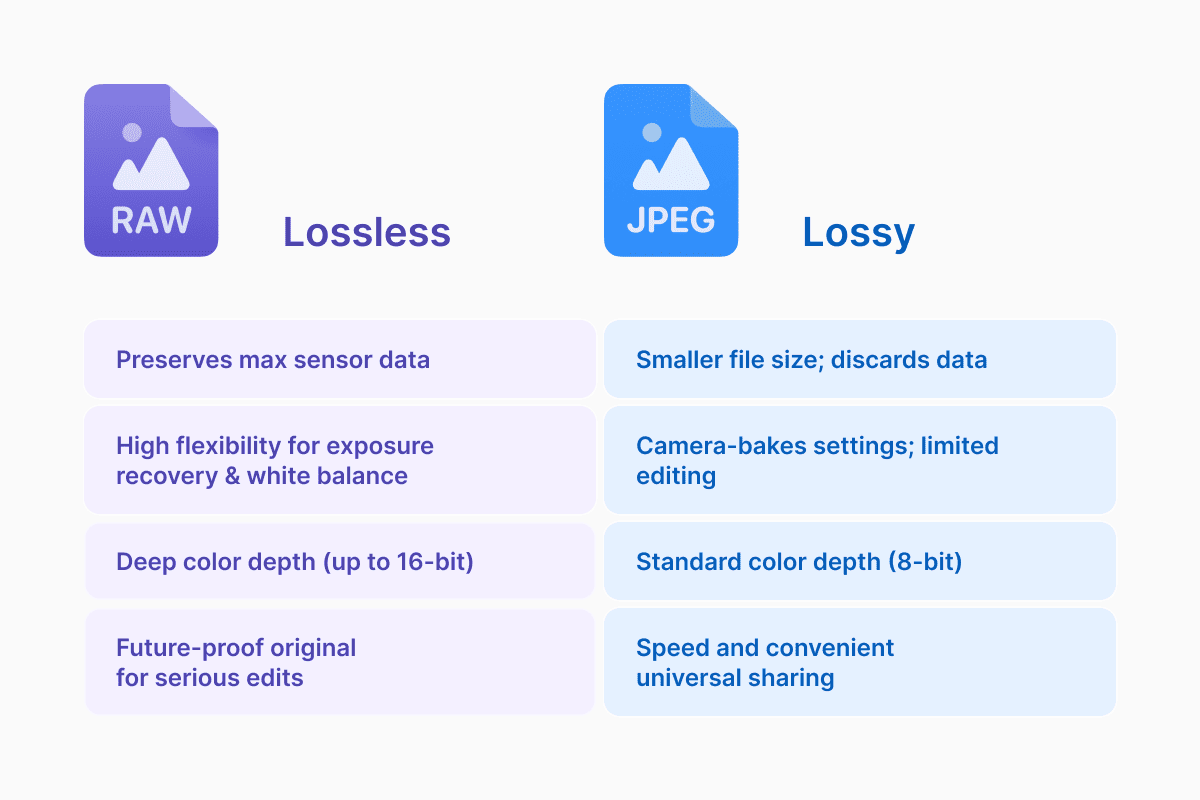
In photography, the lossy vs lossless decision often hides inside a bigger one: are you capturing a “digital negative” you’ll develop later, or a finished image your camera bakes for you?
RAW files preserve sensor data with maximum flexibility for editing—exposure recovery, white balance changes, and smoother gradients—because they retain much more information. JPEG is designed for speed and convenience, and it’s typically lossy. JPEG’s magic trick is that it can make files dramatically smaller, but at the cost of discarding data. When you repeatedly edit and re-save JPEGs, they can be recompressed each time, which risks accumulating artifacts and banding.
That’s why the common pro workflow is capture in RAW (or RAW+JPEG), do your serious edits from the RAW, and export JPEGs for sharing. It’s also why the question “Which format keeps original quality?” matters: RAW keeps the most original capture data for future you; JPEG is optimized for right-now convenience.
Does it matter if I use lossless or lossy images for my website
For web graphics and UI elements, PNG is typically lossless and great for crisp edges, text, and logos, while JPEG is often better for photos where a little loss buys huge size reductions. Tools and CDNs can also serve newer formats; for example, WebP can be used in lossless mode and still achieve large reductions in some cases, which is why it’s popular in performance-focused web setups.
Video: why almost everything you stream is lossy
Video is where lossy compression quietly runs the internet. Modern codecs like H.264/AVC and HEVC are designed to squeeze massive amounts of data down to something you can actually stream, often by exploiting what’s redundant between frames and what your eyes are less likely to notice. The gains are enormous, and that’s why “lossy compression better” is sometimes the correct take: without it, streaming platforms would be bandwidth bonfires.
But the same rules apply: keep the best master you can, and only compress down at the edges. If you’re editing video, you generally want high-quality source media and a thoughtful export, because re-encoding a lossy file again can compound artifacts.
Choosing between lossless and lossy without overthinking it
If you’re deciding “when to use each,” the simplest rule is this: use lossless when the file is a source, a master, or something you’ll edit and reuse; use lossy when the file is a delivery copy meant to be fast and lightweight.
Lossless shines for archiving, creative work, and anything where fidelity or integrity matters. Lossy wins when speed, storage, and compatibility matter more than perfection, especially for streaming and web delivery. And if you’re optimizing a site, lossy image compression is often a performance superpower—so long as you keep an original somewhere safe and don’t crush images until artifacts become visible.
In other words, lossless is your “master key.” Lossy is your “everyday carry.” The trick is knowing which one you’re holding—and not trying to turn one into the other after the fact, because the data you threw away isn’t coming back.
Latest posts

Knowledge Base
Video file formats explained: MP4, MKV, AVI and more
Learn the difference between video file formats (MP4, MKV, AVI, MOV, WebM) and codecs (H.264, H.265, AV1). Find out which format is best for social media, professional editing, and universal compatibility in 2026.

Knowledge Base
The beginner photographer’s guide to file conversion (RAW, JPEG, TIFF, PNG)
A beginner-friendly guide to converting RAW, JPEG, TIFF, and PNG photos. Learn quality tradeoffs, export settings, and smart archiving habits for web and print.
Knowledge Base
How to make a GIF: simple steps to create and share loops online
Making a GIF is simple: trim a short moment from a video, convert it, and save the loop. Whether you’re using a browser-based converter like Documents.io or an app, the key is to keep it short, clean, and seamless for easy sharing anywhere.