


Choosing the right video format can feel overwhelming. YouTube, LinkedIn, Facebook, Instagram, website. Different platforms require a different video format based on quality, file size, compatibility, or ease of use across devices.
But how can one choose the best video format? There are countless options, but for most people, the choice really comes down to four video file formats: MP4, MOV, AVI, and MKV. Here’s a practical breakdown to help you decide.
Why selecting the right video format matters
Pick the wrong one and your sharp-looking video from your phone can come out blurry on Instagram, take forever to upload to YouTube, not be compatible in a browser, or not play at all on TV.
Video file format refers to two different things: the container and the codec. The container (MP4, MKV, MOV, AVI, etc.) is just the box that holds the audio, the video, and everything else together, while the codec (like H.264 or H.265) is the compression method that encodes the video inside that box.
The codec affects the video quality, but the container affects compatibility, file size, and which platforms support it. That’s why videos shot at the same resolution can look different and why it matters to choose the right format.
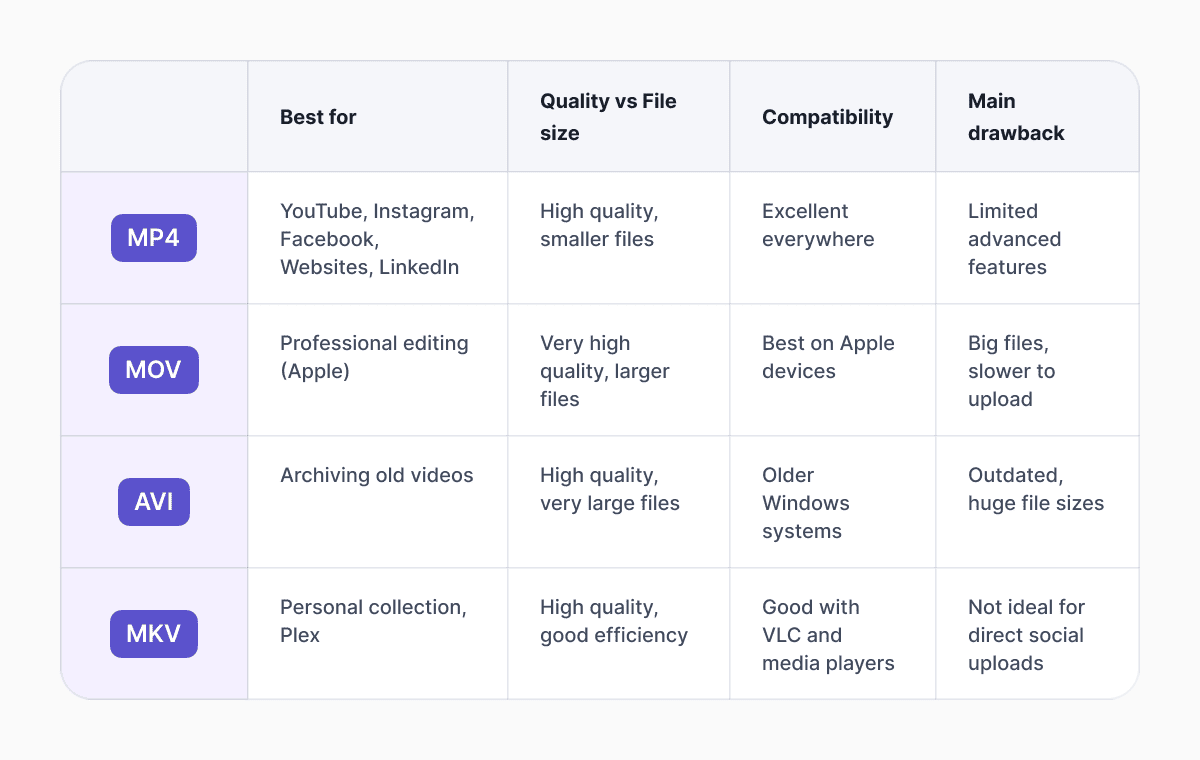
Quick comparison of popular video formats
MP4: the universal standard
MP4 is still the go-to format for all platforms (YouTube, Instagram, LinkedIn, Facebook, etc). If you pair it with H.264 video and AAC audio, you’ll get a file that plays everywhere: phones, smart TVs, tablets, computers, browsers.
H.264 is the most widely supported video compression standard, offering a good balance between quality and file size. For 4K videos, H.265 (HEVC) is a newer compression standard that can reduce file sizes significantly while maintaining similar image quality.
MP4 files are convenient for everyday use, but they’re not the most flexible if you need multiple audio tracks (like different languages) or built-in subtitles.
MOV: Apple’s native format
MOV was originally created by Apple for QuickTime. This format is still very common for videos taken on iPhones or edited in programs like Final Cut Pro. Just like MP4, MOV is a container, so it can wrap H.264, ProRes, or other codecs inside, preserving high quality.
On Apple devices, MOV works perfectly. The downside is the file size. MOVs are usually much bigger than an MP4 of the same video at similar quality.
Windows users usually need extra codecs to play MOV files, and many websites that accept them will just convert them to MP4 behind the scenes anyway. So if you’re editing on a Mac but need to share beyond Apple users, you might need to convert MOV to MP4 before uploading.
AVI: the one to leave behind
AVI (Audio Video Interleave) was Microsoft’s format from 1991. It was popular years ago because of good picture quality; however, it had a major compression problem. AVI is pretty inefficient, so files end up much larger than they need to be. The same video can easily be five to ten times bigger in AVI than in MP4, depending on the codec.
It also can’t stream at all, the entire file has to download before playback even starts. That alone makes it useless for anything online these days.
If you’ve got old AVI files lying around, convert them to MP4. You’ll get much smaller files, way better compatibility across devices, and no visible drop in quality.
MKV: the archivist’s choice
MKV, also called Matroska Video, is an open-source format that can pack in any video codec, multiple audio tracks in different languages, tons of subtitles, chapter markers, and even cover images.
At the same settings, MKV files end up about the same size as MP4s. The real advantage is how much you can stuff inside one file.
Compatibility is it’s downside. Even though support has improved, this file format is still not as universal as MP4. Most social media sites reject MKV files and a lot of phones won’t play them without external apps.
If you’re sharing or uploading anywhere public, converting MKV to MP4 is the safer option.
How to choose the best video file format
It all depends on where you’re uploading. Here’s the practical breakdown:
Best video format for YouTube
YouTube is pretty flexible with formats. It handles MP4, MOV, AVI, and MKV well. But MP4 with H.264 video and AAC audio works best due to fast uploads. Plus, most editing apps export these parameters by default.
- For 1080p (Full HD), use around 8 Mbps
- For 4K, 35-45 Mbps with H.264 (H.265 is okay but can slow things down)
30fps at 1080p is enough for most videos. Only go 4K if you really need that extra sharpness.
Best video format for Instagram
Instagram works best with MP4 and MOV. These two formats upload and compress the smoothest.
- Reels: Vertical (9:16), 3-6 Mbps.
- Feed posts: 1080x1350.
- Stories: 1080x1920.
If you use an iPhone, you can choose MOV as a default file format, but MP4 is usually smaller and better after editing. AVI and MKV are not well supported, they often fail or get rejected, so convert them first.
Best video format for LinkedIn
LinkedIn works best with MP4 and MOV files. These two formats upload reliably, process quickly, and play smoothly for viewers.
The platform can sometimes accept AVI files, but the results are hit-or-miss. MKV is best avoided completely. LinkedIn usually rejects these files or has major problems with them during upload.
- Max file size: 5GB
- Max length: 10 minutes
- Square (1:1) or vertical (4:5) videos usually get more views on mobile.
Best video format for Facebook
Facebook is one of the most flexible. It supports MP4, MOV, and AVI without much trouble. MKV can work sometimes, but it isn’t reliable, so it’s better to convert this file type.
Best video format for website
For your website, choose MP4 with H.264 as it’s the most compatible across all browsers.
You can also use WebM if you want smaller file sizes and faster loading times, but it doesn’t work well on all browsers, like Safari. Best to use MP4 as your main file.
Converting between formats
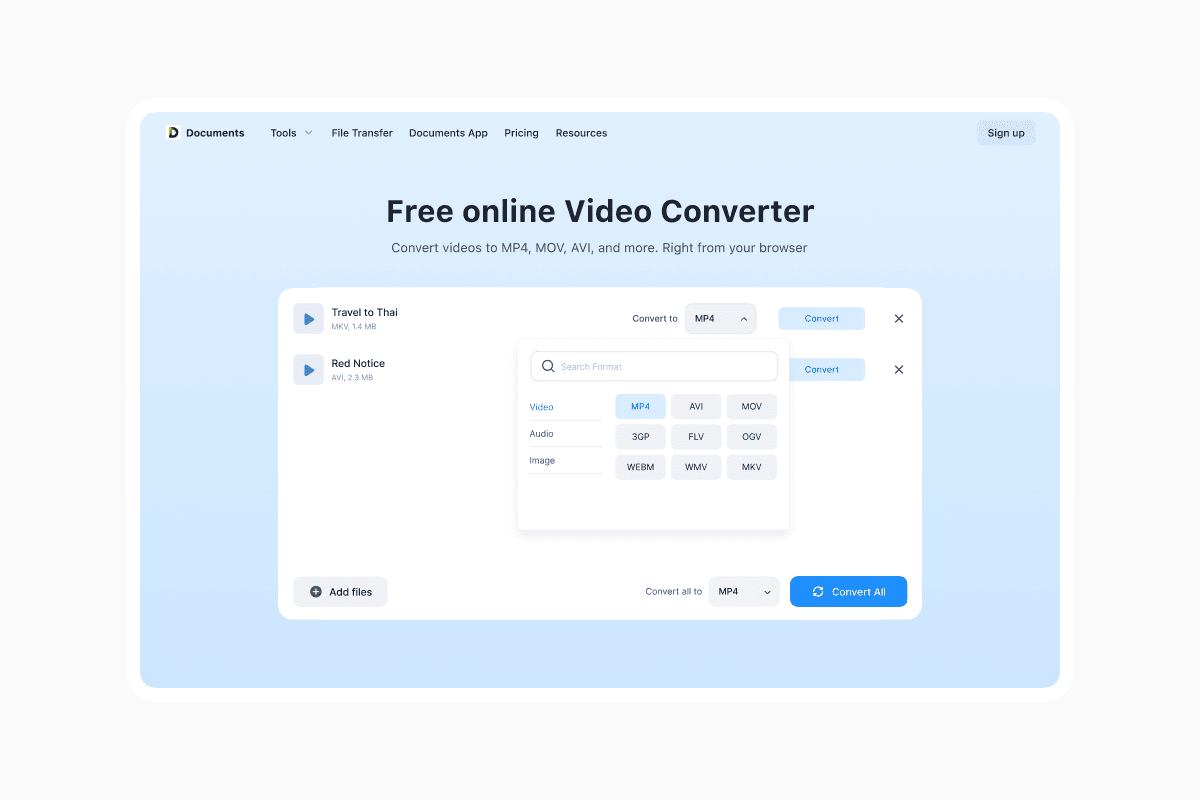 Choosing the best format based on your needs is one thing. The other one is getting stuck with the wrong format when you need to share or upload. For instance, .mov from an iPhone that won’t upload to a work platform, .mkv won’t play on a TV.
In this case, your only choice is to convert your files to the right one. For both desktop and on-the-go conversion, Documents.io by Readdle is a reliable tool for format conversion. Whatever format a file arrives in, you can always convert it to MP4 and get a video that works everywhere.
FAQ
Which format has the highest quality?
All formats can look good, but it comes down to the codec inside rather than the file type. MOV with ProRes is the best option when you want maximum detail. But MP4 with H.264 or H.265 gives nice results without a huge file size.
What’s the best video format for social media?
MP4 is the one that works everywhere: YouTube, Instagram, Facebook, LinkedIn, and other social media platforms.
Can I upload MKV or AVI directly to social media?
A lot of platforms reject MKV right away, and AVI is hit or miss. It’s best to convert these file types to MP4 first for better results, smaller files, and no real drop in quality.
What’s the best video converter?
For both phone and computer, Documents by Readdle is the best video converter, converting MOV, MKV, AVI, and other formats to MP4 with lossless quality.
Latest posts

Knowledge Base
Video file formats explained: MP4, MKV, AVI and more
Learn the difference between video file formats (MP4, MKV, AVI, MOV, WebM) and codecs (H.264, H.265, AV1). Find out which format is best for social media, professional editing, and universal compatibility in 2026.

Knowledge Base
The beginner photographer’s guide to file conversion (RAW, JPEG, TIFF, PNG)
A beginner-friendly guide to converting RAW, JPEG, TIFF, and PNG photos. Learn quality tradeoffs, export settings, and smart archiving habits for web and print.

Knowledge Base
How to make a GIF: simple steps to create and share loops online
Making a GIF is simple: trim a short moment from a video, convert it, and save the loop. Whether you’re using a browser-based converter like Documents.io or an app, the key is to keep it short, clean, and seamless for easy sharing anywhere.