


You’ve seen the extension before. Downloaded a movie, ripped a Blu-ray, or used high-quality video files – MKV files are everywhere in high-quality video circles. But the moment you try to play one on your TV or phone, things get more complicated.
This format is universal for storing multimedia – it contains subtitles, multiple audio tracks, metadata, and chapters in a single file. But how does it compare to other video content?
This guide answers all your questions: what the MKV file format is, what it can hold, how to open and convert MKV files, and when to use it.
What is an MKV?
MKV is short for Matroska Video. And MKV was built on a specific idea: one file should be able to hold everything. Just like the matryoshka dolls, the Matroska video container holds several other elements, each distinct, each accessible. Not just the video stream, but multiple audio languages, commentary tracks, subtitles in a dozen languages, chapter markers, metadata, and attachments.
Unlike a codec that compresses and encodes your video and audio data, a container (MKV in our case) holds those encoded streams together without changing them.
The Matroska container supports 4 file types: .mkv for video, .mka for audio, .mks for subtitles, and .mk3d for 3D video.
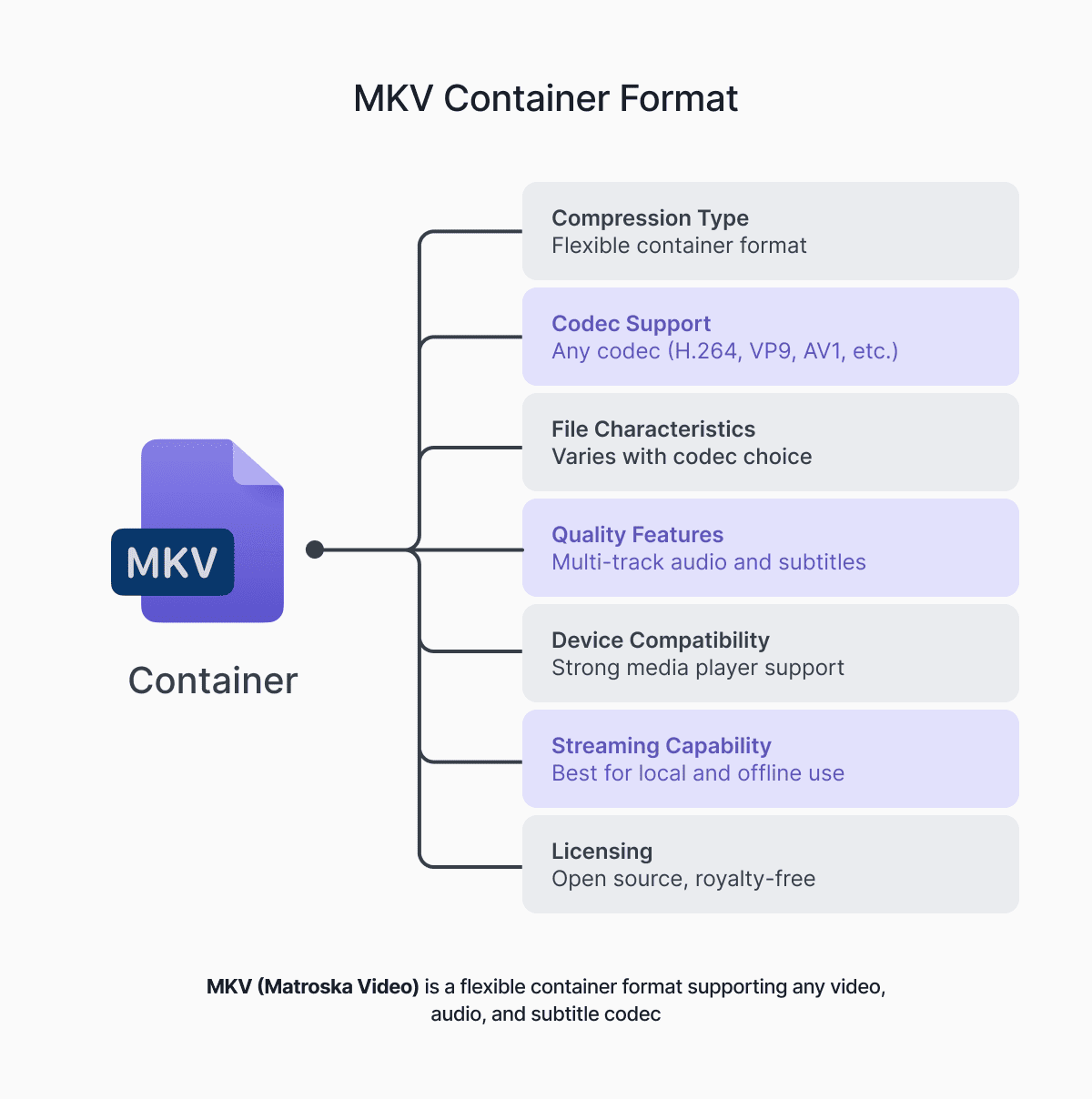
Elements of MKV file
A typical MKV file can store various elements. Here’s what the format supports:
- Video tracks. One or more video tracks that are encoded with any modern codec. For instance, H.264, H.265/HEVC for 4K and HDR content, AV1 for efficient high-quality encodes, or VP9 for web-sourced video.
- Audio tracks. Original language, dubbed versions, director’s commentary, and descriptive audio track that can be switched in your player.
- Subtitle tracks. Both text-based (SRT, ASS, SSA) and image-based formats (PGS from Blu-rays, VobSub from DVDs) can be toggled without re-encoding.
- Chapters. Named navigation points, the same way a DVD menu lets you jump to a scene. Players that support chapters (most desktop ones do) surface these as a clickable list.
- Attachments. Fonts that subtitle styling depends on, cover art, and even small companion files. All storable inside the container.
- Metadata. Title, year, genre, cast, language labels, track names, codec information. Applied at the file level or per-track.
A fully loaded MKV file can carry everything that was on the disc. That’s not something most container formats can claim.
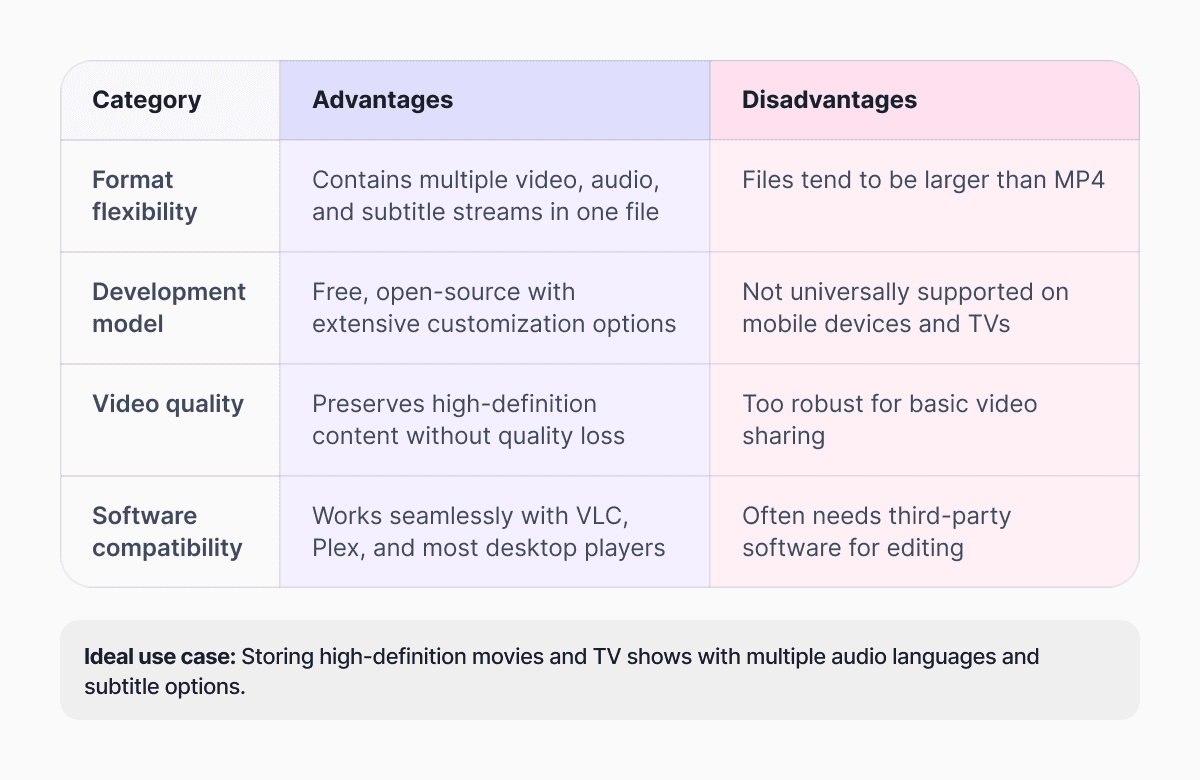
Pros and cons of MKV files
MKV vs MP4: Comparison
Both MKV and MP4 are container formats that wrap video, audio, and subtitles into one file. But which one to choose: MKV or MP4? This is the question that often comes up, but the answer entirely depends on your needs. Let’s compare these two file formats.
-
Compatibility and codec support
MP4 is quite limited in what it supports, but that limitation is also why it plays everywhere. Smart TVs, phones, game consoles, streaming platforms – MP4 with H.264 video and AAC audio is about as universally compatible as video gets.
MKV, on the other hand, is open-source and supports virtually any codec, including modern and even experimental formats. On the upside, you can always use a newer, more efficient codec; on the downside, a file holding AV1 video with TrueHD audio and ASS subtitles will play beautifully on a capable PC and fail on a 2019 smart TV.
-
Multiple audio tracks and subtitles
The multi-track functionality and subtitles change how people actually use the format.
MP4 technically supports multiple audio and subtitle tracks, but in practice, it’s much more limited. Many devices and players only reliably show one or two audio tracks, and subtitle support is pretty basic – mostly plain text with very little styling.
For complex videos (multi-season shows, anime, or anything requiring multiple languages), choose MKV. Since MKV subtitle tracks are stored separately from the video, they’re also independently editable. You can pull one track, add a new one, or swap the styling without touching the video itself.
-
Metadata and editing
When it comes to metadata in MP4 vs MKV, the latter wins. With advanced MKV metadata support, with chapter and tags, this format is a great choice for detailed media organization.
While MP4 also offers basic metadata support, this format is more suitable for short clips with simple editing tasks.
-
Streaming support
MP4 is the industry standard for streaming services. Because of its broad support and file sizes, you can effortlessly upload videos to YouTube, Vimeo, or stream from your own server.
MKV, on the other hand, wasn’t built for streaming. While it offers superior flexibility, it doesn’t play natively in most web browsers and isn’t well-optimized for live or adaptive streaming pipelines.
-
Open standard
MKV is fully open-source and royalty-free. This means anyone can use or modify it, without worrying about licensing fees or patent issues on the container itself.
MP4 comes from the MPEG/ISO world and carries proprietary elements, especially when paired with common codecs like H.264 or H.265.
How to open an MKV file
Since the MKV format isn’t as widespread, not all platforms can easily open MKV files. However, the best option for any OS is VLC Media Player. This is a free tool that supports the format on Android, iOS, Windows, and Mac.
Alternatively, choose among the following options:
- Windows – Films & TV app for Windows 10/11.
- Mac – IINA, HandBrake, or Movavi Video Converter.
- Linux – MPV or Totem.
- iOS – Infuse.
- Smart TVs and streaming devices – Plex and Kodi.
Why an MKV file might not play
When your MKV file isn’t playing, it’s almost certainly not broken. Here’s what’s actually happening:
- Codec not supported. Your device has no decoder for what’s inside the container. This is common with H.265 (HEVC) and AV1 on older hardware or with lossless audio formats like TrueHD or DTS-HD Master Audio.
- Narrower codec support than advertised. Many smart TVs claim MKV compatibility, but they only support MKV with H.264 video and AAC audio. Anything outside that fails, sometimes without an error message.
- HDR or 10-bit video. These videos need compatible hardware decoding. A display that doesn’t support HDR10 or Dolby Vision may refuse the file or play it with washed-out color.
- Audio track mismatch. Lossless audio formats need specific decoders. Without one, the device may skip audio entirely rather than fall back gracefully.
To fix these issues, make sure you’re opening your MKV file in VLC, which handles most of these cases. Alternatively, you can convert the file to another format.
How to convert MKV to MP4
The conversion is often faster than you expect – and lossless in many cases.
Documents.io is a reliable online file manager by Readdle with a built-in MKV converter that handles conversions without any extra downloads or installs. Upload the file, convert MKV to MP4, and download the result. You get 10 free conversions, and it works just as well going from MP4 back to MKV.
MKV video container: FAQ
What is the difference between MKV and MP4?
MKV and MP4 are both video containers. MKV supports a wide range of codecs, audio tracks, subtitles and is fully open-source. MP4 is more limited, but it is compatible with almost any device.
How to open MKV on Windows or Mac?
Use VLC Media Player on Mac or Windows. The player is free and handles any codec inside the file. On Windows 10/11, the built-in Films & TV app also supports MKV natively. On Mac, IINA is a great alternative.
Can I convert MKV to MP4 without losing quality?
Yes. Since converting doesn’t involve encoding, the process is lossless. Use a reliable converter like Documents.io – it’s free and offers fast conversion from MKV to MP4 and vice versa.
What can MKV hold besides video and audio?
MKV can hold subtitle tracks in multiple languages and formats, chapter markers, fonts, metadata, and small file attachments.