

Batch file conversion, solved: how Documents.io handles your document backlog

If you’ve ever stared down a folder full of Word files and thought, “These all need to be PDFs by 5 p.m.,” you already understand why batch file conversion matters. Doing it manually is mind-numbing. Doing it with a smart multi-format converter like Documents.io feels closer to hitting “cheat mode” on your workflow.
Documents.io is Readdle’s browser-based file toolkit: a web platform that converts, compresses, and transfers files without installing anything. Pair it with the Documents app on iPhone and iPad and you get a hybrid setup that handles both heavy desktop batches and on-the-go file chaos.
This is what batch file conversion looks like when everything is built around a single platform instead of a bag of random utilities.
What batch file conversion looks like in Documents.io
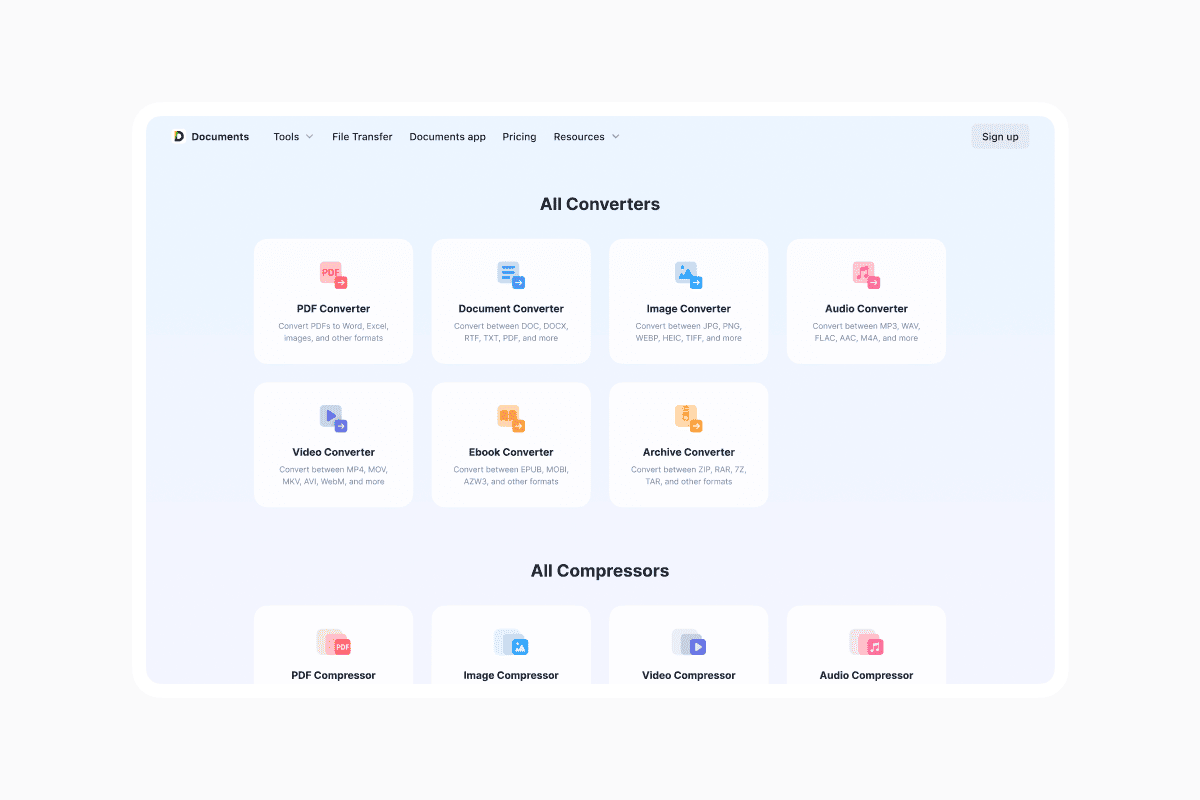
At its core, batch file conversion means taking a group of files and pushing them through the same conversion rules in one go.
On Documents.io, that job is handled by its online converter tools, which run directly in the browser. You upload once, set your output format once, and the platform does the repetitive work.
The main Documents.io interface is built around this idea of “one tool, many formats.” The File Converter supports everyday office formats like DOCX, spreadsheets, presentations, plus images, audio, video and even eBooks.
The promise is simple: drag in whatever you’ve got, pick a target format, let the engine figure out the rest.
Behind the scenes, our pricing page tells you how far you can push those batches. With Pro-level access, you can convert up to 50 documents at a time in the web Document Converter, 50 images, 25 audio files, and 10 video files per batch. File sizes go up to 100GB per file, which is more than enough for typical office libraries or training content.
For anyone sitting on a pile of reports, agreements or slide decks, that’s batch file conversion in the way it should work: lots of files, one repeatable set of rules.
Is there a way to batch convert video and media files too?
Yes, and this is where Documents.io quietly steps beyond pure “documents.”
The main site calls out that the online tools can handle PDFs, Word and Excel files, PowerPoint decks, images, videos and more.
That’s not just marketing speak – there are converters for images, audio, video, archives, and eBooks, each with its own batch and file-size limits. For video, you can convert up to 10 files per batch, with online file sizes up to 1GB per clip on Pro tiers. Audio and image conversions have similarly high ceilings for day-to-day work.
On mobile, the Documents app leans into media even harder. It includes a built-in player for your audio and video library.
For anyone handling a mix of slides, PDFs, audio recordings and video assets, that combination of browser-based tools and a capable mobile app is essentially bulk media conversion software without the usual friction.
How do I convert multiple files at once with Documents.io?
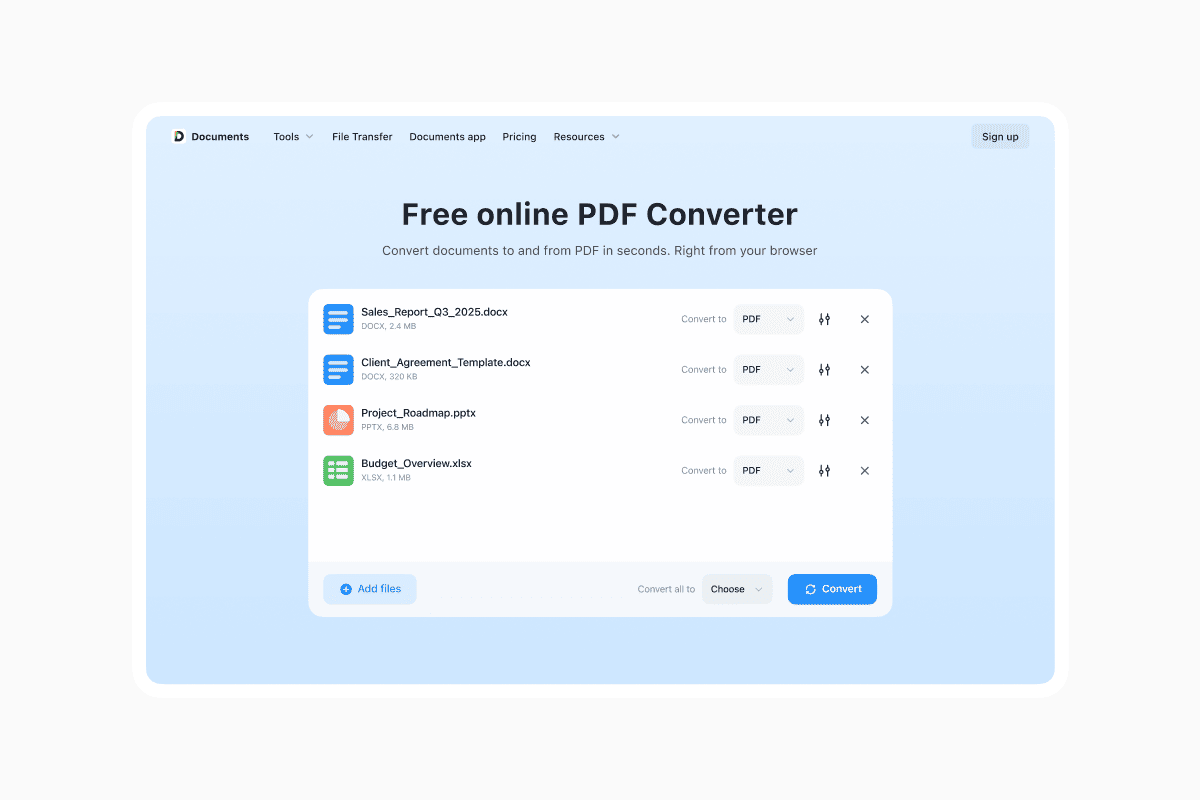
In practice, converting multiple files at once on Documents.io is refreshingly unexciting, which is exactly what you want from infrastructure.
You head to the Document Converter or PDF Converter page, hit “Choose File” or drag and drop your documents into the upload area, then select the format you want on the output side.
From there, the service processes the whole set together and gives you the converted files to download. It’s the same flow whether you’re going from DOCX to PDF, PDF back to DOCX, or shifting a bunch of TXT notes into a more polished format.
The platform is designed to be browser-first: you don’t need to install anything, and it works on any modern desktop OS.
You can upload files up to 1GB online, and that you can convert “documents, spreadsheets, presentations, and more into any popular format” for free, with higher limits and deeper batch tools unlocked on paid tiers.
So the answer to “How do I convert multiple files at once?” is essentially: open Documents.io in your browser, throw your files at it, and let the batch tools do their thing.
Can I completely automate file conversion tasks with Documents.io?
When people ask about automation, they often imagine a full-blown API or cron-like scheduler. Documents.io doesn’t pitch itself as developer middleware; it’s more of a power-user tool for real people. That said, you can still get a semi-automated feel out of it.
On the web, automation mostly means leaning on batch file conversion and generous limits: instead of converting files ad hoc throughout the day, you queue up a full session of up to dozens of documents at once, run them in a single pass, and drop the outputs straight into your cloud storage. The platform’s “quick actions” and unified tools page are built to make that routine fast enough that it feels almost scripted.
The more interesting side of “automation” lives in the Documents app. Because the app can link multiple cloud accounts – think Dropbox, Google Drive, iCloud and OneDrive – it effectively becomes a control panel sitting on top of your storage. You can scan or import files, convert them to PDF inside the app, and push them back to the right folder without juggling logins or apps.
It’s not a server-side automation engine, but for many teams that need predictable, repeatable conversions, bundling everything into a daily or weekly Documents.io session gets you most of the way there with a lot less complexity.
Is Documents.io the best batch file converter for you?
There’s no single “best batch file converter” for everyone, but Documents.io makes a strong case if you care about a few specific things: staying in the browser, supporting a wide range of formats, and not having to worry about where your files are going.
The platform is deliberately lightweight. Everything runs online, so you don’t have to worry about downloading tools.
Then there’s scale. The web tools have effectively unlimited daily usage for normal workflows on Pro plans, alongside clearly defined batch and file-size limits for each converter and compressor. Those limits – like 50 document conversions or PDF compressions per batch – are generous enough that most professionals will never hit them outside of true edge cases.
If your world revolves around Office docs, PDFs and the occasional image or video, Documents.io is exactly the kind of multi-format converter that quietly becomes the default browser tab you keep pinned.
A warning: Why you should avoid cheap batch converters
Searching “batch file converter” and you’ll get a wall of sites promising instant DOC-to-PDF magic. Some are fine. A worrying number, according to recent security alerts, are not.
The FBI and multiple cybersecurity firms have warned about scammy “free” converters that use file conversion as bait.
The page looks legitimate and may even convert your files correctly, but the download can quietly install malware, adware, or a browser hijacker, or scrape sensitive data from whatever you upload.
In other cases, the converter works entirely in the cloud with almost no transparency about how long your files are stored, who can access them, or how the service is funded. “Because ads” is one thing; “because your data” is another.
Cheap or no-name batch converters also tend to cut corners on basics that actually matter day to day.
You’ll see aggressive watermarking, random file-size caps, or quality settings that crush the readability of a PDF or the clarity of an image. Some tools quietly upload “offline” conversions to a remote server anyway, then spring usage limits on you once you’re already in the workflow.
If you’re trying to standardise contracts, reports or training materials, that kind of unpredictability is the opposite of what you need.
This is where using a platform like Documents.io – and the companion Documents app – is a very different proposition.
Readdle publishes a detailed privacy notice and a separate Documents privacy FAQ that commit to data minimisation, purpose limitation, and modern security standards rather than treating your uploads as monetisable exhaust.
Documents.io spells out its file-size and batch limits up front, processes files without persistent storage during transfer, and sits inside an ecosystem that already has to meet GDPR and App Store privacy requirements.
In other words, you’re not just paying to avoid watermarks. You’re paying to avoid surprise malware, dark-pattern upsells, and the nagging suspicion that your entire document library is parked on a mystery server somewhere.
For professionals who live in their documents, that peace of mind is worth a lot more than “free.”
Why batch file conversion with Documents.io actually matters
The real story here isn’t just that Documents.io can batch convert. It’s what that unlocks for people who use document and media libraries on a day-to-day basis.
Professionals get a way to standardize output – every report becomes a consistent PDF, every slide deck exported to the same format, every video encoded inside clear constraints. Students and educators get one place to turn messy file collections into shareable, compressed sets that won’t choke a learning platform. Businesses get a pragmatic web-and-app combo that respects security, scales to big files, and doesn’t require babysitting installs on every device.
Batch file conversion is the boring foundation that makes all of that possible. Documents.io just happens to make the boring part fast, tidy, and surprisingly pleasant: whether you’re in a browser tab or on a train with your phone.
Latest posts

Knowledge Base
Video file formats explained: MP4, MKV, AVI and more
Learn the difference between video file formats (MP4, MKV, AVI, MOV, WebM) and codecs (H.264, H.265, AV1). Find out which format is best for social media, professional editing, and universal compatibility in 2026.

Knowledge Base
The beginner photographer’s guide to file conversion (RAW, JPEG, TIFF, PNG)
A beginner-friendly guide to converting RAW, JPEG, TIFF, and PNG photos. Learn quality tradeoffs, export settings, and smart archiving habits for web and print.

Knowledge Base
How to make a GIF: simple steps to create and share loops online
Making a GIF is simple: trim a short moment from a video, convert it, and save the loop. Whether you’re using a browser-based converter like Documents.io or an app, the key is to keep it short, clean, and seamless for easy sharing anywhere.