


You’ve probably been there. You dig through an old hard drive, find a folder of documents from 2003, double-click a file, and your computer has absolutely no idea what to do with it. The software that created it is long gone, and so, effectively, is the data inside.
The Library of Congress has catalogued nearly 400 distinct file formats on its Sustainability of Digital Formats website, each assessed for its long-term viability. Many of them are already outdated, and the software that created them is long gone.
However, most old files can be recovered, converted, and preserved. Let’s have a look at how.
Why file formats go obsolete
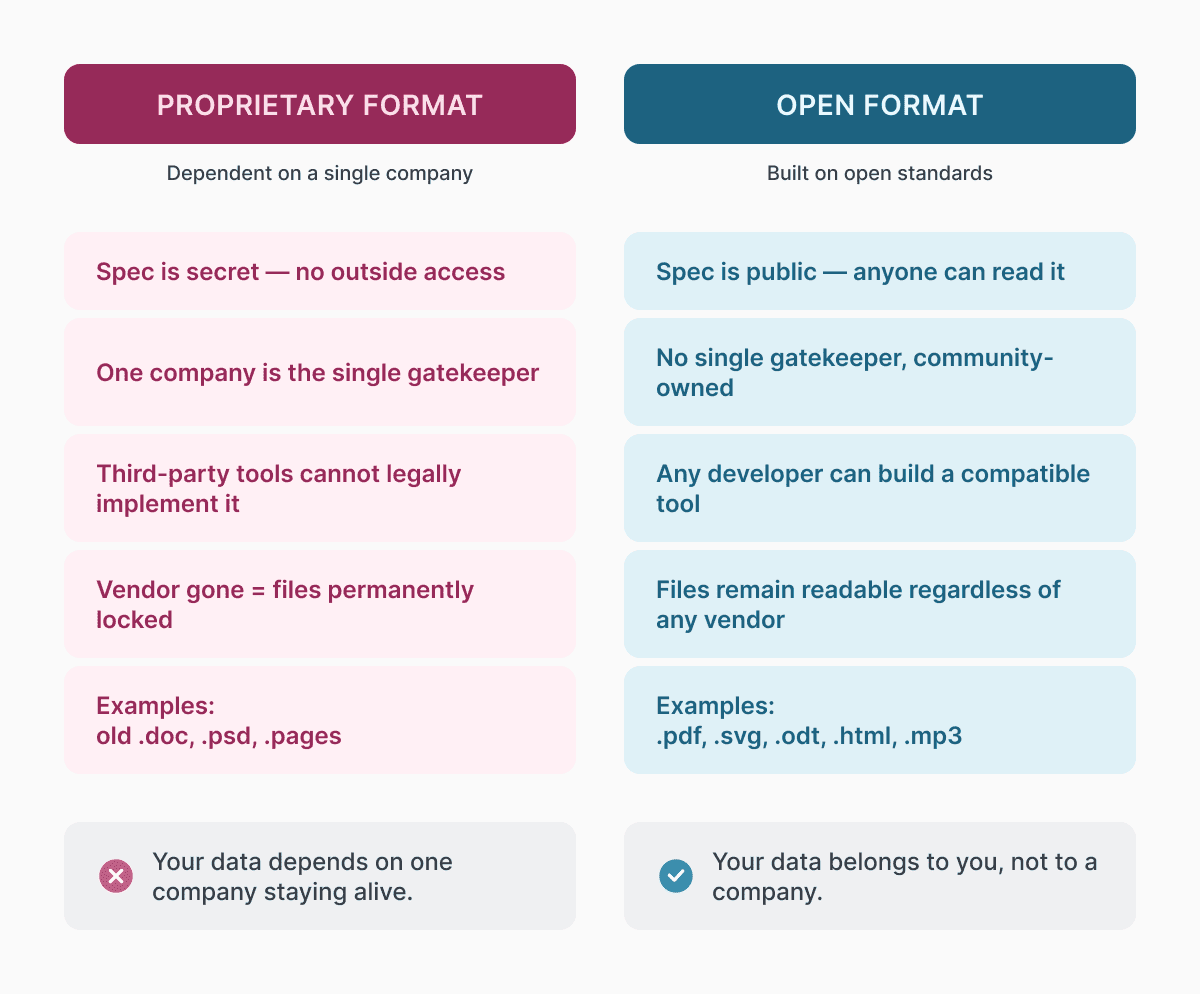
The real issue is that digital files are never truly self-contained. A .doc from Word 97 isn’t just data, it’s data written in a language that needs a specific program to read it. When Microsoft switched to .docx in 2007, they didn’t remove the .doc support immediately, but every new update nudged the old format a bit closer to the edge. Eventually, it just falls off.
Proprietary formats are by far the most dangerous. When a company creates a format that only their own software can read, they create a single point of failure. If the company folds or simply stops support for older versions, those files get stranded. It’s happened previously, for old desktop publishing formats, specialized CAD files, and audio formats tied to players that no one makes anymore.
Open formats handle this much better. Because the specifications are public, anyone can write software to read them, even years or decades later.
How to access files you can’t open
If you’ve stumbled across an unreadable file, legacy file recovery starts with the simplest tools available, like Documents.io. This free online file converter can handle various old and modern formats directly in the browser. Upload a file, pick your target format, and download the result. That’s useful when you’re dealing with a format your OS has never seen, and you just need the content out fast. It won’t save everything, but it’s often the tool worth trying before reaching for more specialized options.
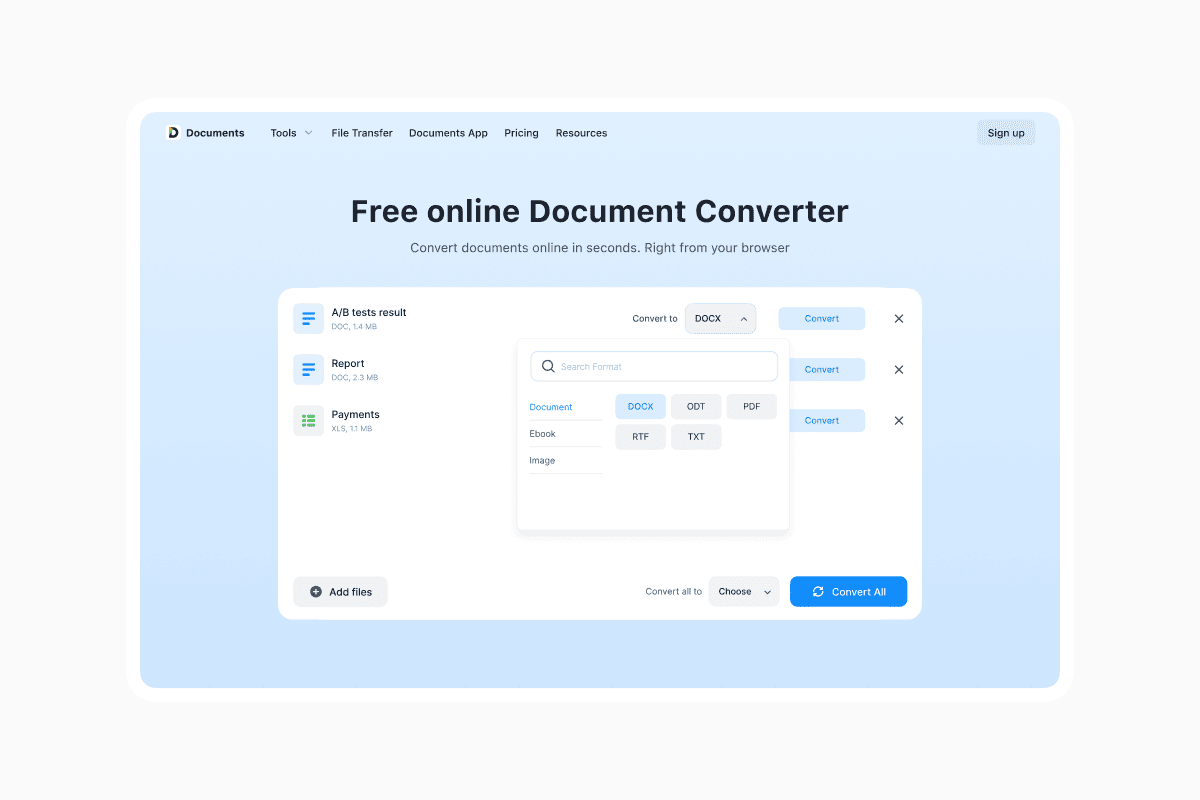
You can also turn to LibreOffice, the free, open-source office with broad legacy format support, including WordPerfect documents, old Lotus spreadsheets, and many other formats.
For formats that Document.io and LibreOffice can’t handle, online converters like Zamzar and CloudConvert support hundreds of legacy formats and can translate them into something modern.
When files are badly corrupted rather than just outdated, the situation gets harder. Microsoft Word has a built-in Text Recovery Converter that can sometimes salvage content from damaged .doc files, accessible through the “Recover Text from Any File” option in the open dialog. For more serious recovery work, tools like Stellar Data Recovery specialize in rebuilding files that have been partially damaged or stored on failing drives.
The deeper the obscurity, the fewer automated tools will help. For unusual formats like old document management systems or specialized industrial formats, sometimes it’s better to find the original hardware and software that created them. Groups like the Internet Archive’s Software Library preserve old operating environments for exactly this purpose, letting you run vintage software in emulation to open files that nothing modern will touch.
Choosing formats that last
Once you’ve recovered your old files, the next step is thinking about archive compatibility and figuring out what to save them as going forward.
Some formats will still be readable in 30 years. Others will be completely unusable in less than a decade. The difference usually comes down to a few things: whether the format’s specifications are publicly documented, how widely it’s used, and whether it has any proprietary dependencies or DRM (Digital Rights Management) that could eventually block access.
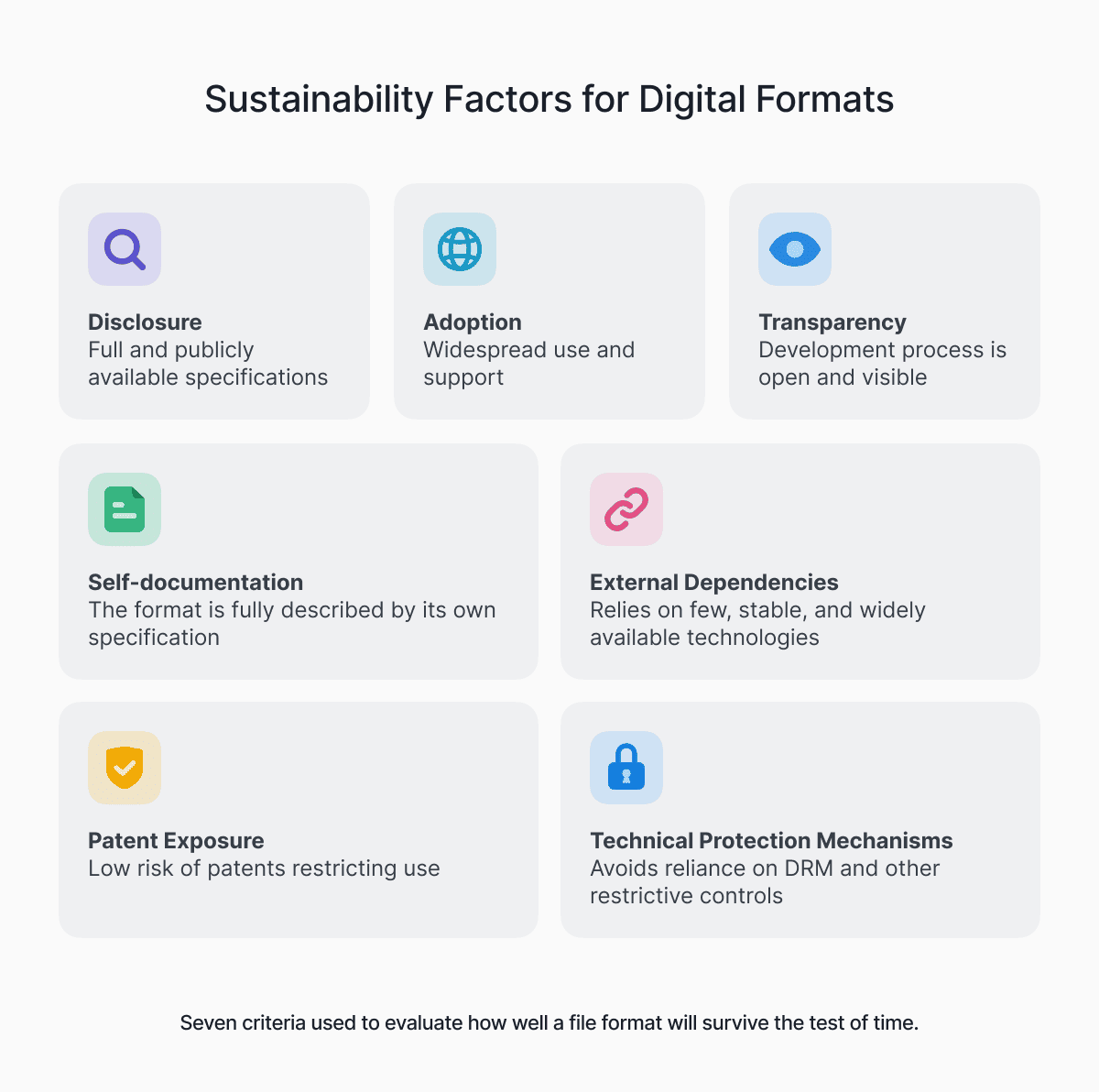
The Library of Congress looks at formats based on seven main sustainability factors:
- Disclosure (Is the specification public?)
- Adoption (How widely is it used?)
- Transparency (Is the data human-readable?)
- Delf-documentation (Does the file contain its own metadata?)
- External dependencies (Does it rely on anything outside itself?)
- Patent exposure (Are there any patents that could cause problems?)
- Technical protection mechanisms (Is there DRM or encryption that might block access?)
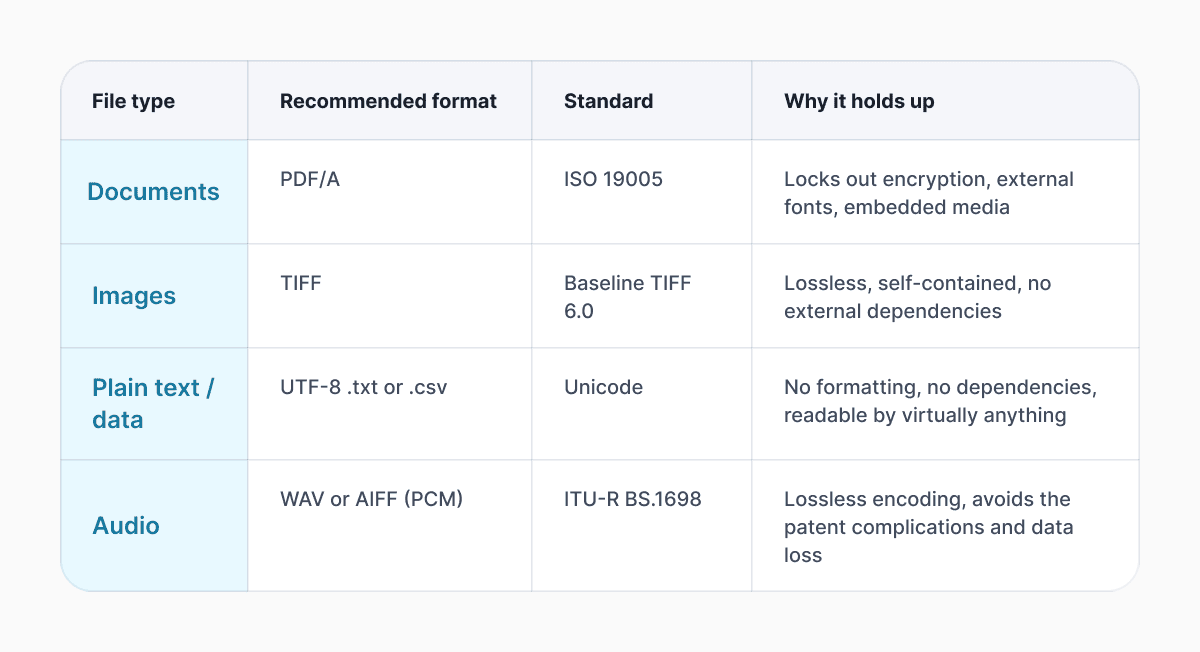
The table below covers the most reliable options by file type, chosen specifically for long-term archive compatibility:
Migration strategies that actually work
Format selection alone won’t keep your files alive. Digital preservation and data migration require ongoing maintenance, not a one-time conversion job.
The biggest mistake people make is converting everything to a “safe” format and assuming the problem is solved. However, the drives might fail. Or the formats that work now can become risky tomorrow. The software you needed can quietly disappear from operating systems. For instance, QuickTime on Windows: Apple discontinued Windows support in 2016, leaving a large number of .mov files stranded on machines that no longer can play them.
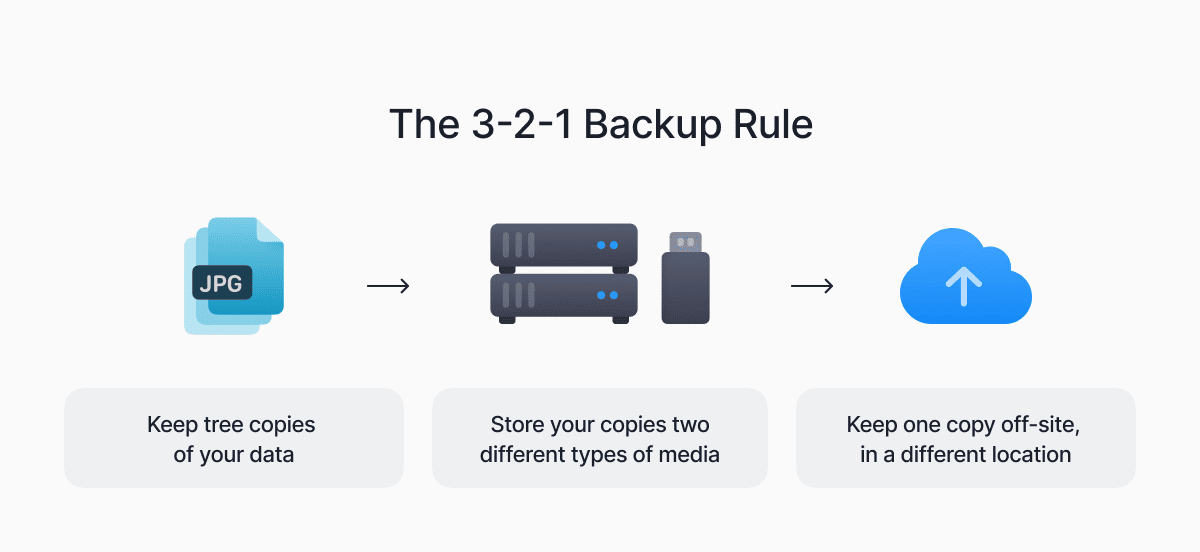
Before converting anything, preserve the source files unchanged. You may need to return to them if a conversion loses something. Beyond that, redundant storage across at least three locations matters: ideally, two physical drives and one off-site backup. The 3-2-1 rule (three copies, two different media types, one off-site) is standard practice among archivists for good reason.
Also, make sure to check in on your archive every couple of years. Open up your files, see what’s still widely supported, and migrate anything that’s starting to look risky. It may sound tedious, but a two-hour review every three years is a lot easier than discovering a decade of files are inaccessible when you actually need them.
For large collections, tools like DROID (Digital Record Object Identification), developed by the UK National Archives, can automatically identify file formats across thousands of files and flag which ones are at risk.
FAQ
How do I open old file formats?
Start with LibreOffice, which supports a wide range of legacy office formats. If that doesn’t work, try Documents.io’s online converter.
What’s the best way to archive old files?
Convert them to stable, open formats (PDF/A for documents, TIFF for images, WAV for audio), and make at least three copies on two different types of media, with one stored off-site. Always keep the original files untouched before converting. Then make it a habit to check your archive every few years.
Can I convert outdated formats to modern ones?
Usually yes. Documents.io covers the most common legacy formats. If a file is corrupted and won’t open properly, try Microsoft Word’s built-in Text Recovery Converter or tools like Stellar Data Recovery.
What are long-term storage formats?
PDF/A (ISO 19005) for documents, TIFF for images, WAV or AIFF (PCM) for audio, and UTF-8 plain text or CSV for data. These all share the same strengths: open specifications, wide use, and no proprietary lock-ins or DRM that could block your access.
Latest posts

Knowledge Base
Video file formats explained: MP4, MKV, AVI and more
Learn the difference between video file formats (MP4, MKV, AVI, MOV, WebM) and codecs (H.264, H.265, AV1). Find out which format is best for social media, professional editing, and universal compatibility in 2026.

Knowledge Base
The beginner photographer’s guide to file conversion (RAW, JPEG, TIFF, PNG)
A beginner-friendly guide to converting RAW, JPEG, TIFF, and PNG photos. Learn quality tradeoffs, export settings, and smart archiving habits for web and print.

Knowledge Base
How to make a GIF: simple steps to create and share loops online
Making a GIF is simple: trim a short moment from a video, convert it, and save the loop. Whether you’re using a browser-based converter like Documents.io or an app, the key is to keep it short, clean, and seamless for easy sharing anywhere.