


If you've ever dealt with professional logos, scalable illustrations, or corporate branding, you've probably encountered the Adobe Illustrator file. It's the native format of Adobe Illustrator, the industry-standard software for creating and manipulating vector graphics.
But what exactly is that little file with the 'Ai' icon, and why do designers insist on sending it to you instead of a simple JPEG?
Adobe Illustrator file stores your artwork in a vector-based format. Unlike a standard photograph (such as a JPEG or PNG), which uses a grid of colored pixels (a raster image), this file utilizes mathematical formulas, paths, and points to define every element of the image.
This technical distinction is the entire reason the Adobe Illustrator format is indispensable in the world of graphic design. It means your company logo, no matter how complex, can be scaled from the size of a postage stamp to the size of a billboard — and it will look perfectly crisp and smooth at every size.
Is an Adobe Illustrator file a vector?
Yes, this is the single most important characteristic of the Adobe Illustrator file.
The term vector refers to the geometry used to create the image. Instead of describing every pixel, the file describes shapes using geometric properties:
- A center point and a radius define a circle.
- A line is defined by its start and end points and the curve (or path) that connects them.
When you zoom in on a vector graphic, the software simply recalculates the math for the new size and redraws the shape perfectly. This is why Adobe Illustrator files are the go-to choice for:
Logos and Icons: Ensuring consistency across print, web, and merchandise.
Typography: Allowing designers to manipulate text shapes and paths precisely.
Infographics and Illustrations: Where complex elements need to be easily edited and rearranged.
What is an Adobe Illustrator file used for?
The Adobe Illustrator file is primarily used for creation and editing. It is the master source file, the "original blueprint" for any vector artwork. You use the Adobe Illustrator file when:
- You are actively designing and need to maintain layers, paths, and editable text.
- You are sending the artwork to a collaborator who needs to make non-destructive changes.
- You are providing final artwork to a vendor (like a screen printer or sign maker) who requires mathematically precise, scalable assets.
Opening and Viewing Adobe Illustrator Files
The Adobe Illustrator file is the key to the Adobe ecosystem, but you don't always need a Creative Cloud subscription just to look at a logo a client sent you.
What program opens Adobe Illustrator files?
The intended and best program for opening, editing, and creating Adobe Illustrator files is Adobe Illustrator. Only Illustrator can fully read and interpret all the complex features and layers contained within the native AI format. However, many designers save Adobe Illustrator files with PDF compatibility embedded. This means that if you don't have Illustrator, several other programs can still open and view the file: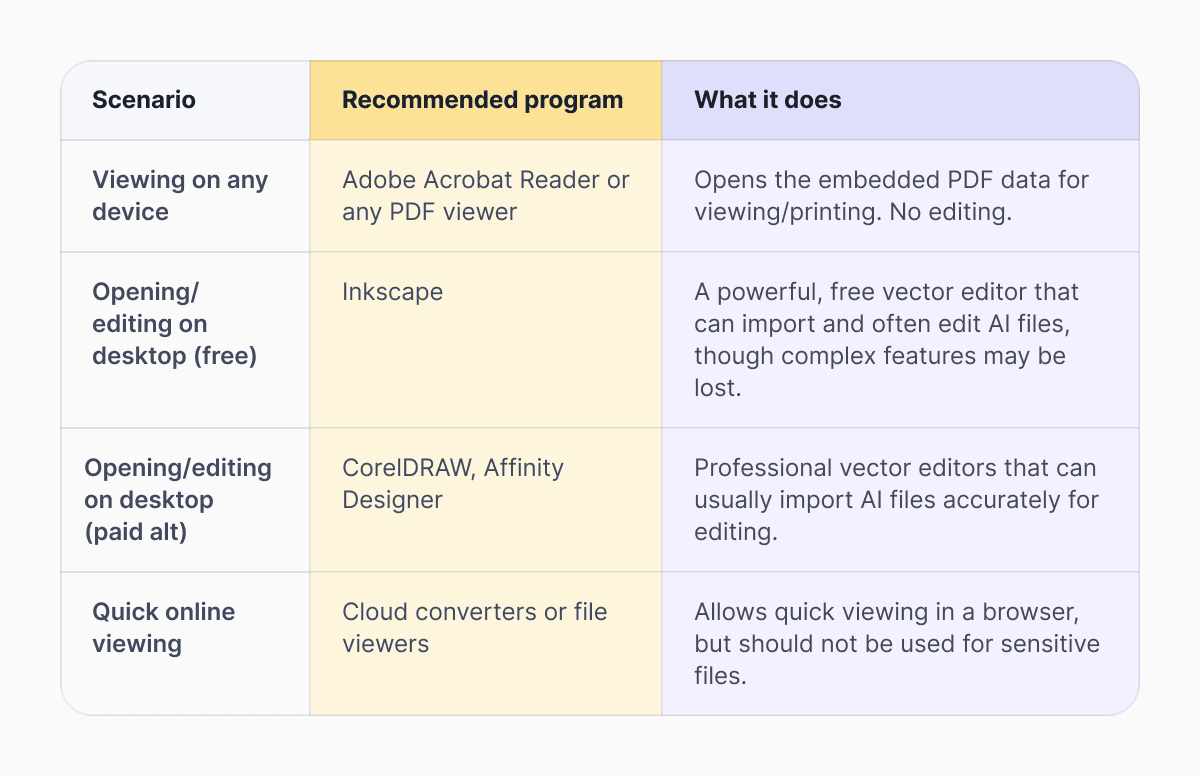
If you are a client or a collaborator who only needs to view or print the artwork, simply try opening the Adobe Illustrator file with your system's default PDF viewer. If the designer saved it correctly, it should display perfectly.
Open AI Files Without Illustrator: The PDF Trick
Many people wonder how to open AI files without Illustrator. The secret is in the "P" inside the AI. When an Adobe Illustrator file is saved, the user is given an option to "Create PDF Compatible File." Checking this box embeds a complete copy of the document's data as a PDF stream within the AI file itself.
If a designer skips this step to save a tiny bit of space, the file will only be readable by Illustrator. If they include it any program that can read a PDF can at least display the image, even if it can't allow you to manipulate the vector paths.
Converting AI Files: The Need for Export
Since the Adobe Illustrator format is proprietary, it cannot be shared with everyone. Most users, websites, and print vendors need the artwork to be converted into a universally readable format.
Can I convert Adobe Illustrator to PDF or PNG?
Yes, and this is where the power of vector graphics meets the necessity of raster graphics. You can easily convert Adobe Illustrator to PDF or PNG (and many other formats) using Illustrator's "Export" or "Save a Copy" functions.
The Vector Export: Adobe Illustrator to PDF
When you convert an AI file to a standard, non-editable PDF, you are creating a file that:
- Retains Vector Data: The PDF still contains the original mathematical path information, allowing it to scale cleanly on a monitor or printer.
- Is Universally Readable: Anyone with Adobe Reader or a modern browser can view it.
- Is Locked Down: It preserves the design exactly as you finalized it, making it ideal for client proofs or final print submission. [Link: Why designers send PDF proofs]
The Raster Export: Adobe Illustrator to PNG/JPEG
When you need an image for the web, social media, or any other digital display, you must convert the vector paths into pixels (a process called rasterization).
- Adobe Illustrator to PNG: PNG is the preferred format for web graphics that need transparency (like a logo that sits on top of a colored background).
- Adobe Illustrator to JPEG: JPEG is best for photographs or complex images without transparent backgrounds, as it offers better compression than PNG (though it is a lossy format).
When you export from an Adobe Illustrator file to a raster format (PNG or JPEG), you must define the final resolution (e.g., 300 DPI for print, 72 DPI for web). Once it's a raster image, you lose the infinite scalability — the pixels are set in stone.
Adobe Illustrator vs SVG
While Adobe Illustrator is the king of desktop graphic design files, its web-native, open-source competitor is the SVG (Scalable Vector Graphics) format. The main distinction between Adobe Illustrator vs SVG comes down to use case and compatibility.
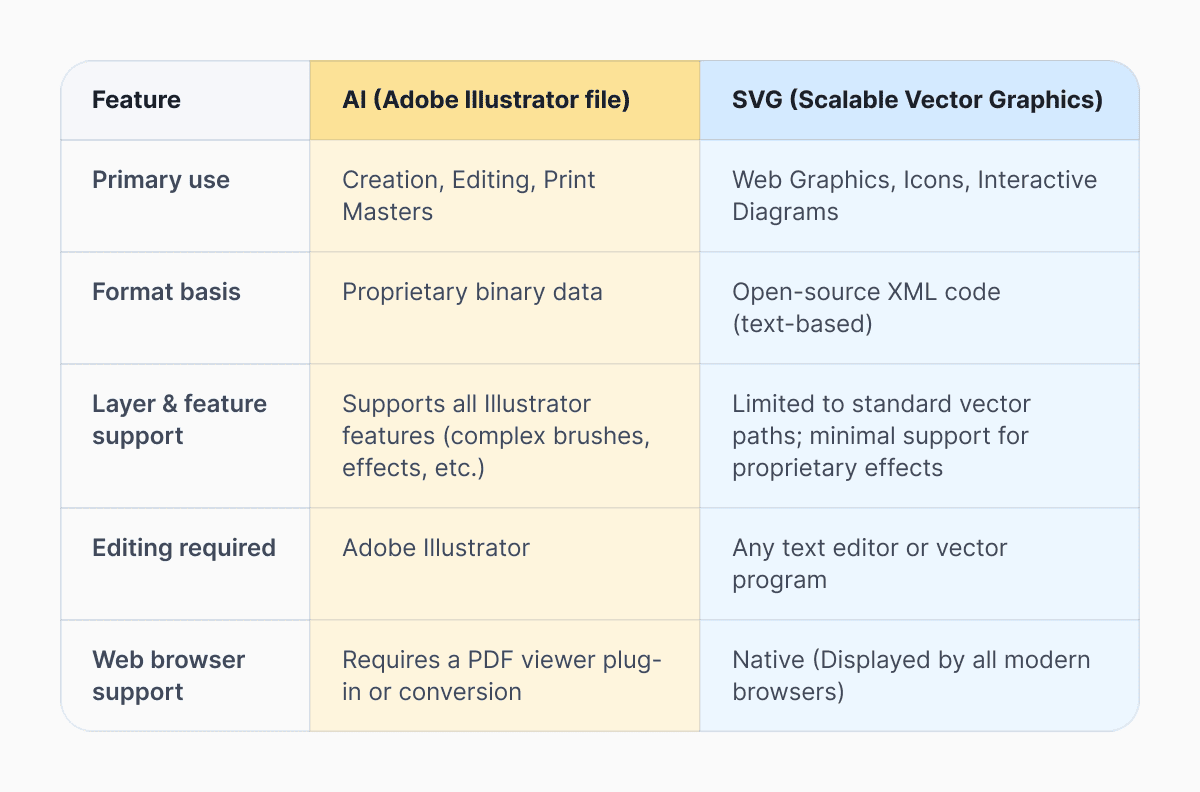 If you need a graphic to load on a website, scale cleanly, and perhaps even be manipulated by code, SVG is the clear winner because it’s a text file that the browser can read directly. However, if you are a professional designer creating complex artwork with gradients, special effects, and layers, the Adobe Illustrator file remains the essential master document that holds all the editable information.
To easily convert your vector files or reduce file sizes for web use, you can instantly process your graphics without expensive software using professional tools with Documents Image Converter and Image Compressor.
Latest posts
Glossary
What is a DOCX file, and how do you open one without Word?
Got a DOCX file but no Microsoft Word? Learn what this popular document format is and the easiest ways to open and edit it
Glossary
What is an HTML file, and what should you do with one?
Found an HTML file and not sure what to do with it? Learn what HTML files are and the easiest ways to open, view, and edit them.
Glossary
What is an EPUB file, and how do you open one on your iPhone?
Got an EPUB file on your iPhone? Learn what this popular ebook format is and the easiest ways to open and read EPUB files.