


Some file formats age like fine wine. Others age like a sturdy toolbox that never gets thrown out because, every so often, you still need that exact weird wrench.
That second category is the BMP file format, also known as the Windows bitmap. BMPs are one of the classic image types tied closely to Microsoft Windows, and they’re still floating around your downloads folder, your company’s ancient asset library, and the occasional piece of software that seems to have time-traveled from the early internet.
Likewise, if you’ve ever saved a picture as a BMP and watched the file size inflate like a beach ball, you’ve already met BMP’s defining personality trait: it tends to store images in a very direct, “what you see is what you get” way. That’s great for quality and compatibility. It’s not so great for your hard drive.
Let’s break down what BMP is, what it’s used for, why it’s often huge, and how it stacks up against modern go-to formats like JPEG and PNG.
What is the BMP file format?
A BMP is a raster image format.
That simply means it stores a picture as a grid of tiny dots (pixels). Each pixel has a color, and the file is basically a map that says, “This pixel is blue, this one is slightly different blue, this one is… also blue,” and so on, for every pixel in the image.
The “BMP” part is short for Bitmap, and you’ll often hear it described as a Windows bitmap because it was designed as a native image format for Windows (and earlier overlaps with OS/2).
In plain language: BMP is an image format that prioritizes being easy for computers to read and display, especially in Windows environments, rather than being small and efficient.
What is a BMP file used for?
This is one of those questions where the honest answer is: “Less than it used to be, but more than you’d think.”
BMP is commonly used when software wants a straightforward image file that’s widely supported on Windows and doesn’t involve complicated compression. The dictionary definition? BMP is an uncompressed raster format designed to display high-quality images on Windows and store printable photos.
So where do BMP files show up today?
They’re still common in older Windows apps and legacy workflows, where BMP support is built in and expected.
They can also appear in simple graphics pipelines where the goal is consistency and reliability, not shaving every kilobyte. Since BMP stores pixel data in a very “literal” way, it’s sometimes used as a kind of intermediate format when an app needs to dump an image to disk quickly without worrying about compression settings or quality loss.
If you’ve ever worked with certain scanning, printing, or older software tools, you’ll see BMP pop up like a familiar face.
Why are BMP files so large?
Because BMP often behaves like an uncompressed image format.
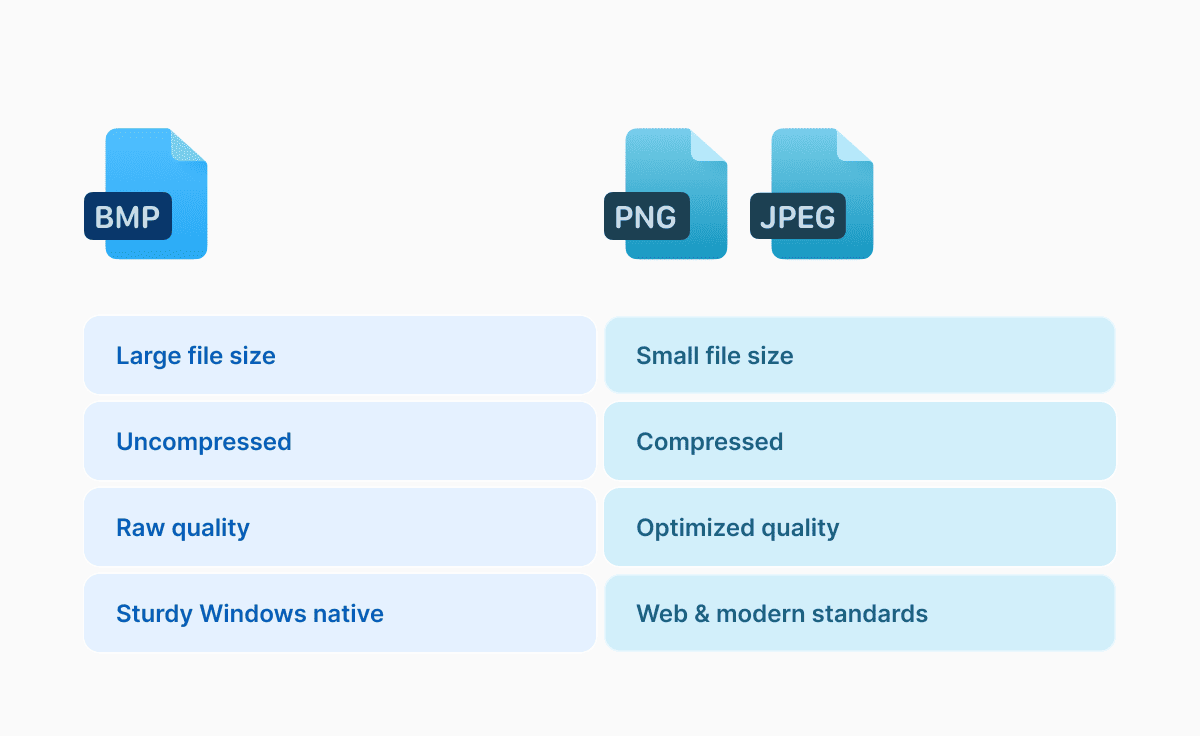
Other formats, like JPEG and PNG, spend real effort squeezing the file size down. BMP, in many common cases, stores pixel data with little to no compression. The result is a file that can be dramatically larger than you expect.
Here’s a simple way to think about it:
A digital image is made of pixels. If your image is 2000 pixels wide and 2000 pixels tall, that’s 4 million pixels. If each pixel needs 3 bytes of information (a common setup for “true color” images), you’re already at around 12 million bytes before you even talk about extra file information. That’s why a BMP can feel “too big for what it is,” especially if you’re used to JPEGs that look similar but are much smaller.
There’s also a technical detail that affects size: BMP stores image data in rows, and each row is padded so it fits neatly into certain memory boundaries, which can add a little extra overhead. You don’t need to memorize that, but it helps explain why BMP sizes can feel a bit oddly specific.
So if you’re asking, “Why are BMP files so large?” the short answer is: because they often store a lot of raw pixel data without doing much to compress it.
Is BMP better than JPEG?
Sometimes. But only in the way a glass bottle is “better” than a plastic one: it depends what you care about.
JPEG is designed for photos and for sharing images efficiently. It uses lossy compression, which means it reduces file size by throwing away some image data that many people won’t notice at a glance. That’s why JPEGs are usually much smaller.
BMP, on the other hand, is often “raw” and high-quality because it typically avoids that kind of loss. Adobe’s BMP vs JPEG comparison puts it plainly: BMP files contain large, high-quality images that can be better for editing, while JPEGs automatically compress and are generally smaller.
So is BMP better than JPEG?
If your priority is keeping every pixel intact and avoiding compression artifacts (those little fuzzy blocks or smudges that sometimes appear in JPEGs), then yes, BMP can be “better.” It’s especially noticeable with sharp edges, text, and repeated saves.
But if your priority is file size, sharing, email attachments, web use, or photo libraries, JPEG is usually the better pick. BMP is the opposite of lightweight.
A good rule of thumb: JPEG is for sending. BMP is for storing in a very straightforward way when you can afford the size.
BMP vs PNG: which one should you use?
If JPEG is the “small and shareable” option for photos, PNG is the “high quality without loss” option that most people reach for when they want crisp graphics, transparency, or clean text.
PNG is also a raster format, but it uses lossless compression, which means it reduces file size without permanently losing image detail. That’s why a PNG screenshot of a desktop can look perfectly sharp while being far smaller than a BMP version of the same screenshot. (Not always tiny, but usually much more reasonable.)
BMP can sometimes support features like transparency depending on the variant, but PNG is the format that’s commonly used and expected for transparent images across the modern web and apps. Meanwhile BMP is still strongly associated with Windows-native compatibility and simpler storage.
So in the “BMP vs PNG” conversation, PNG is often the modern default for most everyday needs, while BMP is the legacy-friendly option you use when a tool specifically asks for it or when you want that no-nonsense pixel storage.
A quick reality check: BMP isn’t always uncompressed
You’ll frequently see BMP described as uncompressed, and that’s fair for most everyday uses. However, the format can support some compression options, especially older methods meant for specific kinds of images. For example, some BMPs use a run-length encoding method for certain color depths.
The important point for normal readers is this: even when BMP supports compression, it’s not typically the kind of compression that makes files web-friendly in the way JPEG or PNG does. BMP’s reputation for being large exists for a reason.
How do I convert BMP to PNG?
Most people convert BMP files because they want the same image in a smaller, more modern format that still looks great.
The easiest method is usually the simplest: open the BMP in an image viewer or editor and choose “Save As” or “Export,” then select PNG. On Windows, even basic tools often handle this with no drama.
If you’re using a graphics suite, software like CorelDRAW also supports opening/importing BMP files as part of standard workflows.
There are also online converters like documents.io that can convert BMP to PNG through a browser upload, which can be handy if you’re on a device without image software installed.
One note worth keeping in mind: PNG is lossless, so converting from BMP to PNG generally keeps the image quality intact while shrinking the file size in many cases.
When does BMP still make sense in 2026?
BMP is still useful when you need maximum compatibility with certain Windows-based systems or older software, or when a specific tool expects a Windows bitmap. It’s also useful when you want a simple, direct raster format for internal work and the file size isn’t a deal-breaker.
On the flip side, BMP is rarely the best choice for anything that touches the internet. For websites, messaging, social posts, or sending to clients, BMP is the image equivalent of showing up to a quick coffee meeting hauling a full-size suitcase. You can do it. People will notice. No one will thank you.
The bottom line
The bmp file format is a classic: a bitmap image format closely tied to Windows that often stores images as an uncompressed image (or close to it). That’s why BMP files are so large, and it’s also why they can preserve high-quality raster images without the fuzzy side effects you might see in JPEG compression.
If you’re choosing a format today, BMP is usually a “because I have to” option, not a “because it’s best” option. For photos you want to share, JPEG is typically the practical winner. For crisp graphics, screenshots, and anything that benefits from lossless quality, PNG usually makes more sense.
And if all you’ve got is a chunky old BMP that needs to slim down for modern life, converting BMP to PNG is one of the easiest upgrades you can make.
Latest posts
Glossary
What is a DOCX file, and how do you open one without Word?
Got a DOCX file but no Microsoft Word? Learn what this popular document format is and the easiest ways to open and edit it
Glossary
What is an HTML file, and what should you do with one?
Found an HTML file and not sure what to do with it? Learn what HTML files are and the easiest ways to open, view, and edit them.

Glossary
What is an EPUB file, and how do you open one on your iPhone?
Got an EPUB file on your iPhone? Learn what this popular ebook format is and the easiest ways to open and read EPUB files.