

Mobile file conversion: convert docs, photos, audio & video on iPhone and Android

There’s a specific modern inconvenience that feels almost comically small until it wrecks your day: you have the right file… in the wrong format… on the wrong device… five minutes before you need to send it.
That’s why mobile file conversion has quietly become a core productivity skill. Phones aren’t just viewers anymore. They’re scanners, editors, uploaders, and, increasingly, little format-shifters that can turn HEIC into JPG, MOV into MP4, or a messy receipt photo into a tidy PDF while you’re still in the lift.
Phones already account for a majority share of global web usage, meaning more of our “work stuff” begins and ends on mobile. StatCounter’s platform data shows mobile at about 54% worldwide in December 2025. And our online time isn’t shrinking, either: DataReportal’s Digital 2025 report puts average daily internet use at 6 hours 38 minutes.
The good news: converting files on your phone is usually easy. The better news: with a decent workflow, it’s not just easy, it’s fast, repeatable, and (mostly) safe. Let’s break down the best ways to convert files on iPhone and Android, when you should use web tools versus file converter apps, how offline converters fit in, and why desktop conversion still matters for heavy-duty jobs.
So yes, converting on your phone matters now, not as a party trick, but as a workflow.
Below is the practical guide to converting files on your phone, what to use for iPhone file conversion and Android, when to choose web converters versus file converter apps, how offline converters fit in, and what “safe” really means when the tool is free.
How do I convert files on my phone?
Most mobile conversions fall into three types:
1) Built-in OS tools (fast, limited, surprisingly good at PDFs)
2) Web converters in your browser (broad format support, but you upload files)
3) Dedicated apps (best for repeat conversions and keeping files organized)
A solid workflow uses all three depending on the job.
iPhone file conversion: the built-in moves worth knowing
If you’re on iPhone, your first stop should often be Apple’s own tools, because they’re quick and they keep your files on-device.
The Files app can create PDFs from images and certain document types via Quick Actions and sharing workflows. It’s a clean way to turn “a photo of a thing” into “a PDF of a thing” without hunting for an app. Apple also supports document scanning into PDF via Notes, which is effectively conversion-by-camera when you’re dealing with paper.
Where iPhone’s built-in tools tend to fall short is broader format swapping: converting video formats, batch converting images, turning Office formats into other document types, and anything involving less common media containers.
That’s the point where you graduate to a dedicated converter.
Android file manager reality: conversion is usually a two-step dance
Android is less uniform than iOS, but it’s often better at file wrangling. That matters because conversion is frequently not one action, but a chain: locate file → open in the right app → export/save to a predictable folder.
If you’re serious about mobile conversion on Android, treat your Android file manager as part of the system. Use one consistent “Conversions” folder (internal storage or cloud-synced), and you’ll avoid the classic Android experience of successfully converting a file… and then spending five minutes playing hide-and-seek with the output.
Android also has more viable “true offline” conversion options than iOS, especially for media, because FFmpeg-based apps are common in the ecosystem.
Recommended workflow: Documents.io on the web, Documents on mobile
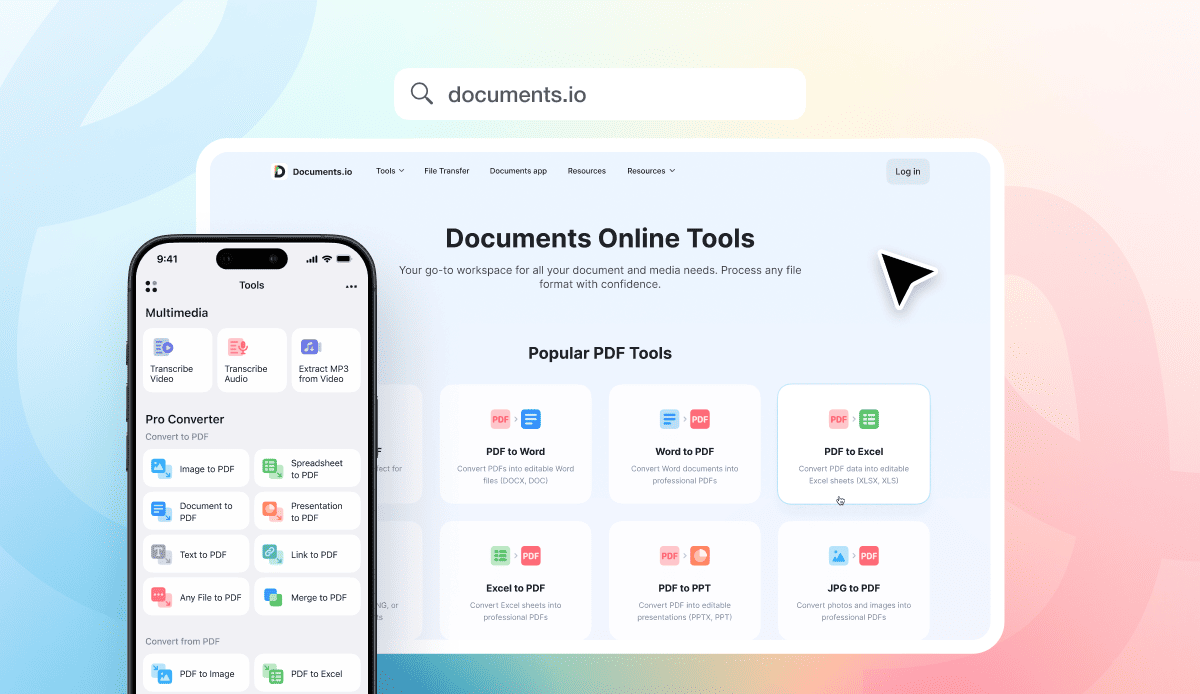
If you want conversion to feel like a workflow instead of a one-time stunt, pairing Documents.io (web) with the Documents app (mobile) gives you a clean “convert + manage” setup.
Documents.io is a browser-based toolkit to convert and compress PDFs, images, video, and audio without installs. It also maintains a directory of common conversion tools, including practical formats people run into constantly (HEIC↔JPG, MOV↔MP4, MKV↔MP4, MP4↔MP3, and more). In other words, it’s built for the real world, where the problem is rarely “convert a file,” and more often “convert this file that my other app refuses to acknowledge.”
Then there’s the Documents app by Readdle, which is essentially a file manager with superpowers: it’s designed to open, organize, and work with a wide range of files on iPhone and iPad. It’s an all-in-one hub for files including PDFs, media, and archives. Perfect for power users.
Why this pairing works for conversion:
You can use the web tools when you need fast format coverage from any device, and you can use the app when you want repeatable organization and fewer “where did my download go?” moments.
Supported formats: what you can actually work with
Here’s the simple rule: a converter is only useful if it can reliably open your file, show you what it is, and pass it through the right tool without breaking the workflow.
That’s why we put so much emphasis on format support inside the Documents experience. In the Documents app, you can work with a wide range of everyday file types, including common audio and video formats, images (yes, that includes HEIC and WebP), Office documents, archives, ebooks, and PDFs. If you want the full list, it’s here: Documents supported file formats.
And because “I need a PDF” is basically the universal language of modern paperwork, Documents also makes it easy to convert lots of file types into PDF, including Office files, iWork docs, and images. Here’s the official walkthrough: Documents: File conversion & size reduction.
The big takeaway: mobile conversion shouldn’t feel like juggling five apps and a mystery Downloads folder. When your files have a dependable home, conversion becomes a quick step in the flow, not a mini project you dread starting.
What is the best file converter app?
“The best” depends on what you convert and how often.
If you convert rarely, a reputable web converter is usually enough, assuming the file isn’t sensitive and your connection is stable.
If you convert frequently, the best converter is the one that reduces steps and prevents chaos. On iPhone especially, that often means using a tool that doubles as a file manager. Documents is built around that concept: “all your files live here,” with actions like open, edit, annotate, and convert folded into a single flow.
On Android, “best” often splits into two camps: cloud-based converters (easier on your battery) and offline converters (better for privacy and travel). Some Android apps explicitly advertise cloud conversion to avoid device strain, while others emphasize offline FFmpeg-powered processing.
Can I convert video formats on mobile?
Yes, but video conversion is the most demanding type of mobile conversion, and it comes with tradeoffs.
Cloud conversion tends to be faster on older devices because servers do the work, but you need bandwidth and you’re uploading content.
Offline conversion is great when you’re traveling or handling sensitive media, and Android has strong options here. For example, apps on Google Play explicitly advertise fully offline video conversion with FFmpeg optimization and wide format support. There are also open-source options built on FFmpeg, like Android Media Converter on GitHub, for users who want transparency and control.
The price you pay is heat and battery. Converting video locally can make your phone feel like it’s running a tiny gym treadmill for your CPU.
Is mobile conversion safe?
It can be, but you should be picky, especially with free web tools.
The FBI’s Denver Field Office warned in March 2025 about scams involving “free online document converter tools,” where criminals use fake sites to load malware and potentially trigger incidents like ransomware. Malwarebytes also documented the same pattern: “converters” that push malware and attempt to harvest sensitive information.
So what’s the safe approach?
If the file is sensitive, prefer on-device workflows or trusted apps, and avoid uploading it to random converters.
If you do use a web converter, stick to reputable services you can verify, and be wary of any site that tries to force a downloaded “helper” program. A legitimate online converter should deliver a converted file, not a side quest.
And if you’re converting on mobile because you’re on public Wi-Fi, remember the irony: convenience is highest precisely when your risk might be too.
Mobile vs desktop conversion: who should do the heavy lifting?
Mobile wins on speed-to-action. If you need to convert a photo to a PDF and send it now, your phone is unbeatable.
Desktop wins on control and scale. Batch converting, preserving formatting, tuning video settings, and running conversions locally with repeatable results are still easier on a computer.
A sensible workflow assigns roles:
Use mobile for quick conversions, scanning-to-PDF, and “make this compatible so I can send it.”
Use desktop for production-grade work: lots of files, advanced media settings, or anything that demands perfect repeatability.
The mobile conversion workflow that won’t fall apart next week
The best mobile conversion setup is boring in the right way:
- Keep your files organized so you can find both inputs and outputs.
- Use built-in tools when they’re enough, especially for PDFs.
When you need broader format coverage, use Documents.io in the browser for quick conversions and the Documents app when you want conversion plus a real file hub that can handle the formats you run into daily.
And treat security as part of the workflow, not a footnote. Free converters are useful. Some are also traps with a progress bar.
Latest posts

Knowledge Base
Video file formats explained: MP4, MKV, AVI and more
Learn the difference between video file formats (MP4, MKV, AVI, MOV, WebM) and codecs (H.264, H.265, AV1). Find out which format is best for social media, professional editing, and universal compatibility in 2026.

Knowledge Base
The beginner photographer’s guide to file conversion (RAW, JPEG, TIFF, PNG)
A beginner-friendly guide to converting RAW, JPEG, TIFF, and PNG photos. Learn quality tradeoffs, export settings, and smart archiving habits for web and print.

Knowledge Base
How to make a GIF: simple steps to create and share loops online
Making a GIF is simple: trim a short moment from a video, convert it, and save the loop. Whether you’re using a browser-based converter like Documents.io or an app, the key is to keep it short, clean, and seamless for easy sharing anywhere.