


A file with a .xps extension has made its way into your computer folder, and you’ve no idea what to do with it. Well, you are not alone. As a matter of fact, XPS is one of those extensions most people have heard of but never had to deal with until one suddenly lands in their inbox.
Here is everything that you ever wanted to know about the XPS file format, including how to open it.
What is an XPS file?
An XPS file is a fixed-layout document created according to Microsoft’s XML Paper Specification. The suffix “.xps” is an abbreviation for XML Paper Specification – the format created by Microsoft and released with Windows Vista in 2006. It is an XML-based markup language developed to describe the appearance of the page in a platform-independent manner – in other words, an XPS document should look exactly the same, whether it is printed or displayed on any kind of screen.
Technically, XPS documents are actually ZIP archives, which store several XML documents, as well as various image and font resources inside them. Such a structure of an XPS file conforms to the Open Packaging Conventions specification, the same package format utilized by modern versions of Microsoft Office documents like .docx and .xlsx.
In addition, the format was officially adopted by Ecma International as ECMA-388 standard, from which the modern OpenXPS (.oxps) was derived, being integrated into Windows 8 OS and following its updates.
What is an XPS file used for?
Microsoft created XPS to solve a simple problem: making sure documents look exactly the same when printed, no matter what device or software you use.
In practice, it shows up in a few specific places:
-
Printing – Windows quietly converts documents to XPS before sending them to a printer, so it is working in the background even when you do not realise it.
-
Archiving – because XPS locks in the layout, it is a reliable choice for storing invoices, contracts, or any document that needs to look identical years from now.
-
Secure sharing – XPS files are not easy to edit, which makes them handy for sharing documents in a read-only format.
-
Developer workflows – its XML foundation makes it easier to process programmatically than PDF, so some developers use it for automated document generation on Windows.
That said, XPS never really took off with everyday users. PDF had too much of a head start, and the gap in tools and compatibility was too wide to close. XPS remains largely confined to Windows printing workflows and specialist enterprise systems rather than general document sharing.
XPS vs PDF: What is the difference?
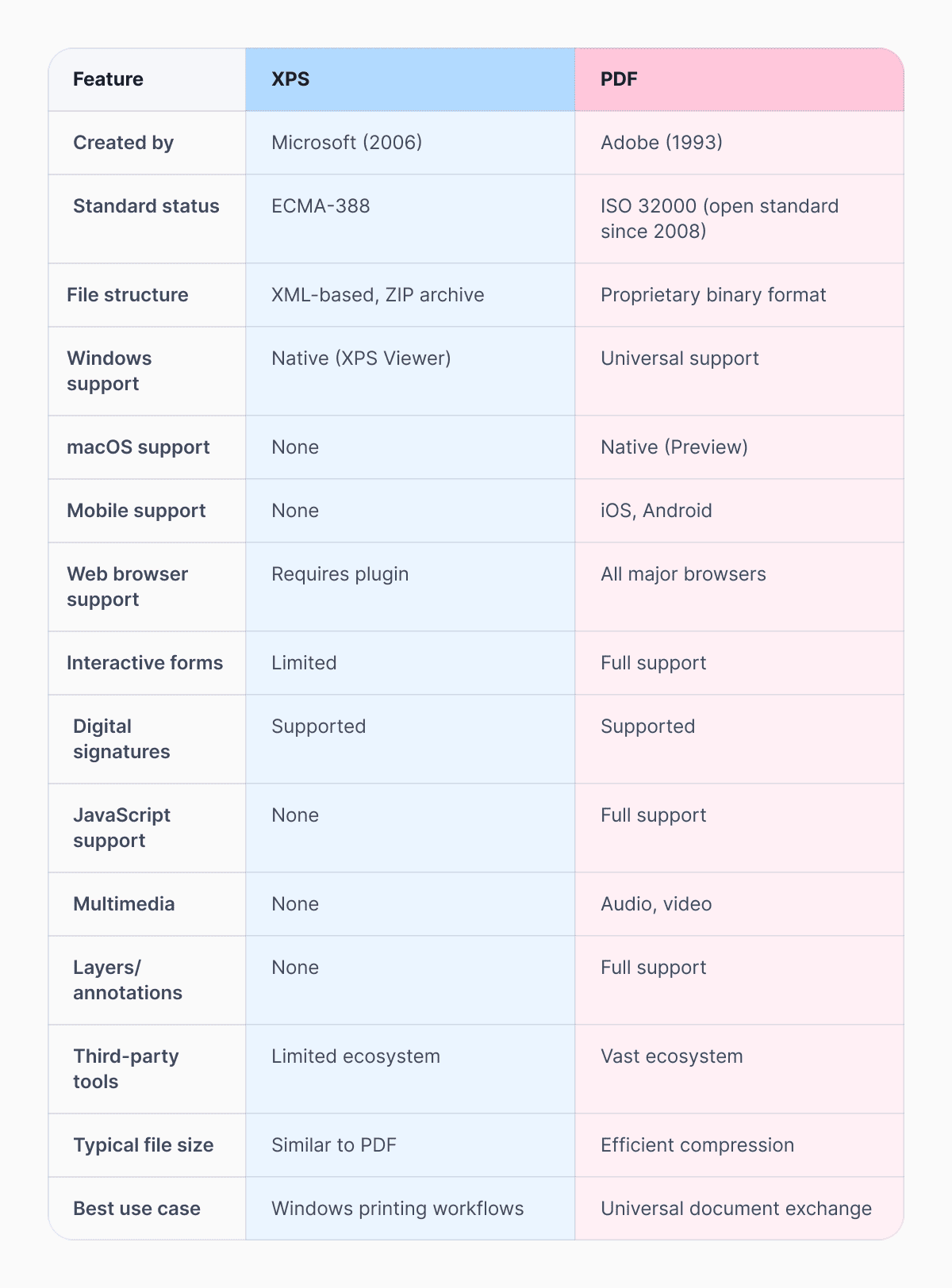
XPS and PDF are the two most common fixed-layout document formats, and they solve the same fundamental problem: preserving the exact appearance of a document regardless of where it is viewed. But they differ in several important ways:
Origin and ecosystem
PDF was created by Adobe in 1993 and has been an open standard (ISO 32000) since 2008. It has a vast ecosystem of tools, apps, and services that support it across every platform. XPS was created by Microsoft in 2006 and has remained primarily a Windows-centric format with comparatively limited third-party support.
Compatibility
The PDF file format can be opened in all major web browsers, on all operating systems, and on all devices from mobile phones to tablets. The XPS format required a dedicated viewer and is only natively supported on Windows, lacking any support on macOS, iOS, or Android.
Features
Among its various features, the PDF offers support for interactive forms, digital signatures, JavaScript, annotations, layers, and multimedia. XPS supports fewer features, working well with text, vectors, and images, but lacking the interactivity of PDF.
File structure
PDF uses a proprietary binary file format, with a long history of extensions and revisions. The newer XPS format relies on XML and the Open Packaging Conventions, which are technically easier to parse and inspect, though this advantage has not translated into broader adoption.
How to Open an XPS File on Windows
How you open an XPS file on Windows depends on which version of Windows you are running.
Windows 10 and earlier
The built-in Windows application is called XPS Viewer. It comes pre-installed in every Windows installation. Double-click the XPS file to open it. Otherwise, right-click the file and choose Open with > XPS Viewer from the context menu.
Windows 11
Microsoft removed XPS Viewer from Windows 11 as a default app. To install the application, navigate to Settings > Apps > Optional features > Add an optional feature, enter “XPS Viewer” in the search bar, and click Install.
How to Open an XPS File on Mac
The macOS operating system doesn’t have native capabilities to read XPS documents. Preview, the default document viewer on macOS, won’t be able to open .xps files. The possible solutions include:
- NiXPS View for Mac – a dedicated XPS viewer available for macOS, though it is less actively maintained than its Windows counterpart.
- XPSView – the free tool that you can download from the Mac App Store.XPSView
How to Open an XPS File on iPhone or Android
Both iOS and Android operating systems do not natively support opening XPS files, and there are very few mobile apps that can open .xps files directly. The most practical approach is to convert XPS to PDF first – using Documents.io or another online converter – and then open the resulting PDF with any standard document app on your phone.
How to Convert an XPS File to PDF
Converting an XPS file format to a PDF file is something people do all the time. Here are the main ways to convert an XPS file to a PDF file:
Option 1: Documents.io is the easiest way
You can upload your XPS file to Documents.io, and it will convert it to a PDF file in just a few seconds. You do not need to install any software – it works on the web on any device. If you are a new user, you get 10 free conversions.
Option 2: Using the XPS Viewer
You can open your XPS document in the XPS Viewer that comes with Windows (10 and below). Go to File > click Print and select Microsoft Print to PDF as your printer. Choose where you want to save the PDF file, and that’s it.
Option 3: Using LibreOffice Draw
You can open your XPS file in LibreOffice Draw. Simply go to File > click on Export as PDF. LibreOffice Draw conserves the quality of your documents, and you can download the software for free for Windows, Mac, and Linux.
FAQ: XPS Document Format
Can I convert an XPS file to PDF without losing quality?
Yes. Because XPS is a fixed-layout format with precise page descriptions, converting it to PDF is a faithful process – the text, images, and layout are preserved accurately. Tools like Documents.io produce high-quality PDF output from XPS files.
Why can’t I open my XPS file?
The most common reasons are: you are on Windows 11, and the XPS Viewer has not been installed, you are on a Mac or mobile device with no XPS support, or the file is actually an .oxps file (OpenXPS), which requires a different viewer. Converting the file to PDF using Documents.io sidesteps all of these issues.
What is the difference between .xps and .oxps?
Both are XML Paper Specification files. The .xps format is Microsoft’s original implementation. The .oxps format (OpenXPS) is the standardised ECMA-388 version, introduced with Windows 8. They are similar but not identical – the Windows 8 and later XPS Viewer can open both, but the older XPS Viewer included with Windows 7 cannot open .oxps files.
Is XPS still being used?
The XPS printing format is still used in Windows workflows and some enterprise and government systems, but it has not grown as a general-purpose document format. Microsoft’s own direction has shifted toward PDF – the Microsoft Print to PDF option in Windows 10 and 11 is now the default virtual printer, reflecting the practical reality that PDF has won the fixed-layout document wars.
Latest posts

Glossary
SVG file format explained: what it is, how it works, and when to use it
Learn what the SVG file format is, how it compares to PNG and JPG, how to open or edit SVG files, and how to convert SVG images to JPG or PNG using documents.io

Glossary
What is a TIFF file? A guide to this high-quality image format
Learn what a TIFF file is, when to use it for high-quality images and printing, how it compares to JPEG and PNG, and how to open and convert TIFF files.
Glossary
What is a JPEG file? Inside the world’s most popular photo format
JPEGs are everywhere, from social media uploads to camera rolls. Here’s what the format actually does, why it became the standard for photos, and where it still shines today.