


In November 1992, Microsoft shipped Video for Windows, and with it a new file format called AVI. Video on a PC at the time was tiny and choppy, and AVI was perfect for that era.
Today, it’s still common in old home movies, camcorder transfers, or files from 1990s-2000s. It’s still perfectly good at the one job it was built for, and thoroughly bad at almost everything we now expect video files to do.
Here’s what’s actually inside one, why your Mac refuses it, and how to get your footage into something from this century.
What does AVI stand for?
AVI stands for Audio Video Interleave (occasionally written “Interleaved”). Microsoft published it as part of Video for Windows, its answer to QuickTime on the Mac.
The name describes the file’s structure. Instead of storing all the video and then all the audio, AVI chops both into small chunks and alternates them: a slice of picture, the sound that goes with it, the next slice of picture, and so on. It’s a solution to a hardware problem that no longer exists, preserved in the format’s name.
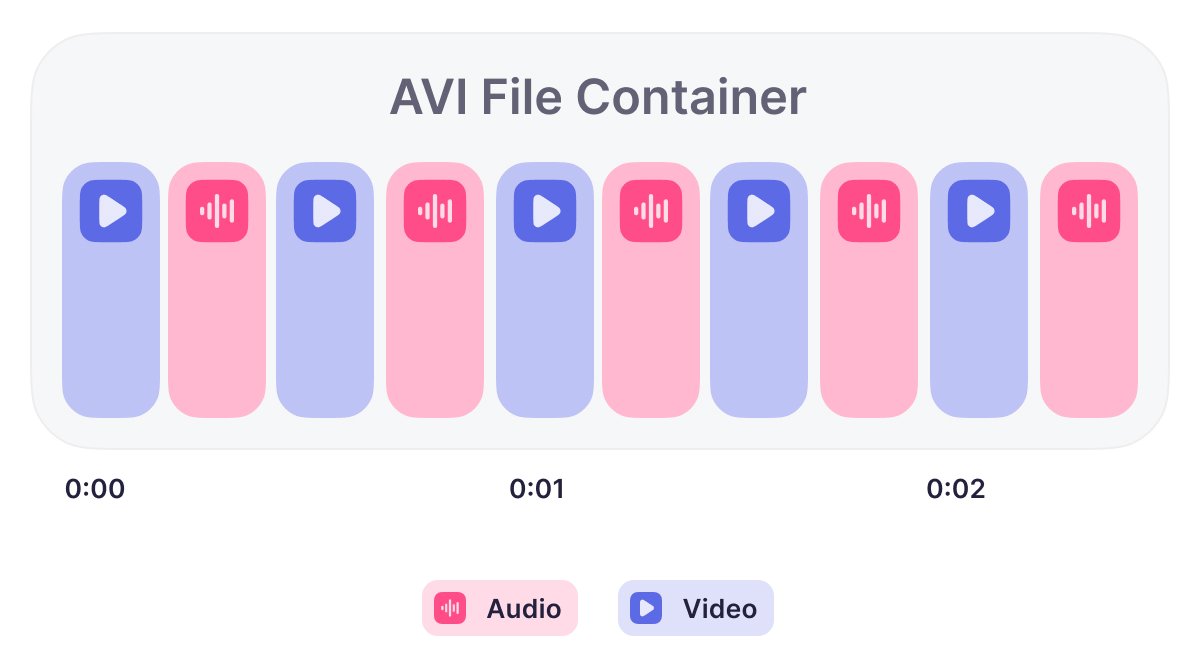
Underneath, AVI is built on RIFF, the Resource Interchange File Format, a generic chunk-based container Microsoft and IBM designed together. WAV audio files use the same skeleton, which is why the two formats have so much in common.
Why AVI files are so big
The bigger reason is the company AVI keeps. The older compression methods it grew up with (things like DivX, Xvid, Cinepak, and Motion JPEG) don’t squeeze the video as tightly as the modern ones used in MP4 files (H.264 and H.265). Some AVIs, especially ones from older capture cards or lab gear, aren’t compressed at all and can be ten times bigger or more.
The format itself is also part of the reason. AVI carries a fixed header for every single chunk, so a file with tens of thousands of small chunks spends real space on bookkeeping.
Plus, there’s a size limit built into the original design. Standard AVI files top out at around 2 GB. There’s a later extension (AVI 2.0) that lets them grow bigger by splitting the data into multiple parts, and most modern programs use it automatically. But older software often can’t handle those larger files. If you’ve ever opened a long AVI that plays fine until it suddenly stops at exactly 2 GB, that’s the old limit kicking in.
How to open an AVI file on Windows
AVI works easily on Windows, so double-clicking the file opens it in Media Player and File Explorer shows the duration and dimensions in the file list.
The exception is the codec problem. If Media Player opens the file but shows nothing, you’re missing a decoder for whatever’s inside. In this case, install VLC with its own decoders for essentially everything. From there, drag the file onto it and play it.
How to open an AVI file on a Mac
On Mac, QuickTime Player won’t help. Apple’s player handles a narrow, modern set of formats, and an AVI containing DivX or Xvid isn’t among them. It used to be possible to patch this: QuickTime 7 accepted third-party components, and an add-on called Perian taught it AVI, DivX, and MKV. Perian was discontinued in 2012, and Apple retired QuickTime 7 entirely when macOS dropped 32-bit application support.
You can use VLC or IINA instead. Alternatively, converting AVIs to MP4 is a great option. It also means the videos will work on your phone, in Final Cut or iMovie, and in any browser.
How to play an AVI file on iPhone and Android
iOS never adopted the format, and the Photos app won’t import it either. On an iPhone, choose a third-party player app (VLC has a free iOS version) or convert the file to MP4, which also lets you save it into Photos alongside everything else.
On Android, it depends on the device. Some manufacturers’ built-in gallery apps handle AVI, many don’t, and it usually comes down to which codec is inside. VLC for Android or MX Player will play files the stock app rejects.
Either way, AVI is a bad fit for a phone for reasons beyond playback. The files are large and they don’t stream, which brings us to the next part: how to convert AVI to MP4.
How to convert an AVI file to MP4
Converting AVI to MP4 is the most useful thing you can do with an old AVI library. You get a much smaller file, playback on every device you own, and no quality loss you’d notice on anything short of a side-by-side comparison at 200% zoom.
|
AVI |
MP4 |
|
|
Release date |
1992 |
2001 |
|
Typical file size |
Several times larger |
Baseline |
|
Plays on Mac and iPhone |
No, without extra software |
Yes |
|
Streams before fully downloaded |
No |
Yes |
|
Subtitles and chapters |
No real support |
Yes |
Documents.io does the conversion in the browser. There’s nothing to install, and it works the same on an iPhone as it does on a Windows laptop or a Mac. Files are held for a maximum of four hours and then deleted, and the free tier covers a few conversions a day.
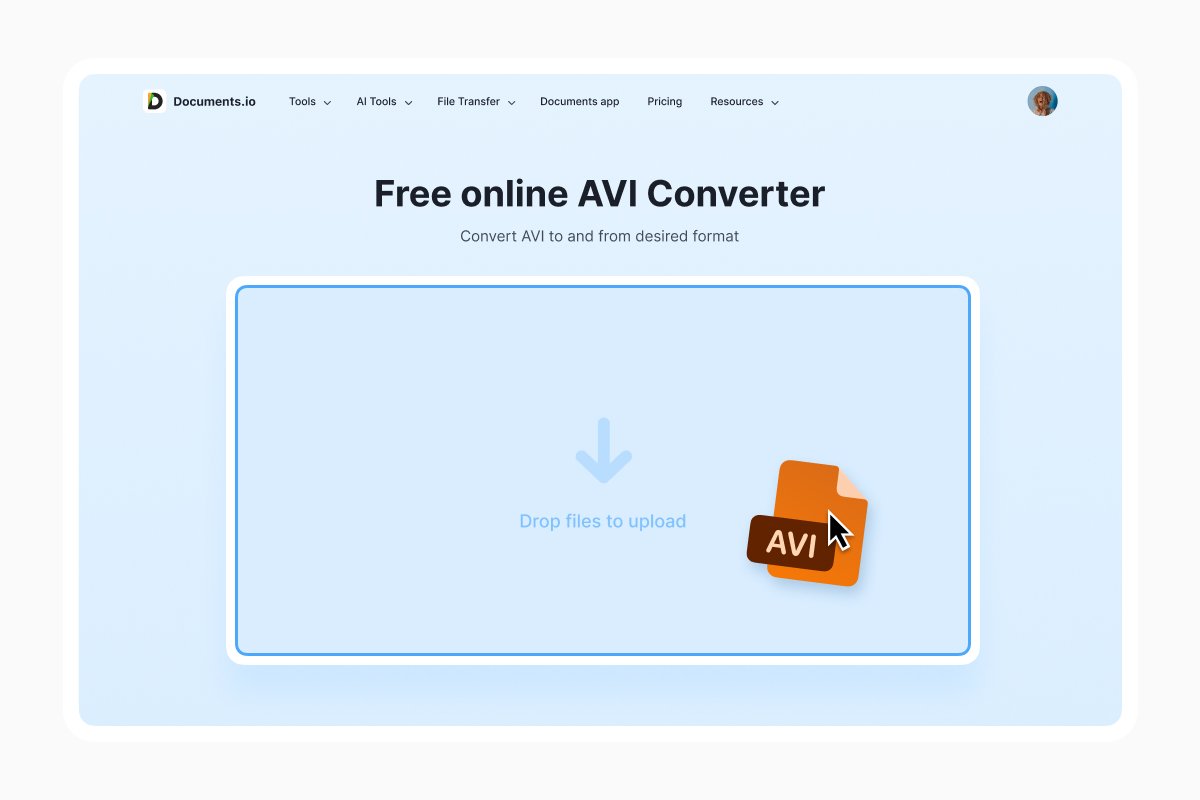
Just open the AVI converter and drag your files in, or use the file picker. Choose the format, convert, and download the results.
Please note that converting is a re-encode, so it’s technically a generation of quality loss. Keep the originals until you’ve spot-checked the results, especially the audio sync on anything long, since AVIs with VBR audio are exactly the files most likely to drift. And if a file won’t convert at all, it’s usually damaged rather than unsupported. VLC has a repair option for broken AVI indexes that can rescue a surprising number of them.
Should you still use AVI?
For new video, no. There’s no scenario in 2026 where AVI is the right output format for something you’re creating: MP4 is smaller, plays everywhere, streams properly, and supports subtitles and chapters that AVI has no real mechanism for.
Nevertheless, AVI is still useful for:
- Some surveillance and industrial capture systems
- Scientific and machine-vision tools
- The archives: millions of hours of family video, ripped discs, and early camcorder footage
FAQ
Why does my AVI play sound but no picture?
Your player understands the container and the audio, but not the video codec inside. It’s almost always a missing decoder rather than a damaged file. VLC bundles its own decoders and usually plays these without complaint.
Is AVI better quality than MP4?
No, and the question doesn’t quite work. Quality depends on the codec and bitrate, not the container. An uncompressed AVI will beat a heavily compressed MP4, but an MP4 with H.264 at a decent bitrate looks identical to a typical AVI at a fraction of the size.
Does converting AVI to MP4 lose quality?
Slightly, because it’s a re-encode. At sensible settings the difference isn’t visible in normal viewing, and it’s a one-time cost. Keep your originals until you’ve checked the output.
Can I upload AVI to YouTube or Instagram?
YouTube accepts AVI, though it’ll transcode it on their end and the upload takes longer than an MP4 would. Instagram is unreliable with AVI and often rejects it outright. Convert to MP4 first and skip the guesswork.
Latest posts

Glossary
What is a DCM file, and how do you open one?
DCM files are commonly used to store medical images such as X-rays, CT scans, and MRIs. Discover what DCM files are, how they work, and which tools you can use to open and view them.
Glossary
What is a CR2 file, and should you keep it or convert it?
CR2 is a RAW image format used by Canon digital cameras to preserve detailed photo data. Discover how CR2 files work, how to open and edit them, and whether you should keep the original files or convert them to more accessible formats
Glossary
What is a FLAC file? The lossless audio format explained
FLAC is a lossless audio format that preserves original sound quality while reducing file size. Discover how FLAC files work, how they compare to MP3, and how to open, play, or convert them on different devices.