


A PSD file (Photoshop Document) is a layered image file created by Adobe Photoshop. Unlike flat image formats such as JPEG, a PSD stores every element of a design separately. This layered structure is the defining feature of the PSD format. It allows designers to edit each component independently without permanently altering the rest of the image.
In this guide, we’ll unpack what’s inside a Photoshop document, what a PSD file is used for, how to open a PSD file with or without Photoshop, and when it makes sense to convert a PSD to PNG or JPEG. We’ll also look at PSD file layers, compatibility with tools like GIMP and Photopea, and why designers still rely on the PSD format decades after its launch.
What is a PSD file used for?
The primary purpose of a PSD file is to facilitate non-destructive editing. Designers can tweak typography, swap images, adjust colors, or change layout elements without starting from scratch. This makes it the go-to format for complex digital art, website mockups, and high-end photo retouching. In collaborative environments, PSD files act as master files. From there, designers export finalized assets into lighter formats like JPEG, PNG, or WebP for distribution.
According to Lenovo’s glossary, PSD remains one of the most widely recognized professional image formats thanks to its depth of editing and compatibility across creative tools.
What’s inside a PSD file?
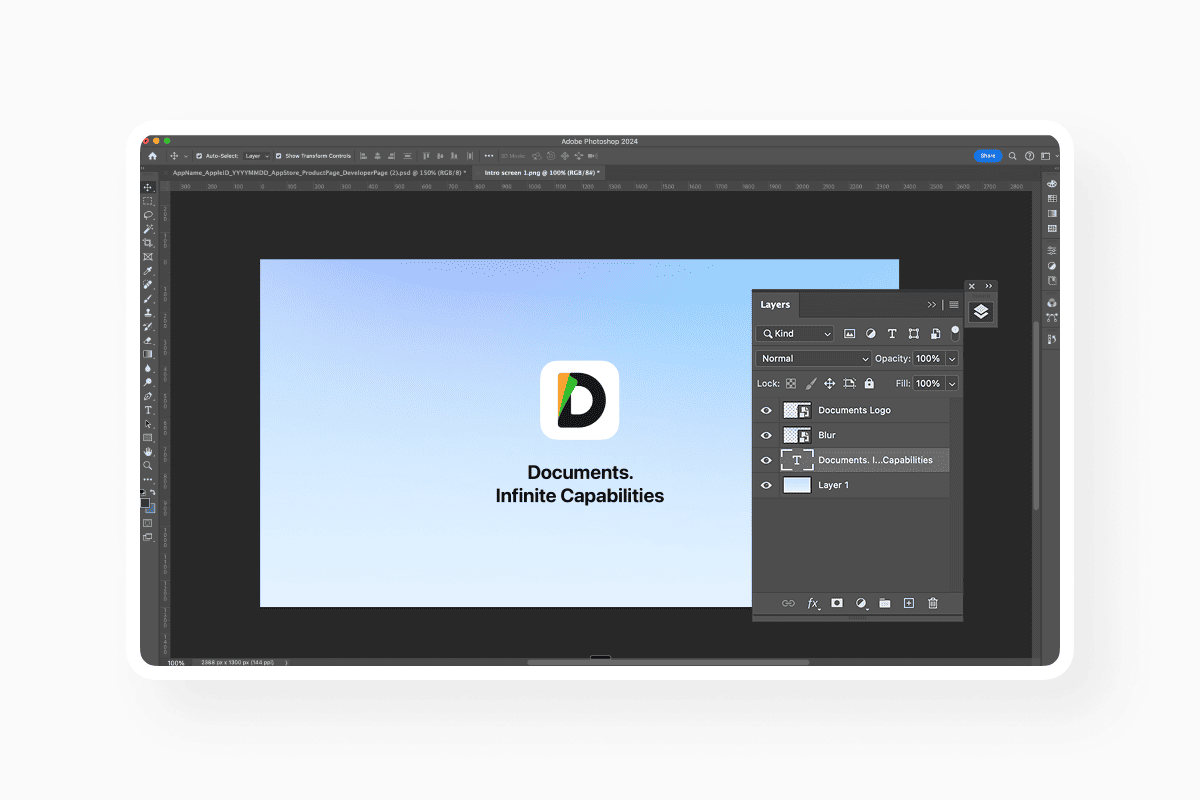
A typical Photoshop document can include dozens or even hundreds of PSD file layers. Each layer might represent a background, an image, text, a color correction filter, or a shadow effect. These layers stack on top of one another and can be reordered, hidden, grouped, or blended together using different blending modes. Typically, you’ll find:
- Individual layers: These are the building blocks of your design, allowing you to move a logo, change a background, or hide a specific element without affecting the rest of the image.
- Adjustment layers: These store color and tonal changes (like brightness or saturation) separately from the image itself.
- Vector paths: Even though Photoshop is primarily a raster (pixel-based) tool, PSDs can store vector shapes that remain sharp at any size.
- Smart objects: These act as "files within a file," allowing you to scale and transform images without losing the original data quality.
- Transparency: Unlike JPEGs, PSDs fully support transparent backgrounds, which is essential for logo design and web assets.
Cloudinary’s technical breakdown of PSD highlights that the format is designed for flexibility and high-fidelity editing rather than web delivery. That flexibility is why PSD for graphic design remains standard in branding, advertising, UI mockups, and print production workflows.
Why use PSD instead of JPEG or PNG?
Designers will use PSD to produce a final image, and then export it to an alternative format for delivery. While JPEG and PNG are perfect for the web, they are lossy or flat formats. Once you save to JPEG, your layers are merged, and you can no longer edit individual elements without damaging the image.
PSD files support non-destructive editing, retaining high resolution and 16/32-bit color, ideal for professional use. They integrate smoothly with Adobe Creative Cloud and are supported by third-party software such as GIMP and Photopea. However, the comprehensive layering and data lead to very large file sizes.
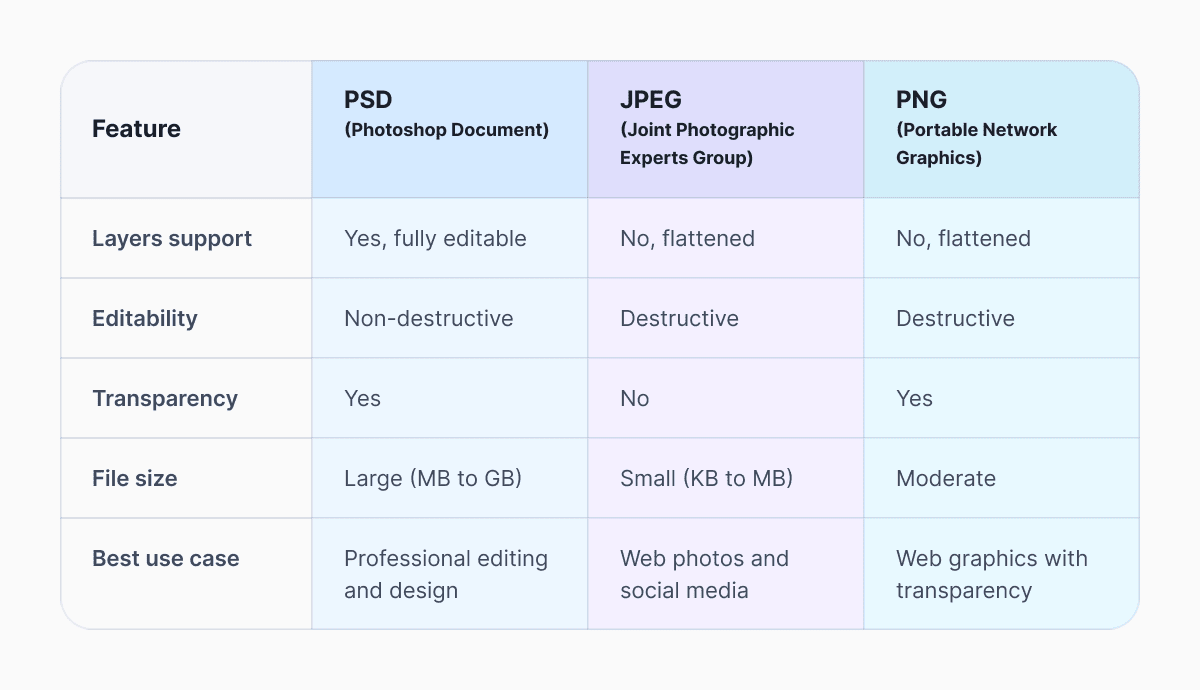
The PSD format is essential for anyone in the production phase of a project. It allows for infinite revisions. According to recent graphic design industry statistics, Adobe Photoshop still maintains a dominant 36% market share among professional tools in 2026, largely because the PSD format remains the "master file" from which all other versions are exported.
Managing the footprint of your design
Because PSDs store so much data, they can quickly fill up your hard drive. It isn't uncommon for a professional project with dozens of layers to exceed 500MB. To keep your system running smoothly, experts recommend cleaning your PSDs by deleting hidden layers and merging smart objects once they are no longer needed for editing.
Recent data from the Library of Congress highlights the PSD as a "de facto standard" for bitmapped images, noting its stability for long-term digital preservation. However, for everyday use, keeping your files organized with clear layer names and groups is the best way to ensure your PSD remains a tool rather than a burden.
How do I open a PSD file without Photoshop?
One of the most common questions for non-designers is how to open a PSD file without a Creative Cloud subscription. While Photoshop is the native home for these files, you have several high-quality alternatives.
You can open a PSD file with: GIMP, Photopea, Corel Painter, Affinity Photo, and certain file preview tools on Windows and macOS. If you need to make actual edits, you can opt for GIMP or Photopea. Photopea is a powerful, browser-based editor that mirrors the Photoshop interface and handles PSD layers. GIMP, a long-standing open-source favorite, can also open PSDs, though it may occasionally struggle with complex Adobe-specific features like Smart Objects or certain Layer Styles.
For those who just need to view a file, Google Drive offers a built-in previewer. Simply upload the .psd file to your drive, and you can view its contents without installing any software. macOS users can also use the native Preview app to look at PSDs instantly. GroovyPost’s guide to opening PSD files outlines several alternatives for Windows and Mac users.
How do I export a PSD file to another format?
A PSD is meant for working, not for sharing on social media or embedding in a website. When your design is finished, you must export it into another format. This process flattens the image, combining all your layers into a single, lightweight file. If you’re working on a marketing banner, keep everything in PSD while iterating. Once approved, export a JPEG for smaller file sizes or a PNG if you need transparency.
In Photoshop: Open the PSD file > Select File Choose Export > Pick your desired format > Adjust quality and size settings, and Save.
In Photopea, use File and Export As. In GIMP, use File and Export As and choose the desired file type.
You can convert PSD to an alternative format. If you need to change formats for different needs, you can use an online converter like Documents Image Converter. Though you should always keep the original PSD intact so you can return to it for future edits.
The PSD file is still very much the backbone of professional image editing and graphic design. While newer formats have emerged for web optimization and real-time collaboration, the PSD format remains unmatched for deep, layered editing.
If you’re designing logos, retouching portraits, building UI mockups, or creating print layouts, PSD gives you flexibility that flat formats simply can’t match. Once your work is complete, converting a PSD to PNG or JPEG ensures compatibility and performance across platforms. In short, PSD is where creativity happens. JPEG and PNG are how it reaches the world.
Latest posts
Glossary
SVG file format explained: what it is, how it works, and when to use it
Learn what the SVG file format is, how it compares to PNG and JPG, how to open or edit SVG files, and how to convert SVG images to JPG or PNG using documents.io
Glossary
What is a TIFF file? A guide to this high-quality image format
Learn what a TIFF file is, when to use it for high-quality images and printing, how it compares to JPEG and PNG, and how to open and convert TIFF files.
Glossary
What is a JPEG file? Inside the world’s most popular photo format
JPEGs are everywhere, from social media uploads to camera rolls. Here’s what the format actually does, why it became the standard for photos, and where it still shines today.