


Every second reader seems to own a Kindle these days. Sure, nothing beats the smell and feel of a real physical book, but a Kindle makes it easy to carry hundreds of titles with you and handles all kinds of file formats without much hassle.
EPUBs are the one exception worth knowing about. Most books you download from the web come in that format, and getting them onto a Kindle isn’t as simple as it should be.
Kindle doesn’t read EPUBs natively, so a lot of readers often wonder how to send EPUB to Kindle. Let’s have a look.
Can I send EPUB directly to Kindle?
Yes, but with one caveat. Kindle has officially supported EPUB since late 2022, when Amazon added it to the list of accepted file types for Send to Kindle.
But Kindle doesn’t open EPUB files directly like other readers do. When you send an EPUB through Send to Kindle, Amazon converts it to its own format (AZW3 or KFX) first. That’s why you won’t be able to drag an EPUB to a folder via USD and expect it to work.
So if you’ve wondered, “Why can’t I upload EPUB to Kindle?” that’s usually the reason. The easiest way to get your EPUBs onto a Kindle is by following the methods below.
Send to Kindle by email
Every Kindle gets its own unique email address (something like yourname_1234@kindle.com). You can find it in your Amazon account under Manage Your Content and Devices.
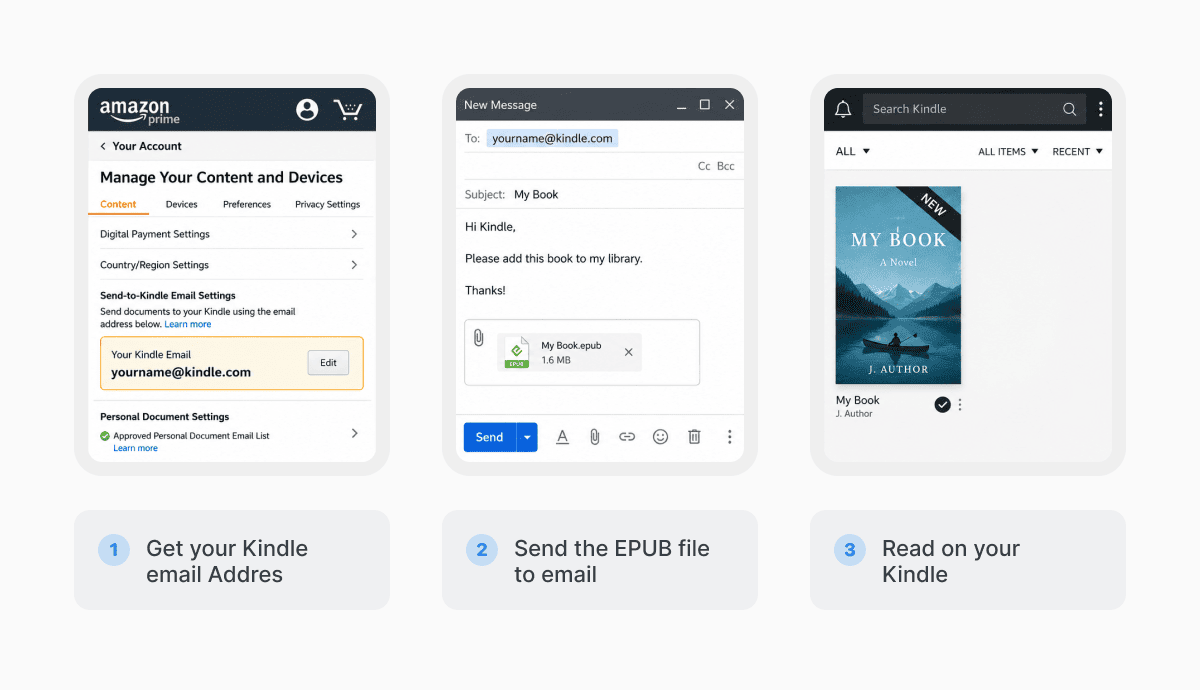
Add the email you’ll be sending from to the approved list in the Personal Document Settings so it doesn’t get blocked (you only need to do it once, and you’re set forever). Then, attach the EPUB to an email and send it from an approved address. A few minutes later, the book appears in your Kindle library, ready to download via Wi-Fi.
Send to Kindle web uploader
If the file is on your computer, this is even faster than the first method. Log into Amazon, go to the Send to Kindle page, drag and drop the EPUB onto the web tool, pick which device(s) you want it on, and you’re done. It handles files up to 200 MB, so basically any ebook.
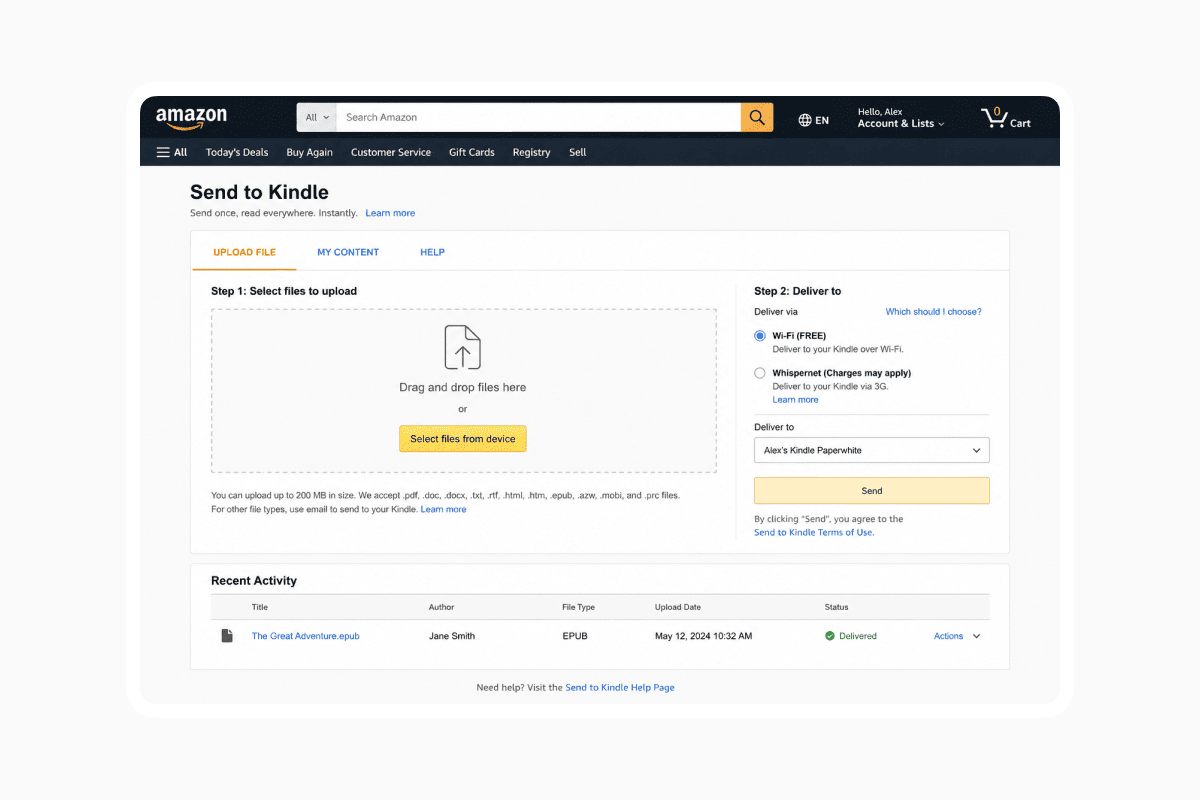
Kindle app on iPhone or Android
The official Kindle app has built-in Send to Kindle. You can share an EPUB straight from Files, your browser, or another reading app.
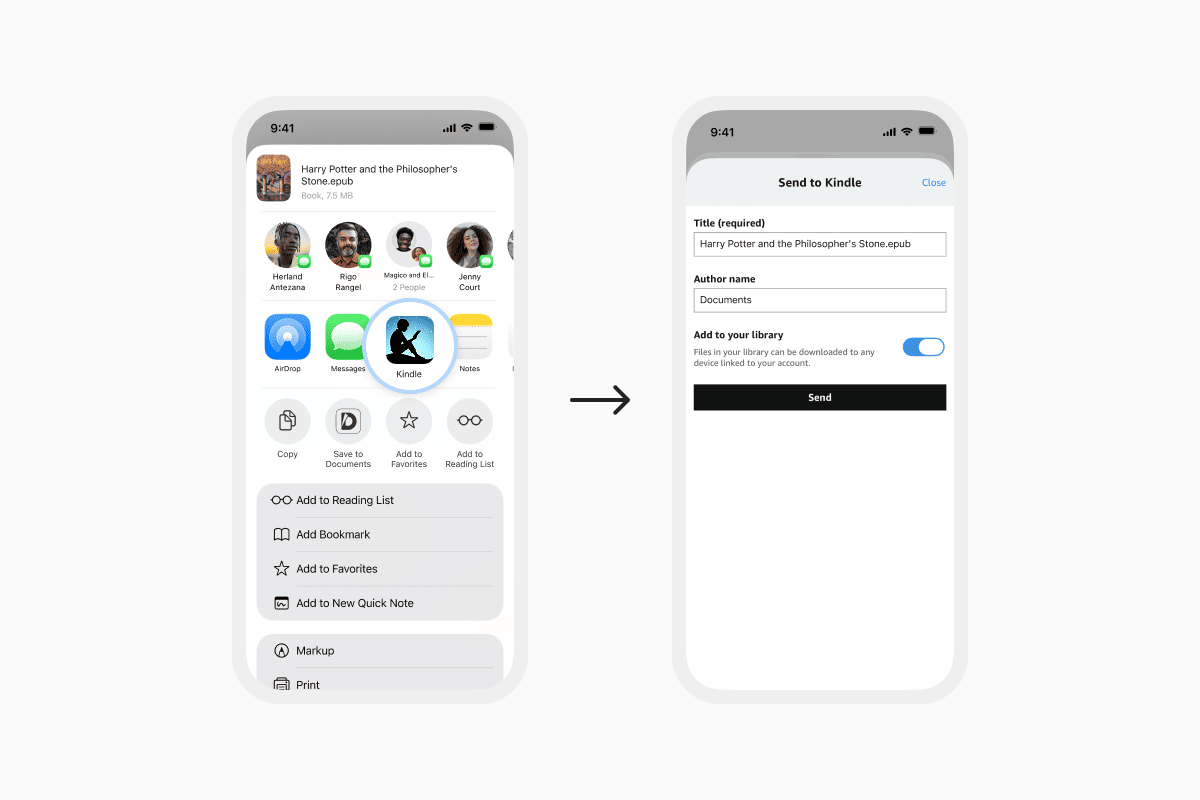
On iPhone, just find your EPUB, press and hold it, then tap Share. Scroll down in the share sheet until you see Send to Kindle, tap it, pick which device(s) you want it on, and confirm. The book will sync to your library over Wi-Fi, just like the other methods.
If you don’t see “Send to Kindle” in the share options, tap More and turn it on from the list of apps. Once it’s enabled, it’ll be there whenever you need it.
USB transfer
You can plug your Kindle into a computer with a USB and copy the EPUB into the Documents folder. It works well on certain Kindle models, but the formatting can be inconsistent, and it’s not as reliable as the wireless methods above. Although it’s a good backup option for when you’re offline.
How to convert a PDF to EPUB
PDFs are fully supported by Kindle and can be easily sent with the same steps as above. But when transferring to Kindle, PDFs will stay in their fixed layout. This can make the reading experience less comfortable, especially on a smaller screen. So, what you can do for a better experience is convert PDF to EPUB.
In Documents.io’s file converter, upload your PDF, select EPUB as the output format, and hit convert. When it’s done, download the new EPUB file to your phone or desktop.
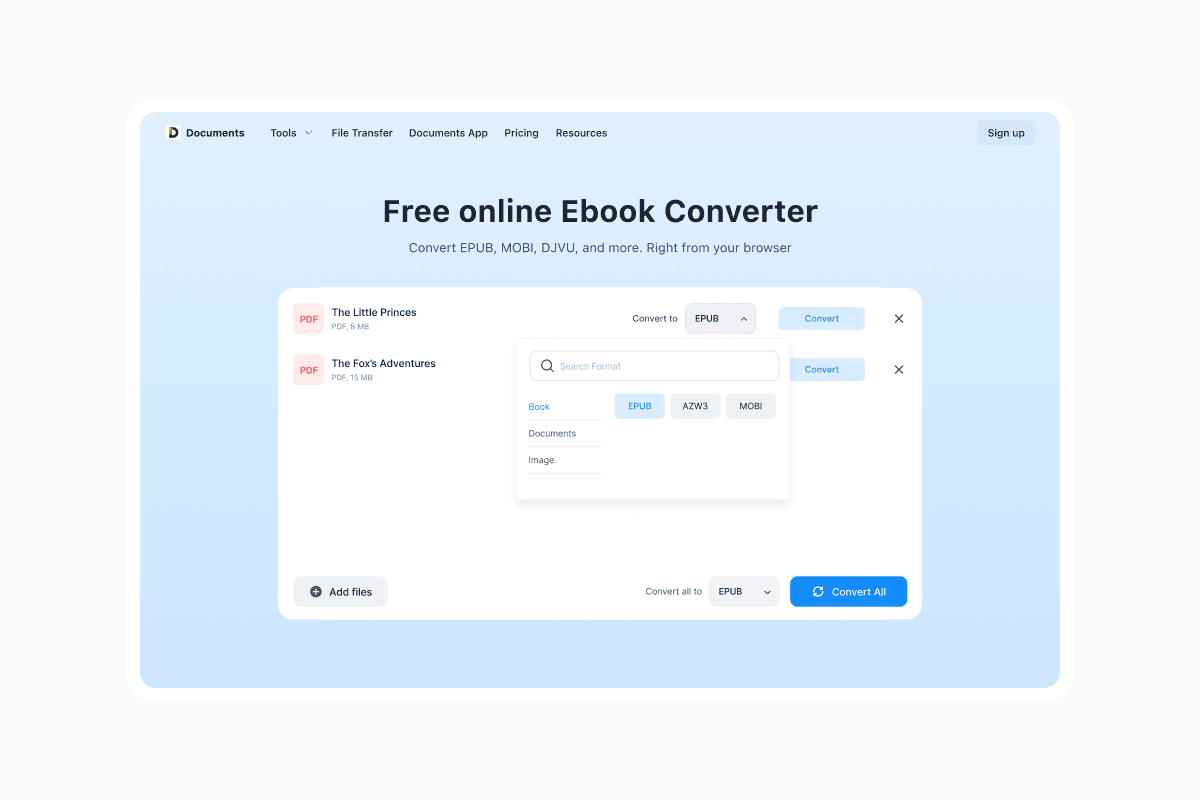
Now tap the converted file, tap the Share icon, choose Mail, type in your Kindle email address, and send. It attaches everything automatically.
After Amazon’s one-time confirmation email, all future sends go through instantly.
Why can’t I upload EPUB to Kindle?
A few things to check if the file isn’t showing up:
- Your sending email isn’t authorized. What can you do to fix it? Go back to Personal Document Settings in Manage Your Content and Devices and double-check that the address you’re sending from is on the approved list.
- You didn’t click the confirmation link in Amazon’s verification email. The first time you send from a new email address, you need to verify it with a click.
- Your Kindle isn’t connected to Wi-Fi. Files are delivered to your library in the cloud, but your device needs Wi-Fi to download them. Connect to a network and sync manually from Settings > Sync My Kindle if needed.
- The file is too large. Files over 200 MB can sometimes fail on the web uploader.
- The EPUB is DRM-protected. If you’re trying to send an ebook you purchased from Apple Books, Kobo, or Google Play, it may have Digital Rights Management (DRM) restrictions that prevent transfer to other platforms. Amazon’s Send to Kindle service can’t process DRM-protected files from other stores.
FAQ
How to transfer EPUB files from phone to Kindle?
Yes, you can through Amazon’s Send to Kindle service using email on your phone or directly via the Kindle app.
Can I send PDF to Kindle?
Yes, PDFs are supported by Kindle, so you can send them the same way as EPUBs by attaching to your Kindle email or sharing from the Kindle app.
How do I find my Kindle email address?
Log into Amazon, go to Manage Your Content and Devices, click the Devices tab, pick your Kindle from the list, and you’ll see the Send to Kindle email (it ends in @kindle.com).
Latest posts

Knowledge Base
Video file formats explained: MP4, MKV, AVI and more
Learn the difference between video file formats (MP4, MKV, AVI, MOV, WebM) and codecs (H.264, H.265, AV1). Find out which format is best for social media, professional editing, and universal compatibility in 2026.

Knowledge Base
The beginner photographer’s guide to file conversion (RAW, JPEG, TIFF, PNG)
A beginner-friendly guide to converting RAW, JPEG, TIFF, and PNG photos. Learn quality tradeoffs, export settings, and smart archiving habits for web and print.
Knowledge Base
How to make a GIF: simple steps to create and share loops online
Making a GIF is simple: trim a short moment from a video, convert it, and save the loop. Whether you’re using a browser-based converter like Documents.io or an app, the key is to keep it short, clean, and seamless for easy sharing anywhere.