


Icons are easy to overlook until one is broken, blurry, missing from a browser tab, or replaced by a generic rectangle. Behind many of those tiny pictures is an ICO file, the format Windows has used for program and folder icons for decades, and the format many websites still use for favicons.
This article covers what ICO files are, how they work, where they show up, and how to open, create, or convert them.
What is an ICO file?
An ICO file is an image format Microsoft created for computer icons. The file extension is .ico, and its job is to give Windows (or a web browser) a small picture it can show next to an app, a folder, a shortcut, or a website.
What makes ICO different from a regular image is that it’s a container, holding several copies of the same drawing, each at a different size. A typical ICO file might include a 16x16 version for the taskbar, a 32x32 version for the desktop, a 48x48 version for File Explorer, and a 256x256 version for large icon views.
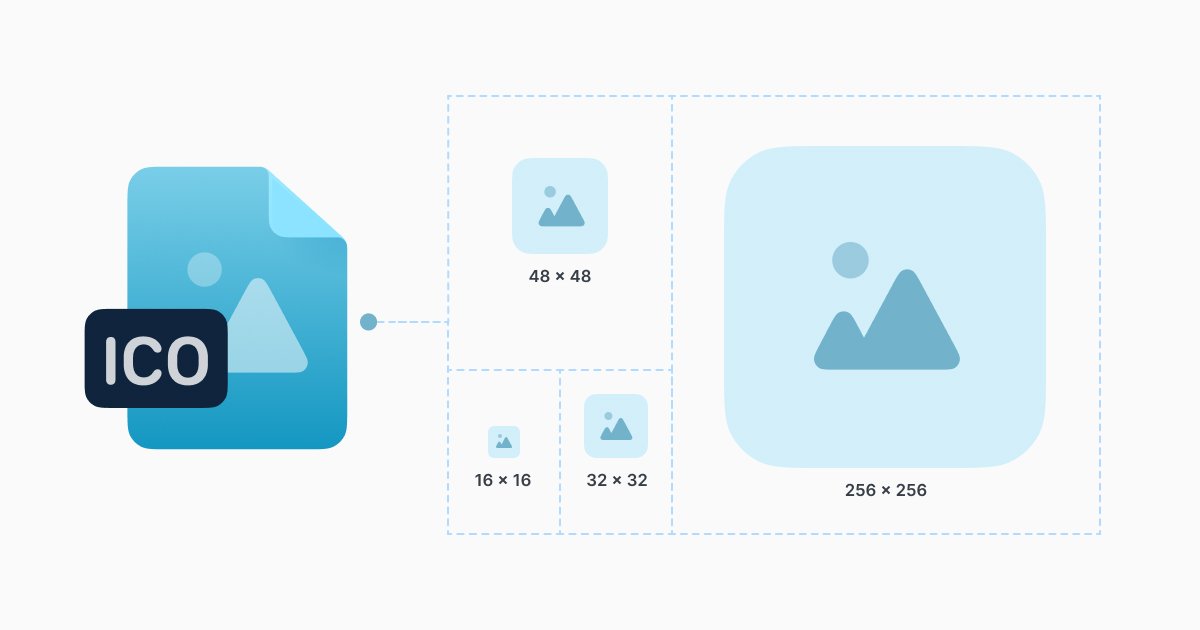
Shrinking a big logo down to 16 pixels usually turns it into mush, but an ICO file allows you to hand-tune each size so it stays sharp. Windows then picks the closest match for wherever the icon appears and only scales it if it has to.
You can find ICO files as:
- Windows icon on your desktop (in the Start menu or in File Explorer)
- Website favicons (the image next to the site)
Today, browsers accept PNG and SVG favicons as well. Still, favicon.ico remains the safe fallback, and plenty of sites keep one in their root folder for older browsers, bookmarking tools, and anything else that goes looking for it.
ICO file format at a glance
|
File extension |
.ico |
|
Developed by |
Microsoft |
|
What’s inside |
One or more images, stored as bitmaps or PNGs |
|
Typical sizes |
16x16, 32x32, 48x48, and 256x256 pixels |
|
Maximum size |
256x256 pixels (officially recommended limit) |
|
Transparency |
Yes, including soft edges and shadows |
|
MIME type |
image/x-icon (the officially registered image/vnd.microsoft.icon is rarely used in practice) |
|
Opens with |
Windows Photos, Paint, macOS Preview, any web browser |
|
Main uses |
Windows app, folder, and shortcut icons; website favicons |
ICO vs PNG and SVG
PNG and SVG are more modern and more widely supported, so why use a format from the 1980s?
Because Windows needs the same icon at many sizes. It shows up tiny in the taskbar and much larger in File Explorer. One ICO file can carry several hand-drawn sizes, so the small ones stay readable instead of turning into a blurry shrink of a big logo.
SVG scales cleanly, but a 16-pixel icon often needs simpler details than a 256-pixel one. A single PNG has the same problem: the computer just shrinks it, and small sizes suffer most.
Windows is also picky: if you rename logo.png to logo.ico, a browser may still show it. But Windows usually won’t, because it expects a real ICO file with the right header. That is why old apps still use ICO, and why the format was updated over the years instead of being replaced.
How to open an ICO file
ICO files are small images, so you don’t need special software to look at one.
On Windows, double-click the file and it will open in the Photos app. Paint opens ICO files as well, which is handy if you want to make a quick edit.
On a Mac, Preview handles ICO files without any extra setup. Double-click the file, or right-click it and choose Open With > Preview. From there, File > Export lets you save a copy as PNG or JPEG.
In any browser, drag the ICO file into an empty Chrome, Safari, Edge, or Firefox tab and it will display. It’s the fastest option on a computer you don’t control, like a work laptop.
On Linux, image viewers like GIMP and Eye of GNOME open ICO files, and GIMP shows each size inside the file as a separate layer.
If you need the icon in a more flexible format for a slide, a document, or a design app, convert it. The Documents.io ICO converter turns ICO files into PNG, WEBP, PDF, and other formats online, with no software to install.
How to make an ICO file from a PNG
This is the question most people are really asking. Here’s what to do if you have a logo or image and you need it as an ICO file for a favicon, an app, or a custom folder icon.
Start with the right image
Use a square image, since icons are always square and anything else will be stretched or padded. Aim for at least 256x256 pixels, so the largest size inside the ICO file stays sharp. A transparent background is best, which is why PNG is the ideal starting point. And keep the design simple: a bold shape or a single letter survives being shrunk to 16 pixels far better than a detailed illustration or a full company name.
Convert PNG to ICO with Documents.io
Documents.io handles the conversion in your browser, so it works on Windows, Mac, Linux, and even your phone.
Open the Documents.io’s ICO converter and drag your PNG into the upload area, then select ICO and start the conversion.
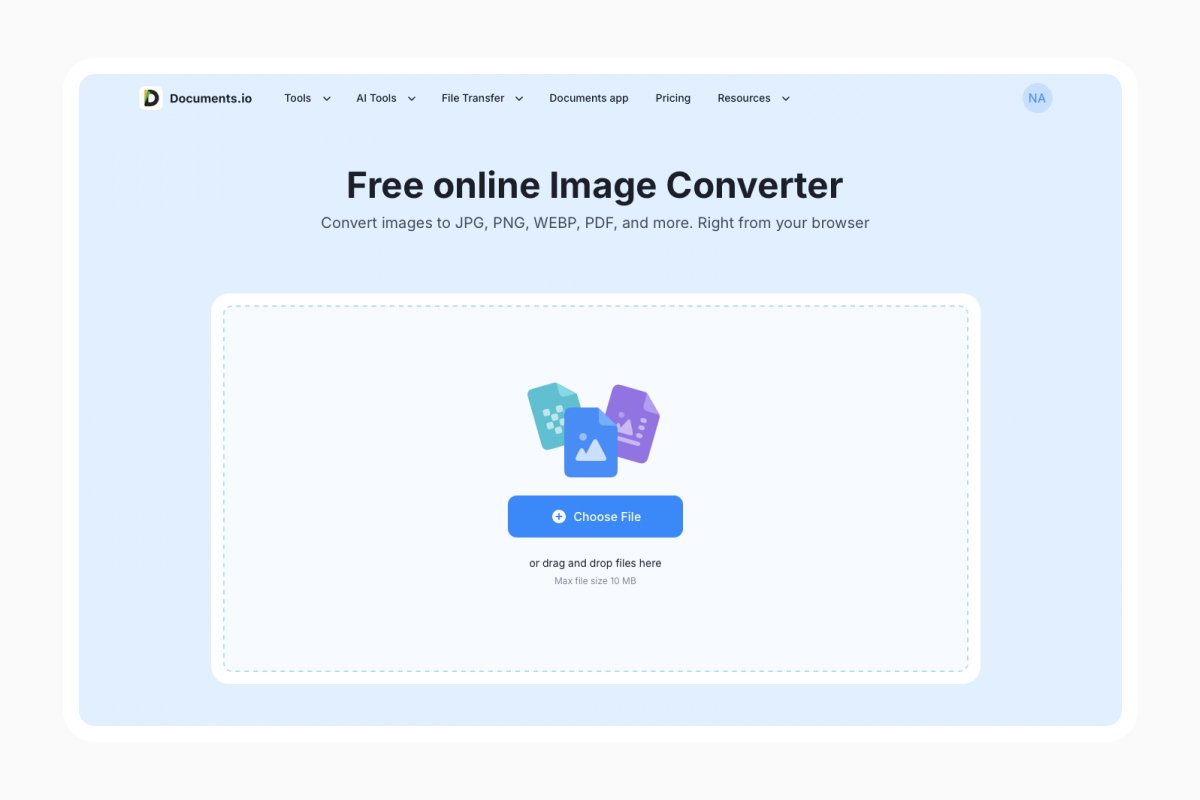
You get three free actions a day, and Documents.io doesn’t keep your files permanently, so your logo isn’t sitting on a server after you’re done. The same image converter also works with JPG, WEBP, SVG, BMP, and other formats if your source image isn’t a PNG.
Which sizes should your ICO file include?
It depends on where the icon is going. For a website favicon, 16x16, 32x32, and 48x48 cover browser tabs, bookmarks, and desktop shortcuts. For a Windows app or folder icon, Microsoft’s guidance is to include at least 16x16, 32x32, 48x48, and 256x256, so the icon looks crisp everywhere from the taskbar to large icon view.
How to use your new ICO file
Once you have your icon, here’s what you can do with it:
- Change a folder icon on Windows – right-click the folder and choose Properties, open the Customize tab, click Change Icon, then Browse to your ICO file.
- Change a shortcut icon – right-click the shortcut, choose Properties, and click Change Icon on the Shortcut tab.
- Add a favicon to a website – upload favicon.ico to your site’s root folder and add this line inside the page’s <head> section:
<link rel="icon" href="/favicon.ico" sizes="any">
FAQ
What is an ICO file?
An ICO file is Microsoft’s image format for icons. It stores one or more versions of the same image at different sizes, so Windows and web browsers can pick the sharpest one for each spot where the icon appears.
Is an ICO file just a PNG?
Not quite. An ICO file is a container with its own header, and the images inside can be stored as bitmaps or as PNGs. Many modern ICO files include PNG images, especially for the largest 256×256 size, but a PNG renamed to .ico won’t work as a proper Windows icon.
How do you open an ICO file?
On Windows, double-click it to open it in Photos or open it in Paint. On a Mac, use Preview. You can also drag an ICO file into any web browser tab, or convert it to PNG online with the Documents.io ICO converter.
Latest posts

Glossary
What is a DCM file, and how do you open one?
DCM files are commonly used to store medical images such as X-rays, CT scans, and MRIs. Discover what DCM files are, how they work, and which tools you can use to open and view them.
Glossary
What is a CR2 file, and should you keep it or convert it?
CR2 is a RAW image format used by Canon digital cameras to preserve detailed photo data. Discover how CR2 files work, how to open and edit them, and whether you should keep the original files or convert them to more accessible formats
Glossary
What is a FLAC file? The lossless audio format explained
FLAC is a lossless audio format that preserves original sound quality while reducing file size. Discover how FLAC files work, how they compare to MP3, and how to open, play, or convert them on different devices.