


Need to carry files between computers without an external drive? Documents by Readdle lets you use the available storage on your iPhone or iPad to keep documents, photos, videos, music, and other files with you.
You can transfer files wirelessly through a web browser or connect your device to a computer with a USB cable. Files are stored and organized in Documents, where you can open, rename, move, or share them.
Download Documents for free to get started.
How to use an iPhone or iPad as a wireless portable drive
Wi-Fi Transfer lets you move files between Documents and a Mac or Windows PC without installing additional software on your computer. Both devices must be connected to the same Wi-Fi network.
- Download and open Documents on your iPhone or iPad.
- Tap the three-dot button in the upper-right corner.
- Select Connect to Computer. You can also find this option under the + button in the main view.
- Documents will display a four-digit code.
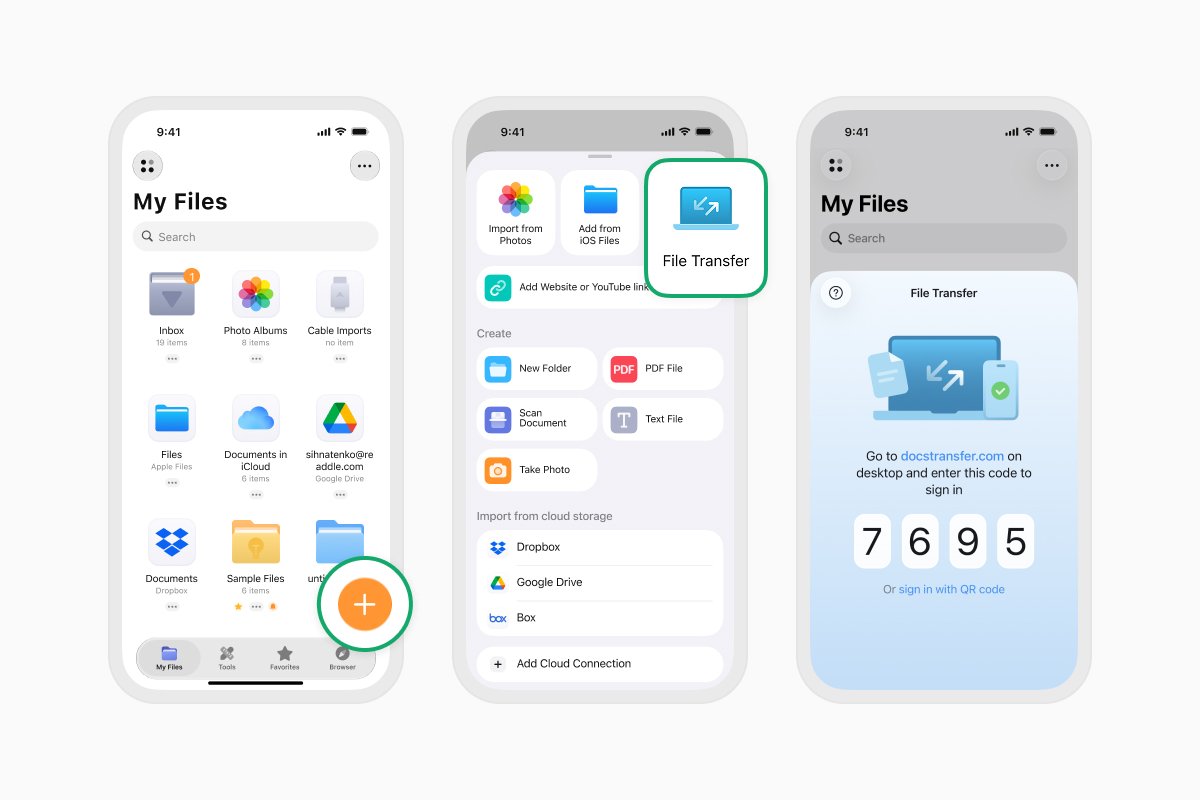
- On your Mac or PC, open a web browser and go to docstransfer.com.
- Enter the four-digit code displayed in Documents.
- Click Upload Files to select files from your computer, or drag and drop them into the browser window.
- Wait for the upload to finish. The files will appear in Documents on your iPhone or iPad.
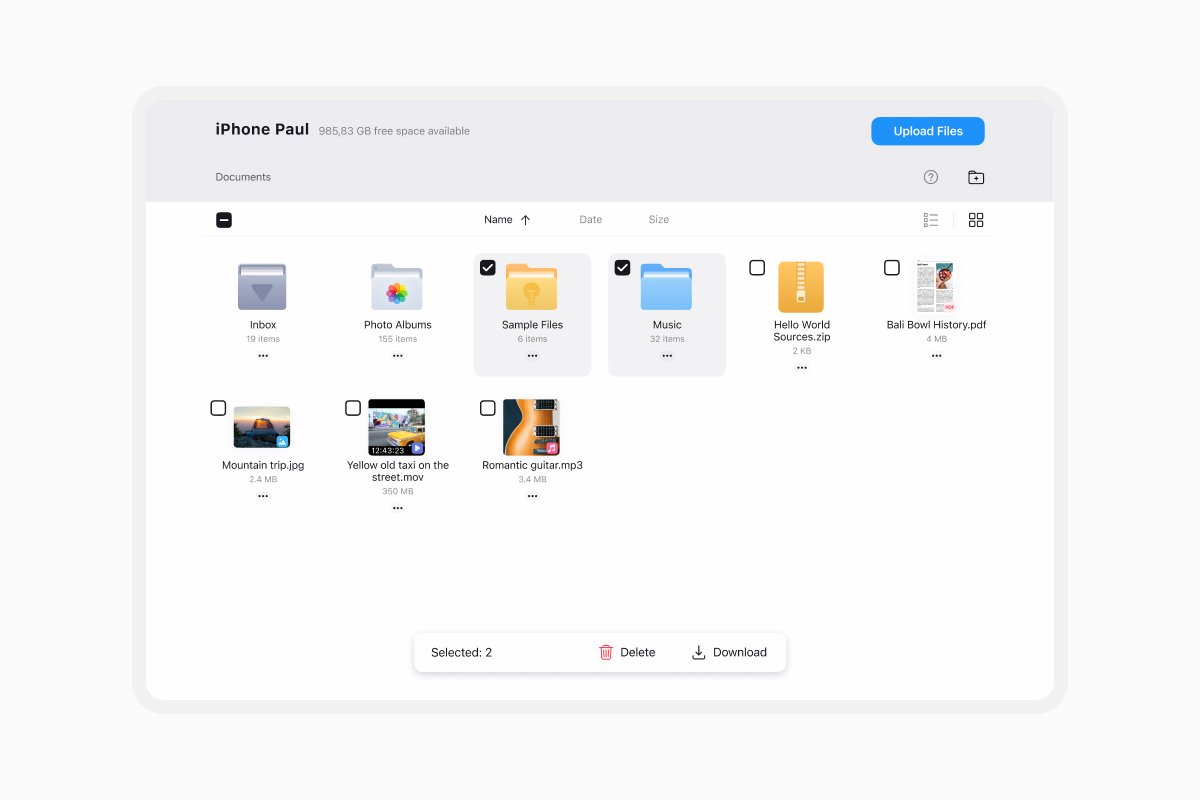
You can create folders and organize your files from the browser while the devices are connected.
How to transfer files from iPhone or iPad to a computer
Once your device is connected through Wi-Fi Transfer:
- Find the files or folders you want to copy in the browser window.
- Select one or more items.
- Click Download.
- Choose where to save them on your computer.
When you finish transferring files, tap Disconnect in Documents or close the browser page.
How to use an iPhone or iPad as portable storage with USB
USB transfer uses your computer’s file-sharing tools rather than `docstransfer.com`. Your iPhone or iPad will not appear as a standard external drive, but you can access files stored in Documents.
Transfer files with Finder on Mac
- Connect your iPhone or iPad to your Mac with a USB cable.
- Open Finder.
- Select your device in the Finder sidebar.
- If prompted, unlock your device and tap Trust.
- Open the Files tab.
- Select Documents from the list of apps.
- Drag files into Documents to copy them to your iPhone or iPad.
To copy a file back to your Mac, expand Documents in Finder and drag the file into a folder on your computer.
Transfer files with Apple Devices on Windows
- Install and open the Apple Devices app from the Microsoft Store.
- Connect your iPhone or iPad to your PC with a USB cable.
- Unlock your device and tap Trust or Allow if prompted.
- Select your device in the Apple Devices sidebar.
- Select Files.
- Choose Documents from the list of apps that support file sharing.
- Drag files into Documents to copy them to your iPhone or iPad.
Before disconnecting your device, use the eject button in Apple Devices.
What to do if Wi-Fi Transfer doesn’t connect
- Make sure both devices are connected to the same Wi-Fi network.
- Disconnect any active VPN and try connecting again.
- Check whether a firewall, guest network, or managed network is blocking communication between devices.
- Update Documents and your web browser to the latest available versions.
- Try another trusted Wi-Fi network.
- Close and reopen Documents and your browser.
What to do if USB transfer doesn’t work
- Make sure your USB cable supports data transfer, not charging only.
- Unlock your iPhone or iPad and respond to any Trust or Allow prompt.
- Connect the cable directly to another USB port on your computer.
- Restart your iPhone or iPad and computer.
- Update Finder, Apple Devices, and your device software.
Important things to know
Files copied to Documents use the available storage on your iPhone or iPad. They are not automatically backed up, so keep another copy of important files on a computer, external drive, or cloud storage service.
Deleting Documents may also remove files stored locally inside the app. Move or back up any important files before deleting it.
Download Documents for free to store, organize, and transfer files on your iPhone or iPad.
Latest posts

How-Tos
How to automate file tasks with Documents, Shortcuts, and Siri
Automate everyday file tasks with Documents, Shortcuts, and Siri. Build workflows to convert, save, archive, and manage files faster.

How-Tos
How to save video files on iPhone and iPad
Download and organize videos on your iPhone or iPad, save them to Photos or cloud storage, extract audio, and transfer them to your computer.
How-Tos
How to save a webpage as a PDF on iPhone and iPad
Save any webpage as a PDF on your iPhone or iPad, then read it offline, add annotations, share it, or store it in the cloud.