


Want to download a video to your iPhone or iPad and watch it later? With the right app, you can save videos from the web, organize them into folders, and play different video formats in one place.
Documents by Readdle combines a file manager, built-in browser, and video player. You can use it to download videos you have permission to save, keep them organized, transfer them to another device, or extract their audio.
Here’s how to download and save videos on your iPhone or iPad.
How to download videos on iPhone or iPad
Safari lets you download videos when a website provides a download option. However, downloaded files are saved separately in the Files app. With Documents, you can browse, download, organize, and play videos without moving between different apps.
- Download Documents: Get Documents from the App Store and open the app.
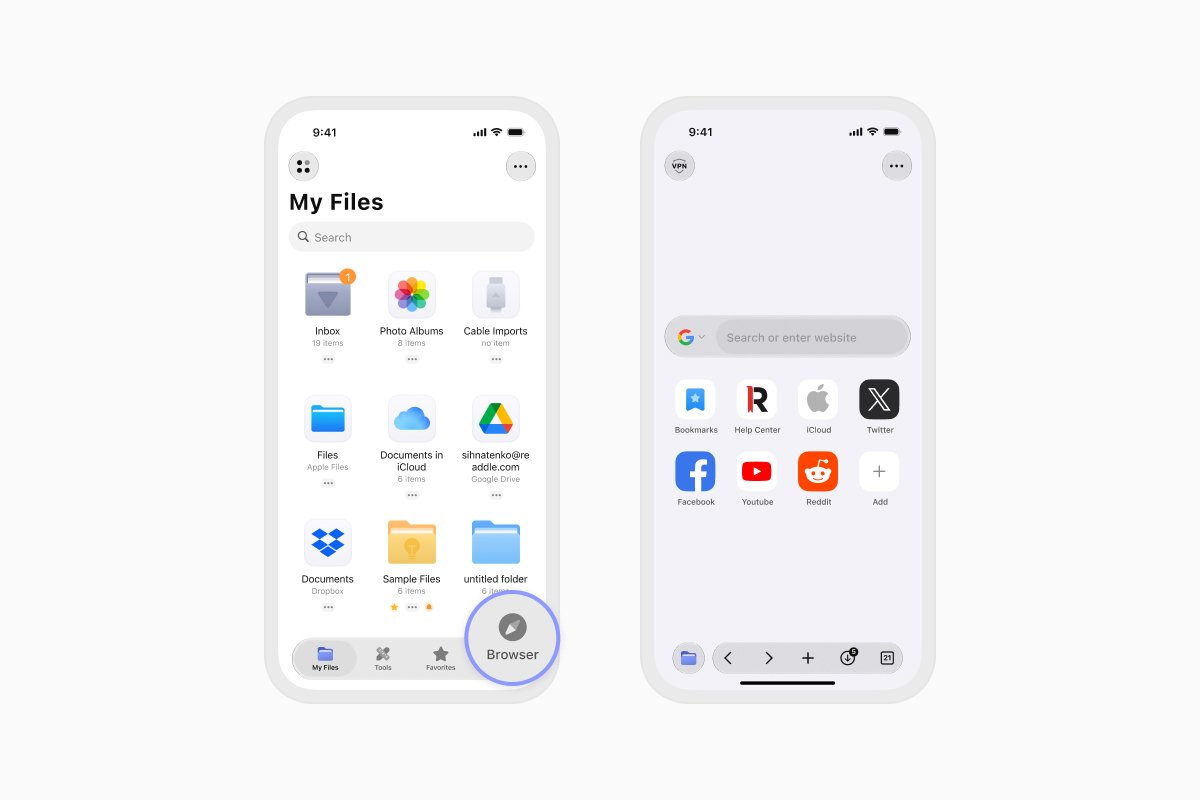
- Open the browser: Tap Browser in the bottom-right corner to launch the built-in browser.
- Find the video: Go to the website containing the video you want to download.
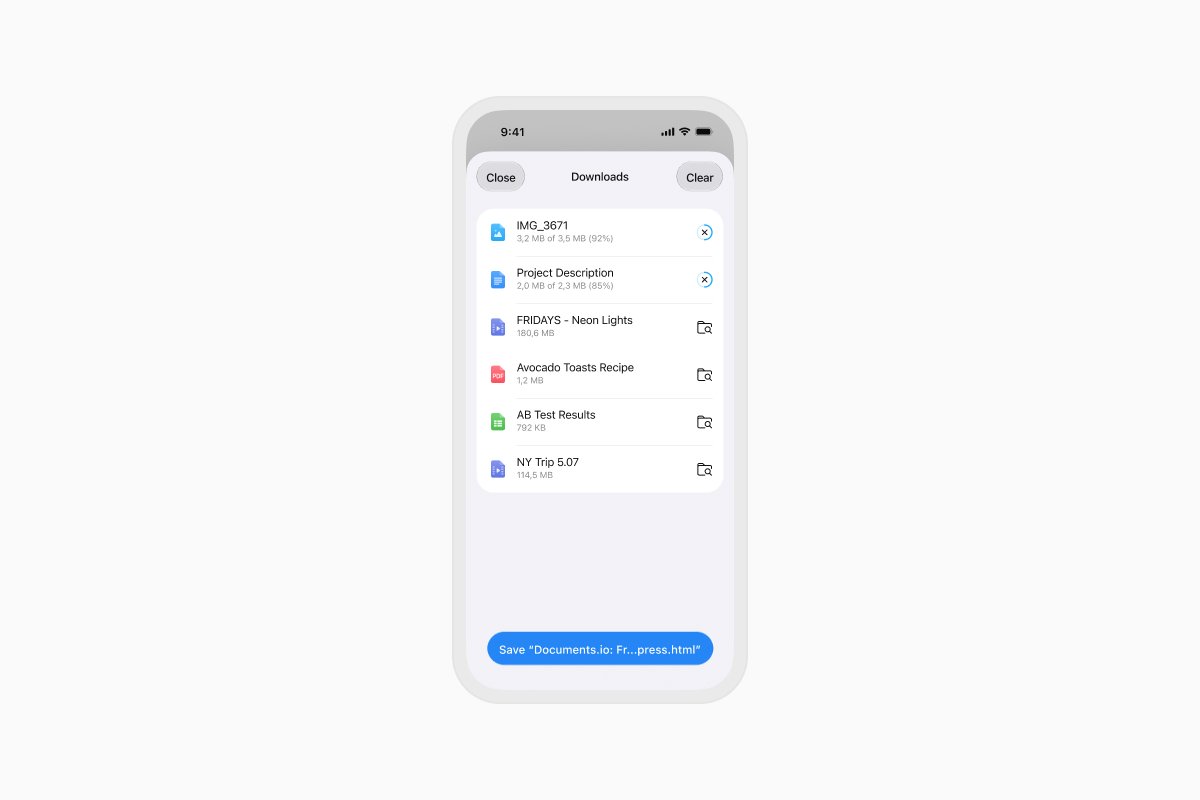
- Start the download: Tap the download button or direct file link provided by the website. Documents will ask you to name the file and choose where to save it.
- Open or organize the video: Once the download is complete, tap the video to play it. You can also rename it, move it into a folder, or upload it to cloud storage.
Only download videos you own or have permission to save. Some websites and streaming services restrict downloads or require you to use an official offline-viewing option.
How to save a video to Photos on iPhone
To save a compatible video from Documents or another app to your Photos library:
- Open the video or locate it in your files.
- Tap the Share button.
- Select Save Video.
The video will appear in the Photos app. If Save Video isn’t available, the video format may not be supported by Photos. You can still store and play the file in Documents.
How to save videos to cloud storage
Documents lets you connect cloud storage services such as iCloud Drive, Google Drive, Dropbox, and OneDrive.
To upload a video to cloud storage:
- Open Documents and find the video.
- Tap the file’s options button.
- Select Move or Upload.
- Choose your connected cloud service and destination folder.
You can select multiple videos if you want to upload several files at once.
How to extract audio from a video on iPhone
Documents can extract the audio track from a video and save it as a separate MP3 file:
- Open the video in Documents.
- Tap the options button in the upper-right corner.
- Select Extract Audio.
- Tap Extract MP3 File.
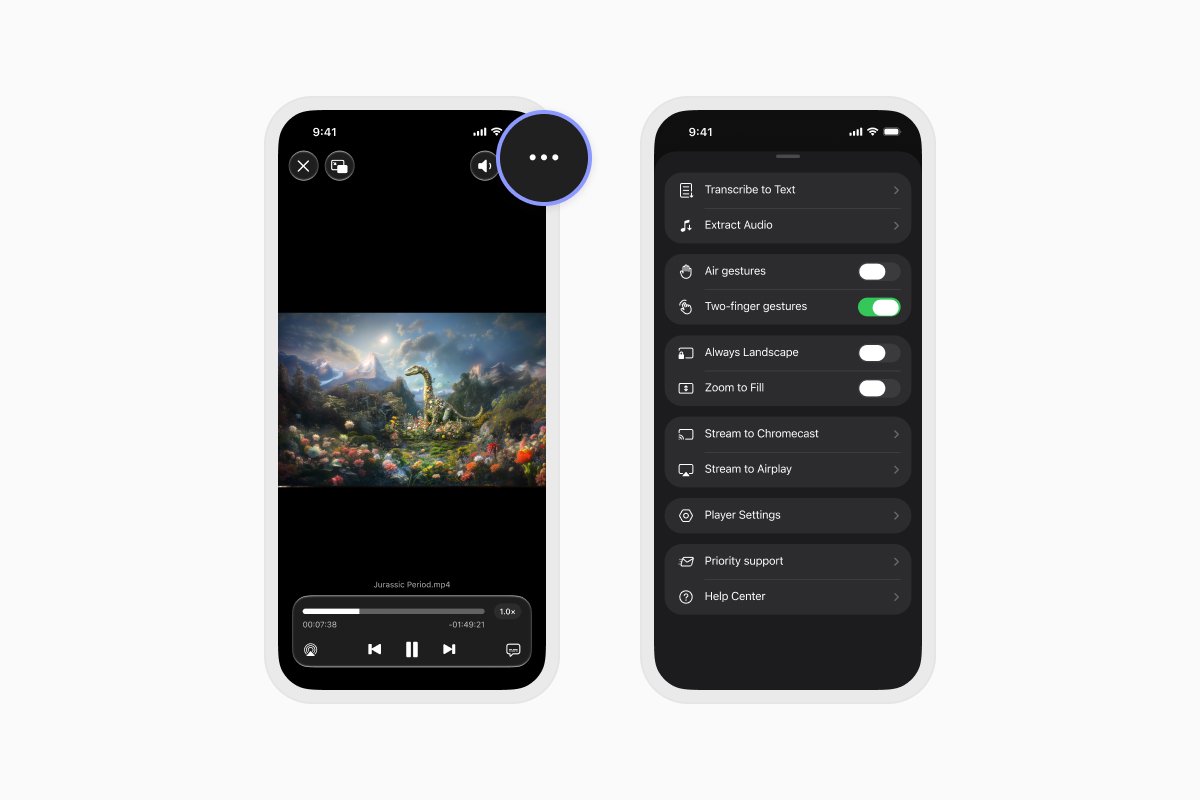
Documents will save the extracted audio as a separate file. The original video remains unchanged.
How to transfer videos from iPhone to Mac or PC
You can use Wi-Fi Transfer in Documents to move videos between your iPhone or iPad and a Mac or Windows PC. Both devices need to be connected to the same Wi-Fi network.
Follow the Wi-Fi Transfer guide to connect your devices and transfer your videos.
Download Documents for free to save, organize, play, and transfer videos on your iPhone or iPad.
Latest posts

How-Tos
How to automate file tasks with Documents, Shortcuts, and Siri
Automate everyday file tasks with Documents, Shortcuts, and Siri. Build workflows to convert, save, archive, and manage files faster.
How-Tos
How to save a webpage as a PDF on iPhone and iPad
Save any webpage as a PDF on your iPhone or iPad, then read it offline, add annotations, share it, or store it in the cloud.

How-Tos
How to edit audio on iPhone and iPad
Here’s how you can instantly trim audio files or remove unnecessary parts from an audio file on your iOS device using Readdle’s Documents app.