


Converting a file to PDF, saving it, and sending it to someone can take several steps. If it’s something you do regularly, you can save time by turning those steps into a Shortcut.
Documents works with Apple Shortcuts to let you get, save, and convert files as part of your own workflows. With iOS 27, you can also use Siri for simple actions with files in Documents.
Here’s how to set it up.
What can Documents do in Shortcuts?
Documents works with Apple Shortcuts to help you automate tasks on your iPhone and iPad. A Shortcut is a sequence of actions that runs automatically in the order you choose. Each action handles one part of the task.
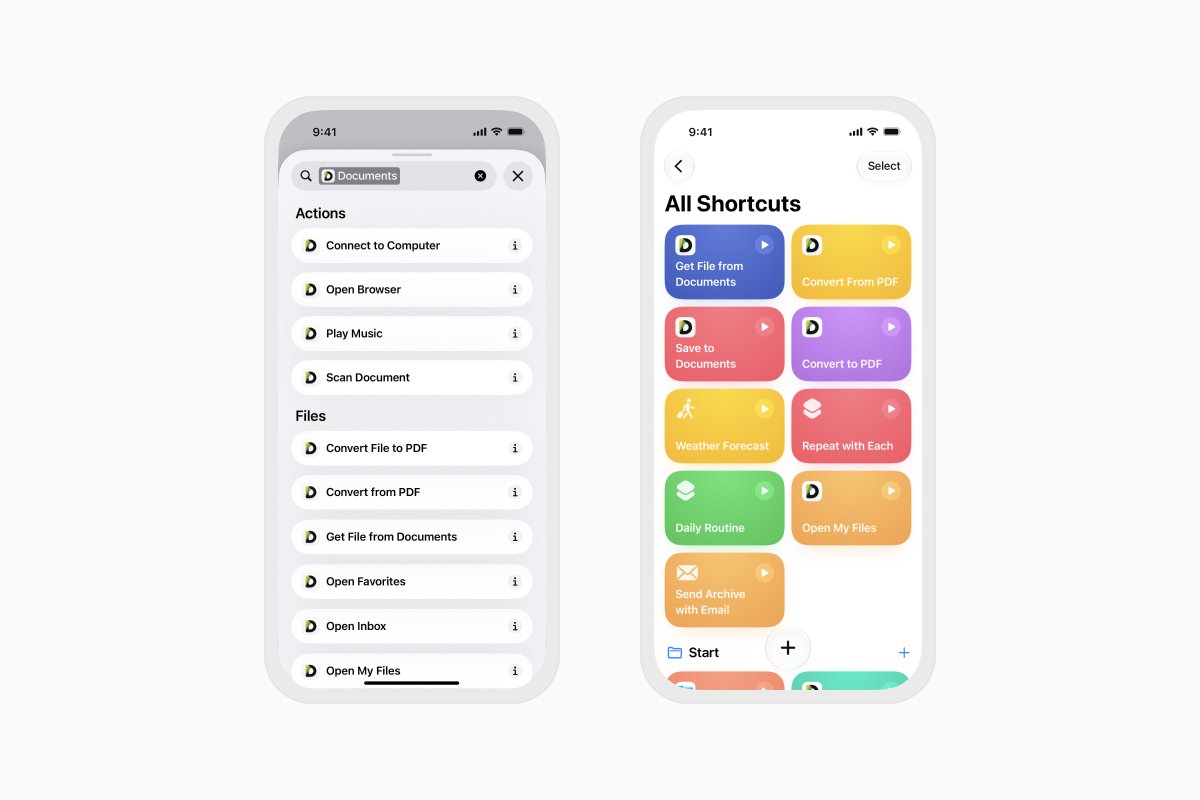
With iOS 27, the integration expands with more actions for working with files:
- Get File from Documents: Retrieve a file stored in Documents.
- Save File to Documents: Save a file to Documents.
- Convert to PDF: Turn a supported file into a PDF.
- Convert from PDF: Convert a PDF to another supported format.
You can use these actions on their own or combine them with actions from Mail, cloud storage, and other tools.
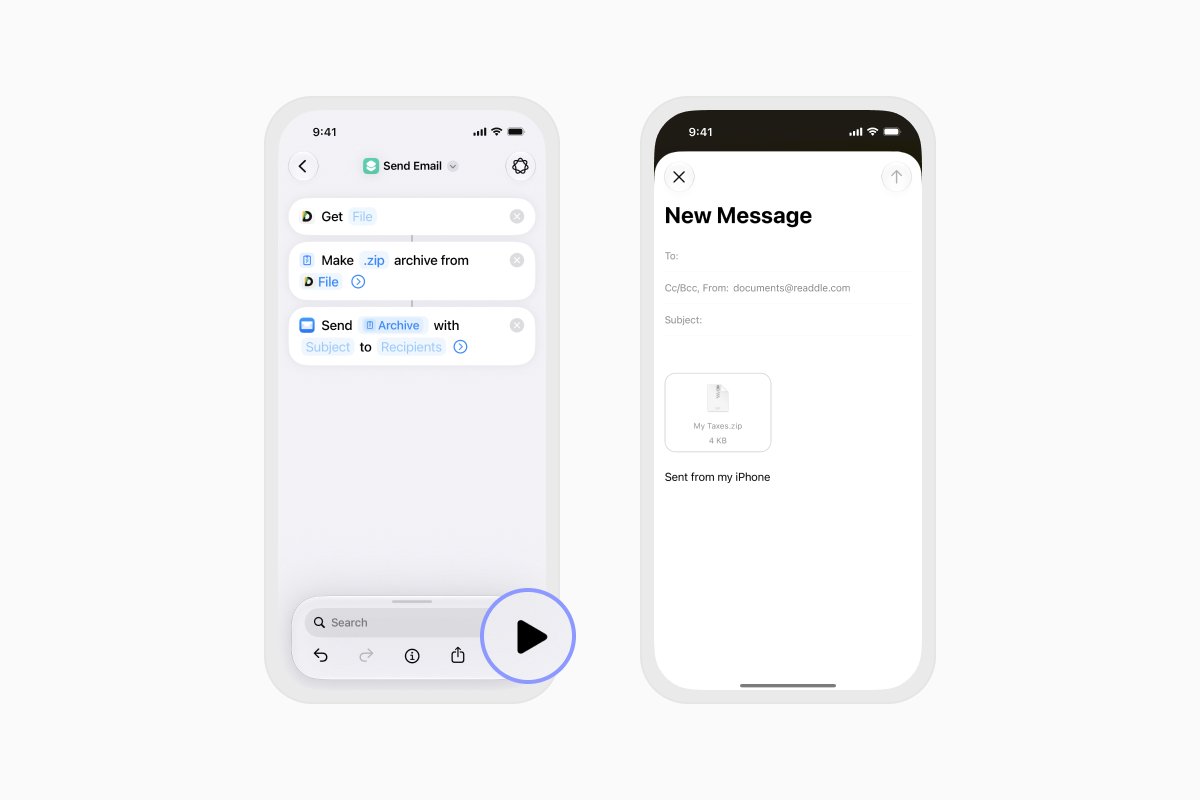
For example, a Shortcut could retrieve several files from Documents, place them in an archive, and prepare the archive as an email attachment. Another could convert a document to PDF and save the result in Documents.
These new file actions give you more ways to build workflows around your documents without opening Documents for each individual step.
How to create a file Shortcut with Documents
To create your own Shortcut:
- Open Shortcuts on your iPhone or iPad.
- Tap the + button to create a new Shortcut.
- Tap Add Action.
- Search for Documents.
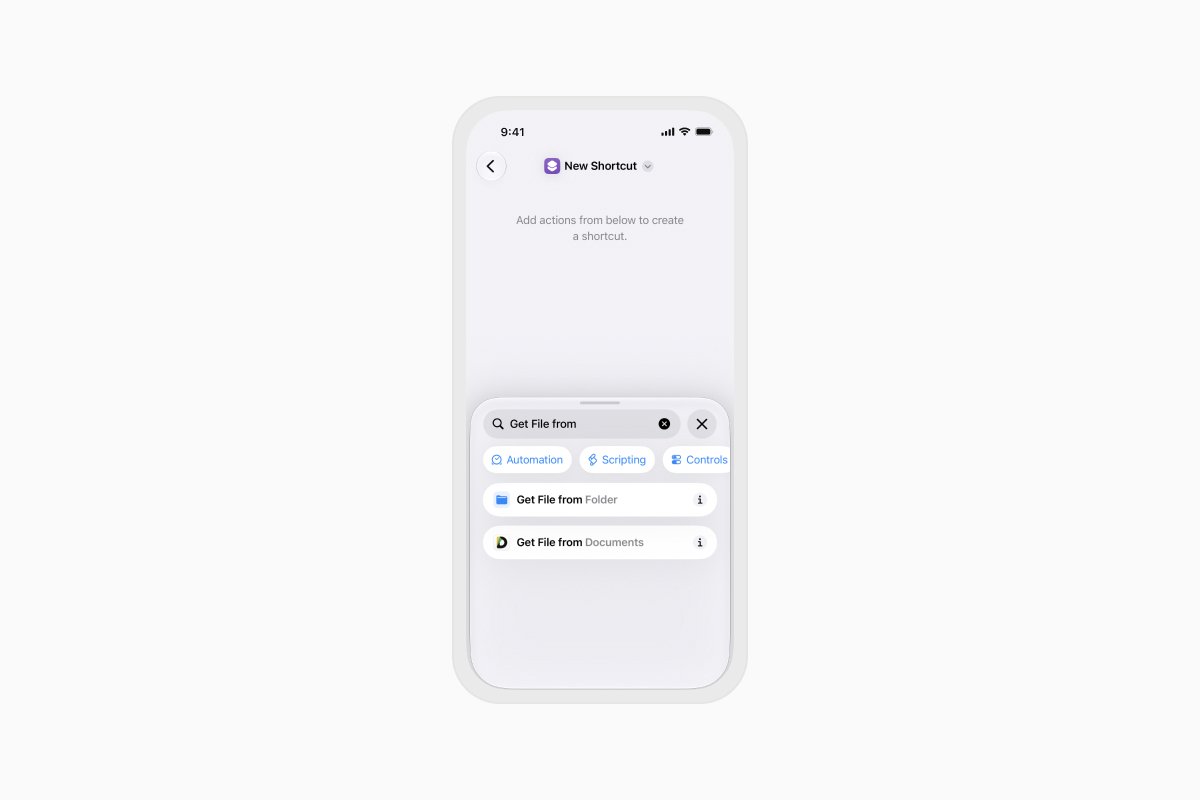
- Choose the Documents action you want to use, such as Get File from Documents or Convert to PDF.
- Configure the action by choosing its input or destination.
- Add any other actions needed to complete your workflow.
- Tap the Play button to test it.
- Give your Shortcut a clear name so it is easy to find and run later.
The first time you run a Shortcut, your device may ask for permission to access Documents or another service used in the workflow. Review each request and tap Allow if you want the Shortcut to continue.
You can learn more about creating and running workflows in Apple’s Shortcuts User Guide.
Try it: Convert a file to PDF and save it
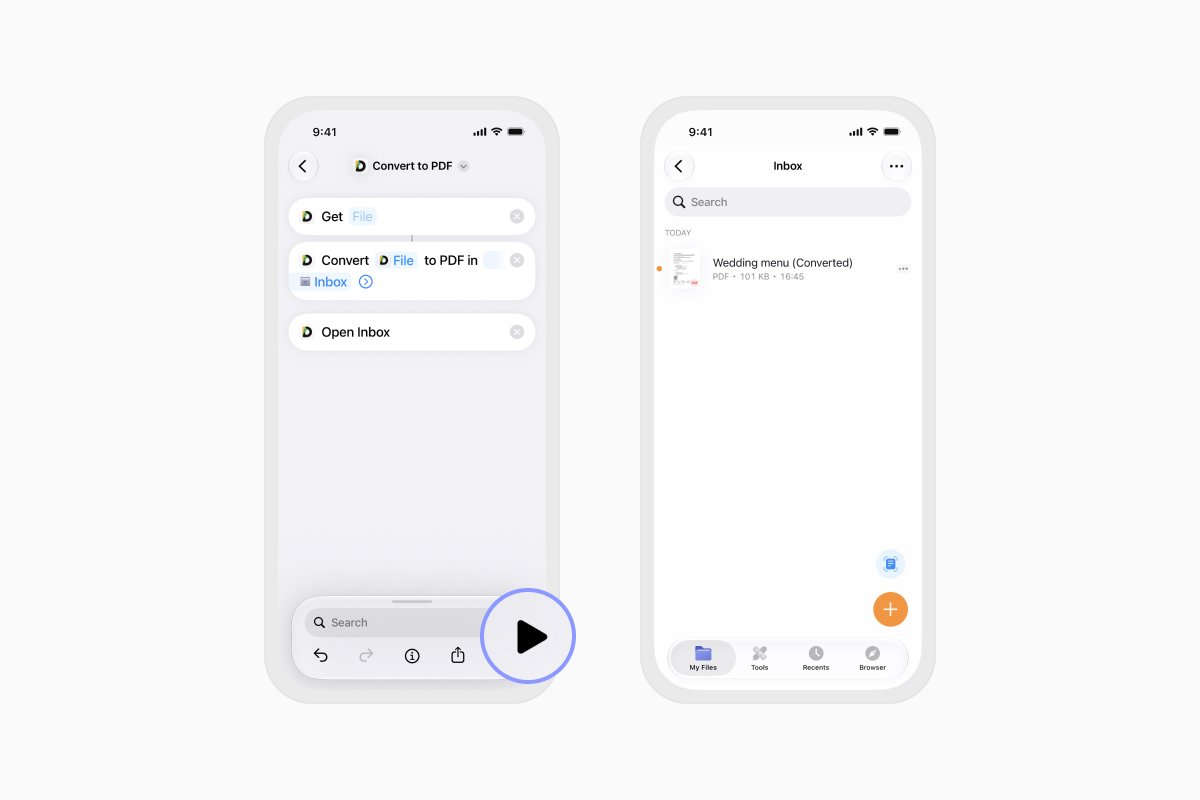
Here’s a simple Shortcut for converting a file to PDF:
- Create a new Shortcut.
- Add an action that lets you choose the original file.
- Add Convert to PDF from Documents.
- Add Save File to Documents.
- Choose where the finished PDF should be saved.
- Name the Shortcut, such as Convert and save as PDF.
- Run it and select your file.
That’s it. The selected file is passed to Documents, converted to PDF, and saved in the location you chose
Try it: Archive files and attach them to an email
You can also combine Documents with actions from other tools.
For example:
- Add Get File in Folder.
- Choose the files you want the Shortcut to retrieve.
- Add the Make Archive action.
- Add a Mail action to create a new email
- Choose a recipient or leave this field open to complete when you run the Shortcut.
- Name and test your workflow.
The next time you need to send the same group of files, run the Shortcut and let it prepare the archive and email for you.
Before sending, check that the right files and recipient have been selected.
How to run a Documents Shortcut
Once you have created or downloaded a Shortcut, there are several ways to run it:
- Open Shortcuts and tap its tile.
- Add it to your Home Screen.
- Place it in a Shortcuts widget.
- Add it to Control Center or assign it to the Action button on a supported iPhone.
Just tap the Shortcut whenever you need it, and it will run the actions you’ve set up.
How Siri works with Documents
On supported devices, Siri can also help with basic file actions without requiring you to build a complete Shortcut first.
You can ask Siri to:
- Open a file in Documents.
- Add a file to an email.
- Work with a file currently displayed in your Documents Inbox
With onscreen content awareness, Siri can understand which files are visible in your Inbox and what you are referring to. This is useful when you already have Documents open and want to continue without navigating through additional menus.
For example, you could say:
- “Open this PDF.”
- “Add this file to an email.”
- “Open the latest PDF in my Documents Inbox.”
When several similar files are available, mentioning the file name or format can help Siri identify the right one. Check that the correct file has been selected before sending or sharing anything.
How to make Documents available to Siri
Before using Siri with Documents:
- Update your device to iOS 27 or iPadOS 27.
- Install the latest version of Documents.
- Make sure Siri and Apple Intelligence are enabled in your device settings.
- Make sure Documents is enabled for use with Siri.
- Open Documents and display your Inbox when you want Siri to understand the files currently on screen.
Siri and Apple Intelligence availability is controlled by Apple and may vary by device, region, and language.*
Shortcuts or Siri: which should you use?
Use Shortcuts when a task involves several repeatable steps. It is the better option for workflows such as retrieving, converting, saving, archiving, and sharing files.
Use Siri when you want to perform a simple action by voice or refer to a file currently visible in Documents.
You can also combine them. Build a custom file workflow in Shortcuts, give it a memorable name, and then ask Siri to run it.
Build your own file workflows
The best Shortcuts are usually the ones built around tasks you already repeat.
Start with something simple, like converting a file to PDF or saving a file to a specific folder. From there, you can add more actions and connect Documents with the other tools you use.
Build the workflow once, then run it whenever you need it.
*Documents actions in Shortcuts require iOS 18 or later. Siri support for Documents requires iOS 27 on iPhone 16 or later, or iPadOS 27 on an iPad with an M4 processor, with the device region set to the US and a non-EU App Store. Documents must also be enabled for Siri. Using a Shortcut through Siri requires the same Siri requirements. Availability may vary by device, region, and language.
Latest posts

How-Tos
How to save video files on iPhone and iPad
Download and organize videos on your iPhone or iPad, save them to Photos or cloud storage, extract audio, and transfer them to your computer.
How-Tos
How to save a webpage as a PDF on iPhone and iPad
Save any webpage as a PDF on your iPhone or iPad, then read it offline, add annotations, share it, or store it in the cloud.

How-Tos
How to edit audio on iPhone and iPad
Here’s how you can instantly trim audio files or remove unnecessary parts from an audio file on your iOS device using Readdle’s Documents app.