


Want to keep a webpage for later, read it offline, or share it with someone? Saving it as a PDF gives you a copy you can easily organize, annotate, and access whenever you need it.
With the free Documents app, you can save a webpage as a PDF directly from the built-in browser on your iPhone or iPad.
How to save a webpage as a PDF on iPhone or iPad
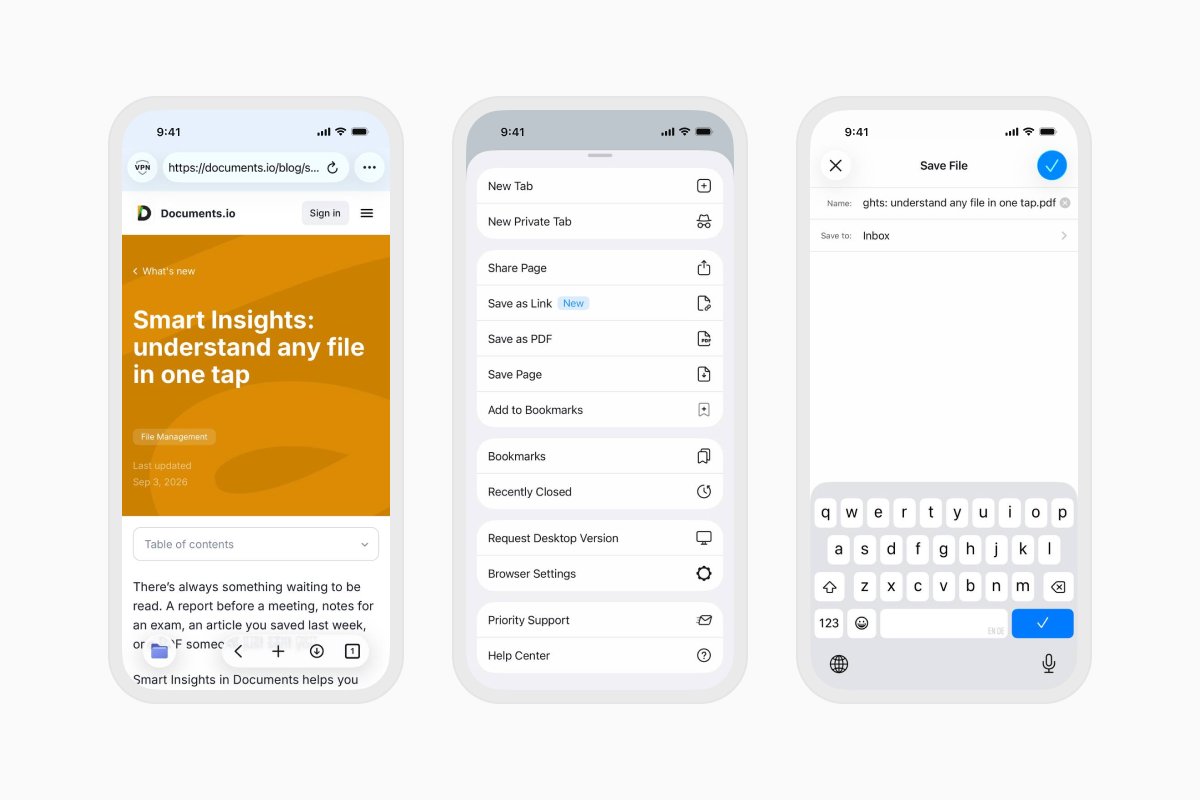
- Download Documents for free and open the app.
- On iPhone, tap Browser in the bottom-right corner. On iPad, select Browser in the sidebar.
- Go to the webpage you want to save.
- Tap the Downloads button in the browser menu.
- Tap Save Page.
- Enter a name and choose where you want to save the file.
- Select PDF as the file format.
- Tap Done.
How to save a webpage in another format
Documents can also save webpages as HTML files or Web Archives. Follow the same steps, then select HTML or Web Archive instead of PDF.
A PDF is useful when you want a consistent document that’s easy to read, annotate, or share. HTML and Web Archive formats may be more suitable when you want to preserve the webpage for later viewing.
What can you do with a saved webpage?
Once the webpage is saved in Documents, you can:
- Read it without an internet connection.
- Highlight and annotate the PDF.
- Rename it or organize it into a folder.
- Compress the PDF to reduce its file size.
- Sync it with cloud storage.
- Transfer it to your computer.
- Share it with someone else.
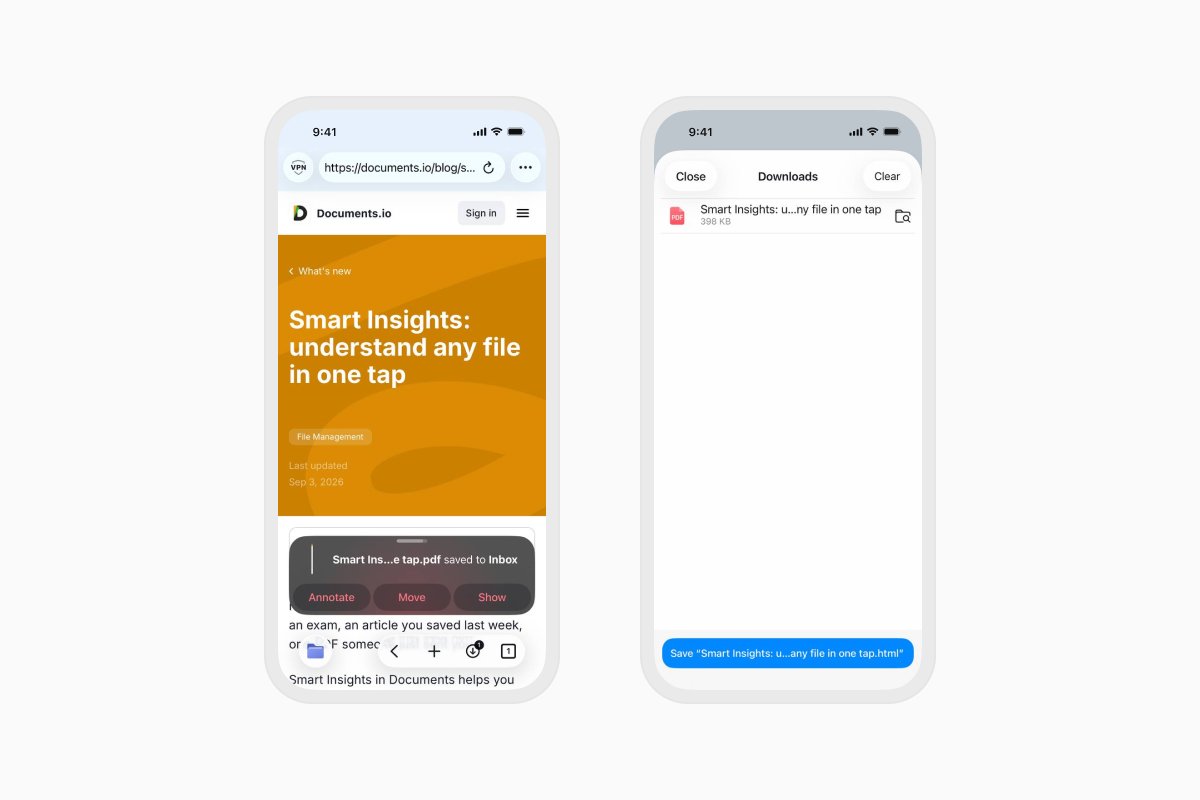
Download Documents for free and keep useful webpages alongside the rest of your files.
Latest posts

How-Tos
How to automate file tasks with Documents, Shortcuts, and Siri
Automate everyday file tasks with Documents, Shortcuts, and Siri. Build workflows to convert, save, archive, and manage files faster.
How-Tos
How to save video files on iPhone and iPad
Download and organize videos on your iPhone or iPad, save them to Photos or cloud storage, extract audio, and transfer them to your computer.

How-Tos
How to edit audio on iPhone and iPad
Here’s how you can instantly trim audio files or remove unnecessary parts from an audio file on your iOS device using Readdle’s Documents app.