


YouTube Shorts is a real growth channel now, not just a feature YouTube created to compete with TikTok.
If you’re a creator who edits on a computer but uploads from a phone (or you’ve just never gone through the process before), the steps are quick once you know which flow to follow.
What counts as a YouTube Short?
YouTube decides whether a video shows up as a Short based on two things: the video has to be square or vertical (a standard 16:9 horizontal aspect ratio won’t qualify) and it has to be three minutes or shorter.

Meet both criteria, upload through the steps below, and YouTube will treat it as a Short. You don’t need a separate account or app, it all happens inside YouTube.
Upload Methods Comparison
|
Best for |
Batch uploads, detailed editing |
Quick uploads, on-the-go trimming |
|
Max simultaneous uploads |
Up to 15 |
1 at a time |
|
Built-in trim editor |
No |
Yes |
|
Add text/music/filters |
Limited |
Full Shorts editor |
|
Scheduling |
Yes |
Limited |
|
Recommended for |
Edited videos from computer |
Phone-recorded content |
How to upload YouTube Shorts from a computer
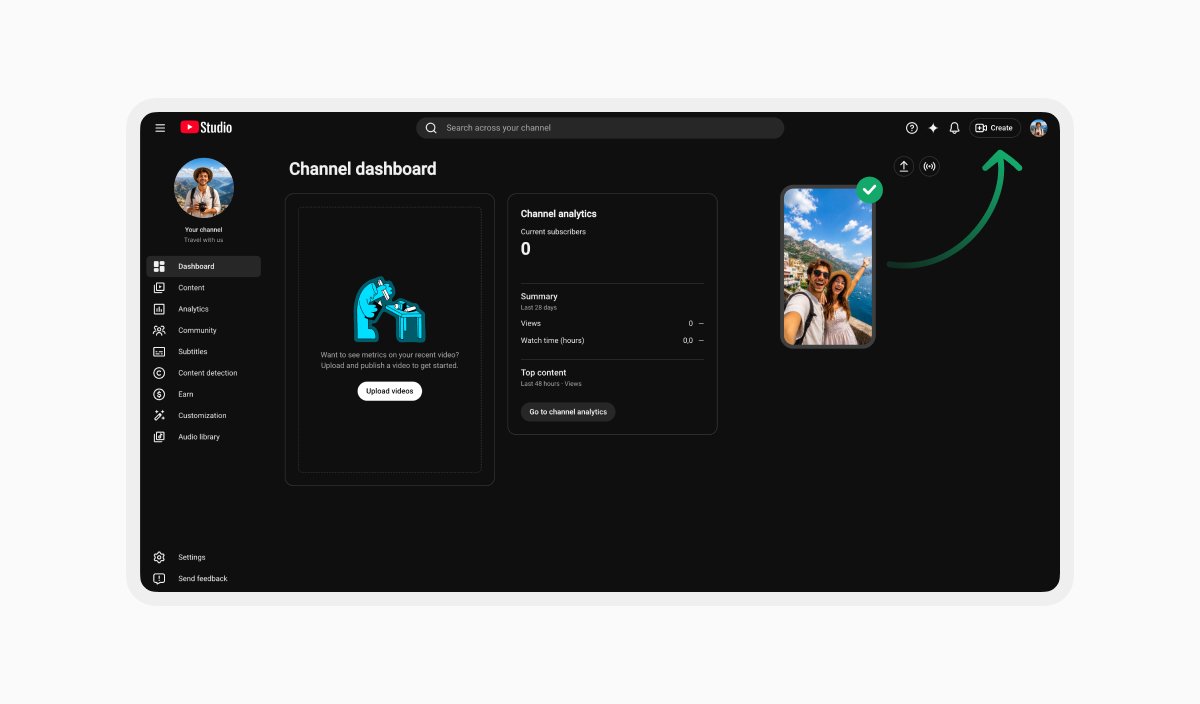
To upload your YouTube Short from a PC or Mac, use YouTube Studio. Sign in, click Create in the top-right corner, then Upload videos (you can queue up to 15 at once). Remember, the video needs to be square or vertical and under three minutes.
After selecting the file, you can edit the details: title (100 characters max), description, tags, thumbnail, and privacy settings. The default privacy setting for creators 18 and older is public; for creators aged 13-17 is private. Then specify your audience (this will estimate how the video gets recommended and whether comments are on), and hit Publish.
One thing worth checking before you upload: if your Short uses licensed music or third-party footage, confirm you have the rights to use it on YouTube. Uploading copyright-protected materials can result in a Content ID claim or a copyright strike.
How to upload YouTube Shorts from your phone (Android)
When uploading a YouTube Short from your phone, you can use the main YouTube app. From there, tap Create, then Upload a video, and pick the file from your camera roll or storage.
For videos under three minutes, a trim editor appears. Drag the handles to set your start and end points (anything outside the selection won’t appear in the Short). You don’t have to worry if your videos are longer than three minutes. For such situations, the app will suggest you to Edit into a Short first to bring it under the limit.
You will be able to also add text, filters, or music (your own or music from YouTube’s library, which is capped at 15-second clips in Shorts). Fill in your title and privacy settings, choose your audience, then tap Upload.
You can also use YouTube Studio to upload from your phone. All you need is to open YouTube Studio, tap Create, tap Upload a video, fill in your details, and tap Upload Short.
How to upload YouTube Shorts from iPhone or iPad
The process on iOS mirrors Android almost exactly. Open the YouTube app, tap the Create icon, and select Upload a video. From there, you’ll go through the same trim editor, the editor screen for text and music, and the details screen for title and privacy, finishing with Upload to publish.
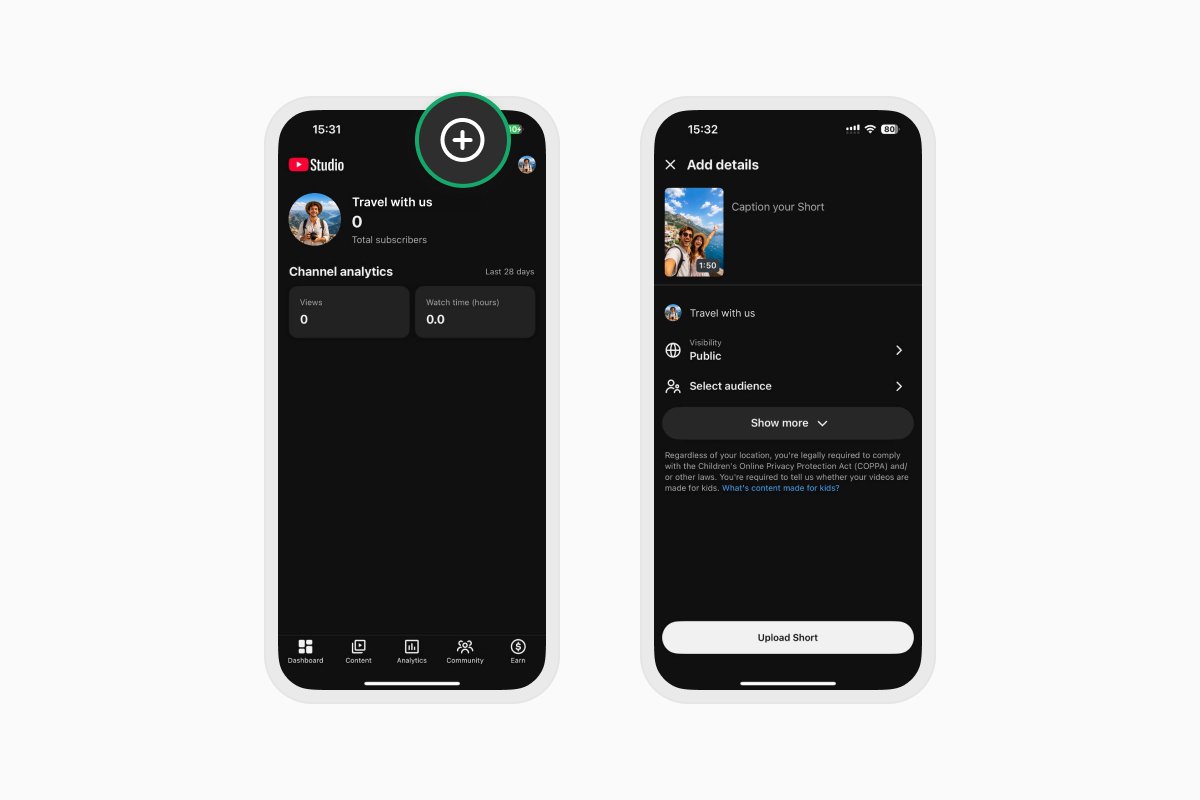
The YouTube Studio app is available on iOS as well if you’d rather use that interface.
The desktop-to-mobile problem (and the Documents.io’s fix)
Uploading on mobile or desktop is easy when you follow the steps. But what can you do if you’re editing a video on a PC and want to upload it from your phone?
If you’re using Apple devices, you can AirDrop the files between the devices. Emailing yourself a file works, but it’s a hassle for anything larger than a few hundred megabytes.
A cleaner cross-platform option is Documents.io, which has a wireless file transfer feature built in. Both devices need to be on the same Wi-Fi network; from there, your exported Short is accessible on your phone without cables, cloud accounts, or size limits getting in the way.
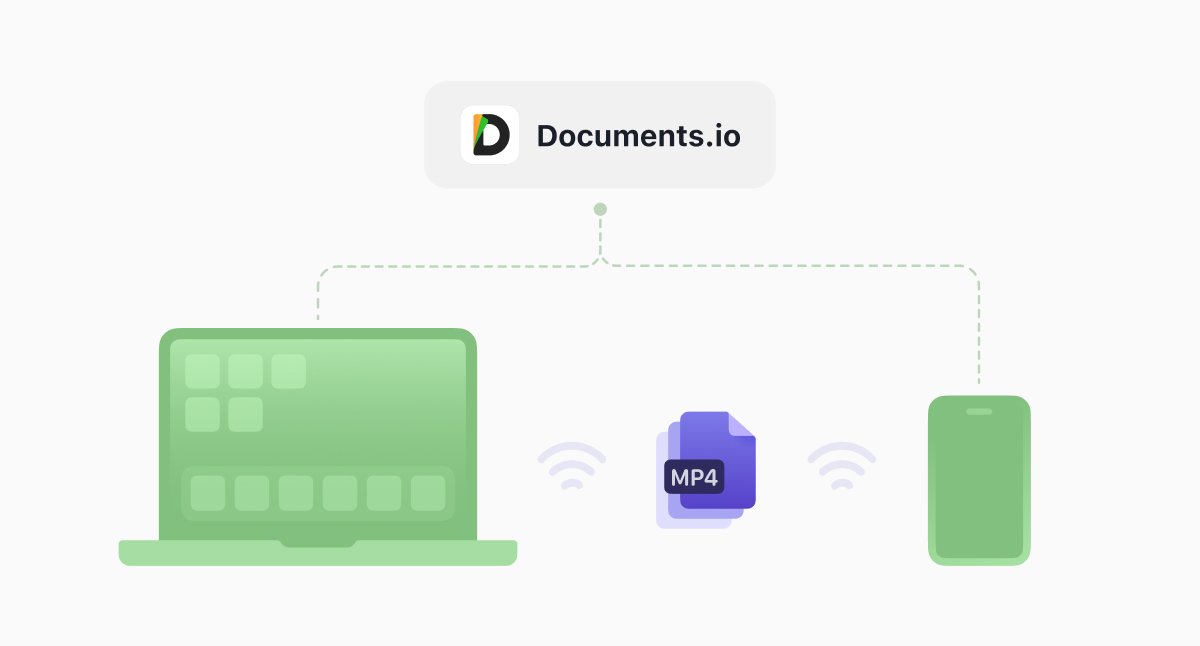
It works across Mac, Windows, Linux, iPhone, and Android, so it doesn’t matter what combination of hardware you’re editing and uploading on. Once the file is on your phone, it’s a standard upload through the YouTube app.
Specs worth knowing before you export
Getting the technical details right before you export from your editing software saves time. YouTube’s own upload specifications are the authoritative source, but the main things for Shorts are:
- Aspect ratio. 9:16 (vertical) or 1:1 (square). 16:9 horizontal won’t be treated as a Short
- Resolution: 1080x1920 is the standard for vertical; higher is also fine
- Length. maximum three minutes
- File format. MP4 or MOV are the safest choices; H.264 encoding is widely supported
Best practices for YouTube Shorts
The actual upload process is one of the faster parts of being a creator. The harder part is making something worth uploading in the first place.
- Title length. You get 100 characters for a Short’s title. That’s enough for something descriptive, but don’t copy-paste a long-form video title.
- Privacy defaults. If you schedule a Short in advance through YouTube Studio, double-check that the privacy setting is what you intended — it’s easy to accidentally publish something as private and wonder why it’s getting no views.
- Time limit. While older tutorials still refer to the 60-second limit, YouTube actually extended Shorts to three minutes.
- Landscape video won’t become a Short. If you export a horizontal clip and try to upload it through the Shorts flow, YouTube will treat it as a regular video, not a Short. Make sure you upload vertical or square only.
FAQ
Can I upload a YouTube Short from a browser without the app?
Yes. YouTube Studio works in any desktop browser. Just go to studio.youtube.com, click Create, and upload your file directly. You don’t need the YouTube app at any point.
Can I upload a Short and a regular video at the same time?
You can upload multiple videos in different YouTube Studio tabs simultaneously. They’ll process independently.
What happens if my Short is longer than three minutes?
YouTube won’t automatically trim your video, it will be uploaded as a standard video instead.
What’s the easiest way to transfer a video file from my computer to my phone for uploading?
AirDrop works if you’re on a Mac and iPhone. For anything else (Windows to Android, Mac to Android, Windows to iPhone), Documents.io’s wireless transfer feature moves files between any combination of Mac, Windows, Linux, iPhone, and Android over Wi-Fi, with no cable or cloud account required.
Latest posts

Knowledge Base
Video file formats explained: MP4, MKV, AVI and more
Learn the difference between video file formats (MP4, MKV, AVI, MOV, WebM) and codecs (H.264, H.265, AV1). Find out which format is best for social media, professional editing, and universal compatibility in 2026.

Knowledge Base
The beginner photographer’s guide to file conversion (RAW, JPEG, TIFF, PNG)
A beginner-friendly guide to converting RAW, JPEG, TIFF, and PNG photos. Learn quality tradeoffs, export settings, and smart archiving habits for web and print.

Knowledge Base
How to make a GIF: simple steps to create and share loops online
Making a GIF is simple: trim a short moment from a video, convert it, and save the loop. Whether you’re using a browser-based converter like Documents.io or an app, the key is to keep it short, clean, and seamless for easy sharing anywhere.