


Want to move music from your computer to your iPhone without syncing your entire library? With Wi-Fi Transfer in Documents, you can copy individual songs, albums, or complete folders from a Mac or Windows PC using a web browser.
Your folder structure stays intact, so your music remains organized after the transfer. Once the files are on your iPhone or iPad, you can play them directly in Documents and listen without an internet connection.
This method transfers audio files stored on your computer. It does not import Apple Music playlists or tracks downloaded through a streaming subscription.
How to transfer music from a computer to iPhone
Before you start, download Documents on your iPhone or iPad. Make sure your mobile device and computer are connected to the same Wi-Fi network.
- Open Documents on your iPhone or iPad.
- Tap the three-dot button in the upper-right corner.
- Select Connect to Computer. You can also find this option under the + button in the main view.
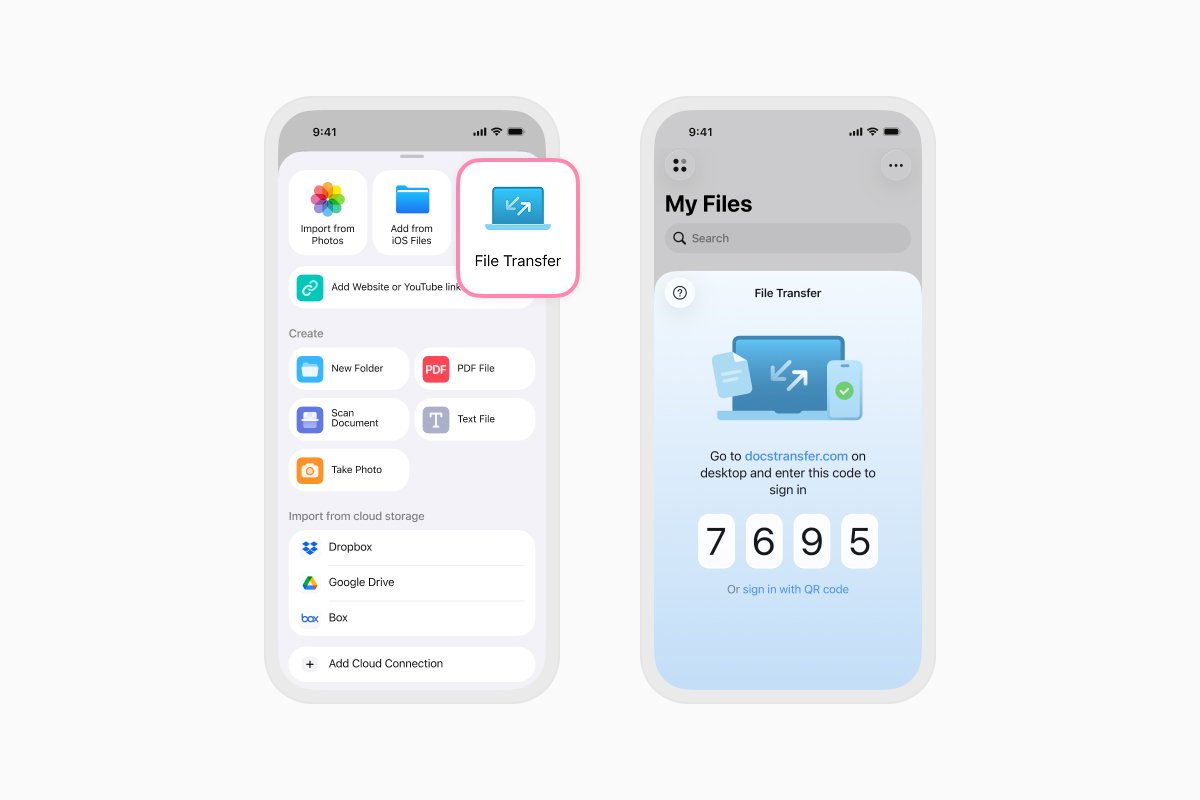
- On your Mac or PC, open a web browser and go to docstransfer.com.
- Enter the four-digit code displayed in Documents.
- Once the devices are connected, drag your music files or folders into the browser window. You can also click Upload Files and select them from your computer.
- Wait for the upload to finish. The files will appear in Documents on your iPhone or iPad.
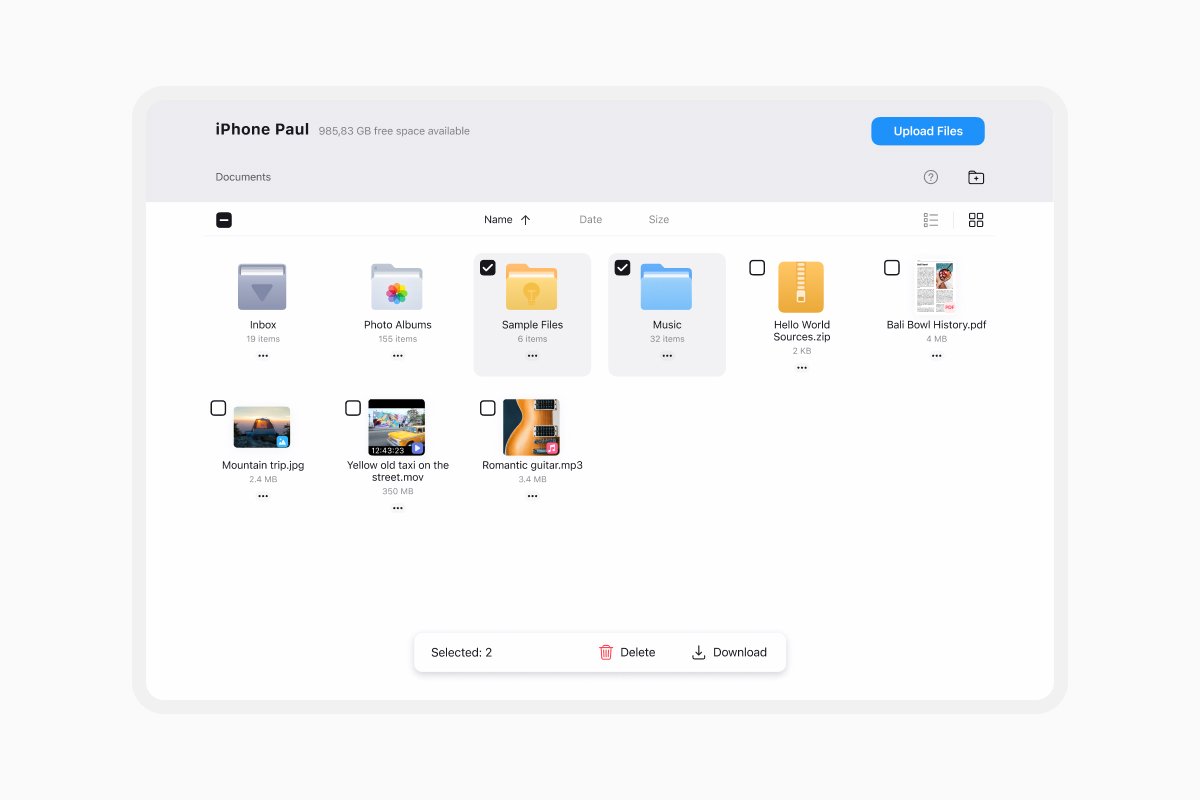
Your music files and folders will keep the same structure they had on your computer. You can also create folders, move files, and organize your collection from the browser window while the devices are connected.
When the transfer is complete, tap Disconnect in Documents or close the browser page on your computer.
How to transfer music from iPhone to a computer
Wi-Fi Transfer also works in the other direction:
- Connect your iPhone or iPad to your computer using the steps above.
- In the browser, select the songs or folders you want to transfer.
- Click Download.
- Choose where to save the files on your Mac or PC.
Once the download is complete, tap Disconnect on your iPhone or close the browser page.
What to do if Wi-Fi Transfer doesn’t connect
If your devices cannot connect, check that they are using the same Wi-Fi network. A VPN, firewall, guest network, or network isolation setting may prevent devices from communicating with each other.
Try disconnecting from your VPN or using another trusted Wi-Fi network, then repeat the connection steps.
How to play music in Documents
Once you’ve transferred your music, tap any audio file to start listening. Documents treats the contents of a folder as a playlist, making it easy to keep albums, artists, audiobooks, or other collections organized.
The audio player supports AAC, AIF, AIFC, AIFF, AMR, AU, L16, M3U, M4A, M4B, M4P, MP3, PCM, WAV, and FLAC files.
With the Documents audio player, you can:
- Play music in the background or while your screen is locked.
- Shuffle tracks or repeat a song, album, or playlist.
- Sort files by name, date, or size.
- Change the playback order by rearranging the queue.
- Add songs from different folders to a temporary queue.
- Change the playback speed.
- Stream music using AirPlay.
Temporary queues remain available until you close the audio player. For collections you want to keep together, organize the tracks into a dedicated folder.
Keep your music organized and available offline
Wi-Fi Transfer gives you a straightforward way to move your own music files between a computer and your iPhone or iPad. There’s no need to upload the collection to cloud storage, and your folder structure remains intact.
Download Documents for free to transfer, organize, and play music on your iPhone or iPad.
Latest posts

How-Tos
How to automate file tasks with Documents, Shortcuts, and Siri
Automate everyday file tasks with Documents, Shortcuts, and Siri. Build workflows to convert, save, archive, and manage files faster.

How-Tos
How to save video files on iPhone and iPad
Download and organize videos on your iPhone or iPad, save them to Photos or cloud storage, extract audio, and transfer them to your computer.
How-Tos
How to save a webpage as a PDF on iPhone and iPad
Save any webpage as a PDF on your iPhone or iPad, then read it offline, add annotations, share it, or store it in the cloud.