


Need a written version of a lecture, meeting, interview, or voice recording? Documents by Readdle can transcribe supported audio files directly on your iPhone or iPad and save the result as a text file.
Download Documents from the App Store to get started.
Before you transcribe an audio file
Here are a few things to know about audio transcription in Documents:
- Supported audio formats include MP3, M4A, and WAV.
- Transcription currently supports spoken English.
- The audio file must be stored locally on your device.
- An internet connection is required.
- Documents must remain open while the transcription is running.
- The transcription model runs locally on your device.
- The resulting transcript is saved as a TXT file beside the original audio.
- The feature may not be available on some older iPhone and iPad models.
Transcription works best with clear spoken audio, such as lectures, podcasts, meetings, and interviews. Background noise, overlapping voices, or music may affect the accuracy of the result.
How to transcribe an audio file to text
Your audio might be stored in Documents, the Files app, iCloud Drive, Mail, or another app. If the file isn’t already in Documents, save it there first:
- Download Documents and open the app.
- Go to the app or location containing your audio file.
- Open the file or touch and hold it, then tap Share.
- Select Save to Documents. If you don’t see it, swipe through the available actions or tap More.
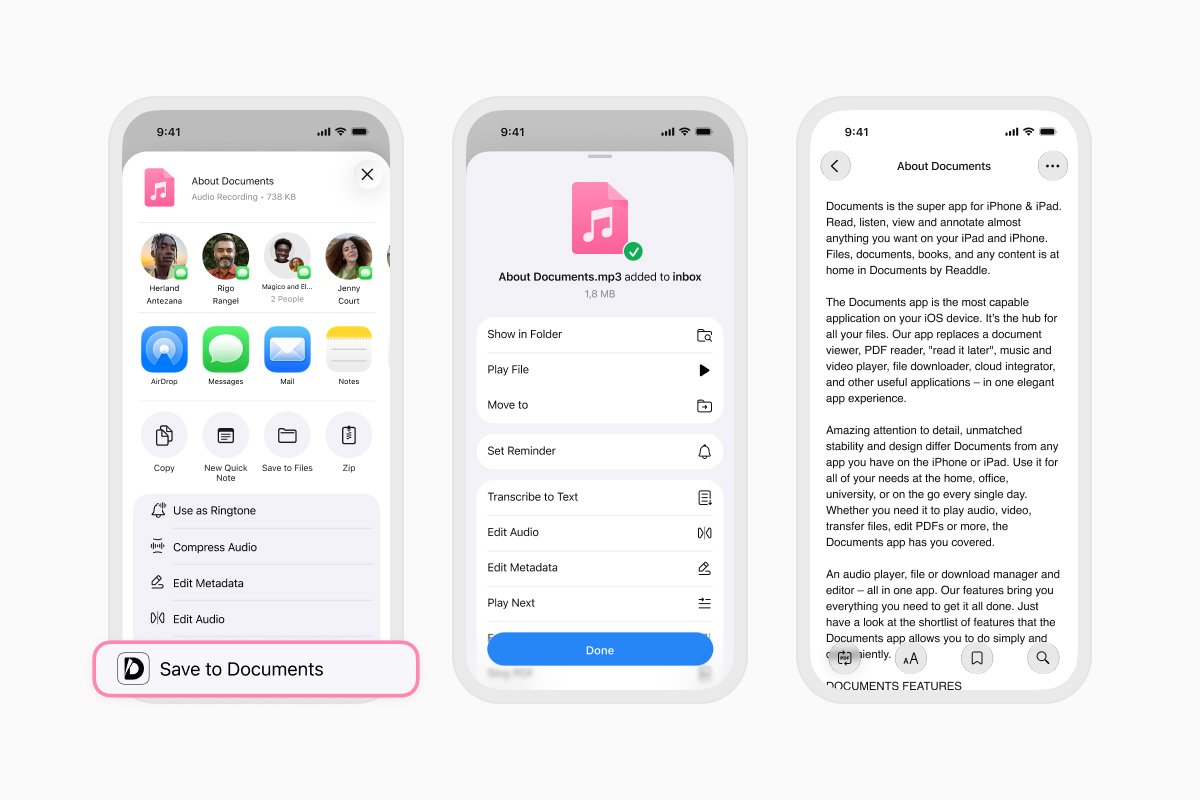
- Select Transcribe to Text from the available actions.
- If this is your first transcription, follow the onscreen instructions to enable the feature and download the transcription model.
- Tap Start.
- Keep Documents open while it processes the audio.
- Once transcription is complete, Documents saves the result as a TXT file in the same folder as the original audio.
You can open the transcript to read it, rename it, move it to another folder, or share it with someone else.
How to transcribe a Voice Memo on iPhone
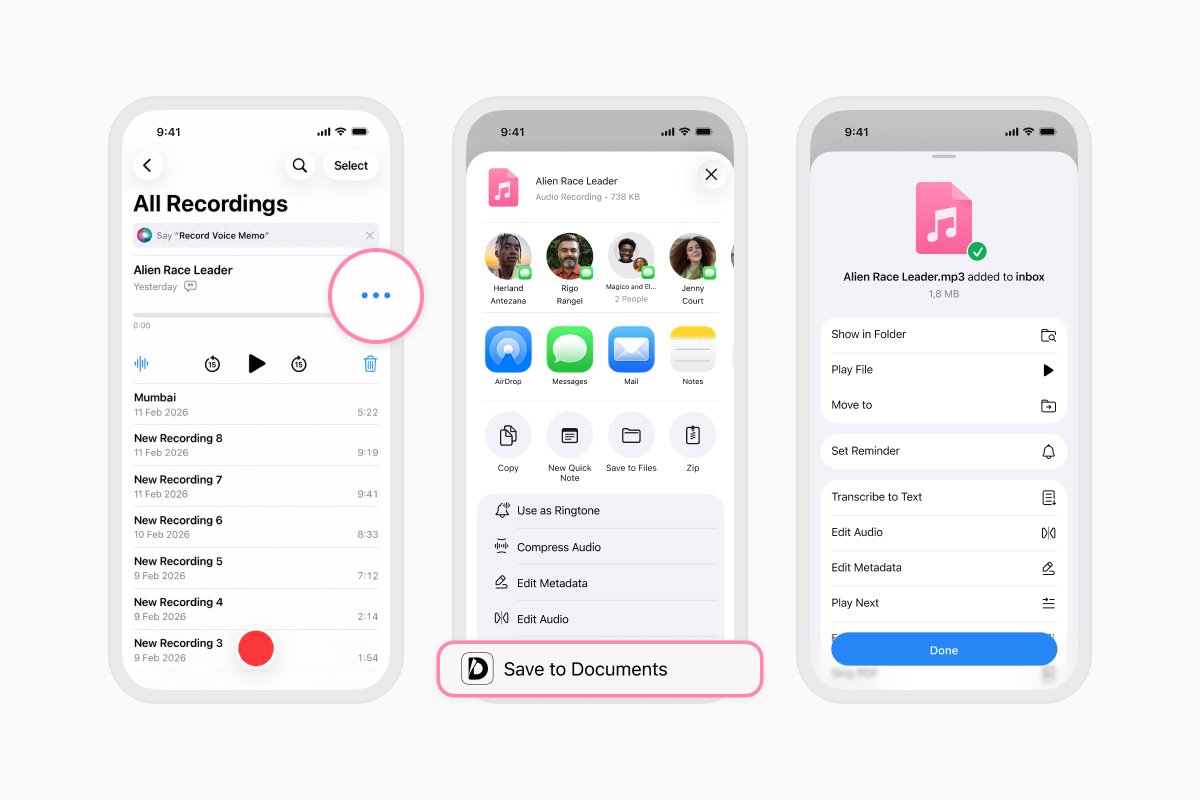
You can also send a recording from Apple’s Voice Memos app to Documents and turn it into text:
- Open the Voice Memos app.
- Select the recording you want to transcribe.
- Tap the More button with three dots.

- Tap Share, then select Save to Documents.

- Select Transcribe to Text.

- Tap Start and keep Documents open until the transcription is complete.
- Open the TXT file saved beside the original recording to view your transcript.
Download Documents from the App Store to transcribe and manage audio files on your iPhone or iPad.
Latest posts

How-Tos
How to automate file tasks with Documents, Shortcuts, and Siri
Automate everyday file tasks with Documents, Shortcuts, and Siri. Build workflows to convert, save, archive, and manage files faster.
How-Tos
How to save video files on iPhone and iPad
Download and organize videos on your iPhone or iPad, save them to Photos or cloud storage, extract audio, and transfer them to your computer.
How-Tos
How to save a webpage as a PDF on iPhone and iPad
Save any webpage as a PDF on your iPhone or iPad, then read it offline, add annotations, share it, or store it in the cloud.