


A long PDF arrives just before a meeting. You have several research papers to review. Or there's an article you've been meaning to read for days.
Smart Insights in Documents summarizes PDFs, text files, images, and links, so you can quickly see what they're about and find the points that matter.
You can use Smart Insights on iPhone and iPad, as well as on Documents.io.
Here's how it works.
How to summarize a PDF on iPhone or iPad
If the PDF is already saved in Documents:
- Open Documents on your iPhone or iPad.
- Find and open the PDF you want to summarize.
- Tap the 💡 Extract Insights icon.
- Wait a few moments while Documents analyzes the file.
- Review your summary and key takeaways.
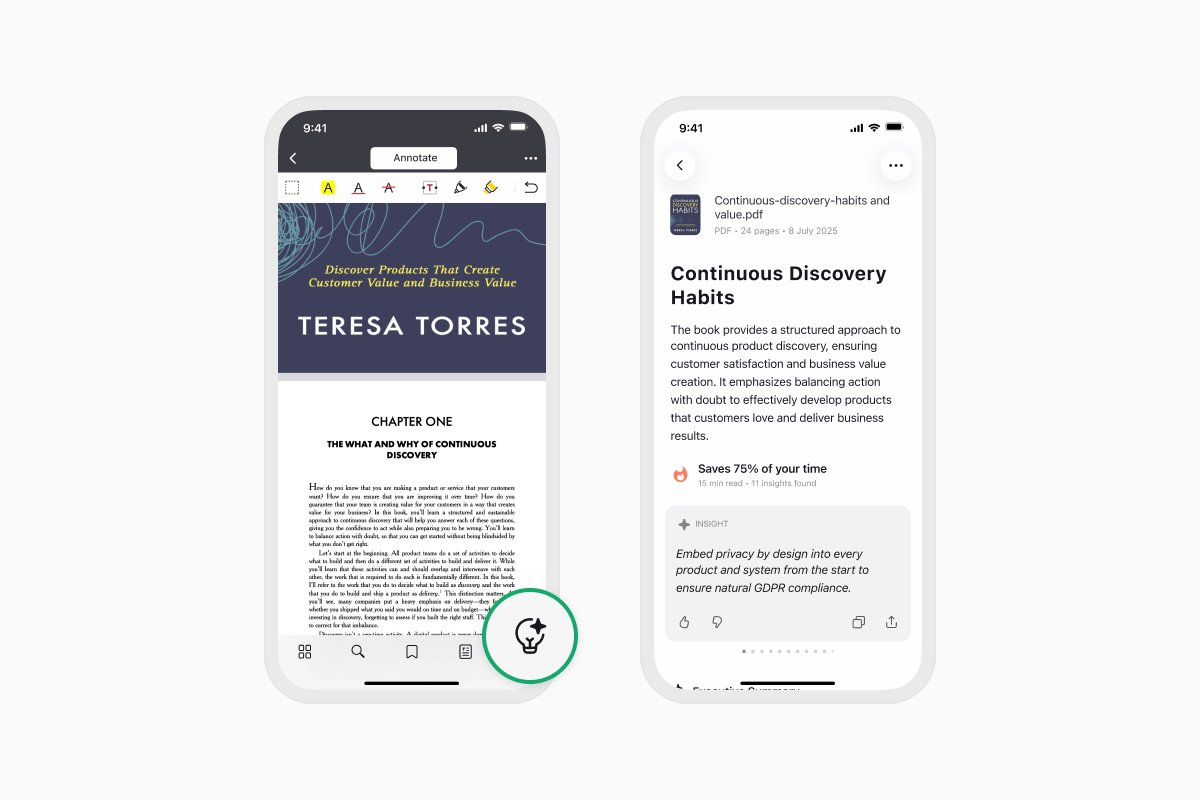
You can also start extracting insights from the Actions menu or through Extensions.
The summary gives you a quick overview before you decide which parts of the PDF you want to read in more detail. This can be particularly useful for reports, research papers, study materials, guides, and other long PDFs.
How to summarize a document or text file
Smart Insights isn't limited to PDFs. You can use it with supported text files as well.
- Open the text file in Documents.
- Tap the 💡 Extract Insights icon.
- Wait while Documents analyzes the file.
- Review the generated summary and key takeaways.
You can also start extracting insights from the Actions menu or through Extensions.
How to summarize an image
Smart Insights can also analyze information contained in images.
- Open the image in Documents.
- Tap the 💡 Extract Insights icon.
- Wait while Documents analyzes the content.
- Review the summary and main points.
You can also start extracting insights from the Actions menu or through Extensions.
This is handy for screenshots and other images containing information you want to understand without going through everything manually.
How to summarize an article or web link
You can also use Smart Insights with links.
If you've saved a link in Documents:
- Open the saved link in Documents.
- Tap the 💡 Extract Insights icon.
- Wait while Documents analyzes the content.
- Review the summary and key takeaways.
For example, if you've saved a long article to read later, Smart Insights can give you an overview first. You can then decide whether you want to read the whole article or focus on a particular part.
How to summarize content from Safari and other apps
You don't need to save content to Documents before summarizing it.
With the Documents extension, you can start extracting insights directly from Safari and other supported apps:
- Open the PDF or other supported content in Safari or another app.
- Tap the Share button.
- Open the Documents extension.
- Select 💡 Summarize PDF.
- Review the generated summary and key takeaways.
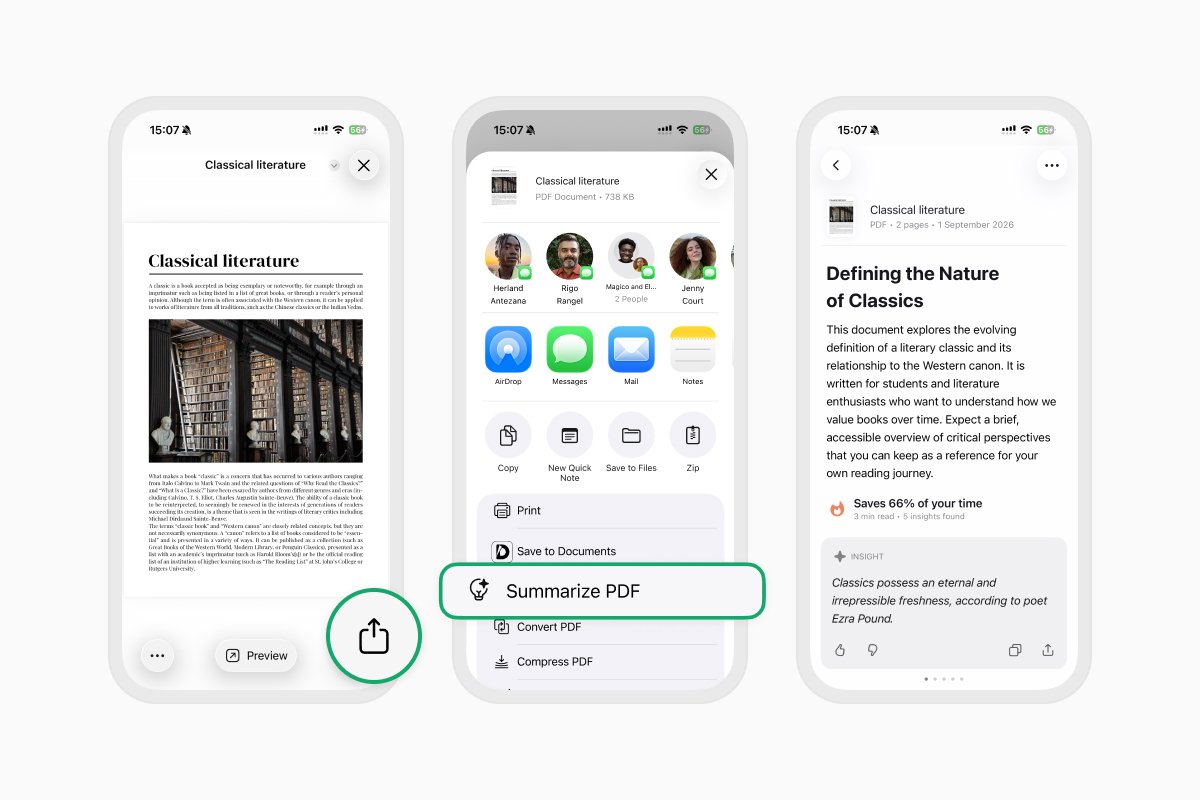
This lets you get an overview of content you come across in other apps without first saving and opening it in Documents.
What's included in a Smart Insights summary?
Smart Insights doesn't only shorten the original content. It organizes the information so it's easier to scan.
Depending on the content, you'll get:
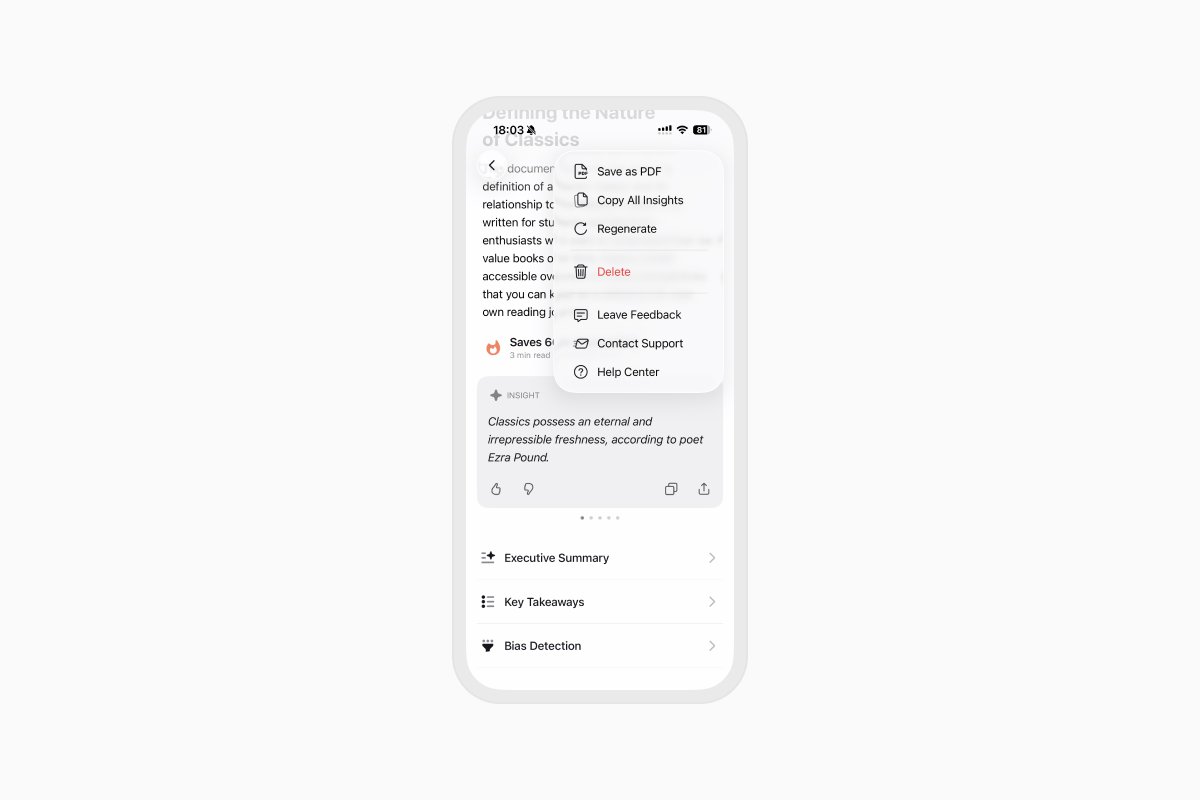
- Executive summary — an overview of what the file is about.
- Key takeaways — the points worth paying attention to.
- Bias detection — additional context about the tone and possible leanings of the source.
Bias detection can be useful when you're reviewing news, opinion pieces, research, and other content where the perspective of the source matters.
AI-generated summaries and analysis can make mistakes, so check important information against the original source.
What can you do with a summary?
Once Smart Insights has created a summary, you can copy, share, or export it.
For example, you can send the key points from a report to a colleague, keep a summary with your research notes, or save the takeaways from an article for later.
And because you're already in Documents, the original file stays close whenever you need more context.
How to summarize a PDF online
You can also use Smart Insights from your browser with Documents.io.
Upload your content, generate a summary, and review the key information without needing to read the entire file first.
Documents.io includes 3 free generations, so you can try Smart Insights on the web before reaching the free limit.
Get started with Smart Insights
The next time you open a long report, research paper, article, or other information-heavy file, start with Smart Insights.
Open your content in Documents, tap Extract Insights, and get the main points before deciding where to spend your reading time.
Latest posts

How-Tos
How to automate file tasks with Documents, Shortcuts, and Siri
Automate everyday file tasks with Documents, Shortcuts, and Siri. Build workflows to convert, save, archive, and manage files faster.
How-Tos
How to save video files on iPhone and iPad
Download and organize videos on your iPhone or iPad, save them to Photos or cloud storage, extract audio, and transfer them to your computer.
How-Tos
How to save a webpage as a PDF on iPhone and iPad
Save any webpage as a PDF on your iPhone or iPad, then read it offline, add annotations, share it, or store it in the cloud.