


Downloading a file on your iPhone or iPad is easy once you know where to find it. You might want to save a PDF, ZIP archive, video, music track, or another file from a website, email, or messaging app.
Documents by Readdle combines a file manager with a built-in browser, giving you a convenient place to download, open, and organize your files. You can choose where each file is saved, move it between folders, or sync it with cloud storage.
Download Documents for free, then follow the steps below.
How to download and save files on iPhone or iPad
You can use the built-in browser in Documents to download files directly from the web:
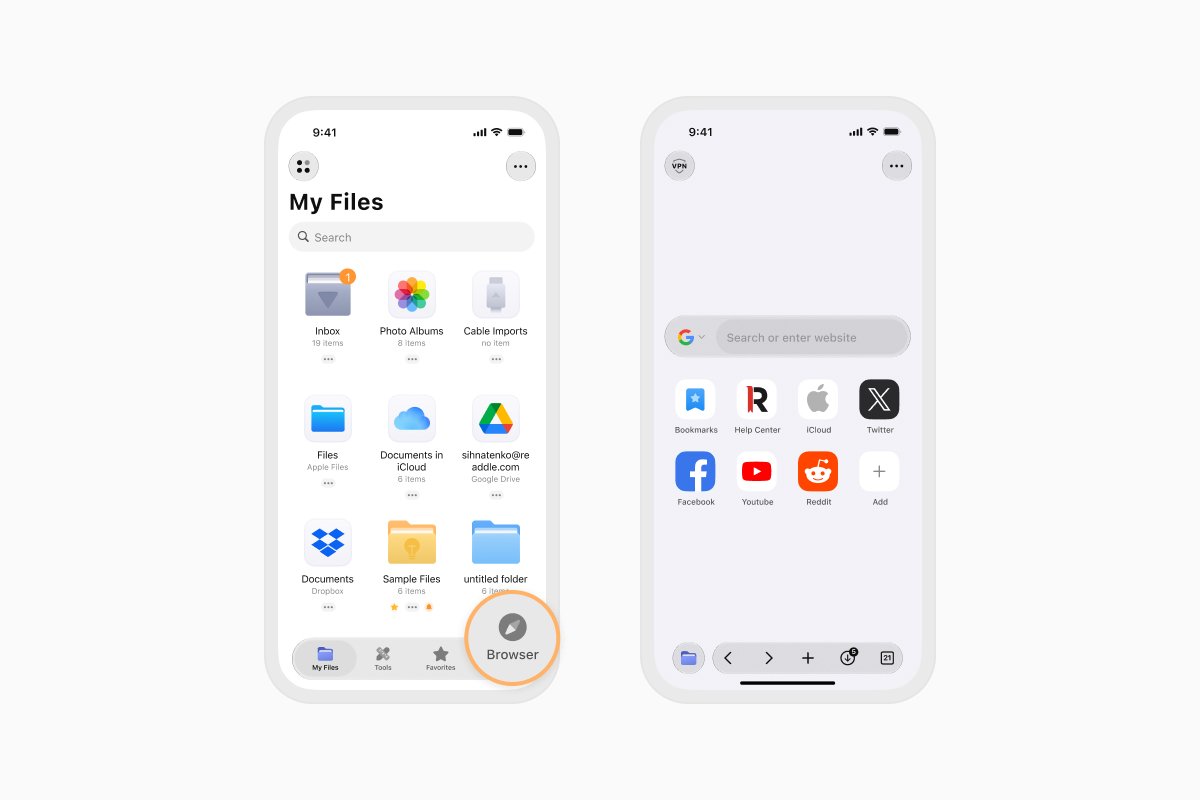
- Download Documents and open the app.
- Tap Browser in the bottom-right corner.
- Go to the website containing the file you want to save.
- Tap the download button or file link. Downloads from direct links may start automatically.
- Choose a name and destination for the file. You can turn off Ask Me Every Time if you want Documents to use the same download location in the future.
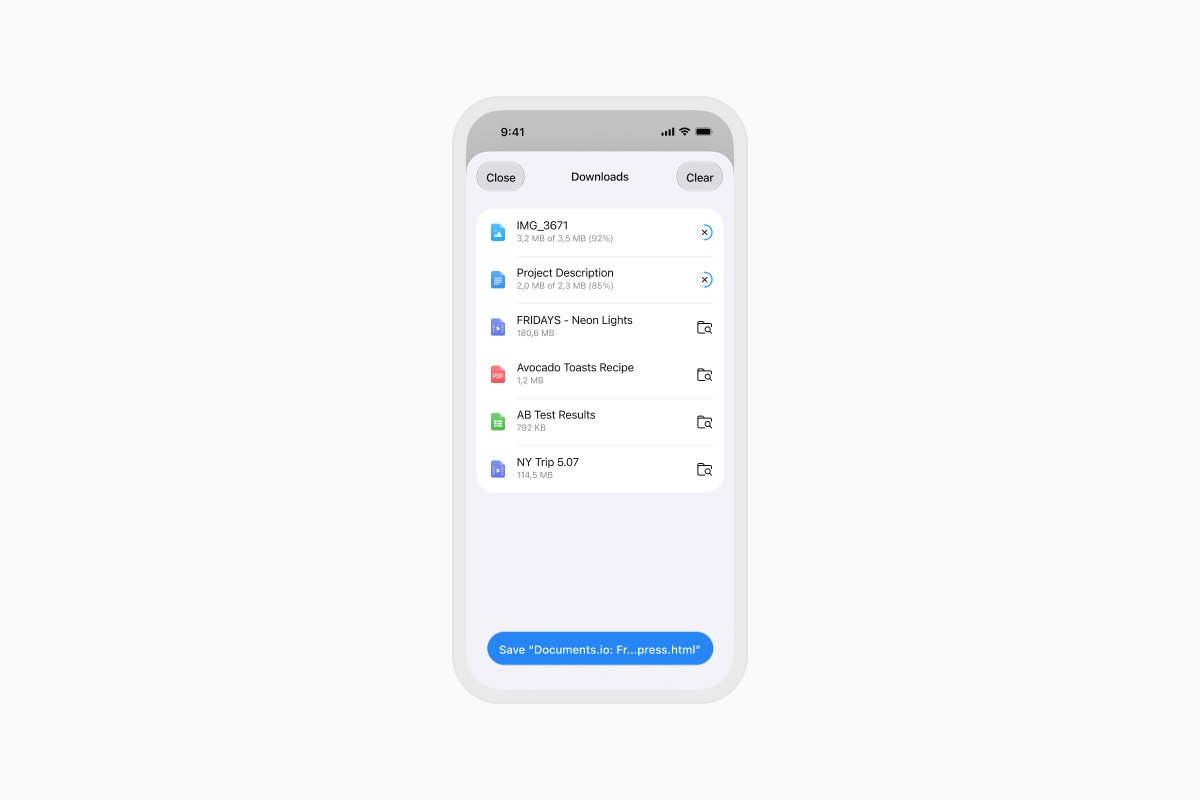
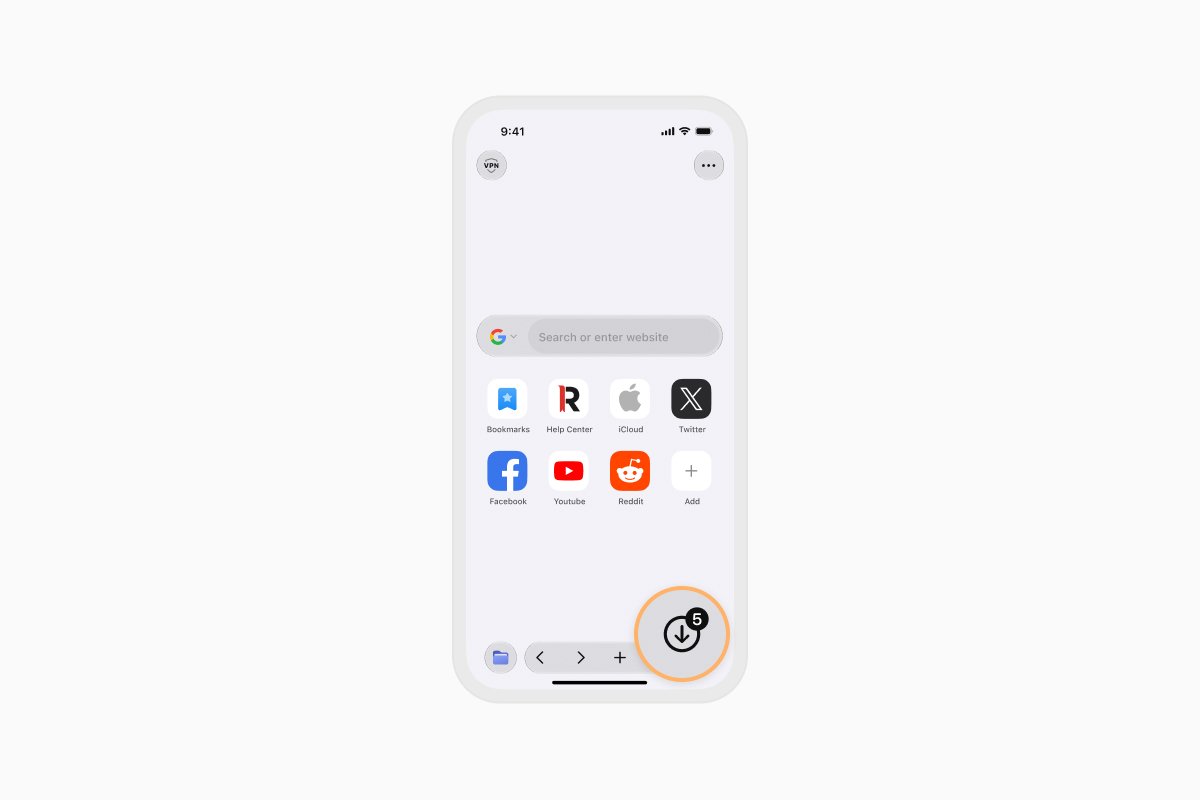
- Track the download progress using the Downloads button at the bottom of the screen.
- Once the download is complete, tap the file to open it. You can also move it to another folder or upload it to a connected cloud service such as Dropbox, Google Drive, or OneDrive.
Download Documents for free from the App Store.
Where are downloaded files saved on iPhone and iPad?
The location of a downloaded file depends on the app you used and your download settings. Here’s where to look when downloading with Safari or Documents.
Where does Safari save downloaded files?
Safari normally saves downloaded files in a Downloads folder. Depending on your settings, you can find this folder under iCloud Drive or On My iPhone in the Files app.
To find a Safari download:
- Open the Files app.
- Tap Browse.
- Open iCloud Drive or On My iPhone.
- Tap the Downloads folder.
To change where Safari saves files, open Settings and go to Apps > Safari > Downloads. You can choose iCloud Drive, On My iPhone, or another folder.
Where does Documents save downloaded files?
Documents lets you choose where to save a file before the download begins. If you use the default location, you’ll usually find the file in your Inbox.
To find it, open Documents, tap My Files, and open the Inbox folder. You can then rename the file, move it to another folder, or upload it to cloud storage.
How to save files from email and other apps
You can also save attachments and files from Mail, messaging apps, cloud services, and other apps directly to Documents:
- Make sure Documents is installed on your device.
- Open the app containing the file you want to save.
- Open the file and tap the Share button.
- Select Save to Documents from the Share menu. If you don’t see it, swipe through the available actions or tap More.
- Choose where you want to save the file.
The file is now available in Documents. Depending on its format, you can open it, rename it, move it, share it, or take other actions such as extracting a ZIP archive.
Download Documents for free and keep files from the web, email, and other apps organized in one place.
Latest posts

How-Tos
How to automate file tasks with Documents, Shortcuts, and Siri
Automate everyday file tasks with Documents, Shortcuts, and Siri. Build workflows to convert, save, archive, and manage files faster.
How-Tos
How to save video files on iPhone and iPad
Download and organize videos on your iPhone or iPad, save them to Photos or cloud storage, extract audio, and transfer them to your computer.
How-Tos
How to save a webpage as a PDF on iPhone and iPad
Save any webpage as a PDF on your iPhone or iPad, then read it offline, add annotations, share it, or store it in the cloud.