


Need to save an email attachment on your iPhone? It could be a PDF you need to sign, photos from a friend, a ZIP archive, or a file you want to keep for later.
With the free Documents app, you can save email attachments to your iPhone and manage different file types in one place.
How to save an email attachment on iPhone
- Download Documents for free.
- Open the email containing the attachment.
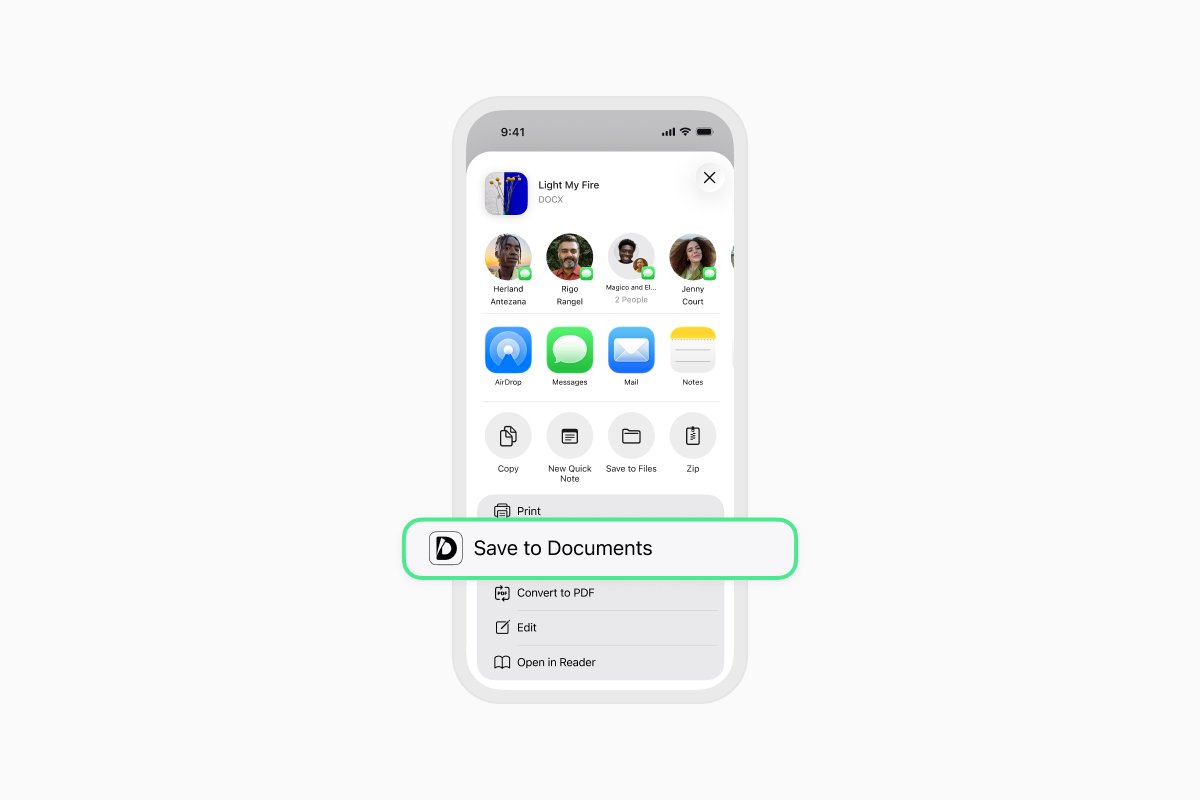
- Touch and hold the attachment, then tap Share. You can also open the attachment and tap the Share button.
- Select Save to Documents from the Share menu. If you don’t see it, swipe through the available actions or tap More.
- Choose where you want to save the file in Documents.
What can you do with saved attachments?
Once the attachment is saved, open Documents to find and manage it. From there, you can:
- View, edit, sign, and annotate PDFs.
- Open photos, videos, music, and ebooks.
- Create and open ZIP archives.
- Organize files into folders.
- Sync files with cloud storage services.
- Transfer files between your iPhone and computer.
Download Documents for free and keep all your email attachments organized and ready when you need them.
Latest posts

How-Tos
How to automate file tasks with Documents, Shortcuts, and Siri
Automate everyday file tasks with Documents, Shortcuts, and Siri. Build workflows to convert, save, archive, and manage files faster.

How-Tos
How to save video files on iPhone and iPad
Download and organize videos on your iPhone or iPad, save them to Photos or cloud storage, extract audio, and transfer them to your computer.
How-Tos
How to save a webpage as a PDF on iPhone and iPad
Save any webpage as a PDF on your iPhone or iPad, then read it offline, add annotations, share it, or store it in the cloud.