


If you use multiple iOS devices, such as an iPhone and an iPad, it’s a good idea to sync your iPhone and iPad to access your files anywhere. Syncing your iPhone and iPad lets you indeed access your files from both devices without repeating the same actions twice. You can open a document on your iPhone during a commute and continue working on it from your iPad at home. With the right setup, your files stay in sync automatically and are always up to date.
This guide shows you how to sync iPhone with iPad using the Documents app by Readdle. It works with popular cloud storage providers and gives you more flexibility than iCloud, without monthly fees or space limitations.
How to sync iPhone and iPad
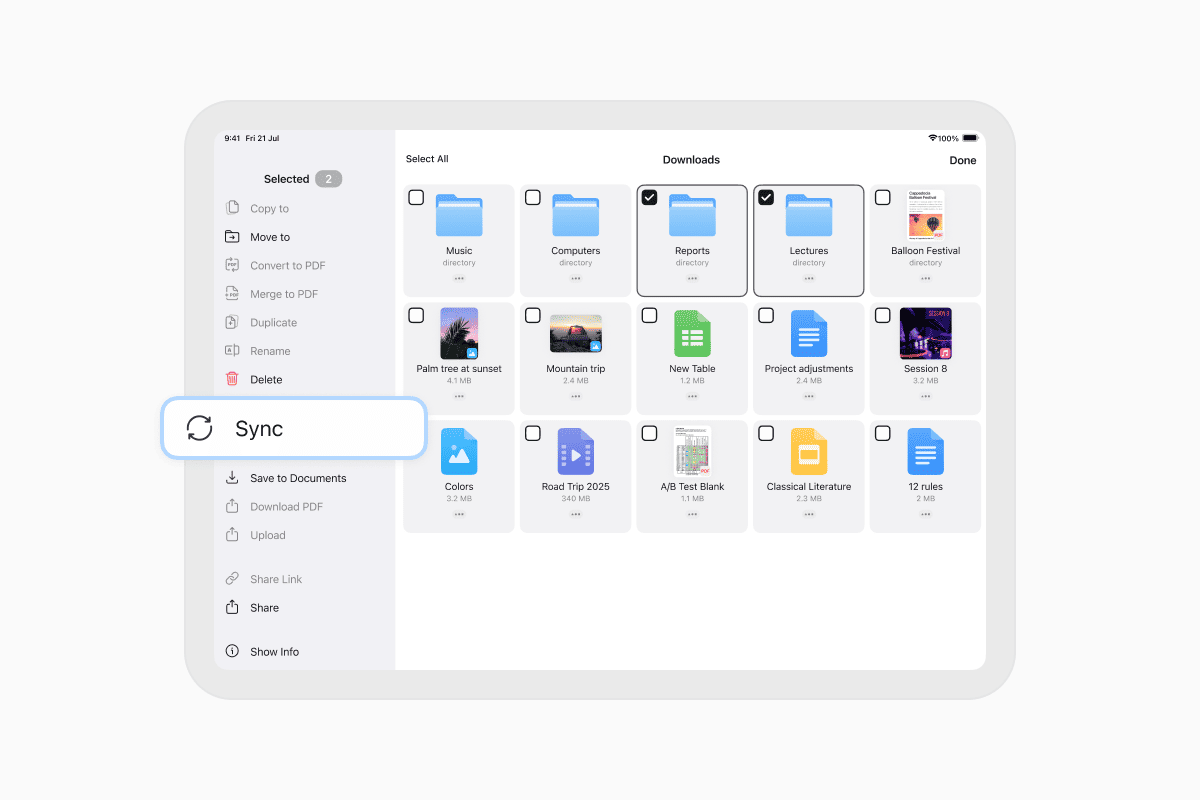
To sync your iPhone and iPad, you will use Documents with a connected cloud storage account. Once you set up sync for a folder, any changes made on one device appear on the other. Here is how to do it step by step:
- Download the Documents app from the App Store on both your iPhone and iPad.
- Open Documents on each device.
- On one device, tap the + button in the bottom right corner.
- Tap Add Connection.
- Select the cloud storage service you want to use, such as Google Drive, Dropbox, OneDrive, or Box.
- Sign in with your account and grant access.
- In the My Files tab, open the folder from your cloud storage.
- To sync the folder, tap the three dots (…) under the folder name and choose Sync.
- To sync multiple folders, tap the three dots in the top right, select Select, mark the folders, tap the dots at the bottom right, and choose Sync.
- Once sync is set up, a new section called Synced Folders will appear in My Files.
- Documents syncs folders automatically when connected to Wi-Fi. To change this, go to Settings > Cloud & Connections > Automatic Sync.
- You can sync manually at any time by tapping … More > Sync Now on a synced folder.
- To pause syncing, tap Pause Sync. To remove the local copy, tap Delete. This will not affect your files in the cloud.
Once completed, your devices will stay in sync and reflect updates across both your iPhone and iPad.
What can be synced between iPhone and iPad?
Documents supports two-way sync for almost any type of file stored in a cloud-connected folder. You can keep PDFs, images, videos, ZIP archives, spreadsheets, scanned documents, and more in sync across your devices.
Once synced, these files are saved locally on both your iPhone and iPad. This allows you to access and edit them even without an internet connection. When your device goes back online, any changes are automatically uploaded and synced across both devices.
This setup works well for daily tasks, including working on reports, organizing personal documents, sharing scanned forms, and reviewing media files. It also provides an added layer of protection. If one device is unavailable, you still have full access to your synced folders from the other.
Syncing helps you stay organized, especially if you use your iPhone more on the go and your iPad more at home or for work. With Documents, everything stays up to date, without manual copying or sending files back and forth.
Start syncing your Apple devices today
If you’re faced with the question, “How do you sync iPhone and iPad without iCloud?” don’t worry! You do not need iCloud or a computer to sync your iPhone and iPad. With Documents by Readdle, you can choose your cloud service, set up automatic folder sync, and keep all your content available and consistent across devices.
Install Documents from the App Store and get started in just a few minutes.
Latest posts
How-Tos
How to transfer files from iPhone or iPad to PC
Instantly transfer files between your iPhone and PC/Mac using the Wi-Fi Transfer feature in Documents, the best alternative to AirDrop problems.
How-Tos
How to transfer between iPhone and iPad
Transferring files between your iPhone and iPad can be simple and fast. With our Documents app by Readdle, you can transfer and move photos, send videos, copy folders, or download files across devices without using iTunes, AirDrop, or cloud services.