


Transferring files from your iPhone or iPad to a Windows PC has always been more complicated than it should be, especially if you’re dealing with large videos, PDFs, photos, or other files. Most solutions require extra software, cables, or cloud storage subscriptions. But there’s a better way.
With our Documents app by Readdle, you can transfer files wirelessly or via USB from your iPhone or iPad to any PC fast and hassle-free. There is no iTunes, no iCloud, and no headaches (yes, you’ve read well!).
In this article, we’ll show you the easiest way to send files from iPhone to a Windows PC or laptop, without iTunes, without stress, and for free.
How to transfer files from iPhone to PC using Documents by Readdle
The best way to transfer files between iPhone and PC is through Wi-Fi Transfer in the Documents app. It’s free, works on all platforms (Windows, macOS), you just need a Wi-Fi network.
Here’s how to do it:
- Download the free Documents app from the App Store on your iPhone or iPad.
- Make sure both your iOS device and your computer are connected to the same Wi-Fi network.
- Open Documents on your iPhone or iPad.
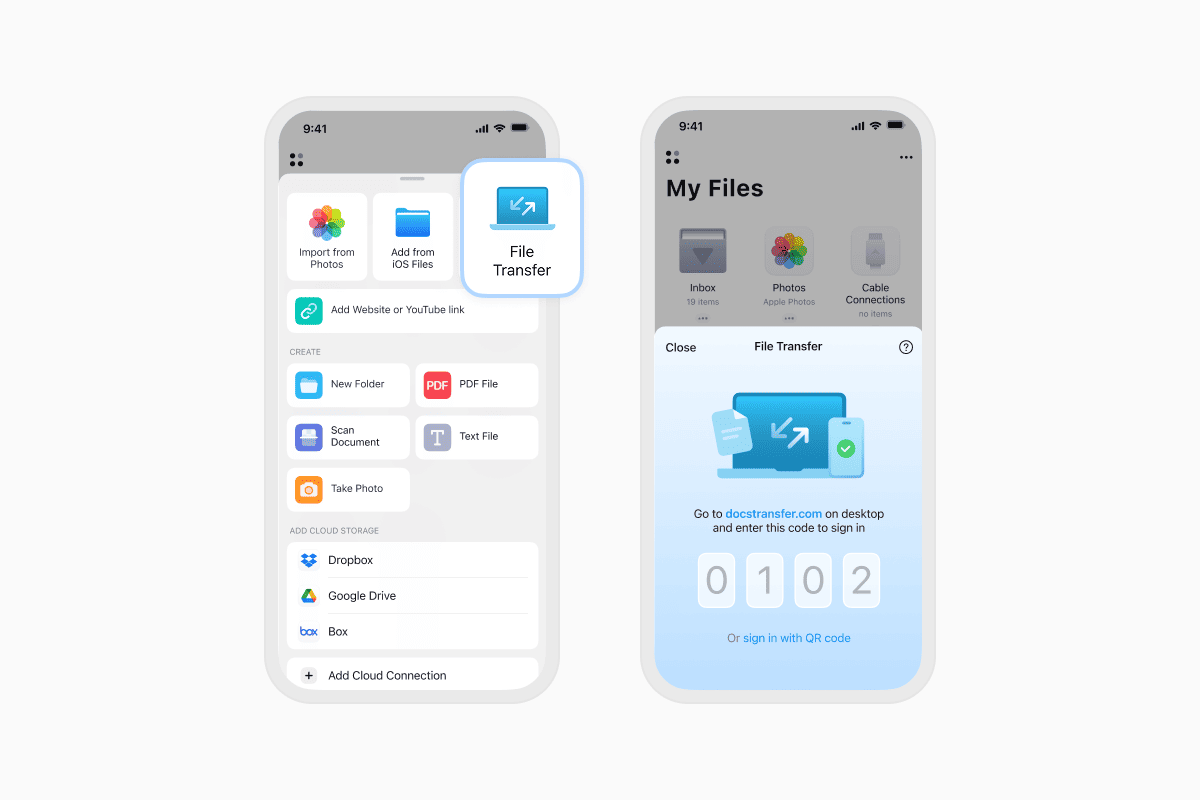
- Tap the + button and select Connect to Computer.
- On your PC, open your browser and go to docstransfer.com.
- Enter the code displayed in the Documents app on your iPhone or iPad. Alternatively, scan the QR code.
- Boom—you’re connected!
Now you can:
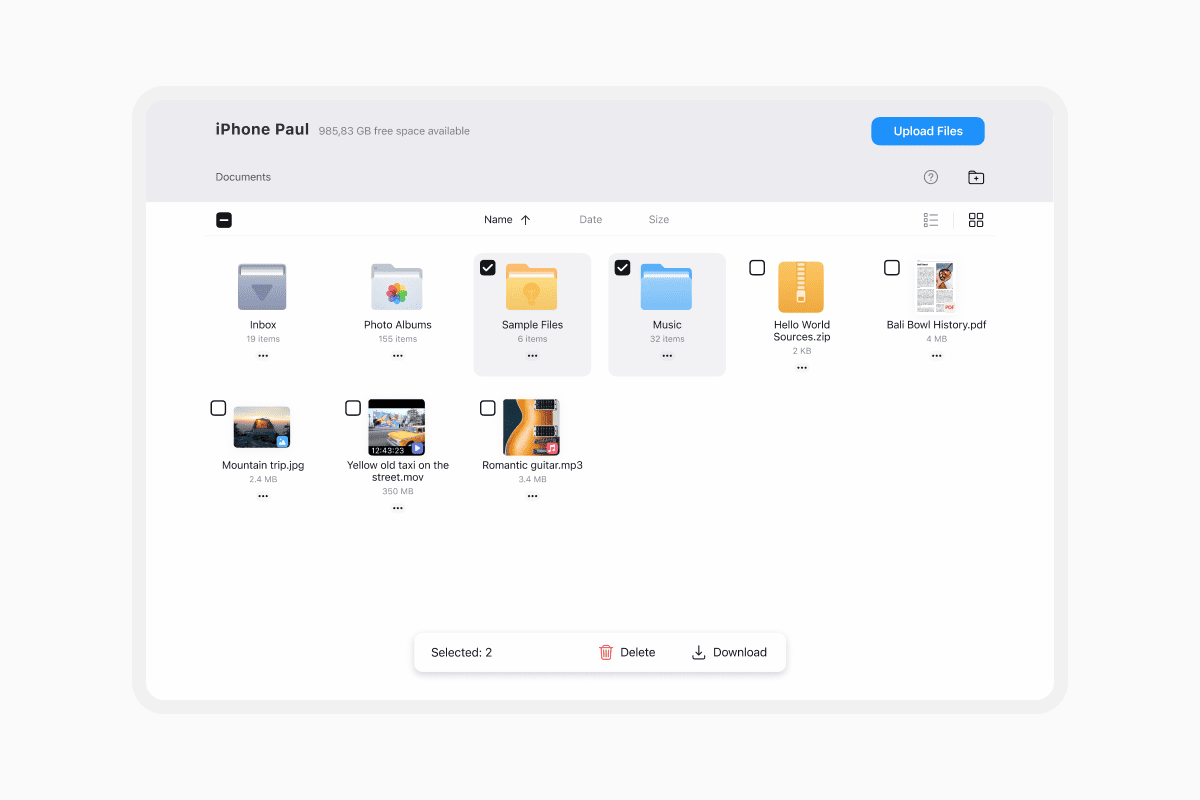
- Download files from your iPhone to your PC (like photos, videos, PDFs, or music)
- Upload files from your PC to your iPhone (including documents, movies, or zipped folders)
Just drag and drop to move your files wirelessly. When you’re done, tap Disconnect or close the browser tab.
What are the other ways of transferring and their limits?
There are many ways to send files from iPhone to PC or upload documents wirelessly, but each comes with its own limits. Let’s break them down.
AirDrop (Apple only)
AirDrop is Apple’s built-in tool for transferring files wirelessly between Apple devices. It’s convenient when it works, you simply select the file you want to share, choose the nearby device, and send it.
The problem? AirDrop doesn’t support Windows at all… It only works between iPhones, iPads, and Macs. You also can’t transfer folders, and many users report that devices often don’t appear or the connection fails mid-transfer. If you're trying to share files with a PC, AirDrop is simply not an option.
Pros: Works well for quick transfers between Apple devices.
Cons:
- Doesn’t work with Windows PCs or laptops.
- Can’t transfer folders.
- Often fails to detect nearby devices.
- Doesn’t support transferring files from iPhone to Windows.
iTunes (Outdated and clunky)
For years, iTunes was the go-to method for transferring files between iPhones and Windows PCs. The process involves installing iTunes on your computer, connecting your iPhone with a USB cable, and using the file sharing interface within the app.
While functional, this approach feels outdated. The interface is clunky and unintuitive, and the whole experience is far from seamless. You can’t easily preview files, and browsing or managing content across folders is frustrating. It also requires you to connect your device every time you want to transfer something.
Pros: It’s a built-in Apple tool.
Cons:
- Requires downloading iTunes on your PC.
- You need to connect your iPhone with a cable.
- Interface is outdated and unintuitive.
- Can’t browse or share files freely.
iCloud Drive
iCloud offers a wireless way to upload and access your files across multiple devices. You can save something to iCloud Drive on your iPhone and download it later from your PC via the web.
However, iCloud comes with only 5 GB of free storage and that space fills up quickly. If you're dealing with large videos, photos, or audio files, you’ll likely need to pay for more. Since transfers happen over the internet, speed depends on your network connection, which can make things slow or unreliable for bigger files. iCloud also isn’t ideal for transferring entire folders.
Pros: Wireless and available on multiple devices.
Cons:
- Limited to 5 GB of free storage.
- Uploading large files (like 4K videos or uncompressed audio) is slow.
- Depends on your internet speed.
- Not suitable for transferring folders.
USB Cable
Transferring files with a USB cable is often seen as a reliable and fast solution. You connect your iPhone to your PC, authorize access, and manage files directly.
But unless you're using a tool like Documents, you'll still need to install iTunes or third-party software to actually access and manage your files. The native file transfer process is limited, doesn’t support drag-and-drop for most file types, and lacks flexibility when it comes to browsing different app folders.
Pros: Reliable and fast.
Cons:
- You need to install iTunes or third-party software on your PC.
- No file previews or easy drag-and-drop.
- You can’t manage files across apps easily.
A better way to move files between iPhone, iPad, and PC
Documents Wi-Fi Transfer solves all these problems in one simple solution. It’s free to use, works with any browser on any platform (Windows, Mac, Linux), and doesn’t require an internet connection. You can upload PDFs, download photos, transfer videos, or share documents from your iPhone to your Windows laptop without iTunes or iCloud.
Even better, there are no file size restrictions, no hidden limits, and no need to sign up for anything. If you're transferring one file or dozens of folders, it just works,
Tip: Make sure your devices stay active (don’t let them auto-lock) while transferring. If the connection drops, you have 10 seconds to resume it before needing to start again.
Final thoughts
If you’re tired of figuring out how to send files from your iPhone to your Windows PC without iTunes, Documents by Readdle is the way to go. It’s really the most reliable method if you want to upload photos, share PDFs, or download files wirelessly.
Get Documents for free on the App Store and start transferring files between your iPhone, iPad, and PC in seconds.
Latest posts

How-Tos
How to download and play MP3 music on iPhone for free
Learn how to download your favorite mp3 music from the internet or from your computer to your iPhone and play it for free using the Documents app.

How-Tos
How to sync iPhone and iPad
If you’re wondering, “How do you sync iPhone & iPad without iCloud?” don’t worry! This guide explains how to set up two-way synchronization between iOS devices.

How-Tos
How to save audio files on iPhone: full guide
Download audio files to your iPhone in just a few taps. Learn how to save music, podcasts, and other audio with Documents, where to find your downloads, and how to organize them for offline listening.