


How to transfer files from iPhone to iPad
Transferring files between your iPhone and iPad can be simple and fast. With our Documents app by Readdle, you can transfer and move photos, send videos, copy folders, or download files across devices without using iTunes, AirDrop, or cloud services.
In this guide, we’ll just show you how to send files, photos, folders, or anything else between your iPhone and iPad in just a few taps.
How to transfer files between iPhone and iPad with the WebDAV feature in Documents
WebDAV lets you turn one of your devices into a local server. The other device connects to it and downloads or uploads files directly. This method is perfect for exploring the full file structure of your iPhone or iPad and managing large or multiple files.
Step 1: Start a WebDAV Server
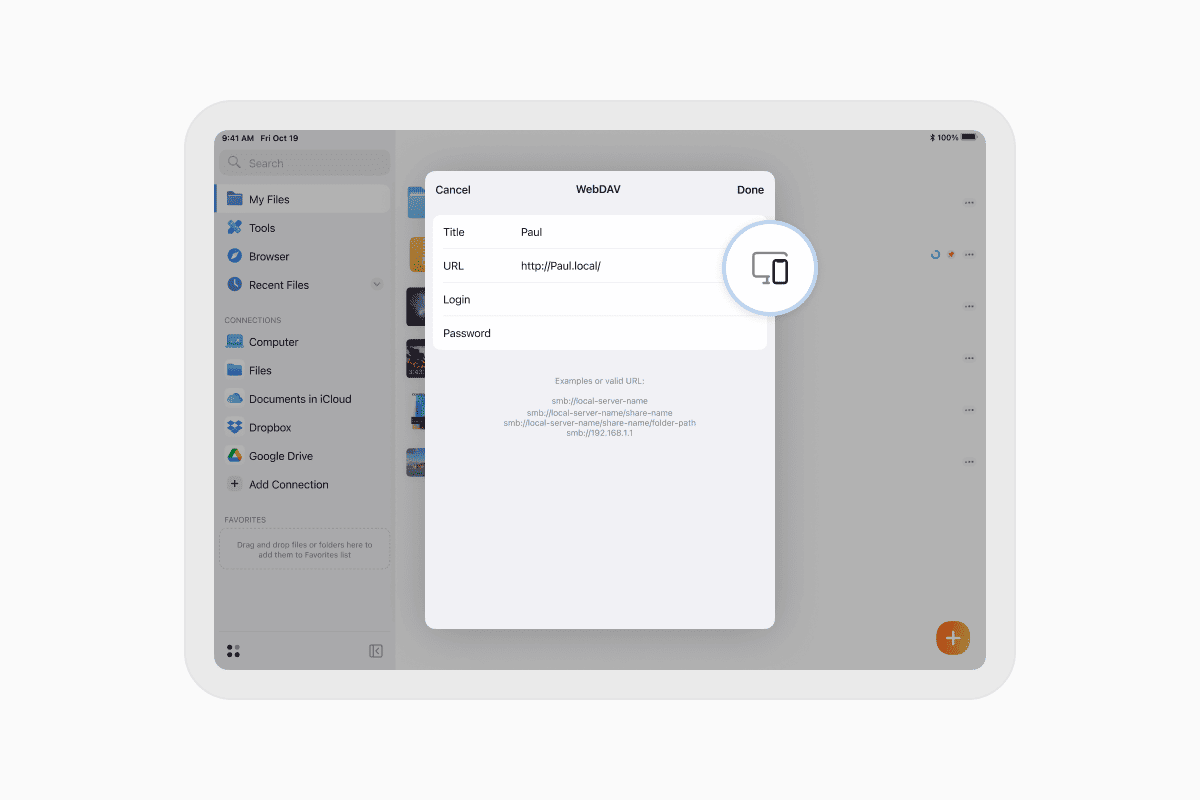
- Make sure both devices are connected to the same Wi-Fi network.
- Open the Documents app on both devices.
- On one device, go to:
- Control Center > Start WebDAV Server
- Choose a username and password, then tap Start WebDAV Server.
This device now acts as a file server for your other device.
Step 2: Connect to the Server from the Other Device
- On the second device, tap the + button in Documents.
- Select Add Connection > WebDAV.
- Tap the Available Devices icon on the right.
- Choose the device hosting the WebDAV server.
- Enter the username and password you set earlier.
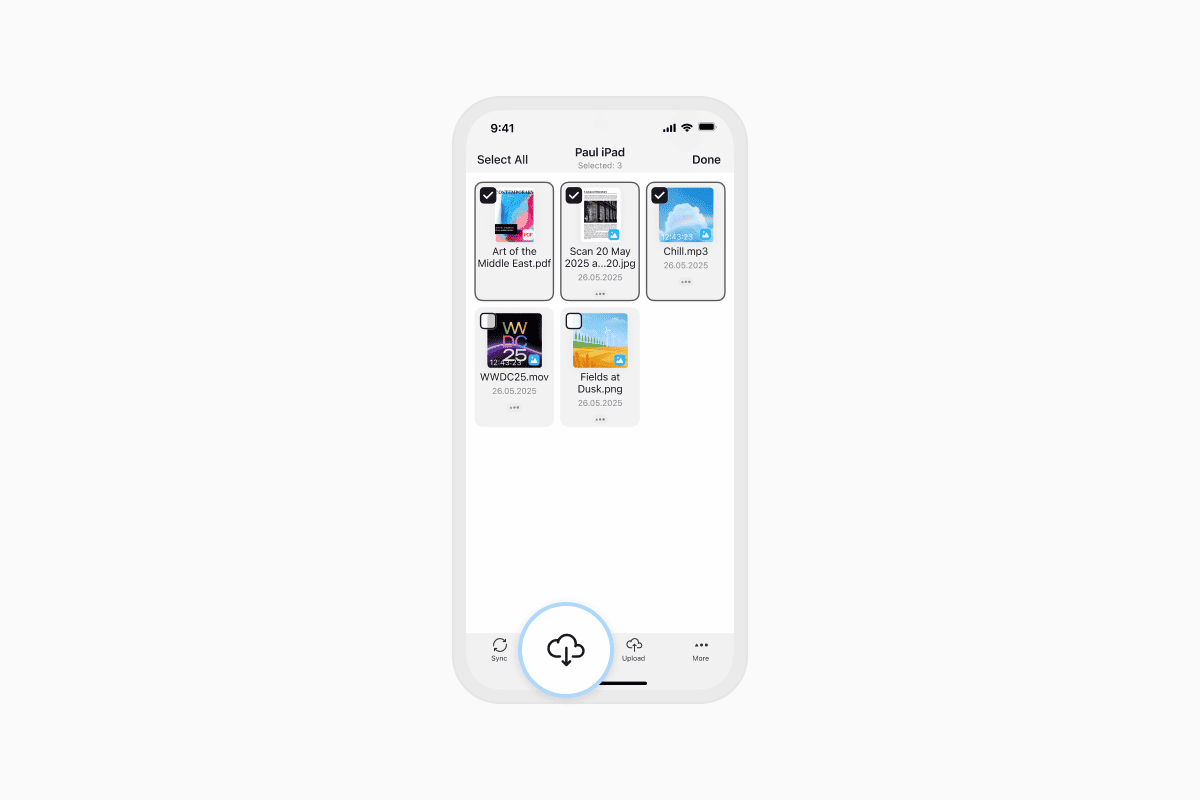
Once connected, you’ll see the full file system of the other device inside the Documents app. You can:
- Tap … More > Download to save individual files.
- Tap Select, choose multiple items, and tap Download to transfer in bulk.
WebDAV creates a direct, secure connection between your iPhone and iPad. You can browse, download, and upload files in any direction with no external apps or internet access required.
What are the other ways to transfer files between iPhone and iPad (and their limits)
There are a few built-in and third-party methods for transferring files between iPhone and iPad. While they can be useful in certain cases, most have frustrating limits—especially when dealing with large files, folders, or when you're working offline.
AirDrop is Apple’s native tool for quick sharing between devices. It’s convenient when it works, but many users know how unreliable it can be. Sometimes devices don’t show up, or large file transfers fail halfway through. It also doesn’t support sending folders or maintaining folder structure.
-
Pros: Good for sending single files
-
Cons:
- Unreliable with large files
- Doesn’t support folders
- Only works on Apple devices
iCloud Drive syncs files automatically across all your Apple devices using cloud storage. It’s helpful if you're always connected and working with smaller documents. But it requires an internet connection and comes with only 5 GB of free storage (and that goes fast!). Uploads can be slow, and you may need to reorganize files once they appear on the second device.
-
Pros: Automatic syncing across devices
-
Cons:
- Limited free storage (5 GB)
- Internet required for transfers
- Not ideal for quick or large file moves
Another option is to use iTunes or Finder with a computer. This lets you transfer files via USB, which is stable but outdated. You need to connect both devices to a third one (your Mac or PC), install extra software, and manually drag files across. It’s not convenient for everyday use or direct device-to-device transfers.
-
Pros: Works over USB
-
Cons:
- Requires a computer
- Clunky and outdated interface
- Not a direct solution between iPhone and iPad
Apps like Google Drive or Dropbox can help too, especially if you already use them. But they’re cloud-based, which means slow upload/download times for big files. You’ll also run into storage limits unless you pay, and you’ll need to manually sort everything once it’s synced.
-
Pros: Cross-platform access
-
Cons:
- Internet-dependent
- Limited free space
- Slower for big file transfers
Documents by Readdle solves all of these issues. It lets you transfer any file or folder instantly and offline. You don’t need cables, and there are no storage limits.
-
Pros:
- Fast and offline
- Handles any file type or size
- Supports full folders
- Free and reliable
Take full control of your files
Documents by Readdle is more than a file manager. It’s a central hub for all your content, letting you move, view, and organize any file or folder directly on your iPhone or iPad.
You can open PDFs, listen to audio files, watch videos, manage downloads, and now transfer data easily between iOS devices using or WebDAV.
Download Documents for free and simplify your file transfers today.
Latest posts

How-Tos
How to download and play MP3 music on iPhone for free
Learn how to download your favorite mp3 music from the internet or from your computer to your iPhone and play it for free using the Documents app.

How-Tos
How to sync iPhone and iPad
If you’re wondering, “How do you sync iPhone & iPad without iCloud?” don’t worry! This guide explains how to set up two-way synchronization between iOS devices.

How-Tos
How to save audio files on iPhone: full guide
Download audio files to your iPhone in just a few taps. Learn how to save music, podcasts, and other audio with Documents, where to find your downloads, and how to organize them for offline listening.