


If you're downloading music, podcasts, lectures, or other audio, knowing how to save audio files on your iPhone lets you listen offline whenever you want. With the free Documents app by Readdle, you can download audio directly to your device, organize it in folders, and play it without needing another app.
In this guide, you'll learn how to download and save audio files on iPhone, where they're stored, and how to find them later.
How to download and save audio files on iPhone
Here's how to save audio from a website using Documents on your iPhone or iPad:
- Download Documents from the App Store and open the app.
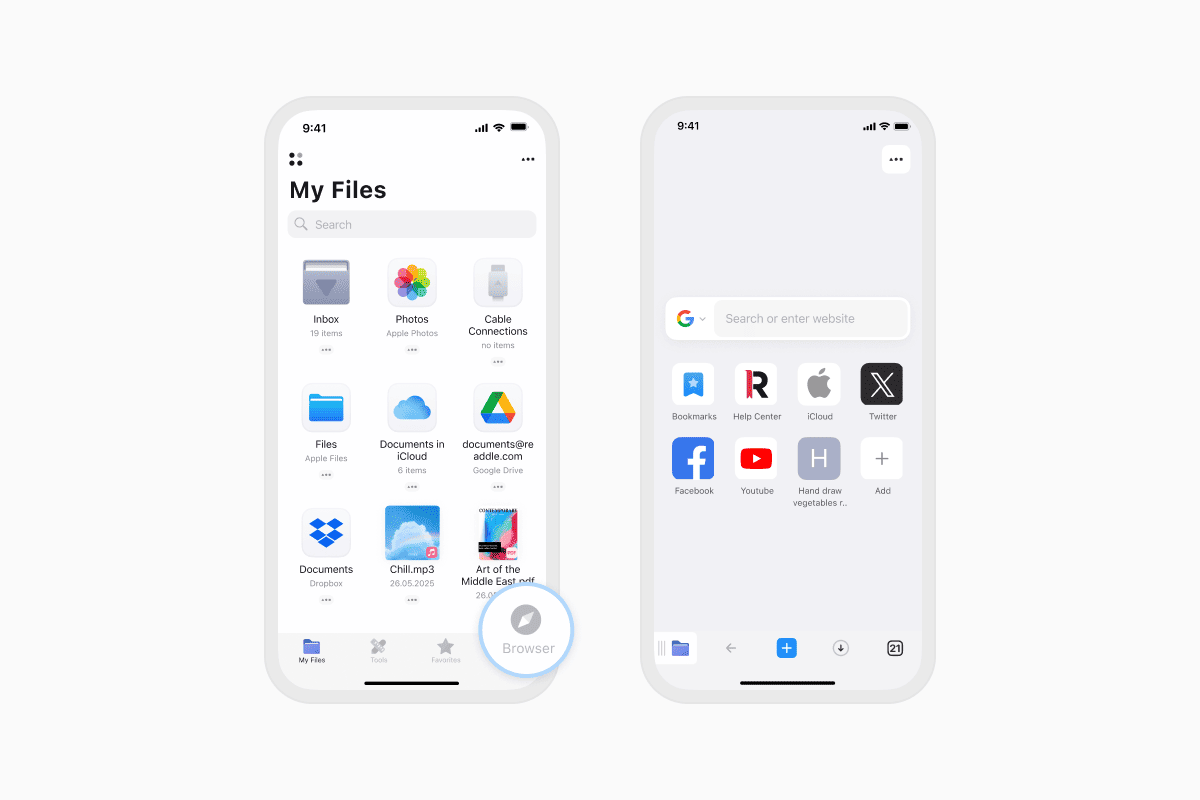
- Tap the Browser icon in the bottom-right corner.
- Visit the website where the audio file is available.
- Tap the download link or button.
- Choose a file name and save location, or tap Done to use the default settings.
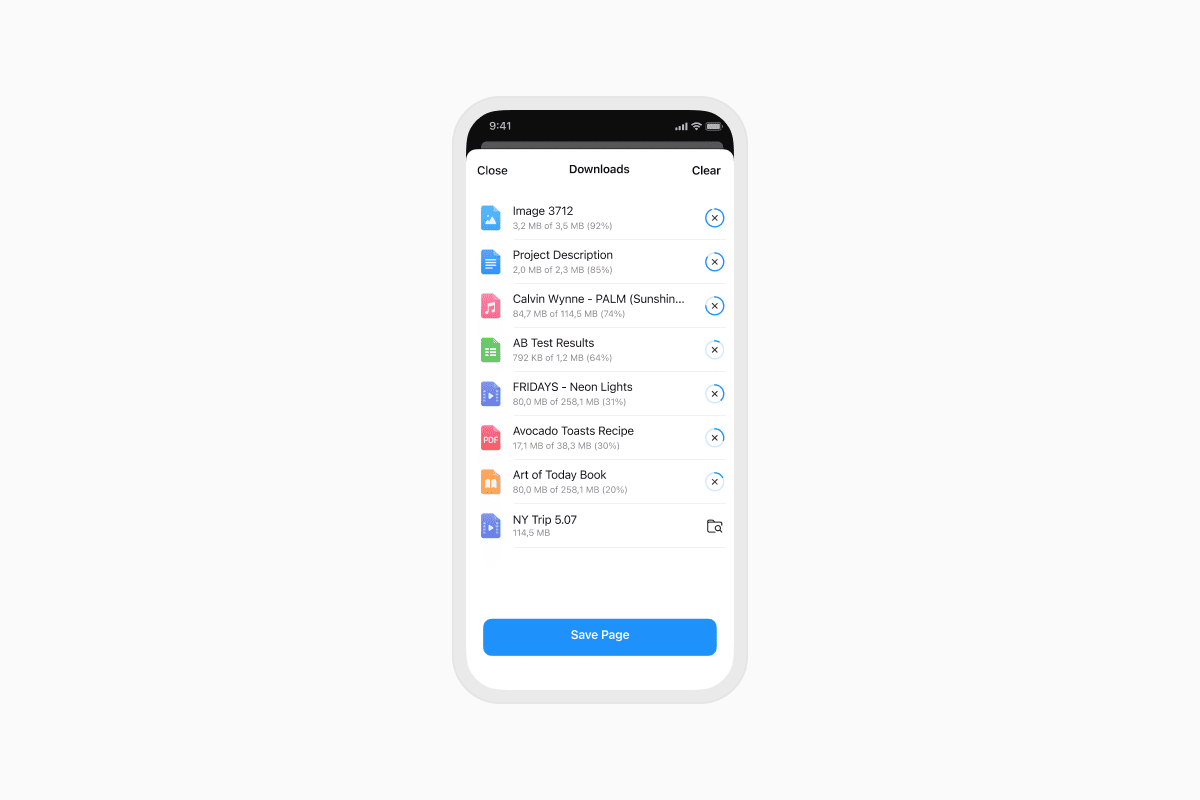
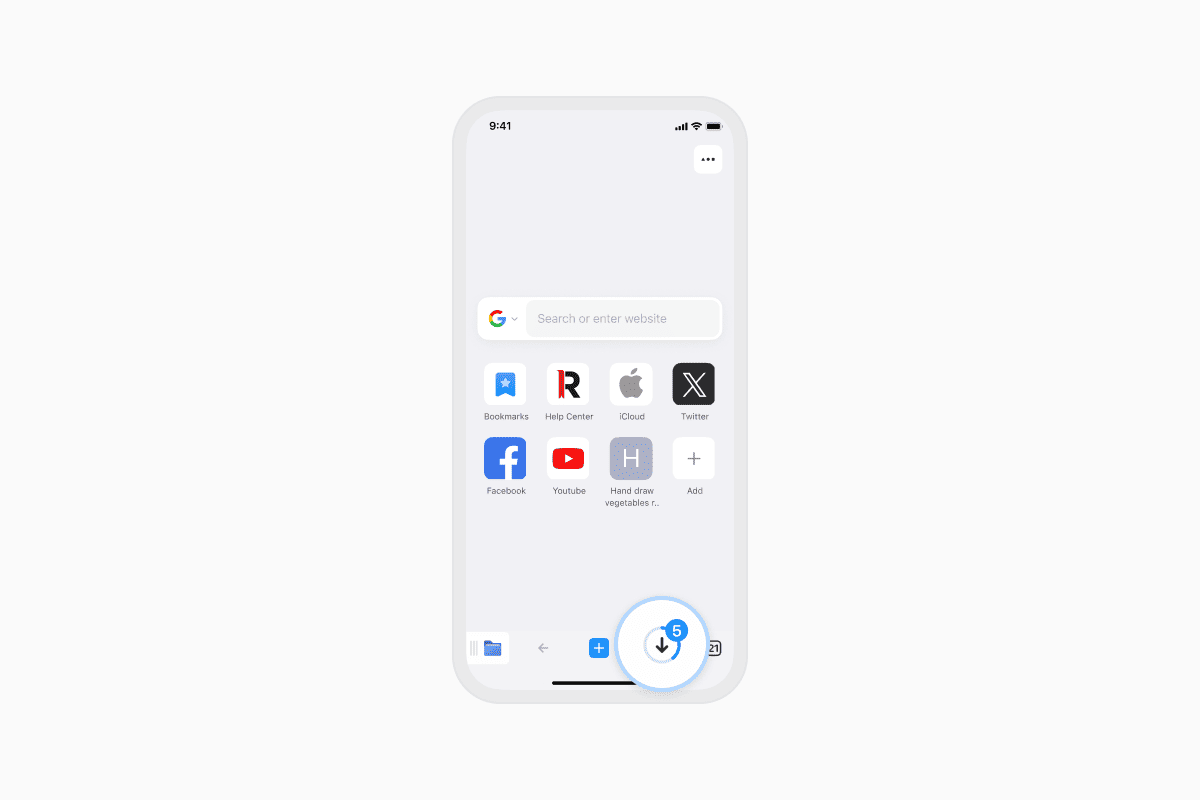
- Wait for the download to finish.
- Open the Downloads folder to access your file.
Your audio is now ready to play, move, rename, or organize. Documents supports all major audio formats, including MP3, M4A, WAV, AAC, and FLAC, so you can manage your downloads without installing another music player.
Where are audio files saved on iPhone?
Audio files downloaded in Safari are typically saved to the Downloads folder in the Files app. Open Files, tap Browse, then select On My iPhone or iCloud Drive, depending on your download settings.
Documents gives you more control over your downloads. Before saving a file, you can choose its location and rename it. You can also move audio files to connected cloud storage services such as Google Drive, Dropbox, or OneDrive, making it easy to keep your library organized across devices.
How to find a saved audio file on iPhone
Looking for an audio file you downloaded earlier? Documents makes it easy to find.
- Open Documents on your iPhone or iPad.
- Tap the Search field at the top of the screen. If you don't see it, swipe down slightly.
- Enter part of the file name.
- Use the filter bar to display only Audio files.
Documents instantly shows matching files, so you can quickly find what you're looking for without browsing through folders.
The easiest way to manage audio files on iPhone
Documents is more than a file manager. It's an all-in-one app for downloading audio, organizing your files, managing cloud storage, and accessing your media offline. Whether you're saving music, podcasts, audiobooks, or recordings, everything stays organized and easy to find.
Download Documents for free and take full control of your audio files on iPhone and iPad.
Latest posts

How-Tos
How to transfer files from iPhone or iPad to PC
Instantly transfer files between your iPhone and PC/Mac using the Wi-Fi Transfer feature in Documents, the best alternative to AirDrop problems.

How-Tos
How to transfer between iPhone and iPad
Transferring files between your iPhone and iPad can be simple and fast. With our Documents app by Readdle, you can transfer and move photos, send videos, copy folders, or download files across devices without using iTunes, AirDrop, or cloud services.