

How to record and transcribe voice notes on iPhone and iPad

Taking notes during a meeting or lecture can make it harder to focus on what's being said. With Voice Notes in Documents, you can record conversations, capture ideas, and get a summary, follow-ups, and a full transcript without writing everything down.
Here's how to get started.
How to record a voice note in Documents
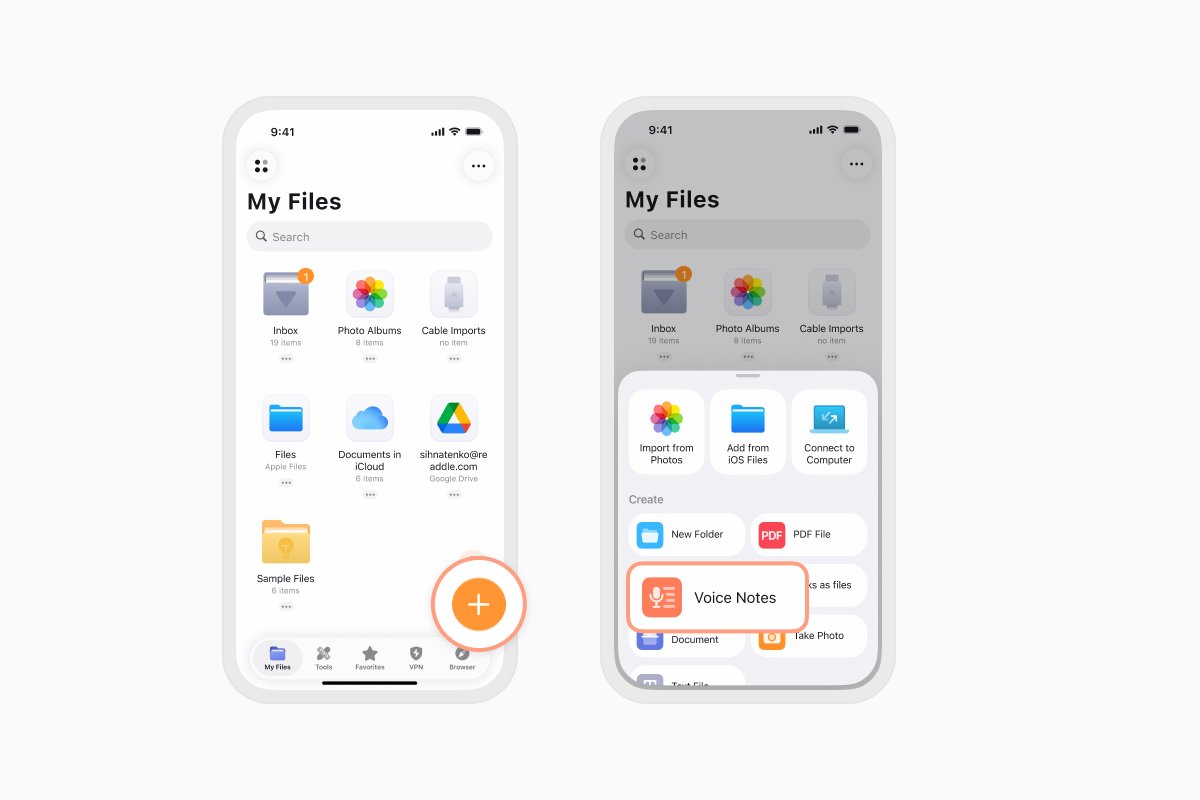
- Open Documents on your iPhone or iPad.
- Tap the + button and select Voice Notes. You can also access the feature through the Action button.
- Allow microphone access if prompted.
- Start your recording.
- When you're finished, stop the recording.
Documents processes your voice note and generates a summary, follow-ups, and a transcript.
Make sure everyone involved agrees to be recorded before you begin.
How to view your summary, follow-ups, and transcript
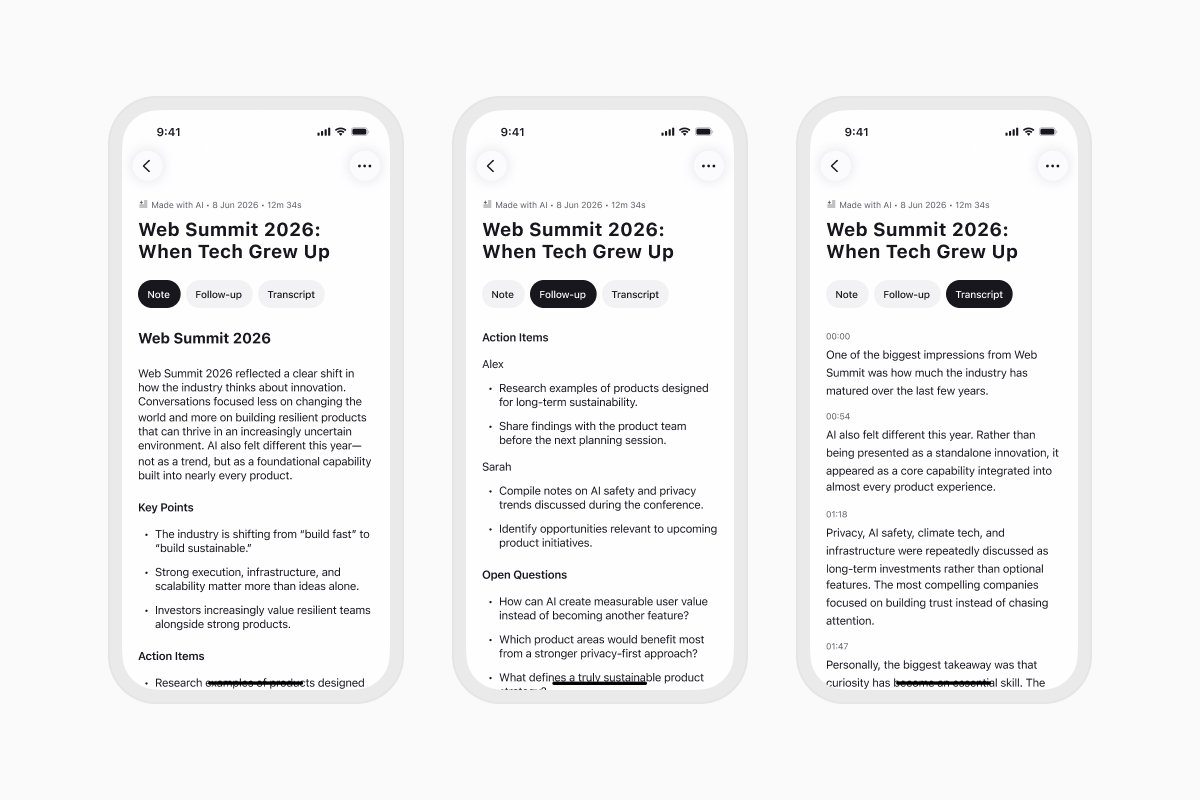
Once your recording has been processed, open the voice note in Documents to see:
- Summary: An overview of the main points.
- Follow-ups: Action items and things to revisit.
- Transcript: The full text of your recording.
You can switch between these sections to review the information you need or listen to the original recording.
Can Documents transcribe recordings in different languages?
Yes. Voice Notes supports multiple languages, including recordings where more than one language is spoken.
The transcript displays all the languages used during the recording. The summary and follow-ups are generated in the most commonly spoken language..
How to save your transcript as a text file
Each voice note is saved as a single file in Documents, containing the original recording, summary, follow-ups, and transcript.
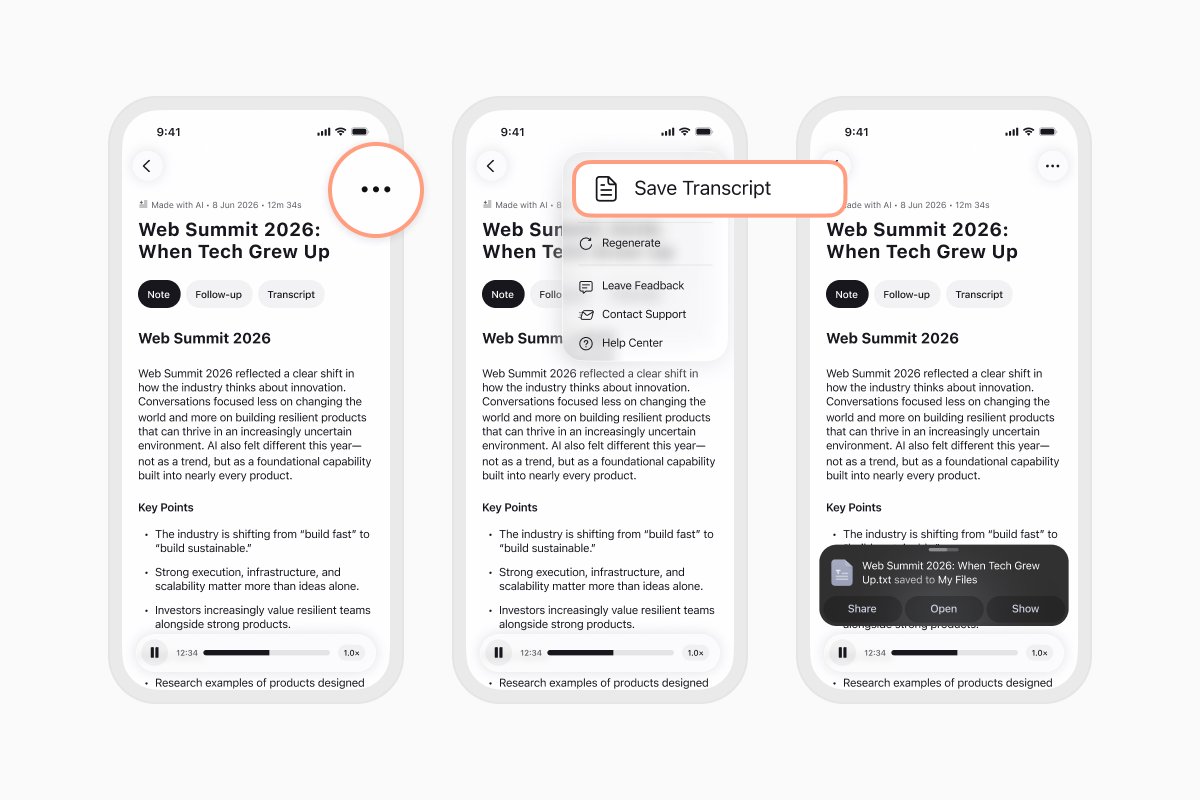
You can also save the transcript separately:
- Open your voice note in Documents.
- Go to the transcript.
- Use the option to save it as a .txt file.
The text file is saved alongside your voice note, making it easy to access or share independently.
How to organize and share your voice notes
Voice Notes works alongside your other files in Documents.
From My Files, you can organize voice notes into folders, share them, or sync them with connected cloud storage. For example, you can keep meeting notes alongside project documents or save lecture recordings and transcripts in the same folder as your study materials.
Your recording, summary, follow-ups, and transcript remain together in the original Voice Note file.
How to get Voice Notes in Documents
Voice Notes is available on iPhone and iPad as part of Documents Plus, alongside more than 30 other tools.
If you're already a Plus subscriber, you can start using it at no additional cost, with no recording-minute limits. New users can try Documents Plus free for 7 days.
Open Documents, tap the + button, and select Voice Notes to get started.
Latest posts

How-Tos
How to automate file tasks with Documents, Shortcuts, and Siri
Automate everyday file tasks with Documents, Shortcuts, and Siri. Build workflows to convert, save, archive, and manage files faster.
How-Tos
How to save a webpage as a PDF on iPhone and iPad
Save any webpage as a PDF on your iPhone or iPad, then read it offline, add annotations, share it, or store it in the cloud.

How-Tos
How to edit audio on iPhone and iPad
Here’s how you can instantly trim audio files or remove unnecessary parts from an audio file on your iOS device using Readdle’s Documents app.