


Not every photo turns out exactly as you imagined. A stranger walks into the frame, a road sign distracts from the view, or an unwanted object takes attention away from the moment. Fortunately, AI can clean up your photos in just a few taps.
In this guide, you'll learn how to remove unwanted objects, people, text, and other distractions from photos on your iPhone or iPad using Documents by Readdle. You'll also see how it compares with similar tools from Google and Apple.
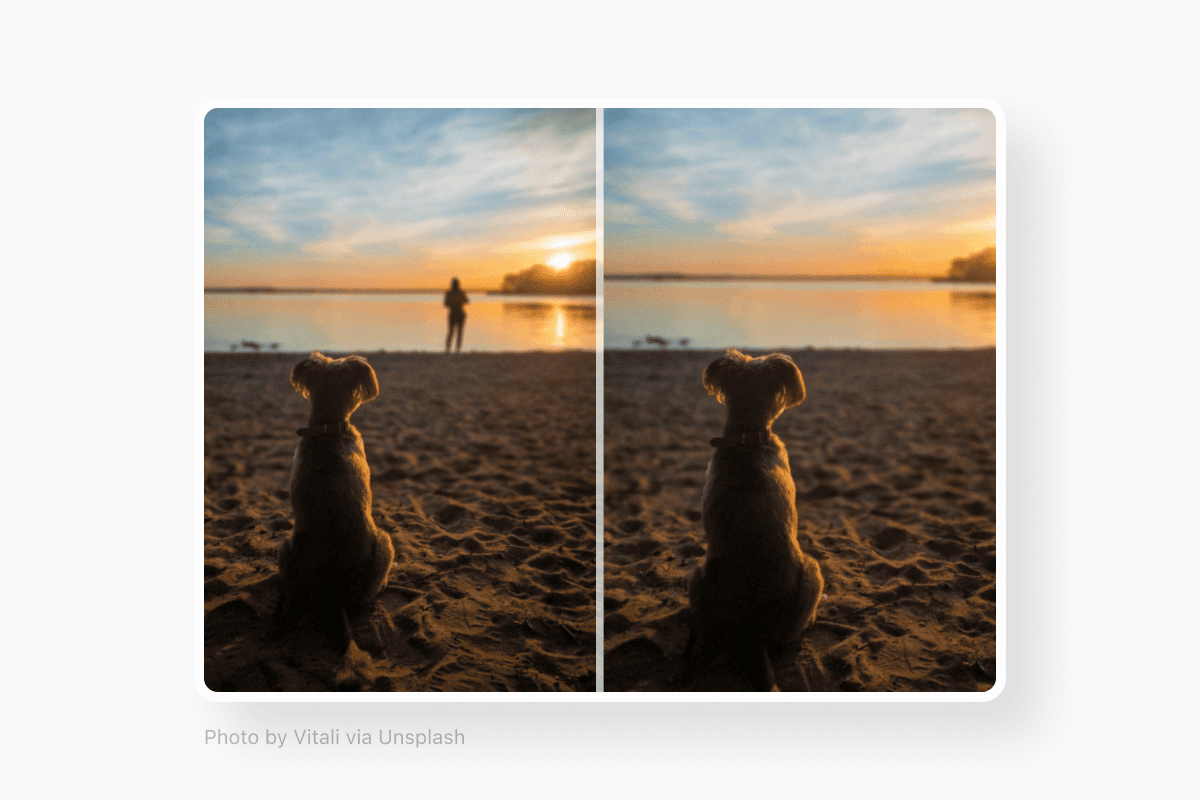
How to remove objects from photos on iPhone
Documents includes Smart Eraser, an AI-powered tool that lets you remove people, objects, shadows, reflections, and text directly on your iPhone or iPad.
Here's how it works:
- Download Documents for free from the App Store.
- Open the app and import the photo you want to edit:
- Tap the + button and choose a photo from your library.
- Or open a photo in the Photos app, tap Share, then choose Save to Documents.
- Open the photo and tap the Eraser icon.
- Brush over the object you want to remove. The selected area will be highlighted in red.
- Include any shadows or reflections for the most natural-looking result.
- Tap Erase and let AI remove the selected object.
- Tap Save to create a new edited copy while keeping the original photo unchanged.

You don't need to make a perfect selection. Smart Eraser automatically rebuilds the background to blend naturally with the rest of the image.
Because the editing happens directly on your device, your photos stay private. Nothing is uploaded unless you choose to share it.
Documents Smart Eraser vs. Google Magic Eraser vs. Apple Intelligence
Several apps can remove unwanted objects from photos, but they don't all work the same way.
| Feature | Documents Smart Eraser | Google Magic Eraser | Apple Intelligence |
|---|---|---|---|
| Privacy | On-device editing | May rely on Google Photos services | On-device |
| Account required | No | Google account | Apple ID |
| Device support | Modern iPhone and iPad models | Google Photos app on iOS | Supported Apple Intelligence devices |
| Original preserved | Yes | Yes | Yes |
| Additional tools | File manager, PDF tools, cloud storage, media player, AI tools | Photo management | Built into Photos |
Why use Documents?
Smart Eraser is just one of the many tools included in Documents. Along with AI photo editing, you can:
- Organize files in one place
- Read EPUB and PDF books
- Edit and annotate PDFs
- Connect Google Drive, Dropbox, OneDrive, and other cloud storage
- Download files from the web
- Convert, compress, and manage documents, photos, videos, and audio
Instead of switching between multiple apps, you can manage your files and edit your photos from a single workspace.
Remove distractions from your photos in seconds
Whether you're cleaning up vacation photos, removing photobombers, erasing text, or getting rid of unwanted objects, Smart Eraser makes it quick and effortless.
Download Documents for free to try it yourself, then unlock Documents Plus to access Smart Eraser and other advanced productivity tools.
Latest posts

How-Tos
How to download and play MP3 music on iPhone for free
Learn how to download your favorite mp3 music from the internet or from your computer to your iPhone and play it for free using the Documents app.

How-Tos
How to sync iPhone and iPad
If you’re wondering, “How do you sync iPhone & iPad without iCloud?” don’t worry! This guide explains how to set up two-way synchronization between iOS devices.

How-Tos
How to save audio files on iPhone: full guide
Download audio files to your iPhone in just a few taps. Learn how to save music, podcasts, and other audio with Documents, where to find your downloads, and how to organize them for offline listening.