


Downloaded a video that won't play on your iPhone? The problem is usually the file format, not the video itself. While iPhones support common formats like .mp4, .mov, and .m4v, many videos downloaded from the web or transferred from another device are saved as .avi, .mkv, or .flv. Those formats won't open in the built-in Photos or Files apps.
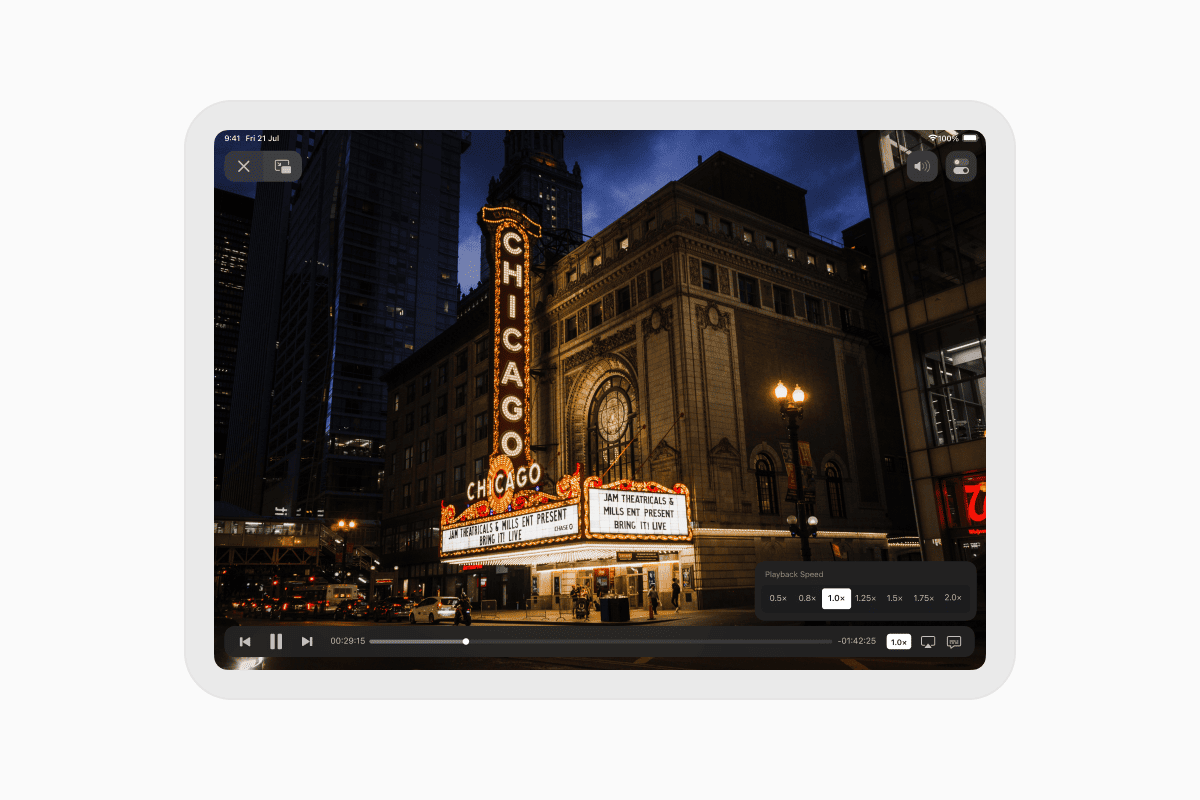
The good news is that you don't need to convert the file first. With the free Documents by Readdle app, you can play virtually any video format on your iPhone or iPad. Documents also lets you organize your video library, import files from cloud storage or your computer, adjust playback speed, and watch videos with subtitles.
Why won't videos play on iPhone?
If a video won't open on your iPhone, it's usually because iOS doesn't support its format.
Apple's built-in apps can play:
- .mp4
- .mov
- .m4v
However, videos downloaded from websites, shared by friends, or copied from Windows PCs, Android phones, cameras, or external drives often use formats such as .avi, .mkv, or .flv. These formats aren't supported by default on iPhone.
Instead of converting your videos, you can simply open them in Documents.
Which video formats does Documents support?
Documents supports a wide range of video formats, including:
- MP4
- MOV
- M4V
- AVI
- MKV
- FLV
- 3GP
...and many more.
Whether you're watching downloaded movies, home videos, TV shows, or work presentations, Documents lets you play them directly on your iPhone.
How to play videos on iPhone
Follow these steps to watch videos in any format with Documents:
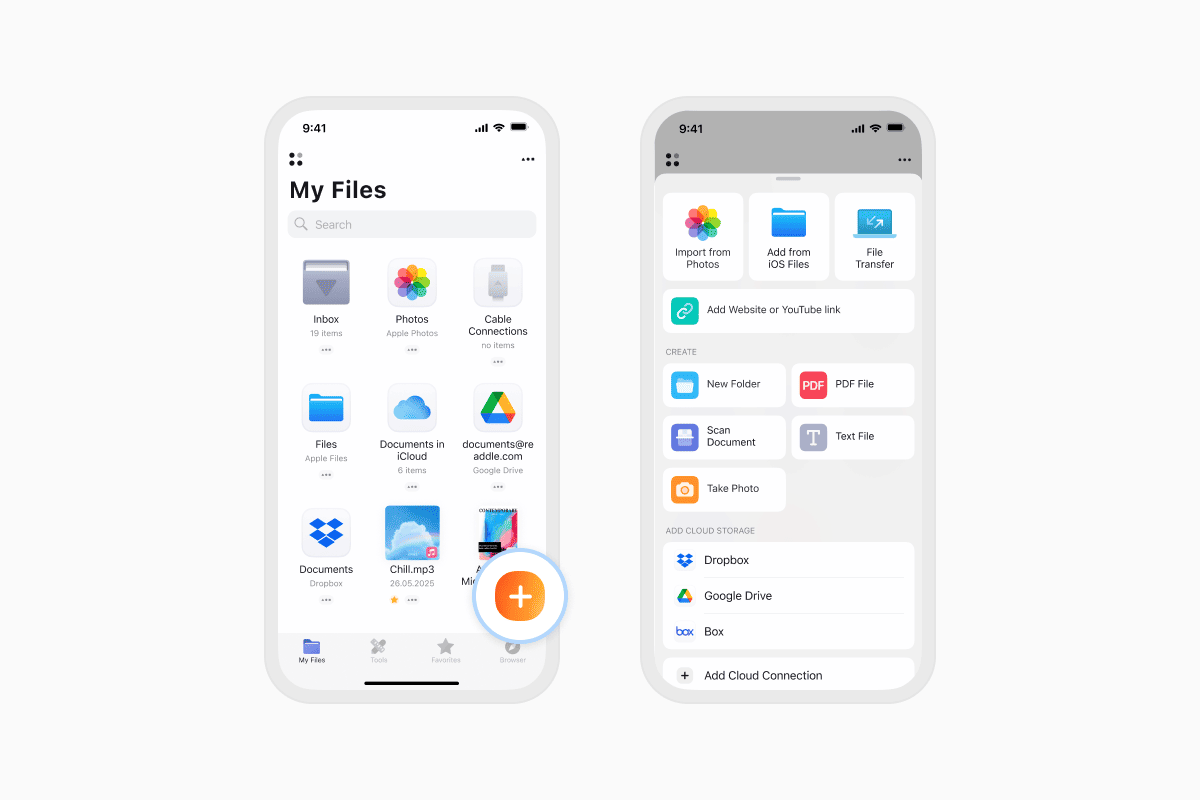
- Download Documents by Readdle from the App Store and open the app.
- Tap the + button in the bottom-right corner.
- Import your video from the Files app, iCloud Drive, Google Drive, Dropbox, another cloud service, or your computer.
- Select the video.
- Tap the file to start watching.
Playback tips
Documents includes several features that make watching videos more enjoyable:
- Double-tap the left or right side of the screen to rewind or skip forward 10 seconds.
- Adjust playback speed for supported formats.
- Continue watching from where you left off.
- Enjoy smooth playback without converting your files first.
- How to watch videos with subtitles on iPhone
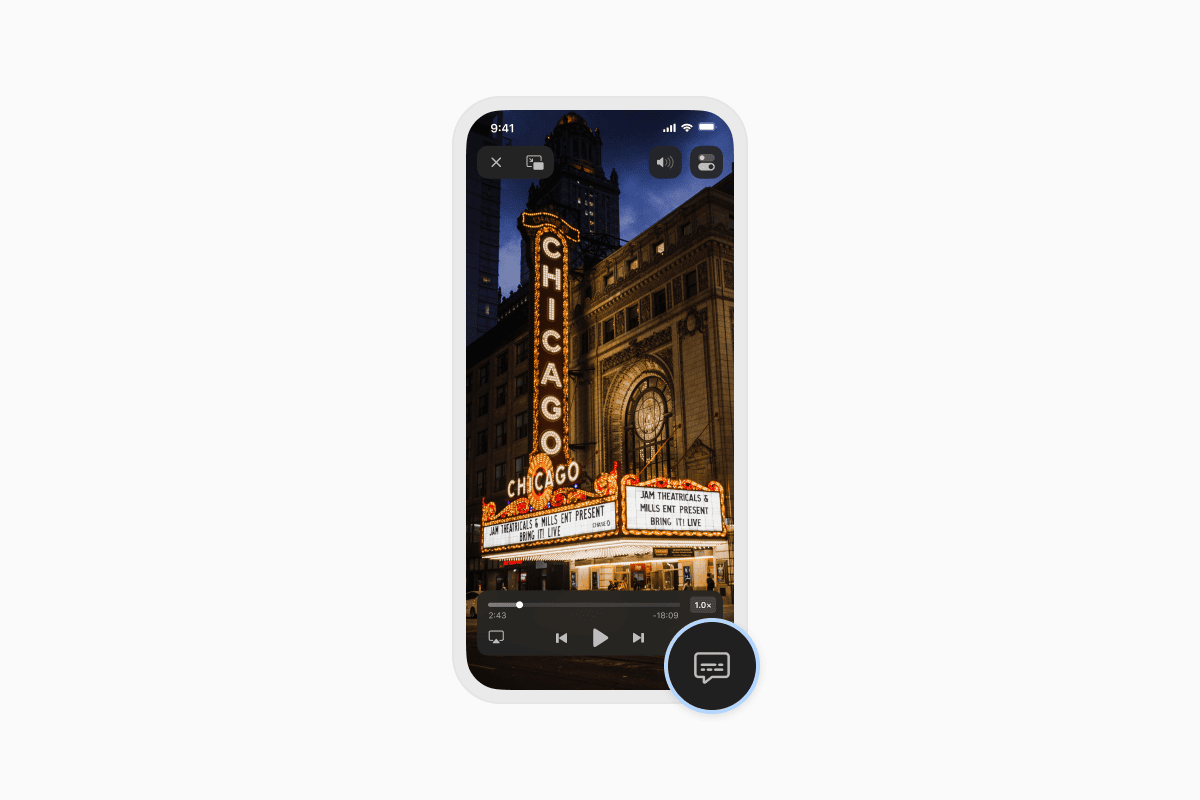
Documents supports both embedded subtitles and external subtitle files, making it easy to watch movies or TV shows in your preferred language.
Supported subtitle formats include:
- .srt
- .sub
- .ssa
- .ass
- .pjs
- .smi
- .stl
To add subtitles:
- Place the video file and subtitle file in the same folder.
- Make sure both files have the same name (for example, movie.mkv and movie.srt).
- Open the video in Documents.
- Tap the Subtitles icon.
- Select your subtitle file.
Your subtitles will automatically sync with the video.
More than a video player
Documents is more than an app for watching videos. It also helps you:
- Organize your files in one place.
- Access videos stored in iCloud Drive, Google Drive, Dropbox, OneDrive, and other cloud services.
- Download files directly in the built-in browser.
- Manage documents, photos, music, PDFs, ZIP archives, and more.
Instead of switching between multiple apps, you can keep all your files together in one powerful file manager.
Download Documents by Readdle for free and enjoy smooth playback for virtually any video format on your iPhone or iPad.
Latest posts

How-Tos
How to download and play MP3 music on iPhone for free
Learn how to download your favorite mp3 music from the internet or from your computer to your iPhone and play it for free using the Documents app.
How-Tos
How to sync iPhone and iPad
If you’re wondering, “How do you sync iPhone & iPad without iCloud?” don’t worry! This guide explains how to set up two-way synchronization between iOS devices.
How-Tos
How to save audio files on iPhone: full guide
Download audio files to your iPhone in just a few taps. Learn how to save music, podcasts, and other audio with Documents, where to find your downloads, and how to organize them for offline listening.