


Need to save a webpage before it changes or disappears? Whether you're keeping an article for offline reading, collecting research, or sharing a page with your team, saving a webpage as a PDF preserves it exactly as you see it.
With the free Documents by Readdle app, you can save any webpage as a PDF in just a few taps. Unlike the built-in browser, Documents also lets you organize your files, annotate PDFs, compress them, sync them with cloud storage, and share them—all from one place.
How to save a webpage as a PDF on iPhone
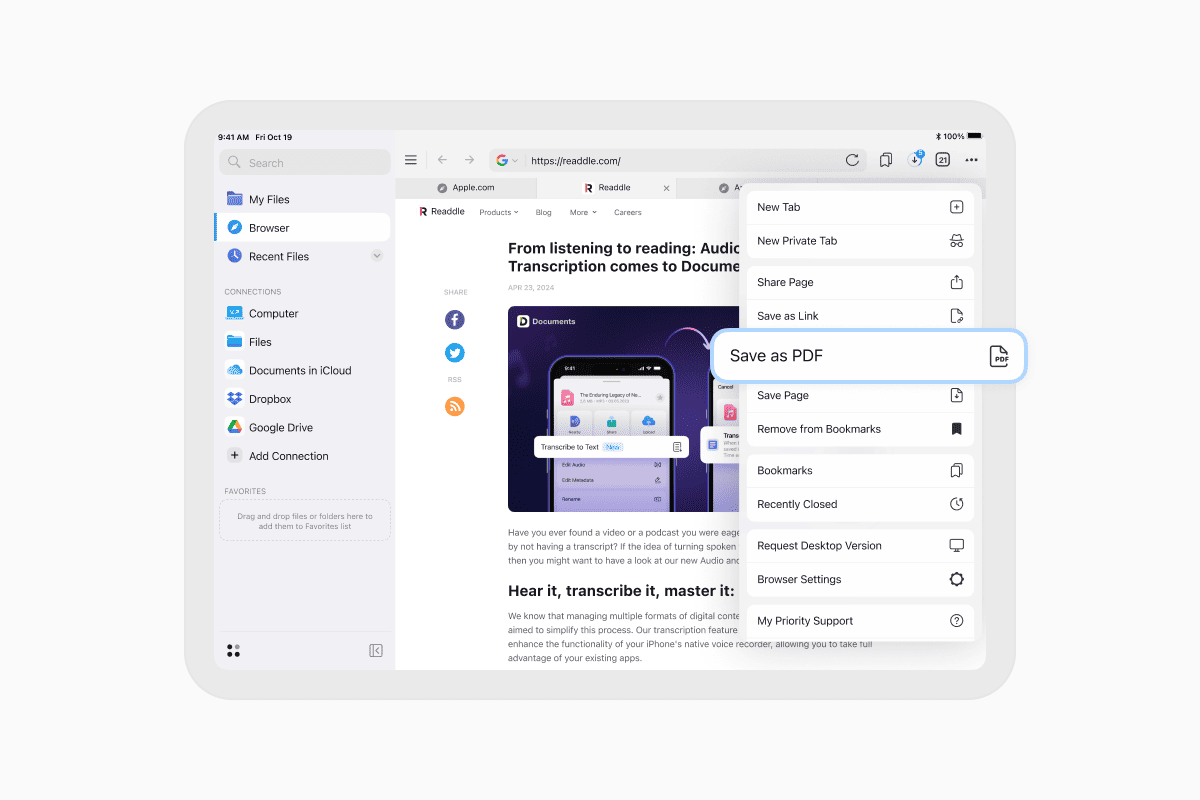
To save a webpage as PDF on iPhone:
- Download Documents for free and open the app.
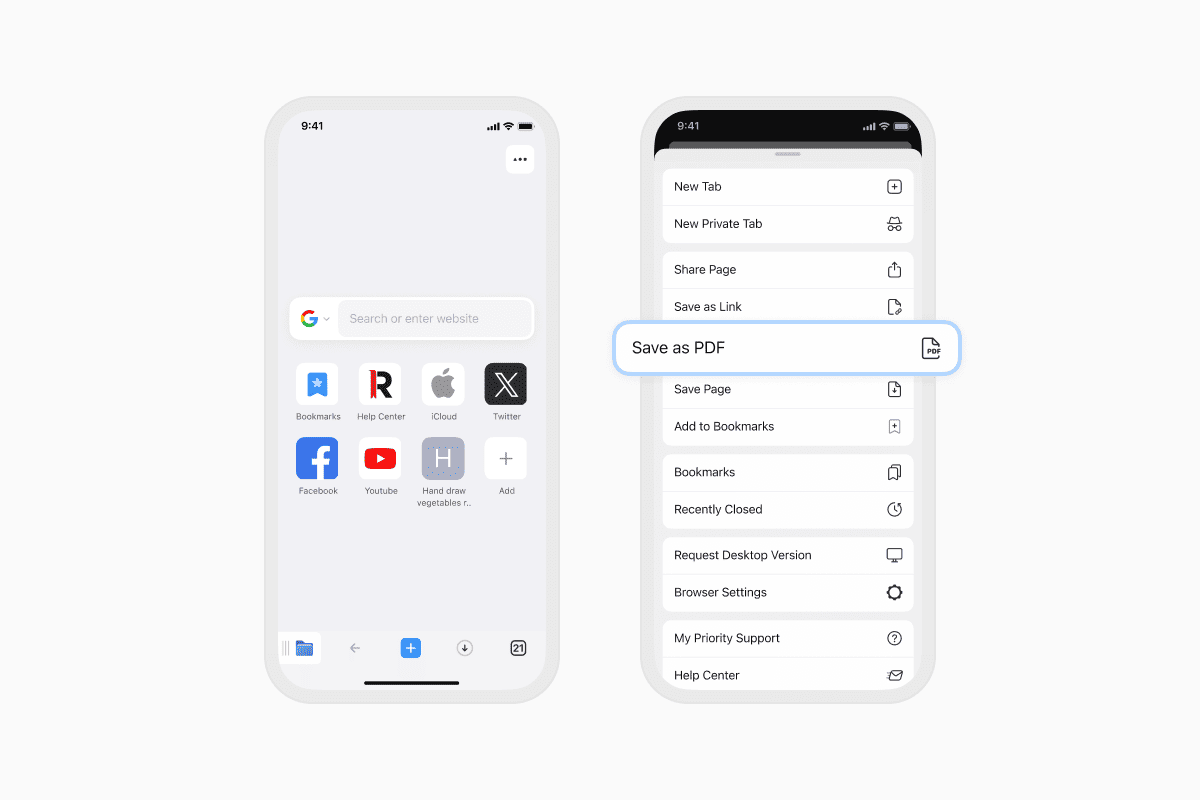
- On iPhone, tap the compass icon in the bottom-right corner to open the built-in browser. On iPad, tap Browser in the sidebar.
- Open the webpage you want to save.
- Tap … More in the top-right corner.
- Select Save as PDF.
- Choose where to save the PDF. By default, Documents stores it in the Inbox folder, but you can save it anywhere in the app or to a connected cloud storage service.
Why save a webpage as a PDF?
Saving a webpage as a PDF is useful when you want to:
- Read articles offline.
- Keep a copy of information before a page is updated or removed.
- Share webpages without ads or distractions.
- Highlight, annotate, or comment on content.
- Print a webpage with consistent formatting.
Save webpages in other formats
PDF isn't the only option. If you need more flexibility, tap Save Page instead and choose the format that best fits your needs:
- PDF – ideal for sharing, printing, and annotating.
- HTML – keeps the webpage as an editable HTML file.
- Web Archive – preserves the page for offline viewing.
- Link – saves only the webpage URL for quick access later.
This gives you more flexibility, especially if you need to retain formatting or re-open the page later in its original form.
Do more with saved webpages
After saving the webpage, Documents unlocks even more tools. You can annotate the PDF, compress it, sync it with cloud storage, or share it with your computer. It becomes part of your organized file system, right alongside your documents, books, downloads, and more.
Download Documents for free and turn your iPhone into a powerful tool for saving and managing web content.
Latest posts

How-Tos
How to download and play MP3 music on iPhone for free
Learn how to download your favorite mp3 music from the internet or from your computer to your iPhone and play it for free using the Documents app.
How-Tos
How to sync iPhone and iPad
If you’re wondering, “How do you sync iPhone & iPad without iCloud?” don’t worry! This guide explains how to set up two-way synchronization between iOS devices.
How-Tos
How to save audio files on iPhone: full guide
Download audio files to your iPhone in just a few taps. Learn how to save music, podcasts, and other audio with Documents, where to find your downloads, and how to organize them for offline listening.