


Dropbox makes it easy to keep your files synchronized across all your devices. Whether you're storing work documents, photos, videos, or PDFs, connecting Dropbox to your iPhone lets you access everything wherever you are.
With Documents by Readdle, you can browse your Dropbox files alongside your local files and other cloud storage services—all from one app. You can also download files for offline access, upload new files, and organize everything in one place.
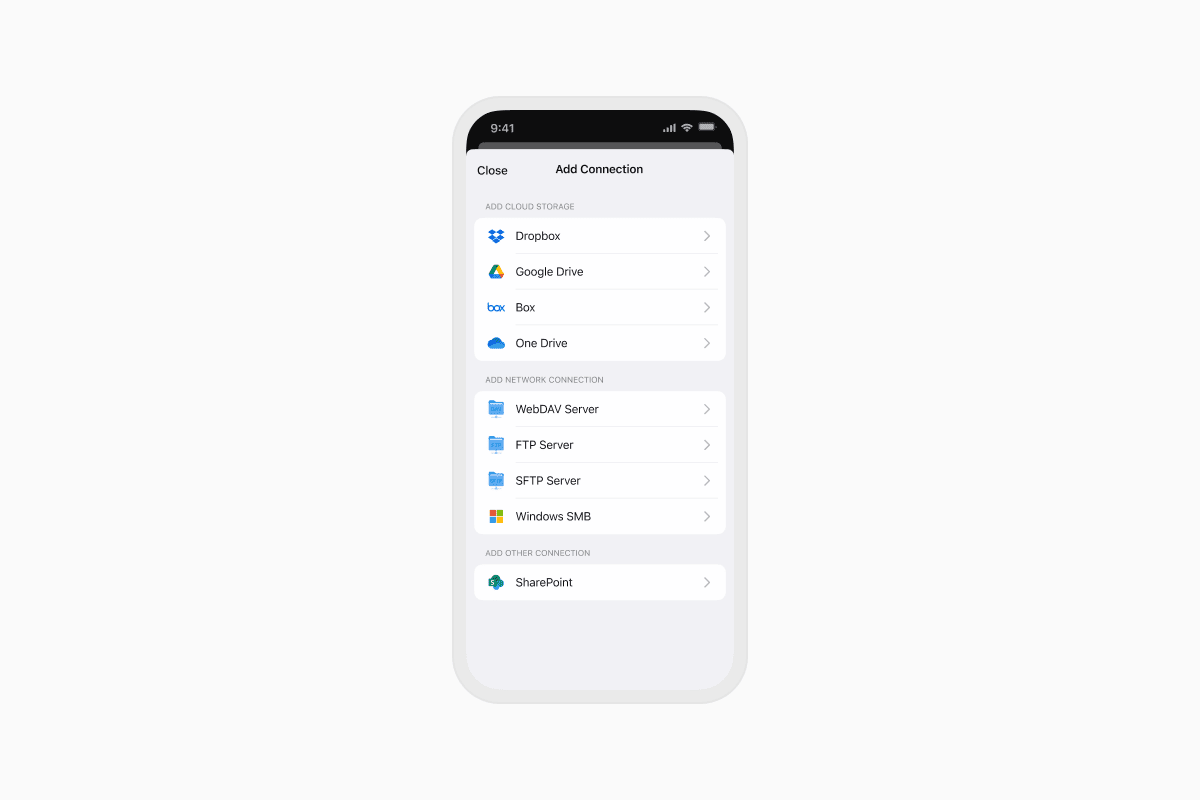
How to connect Dropbox to your iPhone
Before you can access your files, you'll need to connect your Dropbox account to Documents.
- Download Documents by Readdle from the App Store and open the app.
- Tap the + button.
- Select Add Connection.
- Choose Dropbox.
- Sign in with your Dropbox account and grant access.
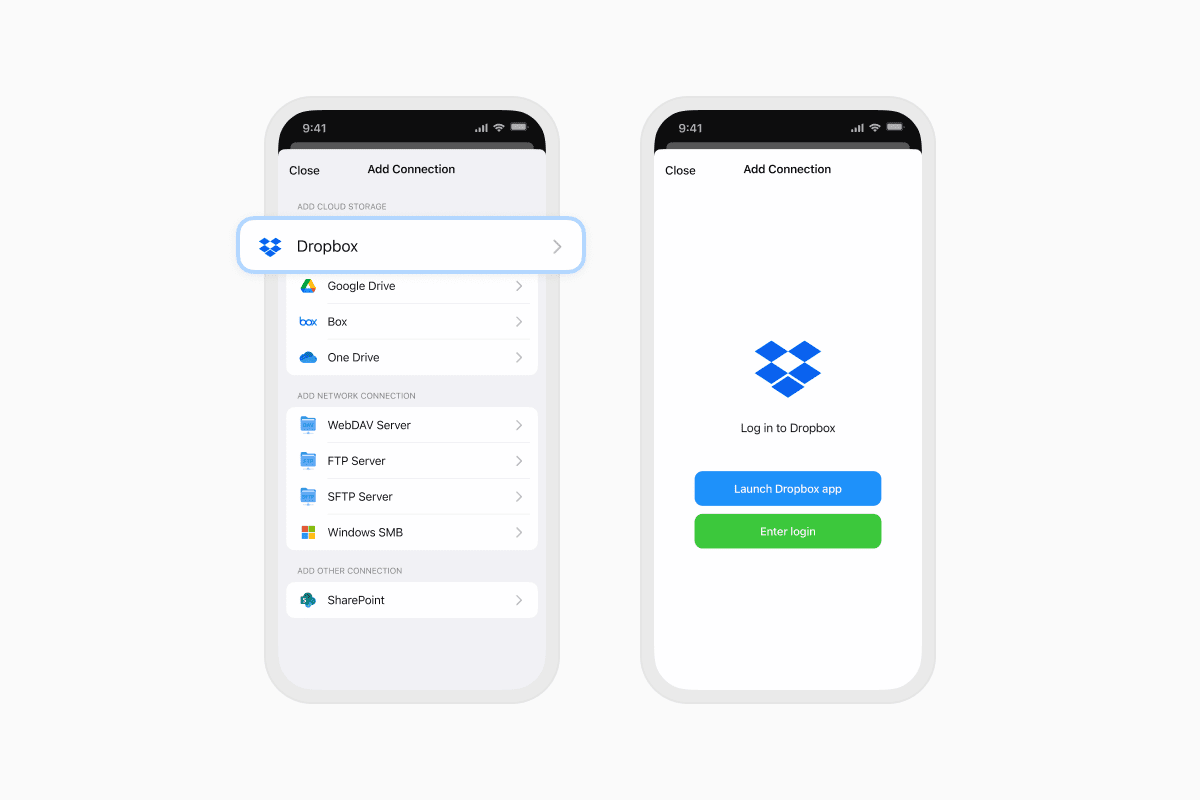
Once connected, your Dropbox storage appears in the My Files tab, allowing you to browse your cloud files just like local folders.
How to access Dropbox files on iPhone
After connecting your account, opening Dropbox files is simple.
- Open My Files.
- Tap Dropbox.
- Browse your folders and files.
- Tap any document, PDF, photo, video, or audio file to open it.
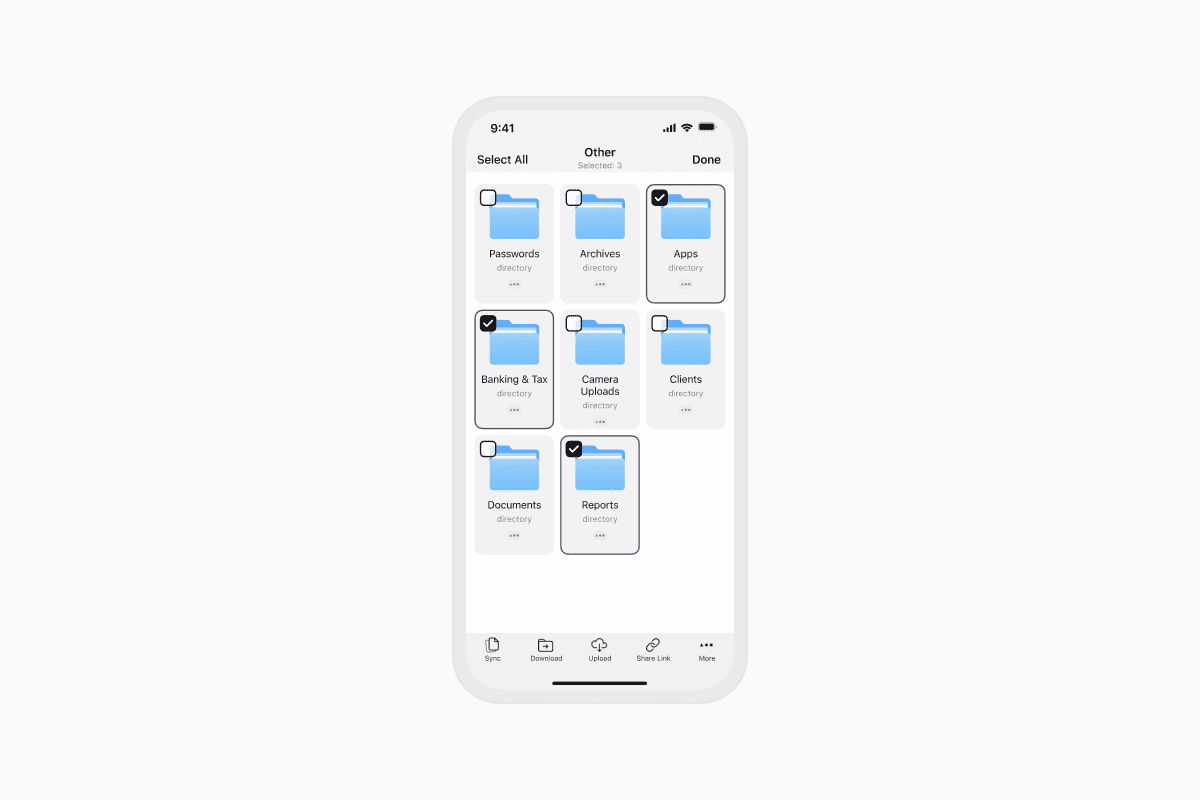
You can view and manage your Dropbox files without switching between multiple apps.
How to download Dropbox files for offline access
Need your files without an internet connection? You can download them directly to your iPhone.
- Open your connected Dropbox account in Documents.
- Tap the More (⋯) button and choose Select.
- Select the files or folders you want.
- Tap Save to Documents.
The selected files are downloaded to your Inbox folder and remain available even when you're offline.
You can also download an entire folder by tapping the More (⋯) button next to it and selecting Download.
How to upload files from iPhone to Dropbox
Backing up files to Dropbox only takes a few taps.
- Open your Dropbox connection in Documents.
- Tap the + button.
- Choose where your files are currently stored, such as Photos, Files, or another folder in Documents.
- Select the files you want to upload.
- Tap Upload.
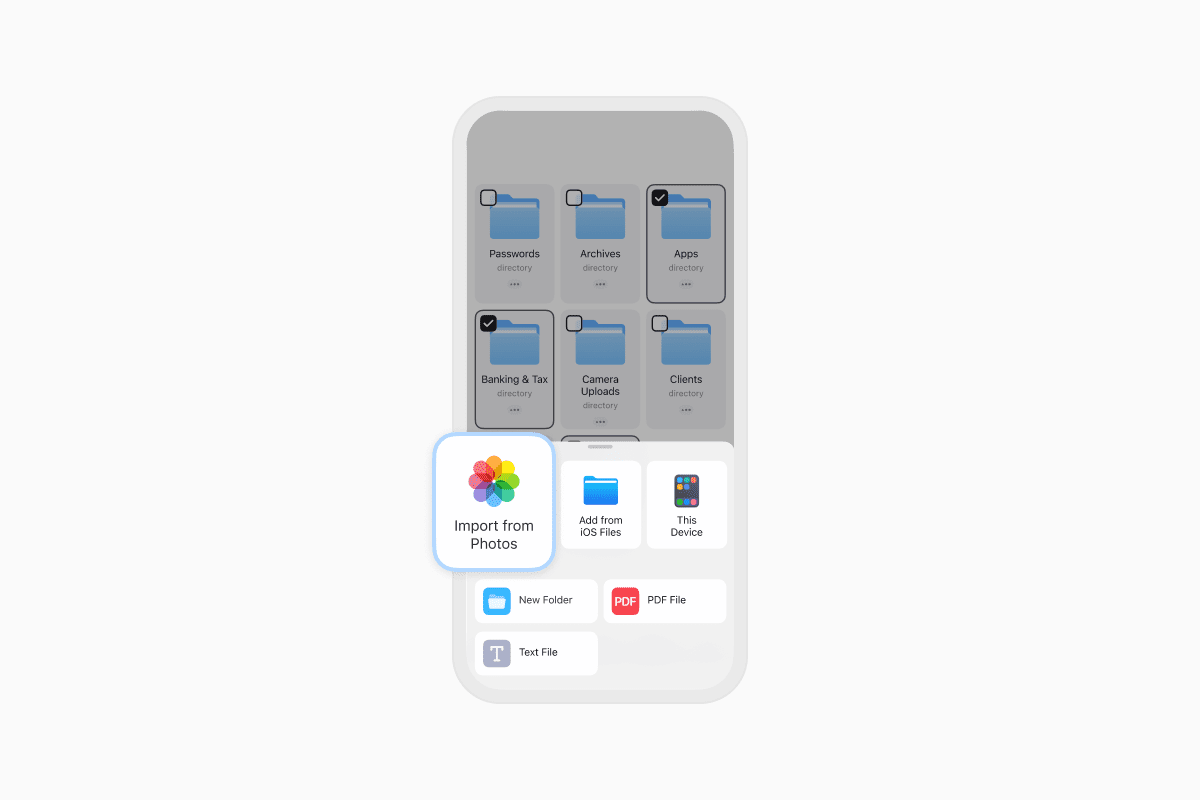
Your files are immediately added to your Dropbox account and synchronized across your connected devices.
Why use Documents with Dropbox?
Documents lets you do much more than simply browse your cloud storage.
With Documents, you can:
- Access Dropbox and local files from one place.
- Connect multiple cloud storage services, including Google Drive, OneDrive, Box, and iCloud Drive.
- Download files for offline access.
- Upload documents, photos, and videos.
- Organize files into folders.
- Preview PDFs, Office documents, images, videos, and audio files.
- Manage all your files without switching between apps.
Frequently asked questions
Can I access Dropbox files offline?
Yes. Simply download the files or folders you need in Documents before going offline. They'll remain available on your iPhone until you remove them.
Can I upload photos from my iPhone to Dropbox?
Yes. Documents lets you upload photos, videos, PDFs, and other files directly from your iPhone to Dropbox.
Can I connect multiple cloud storage accounts?
Yes. Documents supports Dropbox, Google Drive, OneDrive, Box, iCloud Drive, WebDAV, FTP, SFTP, SMB, and other popular cloud and network storage services.
Manage Dropbox files more easily on iPhone
Whether you're working with documents, backing up photos, or keeping important files available offline, Documents makes it easy to manage your Dropbox storage alongside all your other files.
Download Documents by Readdle for free and access, organize, and share your Dropbox files from one convenient place.
Latest posts

How-Tos
How to download and play MP3 music on iPhone for free
Learn how to download your favorite mp3 music from the internet or from your computer to your iPhone and play it for free using the Documents app.
How-Tos
How to sync iPhone and iPad
If you’re wondering, “How do you sync iPhone & iPad without iCloud?” don’t worry! This guide explains how to set up two-way synchronization between iOS devices.
How-Tos
How to save audio files on iPhone: full guide
Download audio files to your iPhone in just a few taps. Learn how to save music, podcasts, and other audio with Documents, where to find your downloads, and how to organize them for offline listening.